Zum Hauptinhalt wechseln
Gemeinsam reparieren - Jetzt registrieren

Asus Eee PC T101MT Fan Replacement

Was du brauchst

  1. Asus Eee PC T101MT Fan Replacement, Battery: Schritt 1, Bild 1 von 1
    • Before you begin, make sure your device is powered off and not connected to the power supply.

    • Turn the tablet over and position it so it matches the picture.

    Frag FixBot

    Kommentar hinzufügen

  2. Asus Eee PC T101MT Fan Replacement: Schritt 2, Bild 1 von 1
    • Locate the sliding tab on the right and slide it to the left in order to unlock the battery.

    Frag FixBot

    Kommentar hinzufügen

  3. Asus Eee PC T101MT Fan Replacement: Schritt 3, Bild 1 von 1
    • Use a plastic opening tool to lift the battery up as you slide the tab on the left to the right.

    Frag FixBot

    Kommentar hinzufügen

  4. Asus Eee PC T101MT Fan Replacement: Schritt 4, Bild 1 von 1
    • Lift the battery out of the device.

    Frag FixBot

    Kommentar hinzufügen

  5. Asus Eee PC T101MT Fan Replacement, Keyboard: Schritt 5, Bild 1 von 3 Asus Eee PC T101MT Fan Replacement, Keyboard: Schritt 5, Bild 2 von 3 Asus Eee PC T101MT Fan Replacement, Keyboard: Schritt 5, Bild 3 von 3
    • Turn the tablet over and open it up. Insert a nylon spudger into the slots above F1, F6, F10 to pry up the keyboard.

    Frag FixBot

    Kommentar hinzufügen

  6. Asus Eee PC T101MT Fan Replacement: Schritt 6, Bild 1 von 1
    • Once you have the keyboard out, use the nylon spudger to remove the connection. You can now replace the keyboard.

    Frag FixBot

    Kommentar hinzufügen

  7. Asus Eee PC T101MT Fan Replacement, Fan: Schritt 7, Bild 1 von 2 Asus Eee PC T101MT Fan Replacement, Fan: Schritt 7, Bild 2 von 2
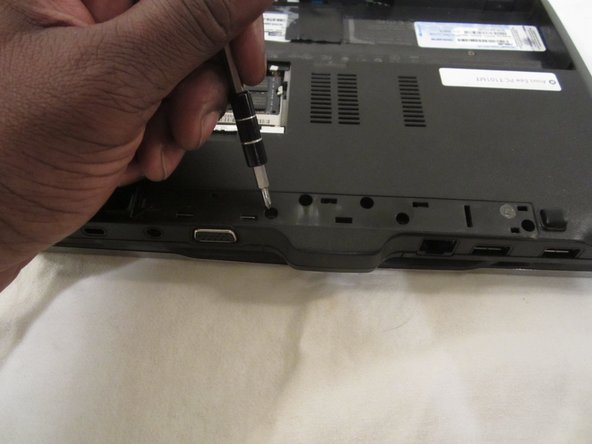
    • Peel the black strip off of the back of your Asus Eee PC T101MT to expose more screws. Remove screws from the outside of the device case (ten 7mm screws and two 8mm screws).

    Frag FixBot

    Kommentar hinzufügen

  8. Asus Eee PC T101MT Fan Replacement: Schritt 8, Bild 1 von 1
    • Remove the four 3mm screws from underneath the battery.

    Frag FixBot

    Kommentar hinzufügen

  9. Asus Eee PC T101MT Fan Replacement: Schritt 9, Bild 1 von 1
    • Remove the screws from under the keyboard. (Two 7mm and five 5mm)

    Frag FixBot

    Kommentar hinzufügen

  10. Asus Eee PC T101MT Fan Replacement: Schritt 10, Bild 1 von 1
    • Use a plastic opening tool to pry the case open and remove it.

    Frag FixBot

    Kommentar hinzufügen

  11. Asus Eee PC T101MT Fan Replacement: Schritt 11, Bild 1 von 1
    • Locate the fan and remove the screws (3mm).

    Frag FixBot

    Kommentar hinzufügen

  12. Asus Eee PC T101MT Fan Replacement: Schritt 12, Bild 1 von 1
    • Use a spudger to remove the power supply.

    Frag FixBot

    Kommentar hinzufügen

  13. Asus Eee PC T101MT Fan Replacement: Schritt 13, Bild 1 von 1
    • Remove and replace the fan.

    Frag FixBot

    Kommentar hinzufügen

Abschluss

To reassemble your device, follow these instructions in reverse order.

Rückgängig: Ich habe diese Anleitung nicht absolviert.

Team

Gateway, Team 1-1, Kuhn Fall 2015 Mitglied von Gateway, Team 1-1, Kuhn Fall 2015

GCC-KUHN-F15S1G1

1 Mitglied

10 Anleitungen geschrieben

0 Kommentare zur Anleitung

Kommentar hinzufügen

Seitenaufrufe:

Letzte 24 Stunden: 1

Letzte 7 Tage: 5

Letzte 30 Tage: 32

Insgesamt: 1,060