Zum Hauptinhalt wechseln
Gemeinsam reparieren - Jetzt registrieren

Dell Inspiron 15R Keyboard Replacement

Was du brauchst

  1. Dell Inspiron 15R Keyboard Replacement, Battery: Schritt 1, Bild 1 von 1
    • Turn the device over and locate the battery.

    Frag FixBot

    Kommentar hinzufügen

  2. Dell Inspiron 15R Keyboard Replacement: Schritt 2, Bild 1 von 2 Dell Inspiron 15R Keyboard Replacement: Schritt 2, Bild 2 von 2
    • Place thumbs on each latch and push outwards.

    Frag FixBot

    Kommentar hinzufügen

  3. Dell Inspiron 15R Keyboard Replacement: Schritt 3, Bild 1 von 1
    • Push and slide the battery away from you.

    Frag FixBot

    Kommentar hinzufügen

  4. Dell Inspiron 15R Keyboard Replacement, Keyboard: Schritt 4, Bild 1 von 3 Dell Inspiron 15R Keyboard Replacement, Keyboard: Schritt 4, Bild 2 von 3 Dell Inspiron 15R Keyboard Replacement, Keyboard: Schritt 4, Bild 3 von 3
    • Locate the RAM compartment and the screw on the right hand side. Remove the cover.

    Frag FixBot

    Kommentar hinzufügen

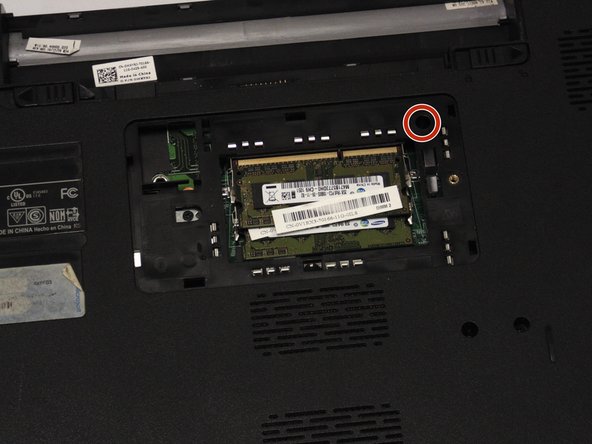
  5. Dell Inspiron 15R Keyboard Replacement: Schritt 5, Bild 1 von 2 Dell Inspiron 15R Keyboard Replacement: Schritt 5, Bild 2 von 2
    • Locate and remove the 2.5 mm x 5 mm screw on the upper right hand side of the compartment.

    Frag FixBot

    Kommentar hinzufügen

  6. Dell Inspiron 15R Keyboard Replacement: Schritt 6, Bild 1 von 1
    • Turn the device around and open it up.

    Frag FixBot

    Kommentar hinzufügen

  7. Dell Inspiron 15R Keyboard Replacement: Schritt 7, Bild 1 von 2 Dell Inspiron 15R Keyboard Replacement: Schritt 7, Bild 2 von 2
    • Using your index finger, push down on the F1 and F7 keys.

    Frag FixBot

    Kommentar hinzufügen

  8. Dell Inspiron 15R Keyboard Replacement: Schritt 8, Bild 1 von 2 Dell Inspiron 15R Keyboard Replacement: Schritt 8, Bild 2 von 2
    • Using your index finger, push down on the x icon and Home keys.

    Frag FixBot

    Kommentar hinzufügen

  9. Dell Inspiron 15R Keyboard Replacement: Schritt 9, Bild 1 von 3 Dell Inspiron 15R Keyboard Replacement: Schritt 9, Bild 2 von 3 Dell Inspiron 15R Keyboard Replacement: Schritt 9, Bild 3 von 3
    • Locate the keyboard lining (between the black and silver).

    • Place your spudger between the keyboard lining behind the F1 and F7 keys and pull up.

    Frag FixBot

    Kommentar hinzufügen

  10. Dell Inspiron 15R Keyboard Replacement: Schritt 10, Bild 1 von 2 Dell Inspiron 15R Keyboard Replacement: Schritt 10, Bild 2 von 2
    • Place your spudger between the keyboard lining behind the x icon and Home keys and pull up.

    Frag FixBot

    Kommentar hinzufügen

  11. Dell Inspiron 15R Keyboard Replacement: Schritt 11, Bild 1 von 2 Dell Inspiron 15R Keyboard Replacement: Schritt 11, Bild 2 von 2
    • Carefully pull and turn the keyboard over.

    Frag FixBot

    Kommentar hinzufügen

  12. Dell Inspiron 15R Keyboard Replacement: Schritt 12, Bild 1 von 2 Dell Inspiron 15R Keyboard Replacement: Schritt 12, Bild 2 von 2
    • Lift the black lever.

    Frag FixBot

    Kommentar hinzufügen

  13. Dell Inspiron 15R Keyboard Replacement: Schritt 13, Bild 1 von 2 Dell Inspiron 15R Keyboard Replacement: Schritt 13, Bild 2 von 2
    • Remove the keyboard cable

    Frag FixBot

    Kommentar hinzufügen

Abschluss

To reassemble your device, follow these instructions in reverse order.

Rückgängig: Ich habe diese Anleitung nicht absolviert.

Eine weitere Person hat diese Anleitung absolviert.

Team

San Diego State, Team 2-2, Sheppard Winter 2015 Mitglied von San Diego State, Team 2-2, Sheppard Winter 2015

SDSU-SHEPPARD-W15S2G2

2 Mitglieder

6 Anleitungen geschrieben

0 Kommentare zur Anleitung

Kommentar hinzufügen

Seitenaufrufe:

Letzte 24 Stunden: 2

Letzte 7 Tage: 5

Letzte 30 Tage: 34

Insgesamt: 1,540