Zum Hauptinhalt wechseln
Gemeinsam reparieren - Jetzt registrieren

Dell Inspiron 6000 Fan Replacement

Was du brauchst

  1. Dell Inspiron 6000 Fan Replacement, Battery: Schritt 1, Bild 1 von 1
    • To prevent injury, make sure the laptop is unplugged before removing the battery.

    • Flip the laptop over, bottom-side up.

    Frag FixBot

    Kommentar hinzufügen

  2. Dell Inspiron 6000 Fan Replacement: Schritt 2, Bild 1 von 1
    • Push the switch next to the battery.

    • At the same time, lift the battery away from the laptop.

    Frag FixBot

    Kommentar hinzufügen

  3. Dell Inspiron 6000 Fan Replacement, Keyboard: Schritt 3, Bild 1 von 3 Dell Inspiron 6000 Fan Replacement, Keyboard: Schritt 3, Bild 2 von 3 Dell Inspiron 6000 Fan Replacement, Keyboard: Schritt 3, Bild 3 von 3
    • Place the laptop on flat surface.

    • Carefully open the laptop at far as it will go so that the back of screen is touching the flat surface.

    • Carefully take a spudger and separate part of the cover at the red circle.

    Frag FixBot

    Kommentar hinzufügen

  4. Dell Inspiron 6000 Fan Replacement: Schritt 4, Bild 1 von 2 Dell Inspiron 6000 Fan Replacement: Schritt 4, Bild 2 von 2
    • Remove two 4 mm Philips #00 screws.

    Frag FixBot

    Kommentar hinzufügen

  5. Dell Inspiron 6000 Fan Replacement: Schritt 5, Bild 1 von 1
    • Gently lift the keyboard away from the laptop without harming the cord that is located at the bottom of the keyboard.

    Frag FixBot

    Kommentar hinzufügen

  6. Dell Inspiron 6000 Fan Replacement: Schritt 6, Bild 1 von 3 Dell Inspiron 6000 Fan Replacement: Schritt 6, Bild 2 von 3 Dell Inspiron 6000 Fan Replacement: Schritt 6, Bild 3 von 3
    • Gently pull the blue tab up until it comes away from computer.

    Frag FixBot

    Kommentar hinzufügen

  7. Dell Inspiron 6000 Fan Replacement, Fan: Schritt 7, Bild 1 von 1
    • Unscrew the 4 mm Phillips #00 screw.

    • The screw will remain attached to the cord when fully removed.

    Frag FixBot

    Kommentar hinzufügen

  8. Dell Inspiron 6000 Fan Replacement: Schritt 8, Bild 1 von 2 Dell Inspiron 6000 Fan Replacement: Schritt 8, Bild 2 von 2
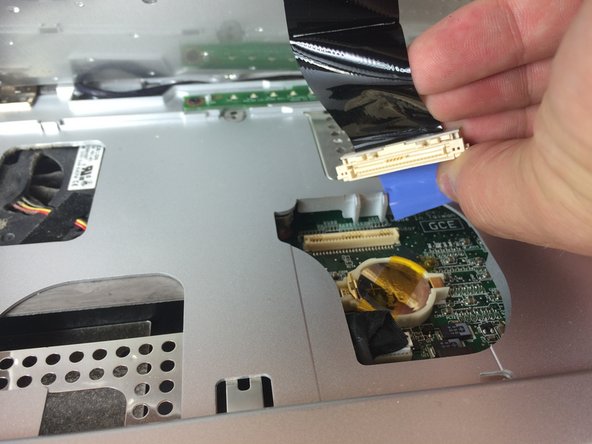
    • Gently pull the blue tab to separate the screen connection from the laptop.

    • Gently pull and disconnect the white and black cords from the power source.

    Frag FixBot

    Kommentar hinzufügen

  9. Dell Inspiron 6000 Fan Replacement: Schritt 9, Bild 1 von 2 Dell Inspiron 6000 Fan Replacement: Schritt 9, Bild 2 von 2
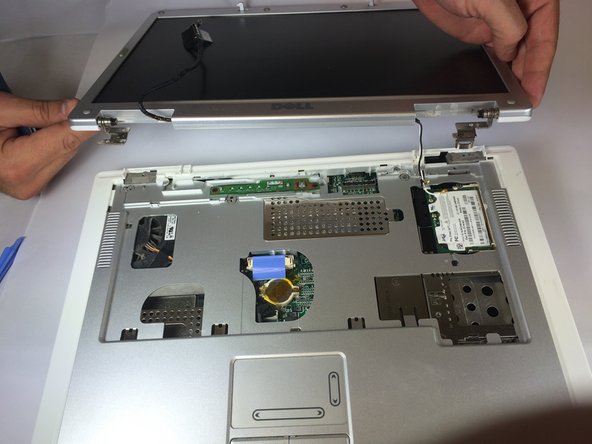
    • Remove four 4mm #00 Philips screws from the screen hinges.

    • Lift the screen away from the laptop.

    Frag FixBot

    Kommentar hinzufügen

  10. Dell Inspiron 6000 Fan Replacement: Schritt 10, Bild 1 von 2 Dell Inspiron 6000 Fan Replacement: Schritt 10, Bild 2 von 2
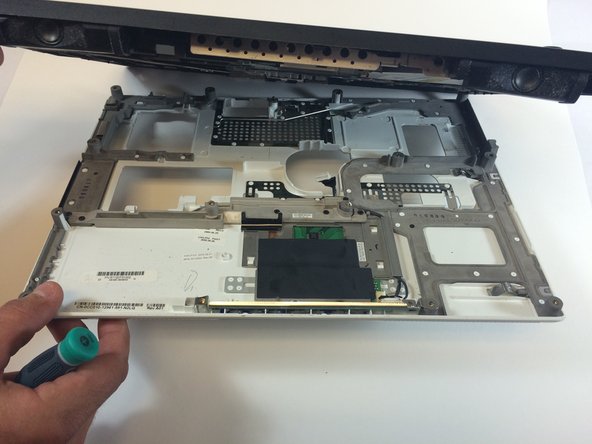
    • Remove two 4 mm Philips #00 screws that connect top of laptop to base..

    Frag FixBot

    Kommentar hinzufügen

  11. Dell Inspiron 6000 Fan Replacement: Schritt 11, Bild 1 von 1
    • Flip laptop the over and remove thirteen 6mm Philips #00 screws.

    Frag FixBot

    Kommentar hinzufügen

  12. Dell Inspiron 6000 Fan Replacement: Schritt 12, Bild 1 von 2 Dell Inspiron 6000 Fan Replacement: Schritt 12, Bild 2 von 2
    • Insert the plastic opening tool in between the back and front plates of the laptop

    Frag FixBot

    Kommentar hinzufügen

  13. Dell Inspiron 6000 Fan Replacement: Schritt 13, Bild 1 von 1
    • Remove two 4 mm Philips #00 screws.

    Frag FixBot

    Kommentar hinzufügen

  14. Dell Inspiron 6000 Fan Replacement: Schritt 14, Bild 1 von 1
    • Remove the fan power cord

    Frag FixBot

    Kommentar hinzufügen

  15. Dell Inspiron 6000 Fan Replacement: Schritt 15, Bild 1 von 2 Dell Inspiron 6000 Fan Replacement: Schritt 15, Bild 2 von 2
    • Using your hand, lift the fan from the laptop.

    Frag FixBot

    Kommentar hinzufügen

Abschluss

To reassemble your device, follow these instructions in reverse order.

Rückgängig: Ich habe diese Anleitung nicht absolviert.

5 weitere Personen haben diese Anleitung absolviert.

Team

USF Tampa, Team 11-1, Blackwell Fall 2014 Mitglied von USF Tampa, Team 11-1, Blackwell Fall 2014

USFT-BLACKWELL-F14S11G1

5 Mitglieder

7 Anleitungen geschrieben

0 Kommentare zur Anleitung

Kommentar hinzufügen

Seitenaufrufe:

Letzte 24 Stunden: 0

Letzte 7 Tage: 5

Letzte 30 Tage: 29

Insgesamt: 2,749