Zum Hauptinhalt wechseln
Gemeinsam reparieren - Jetzt registrieren

Disassembling HTC Touch Pro CDMA Verizon Basic Parts

Grundständige Anleitung
Dies ist eine grundständige Anleitung. Es wird eine Vorgehensweise beschrieben, die die Voraussetzung für andere Anleitungen darstellt, aber keine eigenständige Reparatur.

Was du brauchst

  1. Disassembling HTC Touch Pro CDMA Verizon Basic Parts, Battery: Schritt 1, Bild 1 von 1
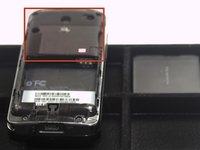
    • Remove the back cover (not pictured) to your phone.

    Frag FixBot
  2. Disassembling HTC Touch Pro CDMA Verizon Basic Parts: Schritt 2, Bild 1 von 2 Disassembling HTC Touch Pro CDMA Verizon Basic Parts: Schritt 2, Bild 2 von 2
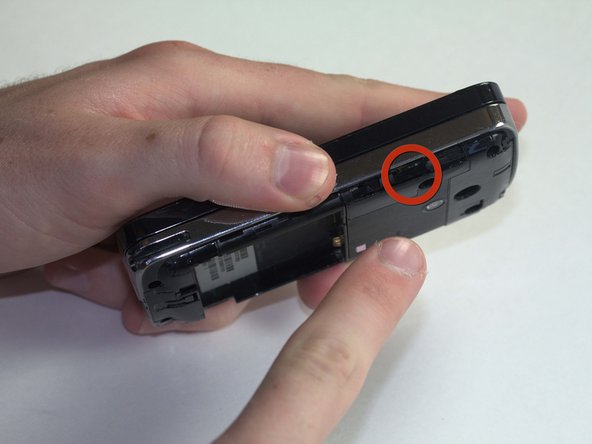
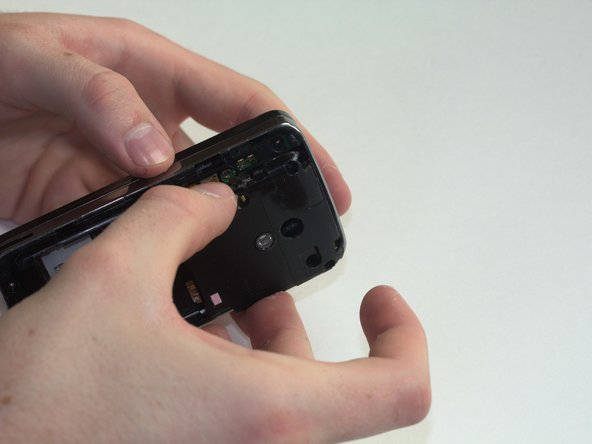
    • To remove the battery, place your thumb beneath the tab and begin to lift.

    • Pinching the battery, lift up at an angle from the bottom of the phone.

    Frag FixBot
  3. Disassembling HTC Touch Pro CDMA Verizon Basic Parts, Basic Parts: Schritt 3, Bild 1 von 1
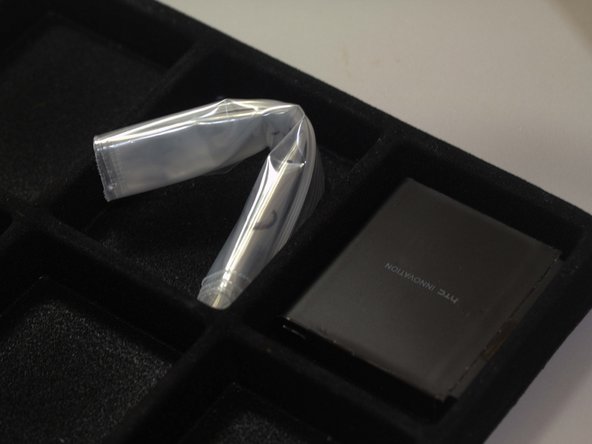
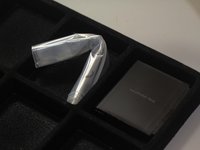
    • Place the battery in a container off to the side. If you do this for every step beyond this point, you will keep better track of your parts and make reassembling the device far easier when you get around to it.

    • It might not be necessary, but we recommend using an anti-static bracelet or anti-static mat from this point on. Any charge on your finger tips may cause harm to the device.

    Frag FixBot
  4. Disassembling HTC Touch Pro CDMA Verizon Basic Parts: Schritt 4, Bild 1 von 3 Disassembling HTC Touch Pro CDMA Verizon Basic Parts: Schritt 4, Bild 2 von 3 Disassembling HTC Touch Pro CDMA Verizon Basic Parts: Schritt 4, Bild 3 von 3
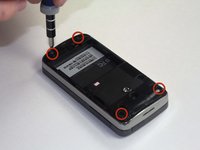
    • Use a T6 screwdriver to remove the four screws on the rear plate of the HTC Touch Pro.

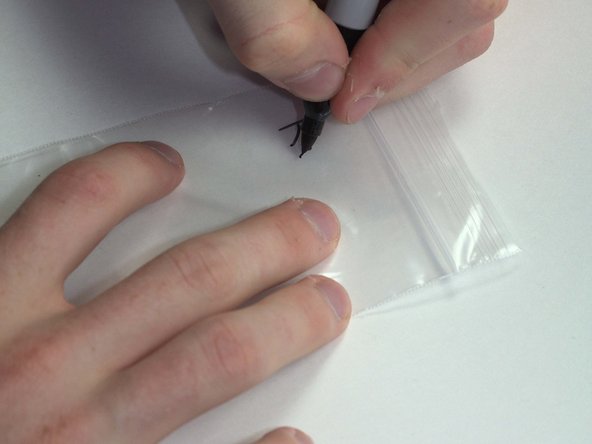
    • Place your screws in a bag labeled with where they came from, what screwdriver you used, and the order in which you removed them. For example, this bag would say "Rear casing. T6. #1."

    Frag FixBot
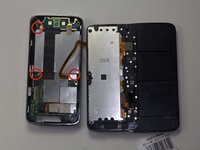
  5. Disassembling HTC Touch Pro CDMA Verizon Basic Parts: Schritt 5, Bild 1 von 3 Disassembling HTC Touch Pro CDMA Verizon Basic Parts: Schritt 5, Bild 2 von 3 Disassembling HTC Touch Pro CDMA Verizon Basic Parts: Schritt 5, Bild 3 von 3
    • Next, remove the casing that covers the camera and motherboard.

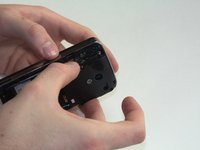
    • To do this, place your thumbnail in any of the grooves along either side and pry it open.

    Frag FixBot
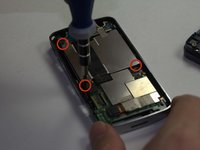
  6. Disassembling HTC Touch Pro CDMA Verizon Basic Parts: Schritt 6, Bild 1 von 2 Disassembling HTC Touch Pro CDMA Verizon Basic Parts: Schritt 6, Bild 2 von 2
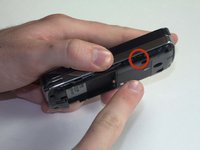
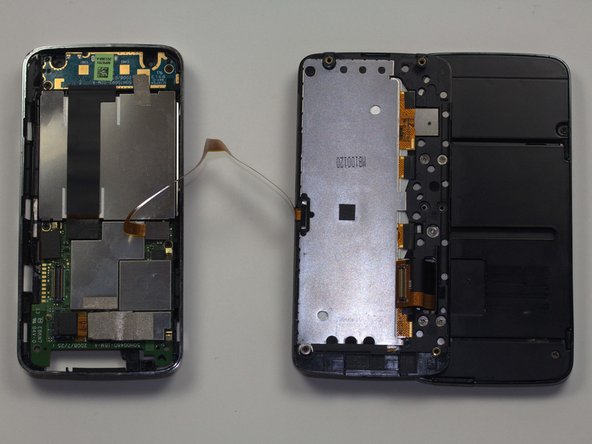
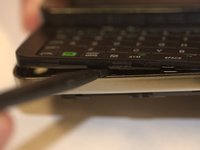
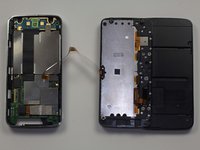
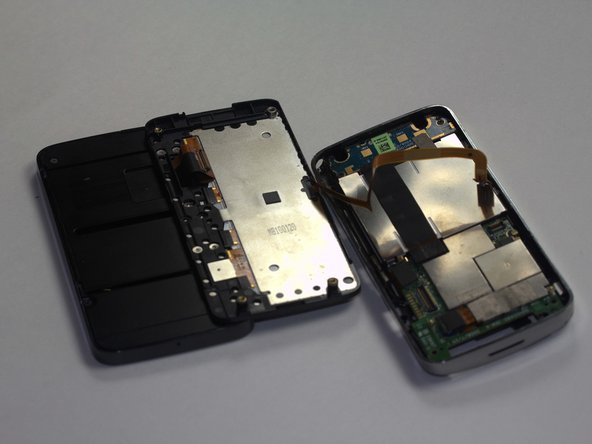
    • Insert your spudger along the slit between the keyboard and the external casing. Pry open as shown.

    • Careful! The ribbon connecting the keyboard to the motherboard will still connect the two halves of the phone when you separate them. Be sure to take your time and move slowly to avoid damage to the cable.

    Frag FixBot
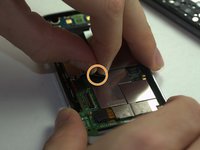
  7. Disassembling HTC Touch Pro CDMA Verizon Basic Parts: Schritt 7, Bild 1 von 3 Disassembling HTC Touch Pro CDMA Verizon Basic Parts: Schritt 7, Bild 2 von 3 Disassembling HTC Touch Pro CDMA Verizon Basic Parts: Schritt 7, Bild 3 von 3
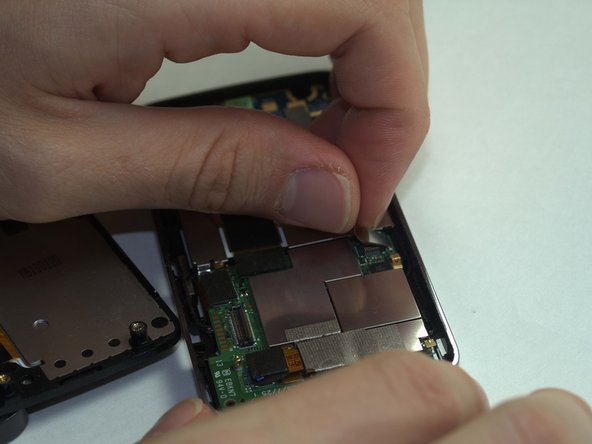
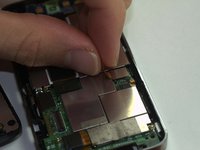
    • Remove the keyboard ribbon from the motherboard. To do this, simply grasp the ribbon at its base and pry it up at an angle. The ribbon has a metal end that is easily removed from the motherboard.

    Frag FixBot
  8. Disassembling HTC Touch Pro CDMA Verizon Basic Parts: Schritt 8, Bild 1 von 3 Disassembling HTC Touch Pro CDMA Verizon Basic Parts: Schritt 8, Bild 2 von 3 Disassembling HTC Touch Pro CDMA Verizon Basic Parts: Schritt 8, Bild 3 von 3
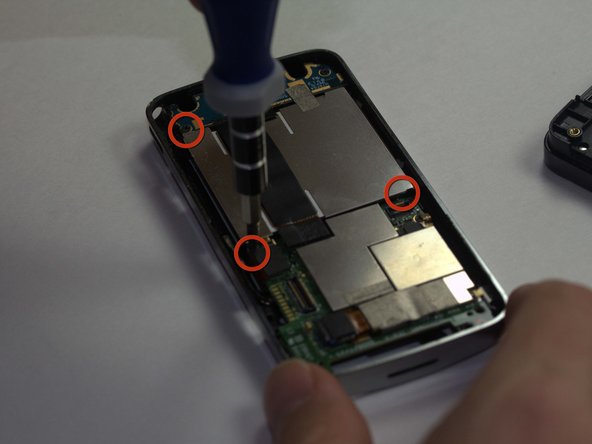
    • Using a Phillips Head size 0 screwdriver, remove the 3 screws holding in the battery compartment.

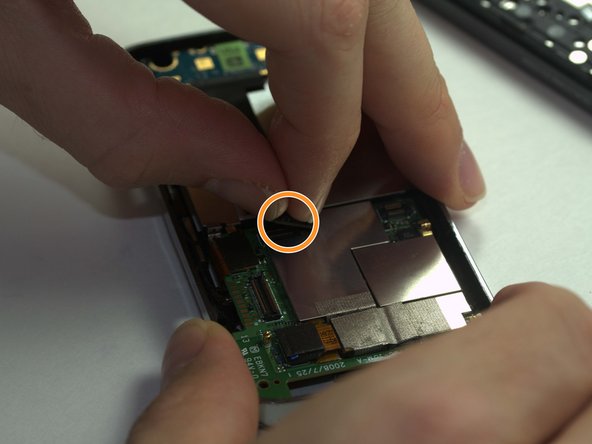
    • Remove the ribbon covering the battery compartment by pinching it at the base and lifting.

    Frag FixBot
Abschluss

To reassemble your device, follow these instructions in reverse order.

Team

Cal Poly, Team 20-67, Walters Spring 2011 Mitglied von Cal Poly, Team 20-67, Walters Spring 2011

CPSU-WALTERS-S11S20G67

4 Mitglieder

10 Anleitungen geschrieben

0 Kommentare zur Anleitung

Kommentar hinzufügen

Seitenaufrufe:

Letzte 24 Stunden: 0

Letzte 7 Tage: 2

Letzte 30 Tage: 27

Insgesamt: 1,798