Zum Hauptinhalt wechseln
Gemeinsam reparieren - Jetzt registrieren

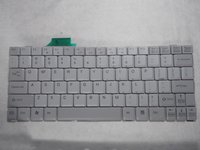
Fujitsu Lifebook S6120 Keyboard Replacement

Was du brauchst

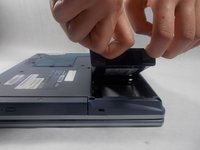
  1. Fujitsu Lifebook S6120 Keyboard Replacement, Battery: Schritt 1, Bild 1 von 3 Fujitsu Lifebook S6120 Keyboard Replacement, Battery: Schritt 1, Bild 2 von 3 Fujitsu Lifebook S6120 Keyboard Replacement, Battery: Schritt 1, Bild 3 von 3
    • To prevent injury, make sure the laptop is unplugged and turned off before removing the battery.

    • Push the two tabs in towards the laptop.

    • Lift the battery up and out from the frame of the laptop.

    Frag FixBot
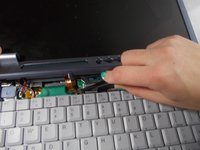
  2. Fujitsu Lifebook S6120 Keyboard Replacement, Hinge Cover: Schritt 2, Bild 1 von 2 Fujitsu Lifebook S6120 Keyboard Replacement, Hinge Cover: Schritt 2, Bild 2 von 2
    • Use a plastic opening tool to lift the back of the hinge cover on the left and right sides of the computer.

    Frag FixBot
  3. Fujitsu Lifebook S6120 Keyboard Replacement: Schritt 3, Bild 1 von 1
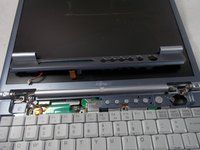
    • Lift the hinge cover.

    • The hinge cover is connected to the motherboard by a ribbon cable. To prevent damage, lift hinge cover slowly.

    Frag FixBot
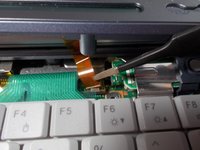
  4. Fujitsu Lifebook S6120 Keyboard Replacement: Schritt 4, Bild 1 von 3 Fujitsu Lifebook S6120 Keyboard Replacement: Schritt 4, Bild 2 von 3 Fujitsu Lifebook S6120 Keyboard Replacement: Schritt 4, Bild 3 von 3
    In diesem Schritt verwendetes Werkzeug:
    Tweezers
    $4.99
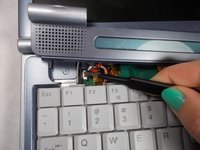
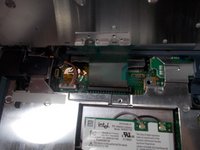
    • Use the tweezers to disconnect the ribbon cable from the motherboard.

    Frag FixBot
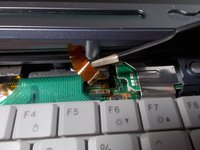
  5. Fujitsu Lifebook S6120 Keyboard Replacement: Schritt 5, Bild 1 von 3 Fujitsu Lifebook S6120 Keyboard Replacement: Schritt 5, Bild 2 von 3 Fujitsu Lifebook S6120 Keyboard Replacement: Schritt 5, Bild 3 von 3
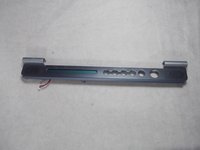
    • With the tweezers detach hinge cover cables from the motherboard.

    • Remove hinge cover.

    Frag FixBot
  6. Fujitsu Lifebook S6120 Keyboard Replacement, Keyboard: Schritt 6, Bild 1 von 3 Fujitsu Lifebook S6120 Keyboard Replacement, Keyboard: Schritt 6, Bild 2 von 3 Fujitsu Lifebook S6120 Keyboard Replacement, Keyboard: Schritt 6, Bild 3 von 3
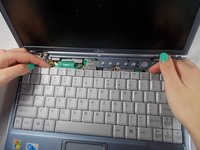
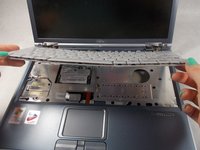
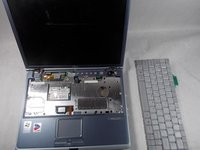
    • Lift keyboard enough to show the ribbon cable.

    • The keyboard has a ribbon cable attached to the motherboard. Lift keyboard carefully to prevent damage.

    Frag FixBot
  7. Fujitsu Lifebook S6120 Keyboard Replacement: Schritt 7, Bild 1 von 3 Fujitsu Lifebook S6120 Keyboard Replacement: Schritt 7, Bild 2 von 3 Fujitsu Lifebook S6120 Keyboard Replacement: Schritt 7, Bild 3 von 3
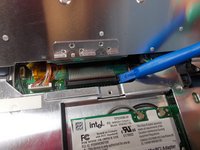
    • Use a plastic opening tool to release the ribbon cable from the motherboard.

    Frag FixBot
Abschluss

To reassemble your device, follow these instructions in reverse order.

Eine weitere Person hat diese Anleitung absolviert.

Team

UMass Dartmouth, Team S5-G5, Peak Spring 2018 Mitglied von UMass Dartmouth, Team S5-G5, Peak Spring 2018

UMASSD-PEAK-S18S5G5

3 Mitglieder

18 Anleitungen geschrieben

0 Kommentare zur Anleitung

Kommentar hinzufügen

Seitenaufrufe:

Letzte 24 Stunden: 3

Letzte 7 Tage: 12

Letzte 30 Tage: 70

Insgesamt: 1,597