Diese Übersetzung wurde maschinell erstellt und noch nicht von einem Menschen überprüft. Sprichst du diese Sprache? Schau es dir an.

HP EliteBook 8470p Festplatte austauschen

Owen Bangs und
Zuletzt aktualisiert am 31. Jul 2026
Aufrufe: 4176
Statistik anzeigen:
- Letzte 24 Stunden:
- 7
- Letzte 7 Tage:
- 34
- Letzte 30 Tage:
- 155
- Insgesamt:
- 4.176
Kommentare: 3
3 Kommentare zur Anleitung.
Zu den KommentarenAbgeschlossen: 1 2
1 Person hat diese Anleitung bereits erfolgreich absolviert. Du auch?
2 Personen haben diese Anleitung schon erfolgreich absolviert, unter anderem du. Gut gemacht!
Favoriten: 0 1
Diese Anleitung hat noch niemand unter Favoriten gespeichert (und abonniert). Mach du den Anfang!
1 Person hat diese Anleitung als Favorit gespeichert (und abonniert) – du!
Einleitung
Zu Schritt 1 der Anleitung ↓Eine Festplatte ist eine Speichereinheit für Computer, wobei es zwei verschiedene Arten gibt: HDD und SSD. HDDs sind herkömmliche Speichergeräte mit rotierenden Magnetscheiben, die Daten lesen und schreiben. SSDs sind eine neuere Technologie, die Daten auf sofort zugänglichen Speicherchips ablegt.
Das HP EliteBook 8470p bietet einige verschiedene Optionen für Festplatten: 320/500/750 GB 7200 U/min SMART SATA II oder ein selbstverschlüsselndes 500 GB 7200 U/min SMART SATA II Laufwerk. Das EliteBook 8470p verfügt über weitere Speicheroptionen wie HP 3D DriveGuard (nur Windows), bei dem die Festplatte direkt am Rahmen des Notebooks montiert ist, oder ein Solid-State-Drive, das als SATA 6 Gb/s 128 GB Solid State oder SATA 6 Gb/s 256 GB SED Solid State erhältlich ist.
Das HP EliteBook 8470p ist ein etwa ein Jahrzehnt altes Notebook. Um mit den wachsenden Anforderungen der Programme und dem Speicherplatzbedarf beim Ausführen dieser Programme Schritt zu halten, muss die Festplatte aufgerüstet werden. Diese Anleitung zeigt dir, wie du die aktuelle Festplatte austauschst.
Was du brauchst
Komplettpaket für die Reparatur
Diese Kits enthalten alle Ersatzteile und Werkzeuge, die für diese Anleitung benötigt werden.


Ersatzteile


Werkzeuge

-
-
-
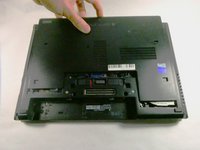
Positioniere den Computer mit der Unterseite nach oben, sodass der Öffnungsriegel von dir weg und der Akku zu dir zeigt.
 Frag FixBot
-
-
-
Schiebe die rechts positionierte Akku-Verriegelung nach rechts und halte sie dort fest.
-
-
-
-
-
-
Schiebe den linken Lösehebel nach links, während die Laptop-Verriegelung weiterhin von dir weg zeigt.
-
-
-
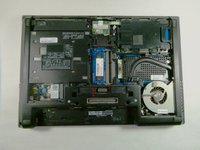
Schiebe die Abdeckung von dir weg, in Richtung des Öffnungsriegels.
-
Hebe die Abdeckung nach oben vom Computer ab.
-
-
-
-
-
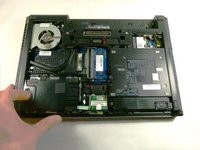
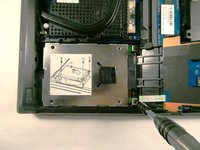
Ziehe die Zuglasche nach rechts und hebe sie an, um das Gehäuse zu öffnen.
-
-
-
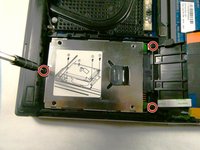
Löse die drei unverlierbaren Schrauben, die das Hard Drive am Motherboard befestigen, mit einem Kreuzschlitz-Schraubendreher #00.
-
-




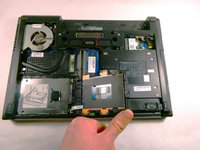




Um dein Gerät wieder zusammenzubauen, folge den Schritten dieser Anleitung in umgekehrter Reihenfolge.
Rückgängig: Ich habe diese Anleitung nicht absolviert.
Eine weitere Person hat diese Anleitung absolviert.
Team

UMass Dartmouth, Team 5-3, Sinclaire Fall 2022 Mitglied von UMass Dartmouth, Team 5-3, Sinclaire Fall 2022
UMASSD-SINCLAIRE-F22S5G3
5 Mitglieder
84 Anleitungen geschrieben
3 Kommentare zur Anleitung
I did all that but then both my Windows 10 recovery drive and an apparently successful Unbuntu 24.04 installation failed to boot. Tried the diagnostics without issue. Some time into the Windows install it reports an error then barfs. The Windows diagnostics failed to locate any issue. Not helpful.
Guessing, given the usual multiple reboots on installing Windows the new hard drive will not allow itself to reboot. Currently I am bit stuffed.
Thanks for the useful detail above.
I am here because a) my current Windows10 is in some way toxic and will no longer update itself, b) my hard drive is nearly full, c) I now use Ubuntu in preference to Win10.
Update: I have resorted to cloning the original drive to a new WD 1Tb SSD using a utility I found on the Western Digital site. I used the Windows10 recovery USB I made earlier. Top Tip: Always have a Windows 10/11 Recovery Drive.
The newly cloned drive booted the cloned toxic Win10. I then plugged in my Recovery Drive and restarted. The thing barfed as before. I am guessing that there is some secured book lock that is perhaps tied to the old drive and any attempt to recover Windows fails.
Currently I have a non-booting HP Elitebook 8470p. I am hacked off with Windows10. Its far too slow for the first hour from boot because, and on two systems, its thrashing the hard drive for an hour. As this new drive is now stuffed will re-clone and install Unbuntu 24.04. I suspect the magic feature will prevent this.
And finally ... Having had some success using the clone of the original drive followed by three failures to re-install Windows10 over the top (remember the original Win10 was refusing to update any more) from created Rescue USBs and a successful install of Ubuntu24.04 followed then by a total failure to find any bootable image on restart I found this site:
https://askubuntu.com/questions/1323124/...
Repeated as a link here : Link to Ask Ubuntu
This suggested configuring the BIOS boot mechanism from "UEFI with CSM" to "UEFI Without CSM" and now, after yet another Ubuntu install it boots. The link also outlines difficulties getting Windows to ever work on a replaced hard drive. Totally given up on getting Window10 going. Its now deprecated and I really couldn't cope with Windows 11. Phew.
Hope the above narrative is of some help to others.
One point being the WD sourced clone s/w identified the original drive as protected, I unprotected it.
