Zum Hauptinhalt wechseln
Gemeinsam reparieren - Jetzt registrieren
HP Envy Sleekbook m6-k010dx Keyboard Replacement

Was du brauchst

  1. HP Envy Sleekbook m6-k010dx Keyboard Replacement, Battery: Schritt 1, Bild 1 von 1
    • Remove the twelve 9 mm Phillips #00 screws.

    Frag FixBot

    Kommentar hinzufügen

  2. HP Envy Sleekbook m6-k010dx Keyboard Replacement: Schritt 2, Bild 1 von 2 HP Envy Sleekbook m6-k010dx Keyboard Replacement: Schritt 2, Bild 2 von 2
    • Use the plastic opening tool and your hands to remove the bottom cover.

    Frag FixBot

    Kommentar hinzufügen

  3. HP Envy Sleekbook m6-k010dx Keyboard Replacement: Schritt 3, Bild 1 von 1
    • Disconnect the battery power cable from the motherboard.

    Frag FixBot

    Kommentar hinzufügen

  4. HP Envy Sleekbook m6-k010dx Keyboard Replacement: Schritt 4, Bild 1 von 1
    • Remove the six 6 mm Phillips #00 screws from the battery.

    Frag FixBot

    Kommentar hinzufügen

  5. HP Envy Sleekbook m6-k010dx Keyboard Replacement: Schritt 5, Bild 1 von 2 HP Envy Sleekbook m6-k010dx Keyboard Replacement: Schritt 5, Bild 2 von 2
    • Lift the battery out of the laptop.

    Frag FixBot

    Kommentar hinzufügen

  6. HP Envy Sleekbook m6-k010dx Keyboard Replacement, Fan: Schritt 6, Bild 1 von 1
    • Remove two 3mm Phillips #00 screws from the fan.

    Frag FixBot

    Kommentar hinzufügen

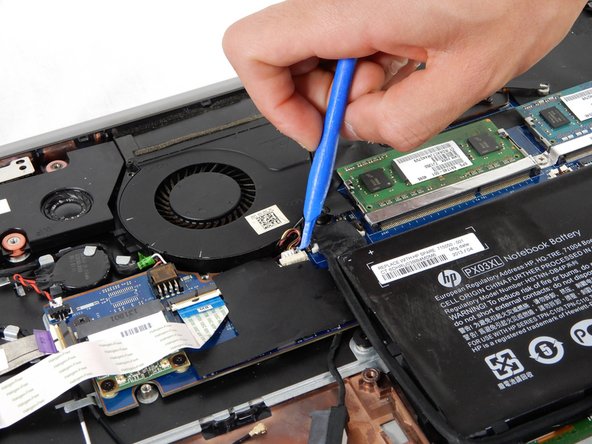
  7. HP Envy Sleekbook m6-k010dx Keyboard Replacement: Schritt 7, Bild 1 von 2 HP Envy Sleekbook m6-k010dx Keyboard Replacement: Schritt 7, Bild 2 von 2
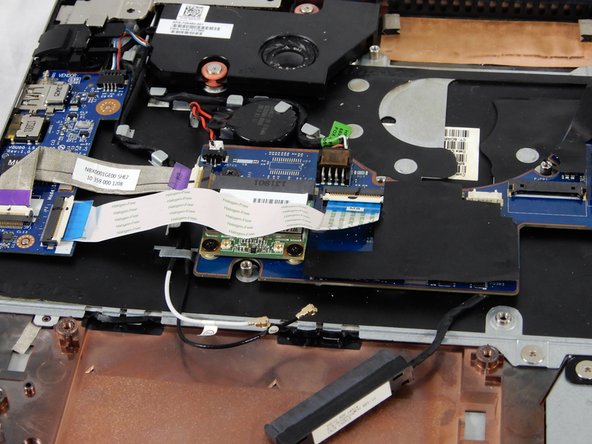
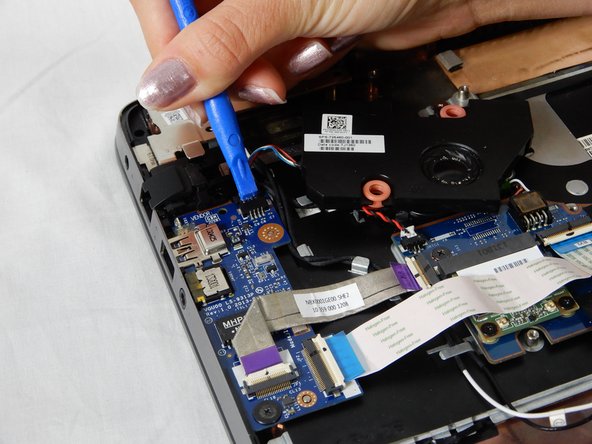
    • Disconnect the fan cable by pulling it out of the motherboard socket.

    Frag FixBot

    Kommentar hinzufügen

  8. HP Envy Sleekbook m6-k010dx Keyboard Replacement: Schritt 8, Bild 1 von 1
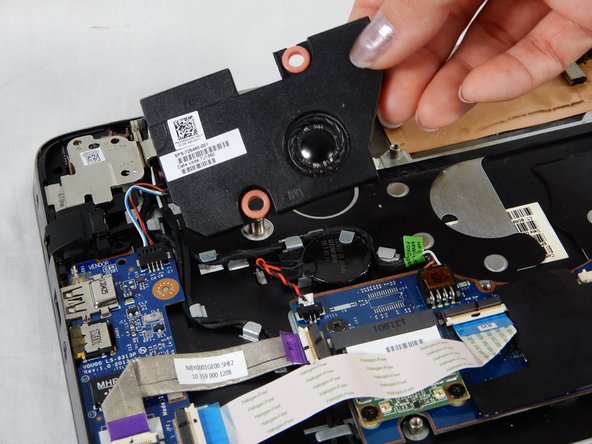
    • Lift the fan upwards to remove it from the computer.

    Frag FixBot

    Kommentar hinzufügen

  9. HP Envy Sleekbook m6-k010dx Keyboard Replacement, Keyboard: Schritt 9, Bild 1 von 1
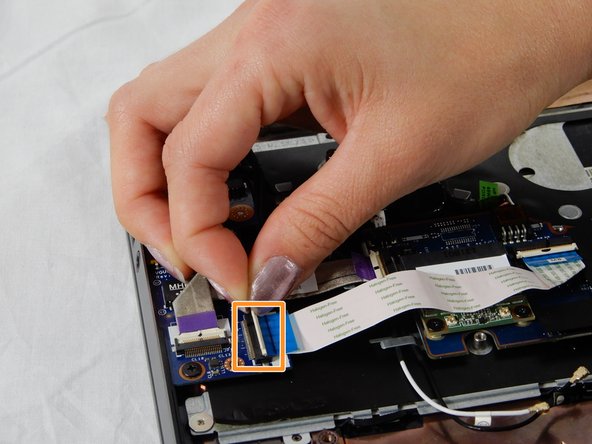
    • Flip up the black tab on the ZIF connector and pull the blue and white flex cable connecting the touchpad to the motherboard.

    Frag FixBot

    Kommentar hinzufügen

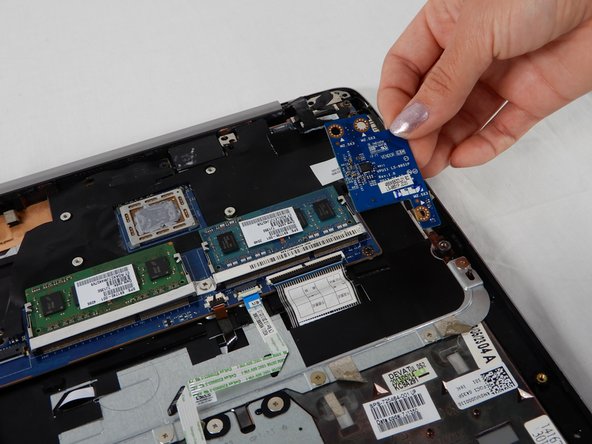
  10. HP Envy Sleekbook m6-k010dx Keyboard Replacement: Schritt 10, Bild 1 von 2 HP Envy Sleekbook m6-k010dx Keyboard Replacement: Schritt 10, Bild 2 von 2
    • Remove three 3mm Phillips #00 screws from the SD card board.

    • Remove the SD card board.

    Frag FixBot

    Kommentar hinzufügen

  11. HP Envy Sleekbook m6-k010dx Keyboard Replacement: Schritt 11, Bild 1 von 2 HP Envy Sleekbook m6-k010dx Keyboard Replacement: Schritt 11, Bild 2 von 2
    • In order to remove the RAM, pull each silver clip (one at a time) away from the RAM.

    • The RAM chip should pop up. Gently remove the RAM from the motherboard.

    Frag FixBot

    Kommentar hinzufügen

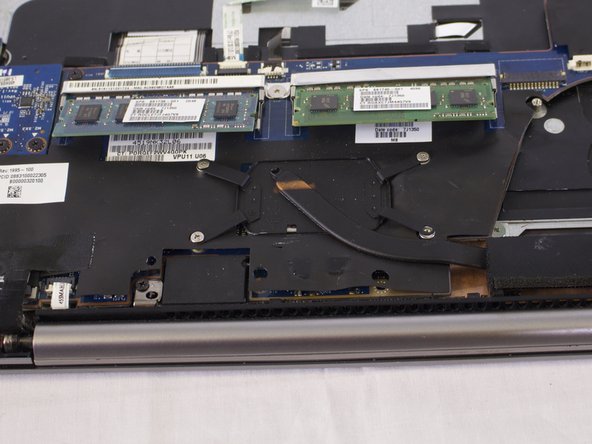
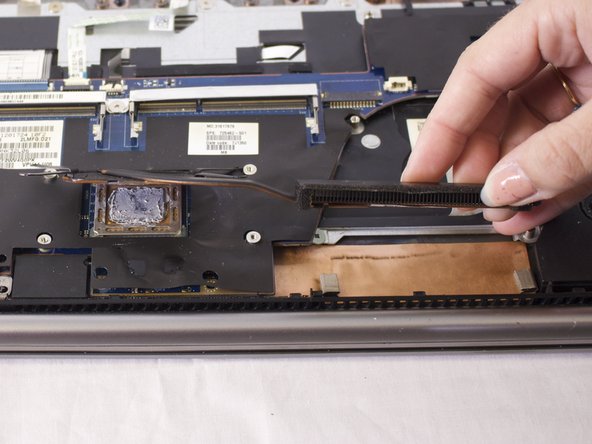
  12. HP Envy Sleekbook m6-k010dx Keyboard Replacement: Schritt 12, Bild 1 von 2 HP Envy Sleekbook m6-k010dx Keyboard Replacement: Schritt 12, Bild 2 von 2
    • Remove four 3mm Phillips #00 screws from the heatsink.

    • Lift the heat sink out from the device and set it aside.

    Frag FixBot

    Kommentar hinzufügen

  13. HP Envy Sleekbook m6-k010dx Keyboard Replacement: Schritt 13, Bild 1 von 2 HP Envy Sleekbook m6-k010dx Keyboard Replacement: Schritt 13, Bild 2 von 2
    • Remove the black and white antenna wires from the Wi-Fi card.

    Frag FixBot

    Kommentar hinzufügen

  14. HP Envy Sleekbook m6-k010dx Keyboard Replacement: Schritt 14, Bild 1 von 3 HP Envy Sleekbook m6-k010dx Keyboard Replacement: Schritt 14, Bild 2 von 3 HP Envy Sleekbook m6-k010dx Keyboard Replacement: Schritt 14, Bild 3 von 3
    • Remove the two 3mm Phillips #00 screws that secure the speaker to the device.

    • Remove the four 4mm Phillips #00 screws from the bracket.

    • Locate the speaker cable connecting the speaker to the audio board. Gently tug on this cable to dislodge. Set the speaker aside.

    Frag FixBot

    Kommentar hinzufügen

  15. HP Envy Sleekbook m6-k010dx Keyboard Replacement: Schritt 15, Bild 1 von 3 HP Envy Sleekbook m6-k010dx Keyboard Replacement: Schritt 15, Bild 2 von 3 HP Envy Sleekbook m6-k010dx Keyboard Replacement: Schritt 15, Bild 3 von 3
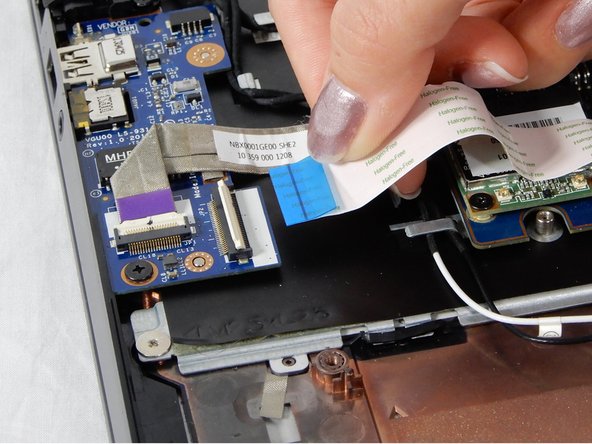
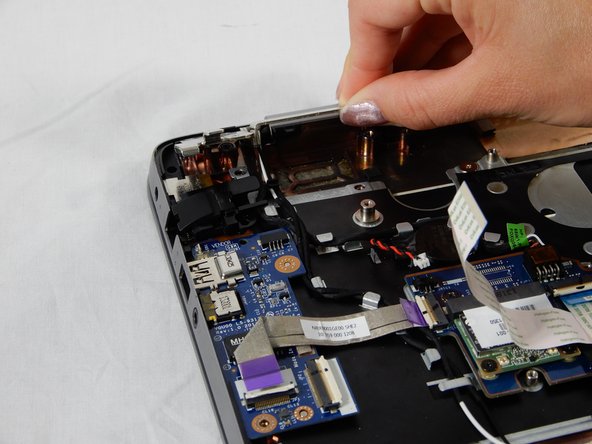
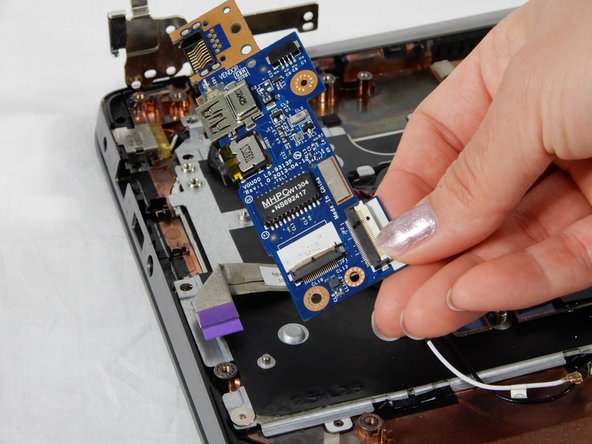
    • Remove the two 3mm Phillips #00 screws that secure the RJ-45 module.

    • Lift the white tab on the ZIF connector and pull the ribbon cable out.

    Frag FixBot

    Kommentar hinzufügen

  16. HP Envy Sleekbook m6-k010dx Keyboard Replacement: Schritt 16, Bild 1 von 3 HP Envy Sleekbook m6-k010dx Keyboard Replacement: Schritt 16, Bild 2 von 3 HP Envy Sleekbook m6-k010dx Keyboard Replacement: Schritt 16, Bild 3 von 3
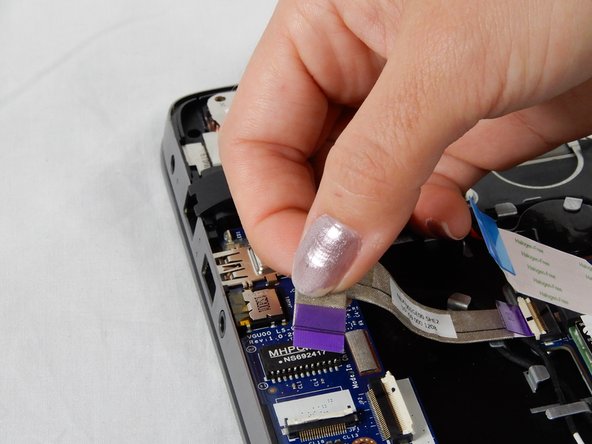
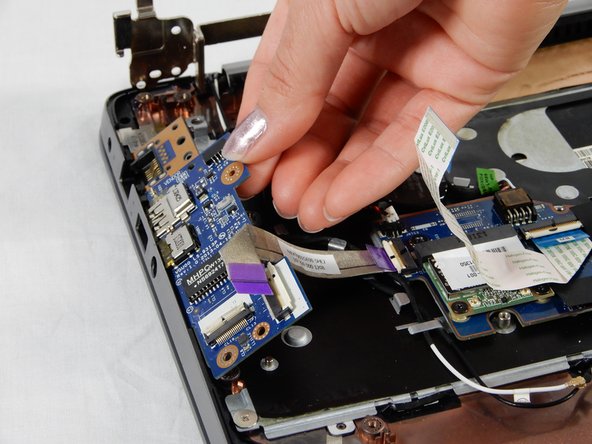
    • Remove the 3mm Phillips #00 screw connecting the chip to the housing.

    • Lift up silver bracket.

    • Lift up the white flap on the ZIF connector and remove the purple ribbon cable.

    Frag FixBot

    Kommentar hinzufügen

  17. HP Envy Sleekbook m6-k010dx Keyboard Replacement: Schritt 17, Bild 1 von 3 HP Envy Sleekbook m6-k010dx Keyboard Replacement: Schritt 17, Bild 2 von 3 HP Envy Sleekbook m6-k010dx Keyboard Replacement: Schritt 17, Bild 3 von 3
    • Remove the cover for the RM-45 port.

    • Gently lift and remove the chip from its housing.

    Frag FixBot

    Kommentar hinzufügen

  18. HP Envy Sleekbook m6-k010dx Keyboard Replacement: Schritt 18, Bild 1 von 3 HP Envy Sleekbook m6-k010dx Keyboard Replacement: Schritt 18, Bild 2 von 3 HP Envy Sleekbook m6-k010dx Keyboard Replacement: Schritt 18, Bild 3 von 3
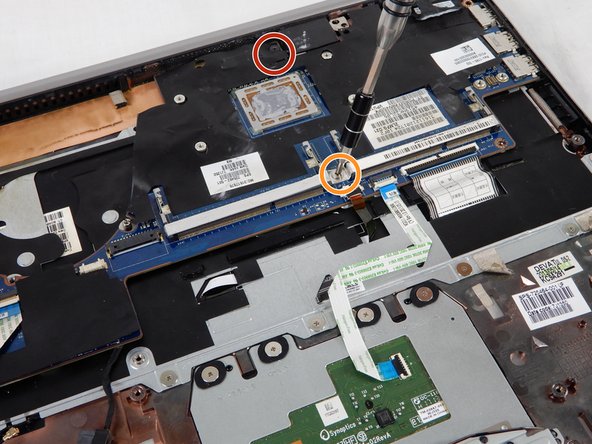
    • Remove the 4mm Phillips #00 screws.

    • Remove the silver 3mm Phillips 3 mm screw.

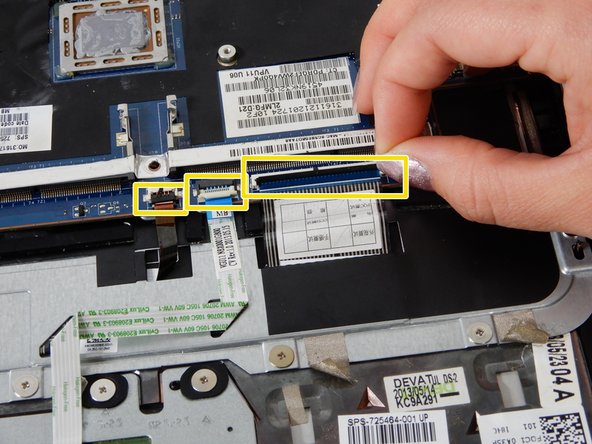
    • Lift all three black flaps in the ZIF connectors and remove the attached ribbon cables.

    Frag FixBot

    Kommentar hinzufügen

  19. HP Envy Sleekbook m6-k010dx Keyboard Replacement: Schritt 19, Bild 1 von 3 HP Envy Sleekbook m6-k010dx Keyboard Replacement: Schritt 19, Bild 2 von 3 HP Envy Sleekbook m6-k010dx Keyboard Replacement: Schritt 19, Bild 3 von 3
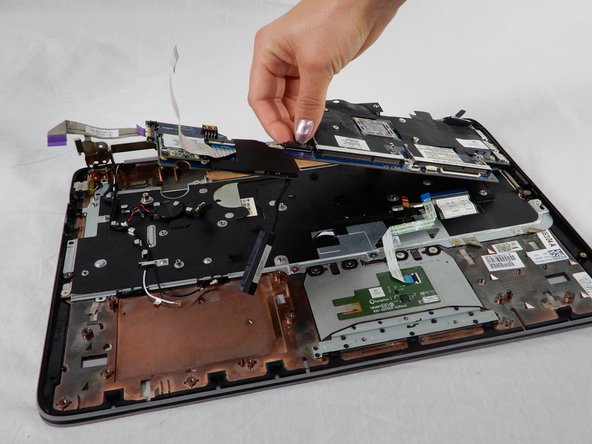
    • Use your hand and gently remove the connector to the back up battery for the motherboard.

    • Remove the four 4mm Phillips #00 screws from the motherboard.

    • Lift the board at an angle and pull outwards to dislodge it from the device.

    Frag FixBot

    Kommentar hinzufügen

  20. HP Envy Sleekbook m6-k010dx Keyboard Replacement: Schritt 20, Bild 1 von 2 HP Envy Sleekbook m6-k010dx Keyboard Replacement: Schritt 20, Bild 2 von 2
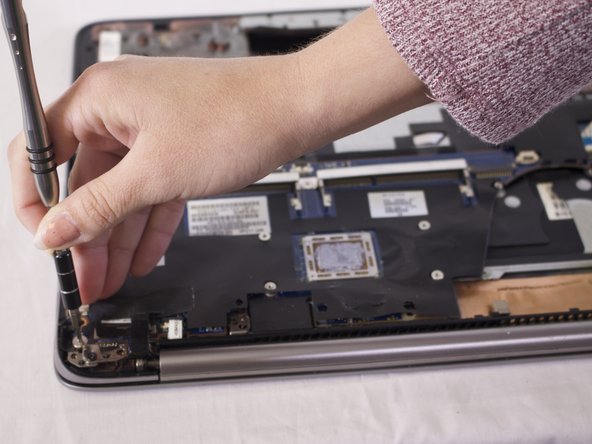
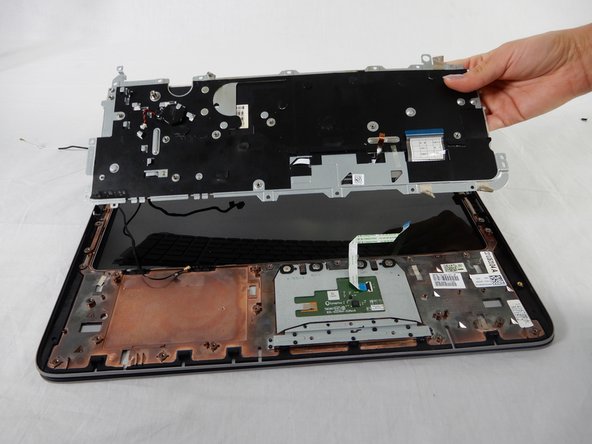
    • Remove the thirteen silver 3mm Phillips #00 screws that secure the keyboard to the frame.

    • Lift up the keyboard from the bracket and pull outwards to remove the keyboard from the device.

    Frag FixBot

    Kommentar hinzufügen

Abschluss

To reassemble your device, follow these instructions in reverse order.

Rückgängig: Ich habe diese Anleitung nicht absolviert.

2 weitere Personen haben diese Anleitung absolviert.

Team

USF Tampa, Team S1-G4, Nance Spring 2018 Mitglied von USF Tampa, Team S1-G4, Nance Spring 2018

USFT-NANCE-S18S1G4

4 Mitglieder

15 Anleitungen geschrieben

0 Kommentare zur Anleitung

Kommentar hinzufügen

Seitenaufrufe:

Letzte 24 Stunden: 1

Letzte 7 Tage: 8

Letzte 30 Tage: 59

Insgesamt: 2,344