Zum Hauptinhalt wechseln
Gemeinsam reparieren - Jetzt registrieren

HP Pavilion 15-ab243cl Cooling Fan Replacement

Was du brauchst

  1. HP Pavilion 15-ab243cl Cooling Fan Replacement, Battery: Schritt 1, Bild 1 von 2 HP Pavilion 15-ab243cl Cooling Fan Replacement, Battery: Schritt 1, Bild 2 von 2
    • Slide the battery lock tab toward the center of the battery to the unlock position.

    Frag FixBot

    Kommentar hinzufügen

  2. HP Pavilion 15-ab243cl Cooling Fan Replacement: Schritt 2, Bild 1 von 3 HP Pavilion 15-ab243cl Cooling Fan Replacement: Schritt 2, Bild 2 von 3 HP Pavilion 15-ab243cl Cooling Fan Replacement: Schritt 2, Bild 3 von 3
    • Slide the battery release switch to the right until the battery pops out.

    Frag FixBot

    Kommentar hinzufügen

  3. HP Pavilion 15-ab243cl Cooling Fan Replacement: Schritt 3, Bild 1 von 2 HP Pavilion 15-ab243cl Cooling Fan Replacement: Schritt 3, Bild 2 von 2
    • Grabbing the top edge of the battery, rotate it toward you and then lift upward to relieve the battery from its slot.

    Frag FixBot

    Kommentar hinzufügen

  4. HP Pavilion 15-ab243cl Cooling Fan Replacement, Laptop Case: Schritt 4, Bild 1 von 3 HP Pavilion 15-ab243cl Cooling Fan Replacement, Laptop Case: Schritt 4, Bild 2 von 3 HP Pavilion 15-ab243cl Cooling Fan Replacement, Laptop Case: Schritt 4, Bild 3 von 3
    • With the battery removed, remove both black plastic covers with a plastic opening tool. Unscrew both 7.5 mm screws from the tabs, using a PH1 screw driver. Using a plastic opening tool, pry off both covers.

    Frag FixBot

    Kommentar hinzufügen

  5. HP Pavilion 15-ab243cl Cooling Fan Replacement: Schritt 5, Bild 1 von 3 HP Pavilion 15-ab243cl Cooling Fan Replacement: Schritt 5, Bild 2 von 3 HP Pavilion 15-ab243cl Cooling Fan Replacement: Schritt 5, Bild 3 von 3
    • Remove all 16 of the 3.5 mm screws with a PH1 screwdriver and pry/slide the CD drive out of laptop.

    Frag FixBot

    Kommentar hinzufügen

  6. HP Pavilion 15-ab243cl Cooling Fan Replacement: Schritt 6, Bild 1 von 2 HP Pavilion 15-ab243cl Cooling Fan Replacement: Schritt 6, Bild 2 von 2
    • With the CD drive removed, unscrew the two 2mm silver screws with a PH00.

    • These can strip easily, so take your time removing.

    Frag FixBot

    Kommentar hinzufügen

  7. HP Pavilion 15-ab243cl Cooling Fan Replacement: Schritt 7, Bild 1 von 3 HP Pavilion 15-ab243cl Cooling Fan Replacement: Schritt 7, Bild 2 von 3 HP Pavilion 15-ab243cl Cooling Fan Replacement: Schritt 7, Bild 3 von 3
    • Using a plastic opening tool, begin to pry edge of case away from the laptop. Work around the edges until all sides, except back, are open.

    Frag FixBot

    Kommentar hinzufügen

  8. HP Pavilion 15-ab243cl Cooling Fan Replacement: Schritt 8, Bild 1 von 3 HP Pavilion 15-ab243cl Cooling Fan Replacement: Schritt 8, Bild 2 von 3 HP Pavilion 15-ab243cl Cooling Fan Replacement: Schritt 8, Bild 3 von 3
    • On the back side of the laptop, where the battery is, there are 12 black plastic clips. Use a plastic opening tool and pry all of these clips, unlatching them from the case.

    • Once clips are free, open the laptop. Rotating the case off, around the hinges, works best to remove the case.

    Frag FixBot

    Kommentar hinzufügen

  9. HP Pavilion 15-ab243cl Cooling Fan Replacement, Cooling Fan: Schritt 9, Bild 1 von 3 HP Pavilion 15-ab243cl Cooling Fan Replacement, Cooling Fan: Schritt 9, Bild 2 von 3 HP Pavilion 15-ab243cl Cooling Fan Replacement, Cooling Fan: Schritt 9, Bild 3 von 3
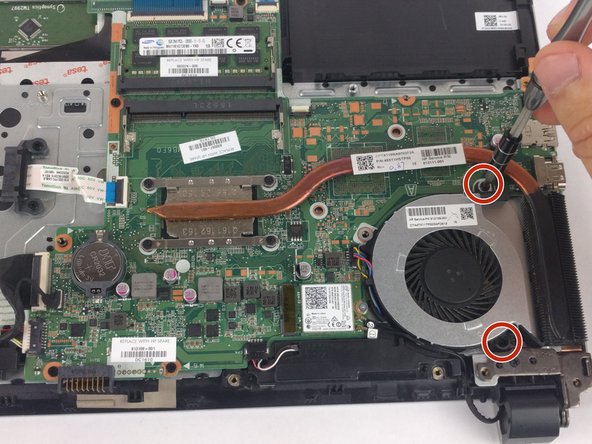
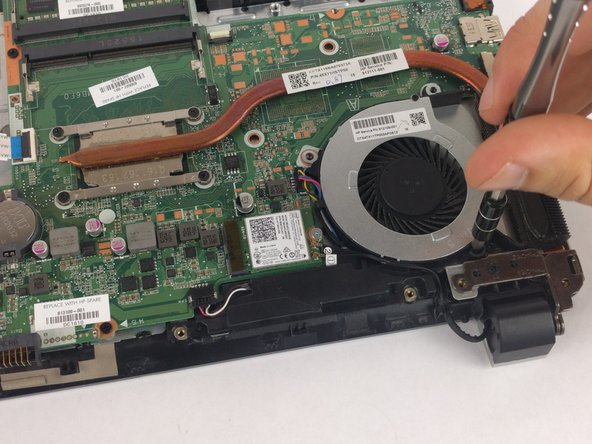
    • Use a PH00 screw driver to remove the two 3.5 mm screws holding the fan in place.

    • Careful with the lower screw, there are two screws side by side. The screw to the left side of the device is the one you want and is connected to fan, the one on the right side is not for fan.

    Frag FixBot

    Kommentar hinzufügen

  10. HP Pavilion 15-ab243cl Cooling Fan Replacement: Schritt 10, Bild 1 von 3 HP Pavilion 15-ab243cl Cooling Fan Replacement: Schritt 10, Bild 2 von 3 HP Pavilion 15-ab243cl Cooling Fan Replacement: Schritt 10, Bild 3 von 3
    In diesem Schritt verwendetes Werkzeug:
    Tweezers
    $4.99
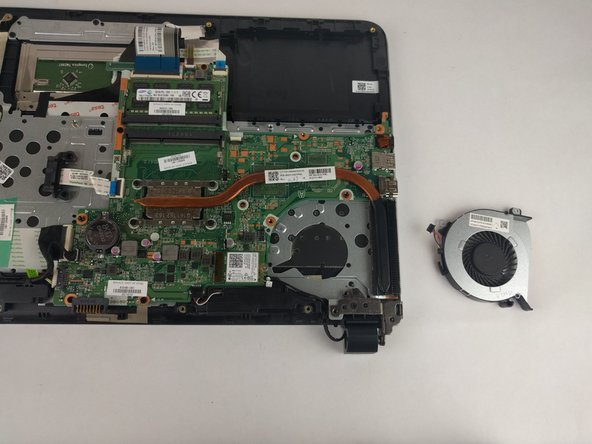
    • Use long nose tweezers to remove connector. Fan will lift out.

    Frag FixBot

    Kommentar hinzufügen

Abschluss

To reassemble your device, follow these instructions in reverse order.

Rückgängig: Ich habe diese Anleitung nicht absolviert.

2 weitere Personen haben diese Anleitung absolviert.

Team

USF Tampa, Team S6-G3, Eyestone Spring 2018 Mitglied von USF Tampa, Team S6-G3, Eyestone Spring 2018

USFT-EYESTONE-S18S6G3

3 Mitglieder

7 Anleitungen geschrieben

1 Kommentar zur Anleitung

Thank you for this Alex. Very clear instructions. Saved me a costly trip for a repair!

Stuart - Antwort Teilen

Kommentar hinzufügen

Seitenaufrufe:

Letzte 24 Stunden: 1

Letzte 7 Tage: 6

Letzte 30 Tage: 35

Insgesamt: 1,654