Zum Hauptinhalt wechseln
Gemeinsam reparieren - Jetzt registrieren

HP Pavilion 17-g119dx RAM Replacement

Was du brauchst

  1. HP Pavilion 17-g119dx RAM Replacement, Battery: Schritt 1, Bild 1 von 1
    • Close your laptop and turn it over so that the bottom is facing up.

    Frag FixBot
  2. HP Pavilion 17-g119dx RAM Replacement: Schritt 2, Bild 1 von 2 HP Pavilion 17-g119dx RAM Replacement: Schritt 2, Bild 2 von 2
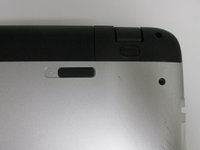
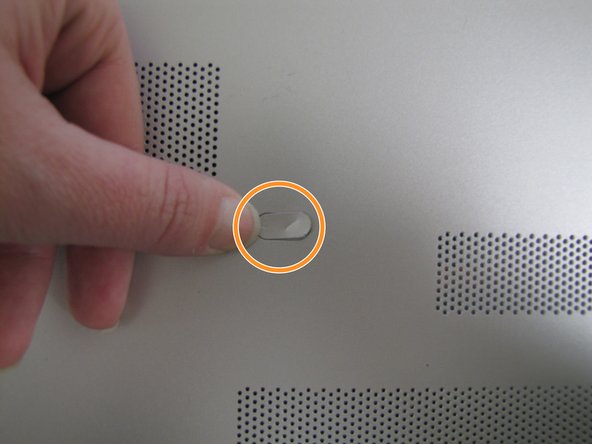
    • In the upper left hand corner, slide the bar with the lock icon to the right. This will unlock the battery.

    Frag FixBot
  3. HP Pavilion 17-g119dx RAM Replacement: Schritt 3, Bild 1 von 2 HP Pavilion 17-g119dx RAM Replacement: Schritt 3, Bild 2 von 2
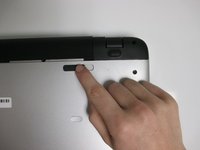
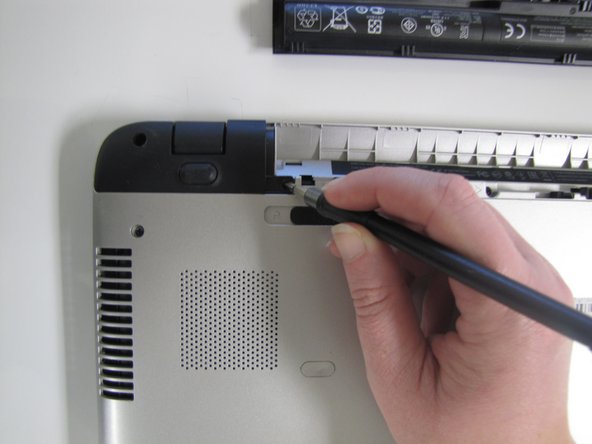
    • Slide the bar with the battery icon, on the right of your laptop, to the left to release the battery.

    Frag FixBot
  4. HP Pavilion 17-g119dx RAM Replacement: Schritt 4, Bild 1 von 2 HP Pavilion 17-g119dx RAM Replacement: Schritt 4, Bild 2 von 2
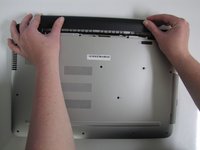
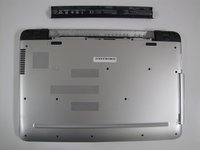
    • Grab the battery and remove it from the laptop.

    Frag FixBot
  5. HP Pavilion 17-g119dx RAM Replacement, RAM: Schritt 5, Bild 1 von 3 HP Pavilion 17-g119dx RAM Replacement, RAM: Schritt 5, Bild 2 von 3 HP Pavilion 17-g119dx RAM Replacement, RAM: Schritt 5, Bild 3 von 3
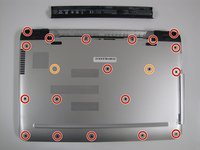
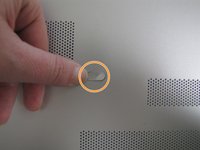
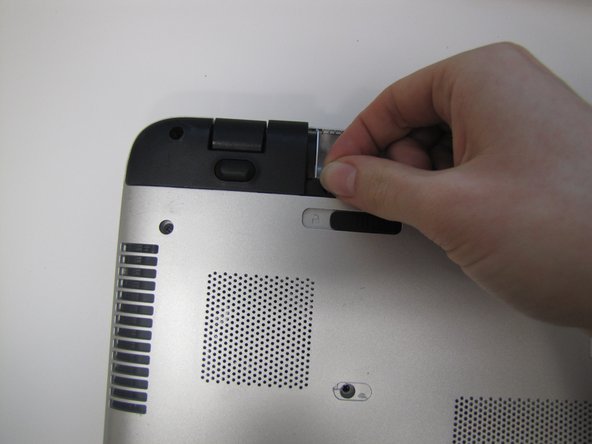
    • Remove the twenty 6.5mm screws using the Phillips #00 screwdriver.

    • Two of these 6.5mm screws are covered by a silver sticker. Remove the sticker by gently scraping your finger nail under the sticker and then remove the screws.

    Frag FixBot
  6. HP Pavilion 17-g119dx RAM Replacement: Schritt 6, Bild 1 von 3 HP Pavilion 17-g119dx RAM Replacement: Schritt 6, Bild 2 von 3 HP Pavilion 17-g119dx RAM Replacement: Schritt 6, Bild 3 von 3
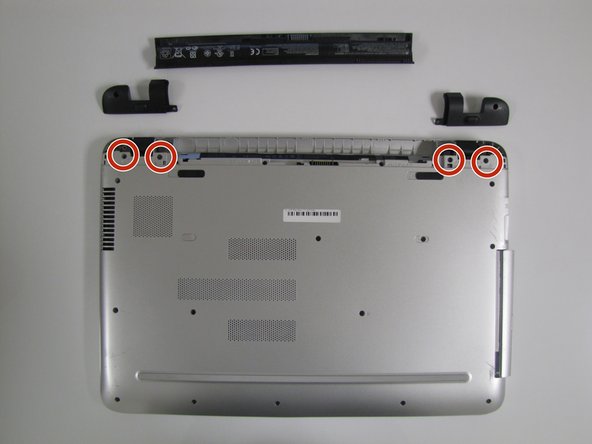
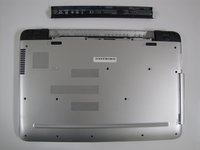
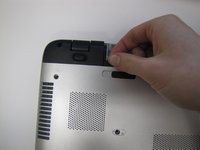
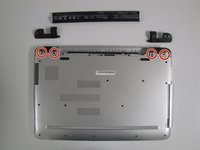
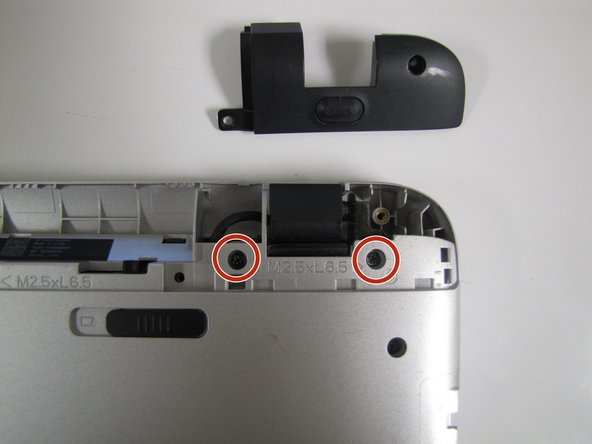
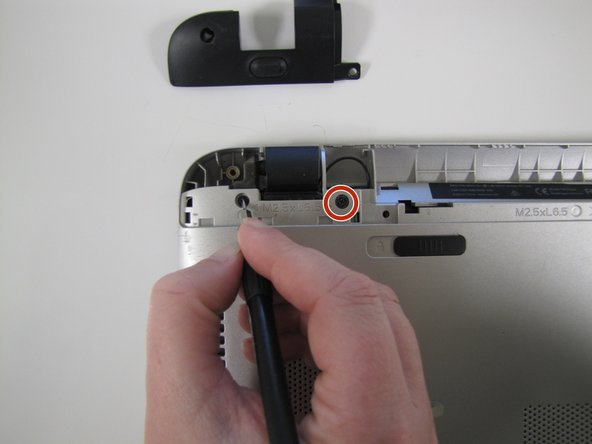
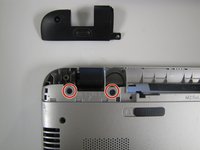
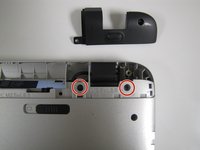
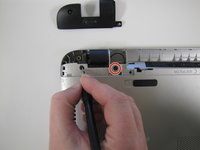
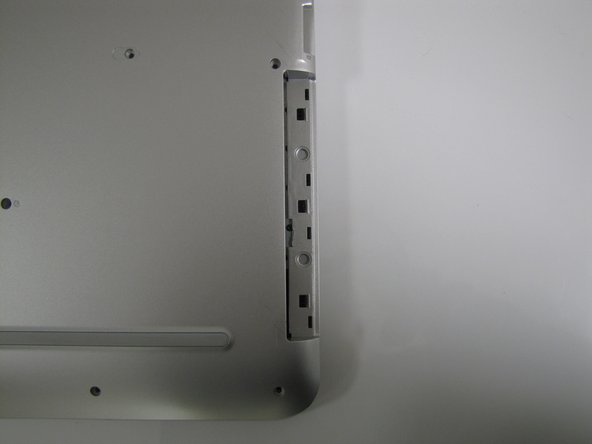
    • Remove the black corner covers on either side of the battery to reveal four additional 6.5mm Phillips #00 screws.

    Frag FixBot
  7. HP Pavilion 17-g119dx RAM Replacement: Schritt 7, Bild 1 von 3 HP Pavilion 17-g119dx RAM Replacement: Schritt 7, Bild 2 von 3 HP Pavilion 17-g119dx RAM Replacement: Schritt 7, Bild 3 von 3
    • Remove the four 6.5mm Phillips #00 screws that were underneath the black corner covers.

    Frag FixBot
  8. HP Pavilion 17-g119dx RAM Replacement: Schritt 8, Bild 1 von 3 HP Pavilion 17-g119dx RAM Replacement: Schritt 8, Bild 2 von 3 HP Pavilion 17-g119dx RAM Replacement: Schritt 8, Bild 3 von 3
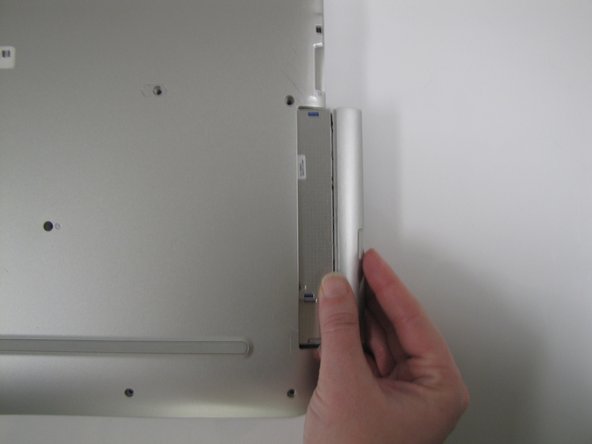
    • On the right-hand corner of the laptop, remove the CD-ROM by pressing the small button on the side. Pull it out of the laptop, and set it to the side.

    Frag FixBot
  9. HP Pavilion 17-g119dx RAM Replacement: Schritt 9, Bild 1 von 3 HP Pavilion 17-g119dx RAM Replacement: Schritt 9, Bild 2 von 3 HP Pavilion 17-g119dx RAM Replacement: Schritt 9, Bild 3 von 3
    In diesem Schritt verwendetes Werkzeug:
    iFixit Opening Tool
    $1.99
    • Make sure that all screws and the CD-ROM Drive are removed before trying to complete this step to prevent damaging your laptop. During this step, you will likely hear loud crackling noises. This is normal.

    • Flip the computer back over with the screen facing up and open the laptop.

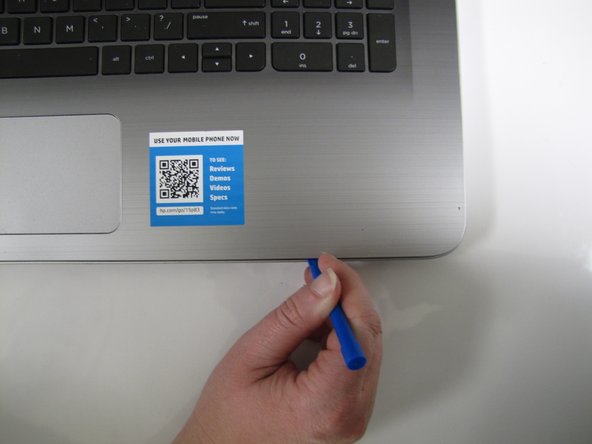
    • Use the Plastic Opening Tool to separate the face plate from the backing.

    Frag FixBot
  10. HP Pavilion 17-g119dx RAM Replacement: Schritt 10, Bild 1 von 2 HP Pavilion 17-g119dx RAM Replacement: Schritt 10, Bild 2 von 2
    In diesem Schritt verwendetes Werkzeug:
    iFixit Opening Tool
    $1.99
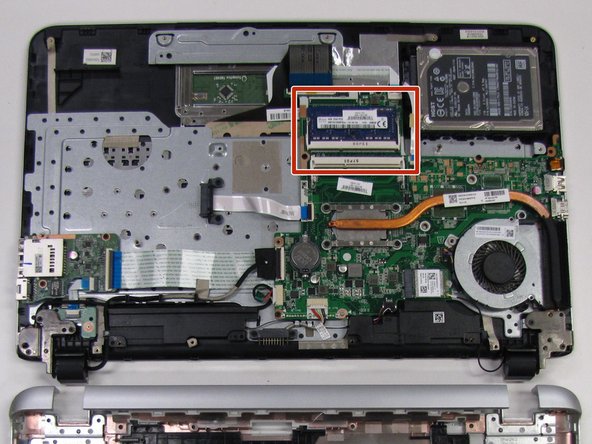
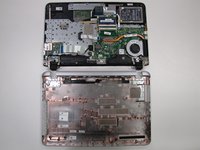
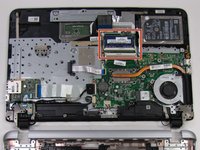
    • After running the Plastic Opening Tool along the sides, you can gently lift the keyboard up and on top of the screen to access the RAM.

    • The RAM will be located above the Motherboard and next to the Processor.

    Frag FixBot
  11. HP Pavilion 17-g119dx RAM Replacement: Schritt 11, Bild 1 von 2 HP Pavilion 17-g119dx RAM Replacement: Schritt 11, Bild 2 von 2
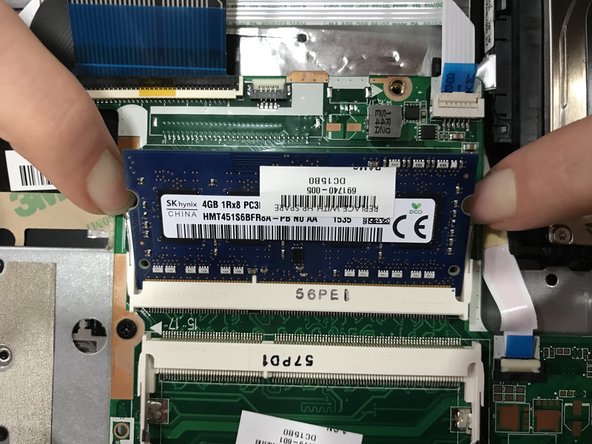
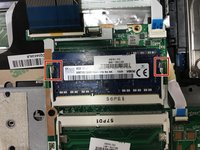
    • Release the RAM by pulling the two white levers away from the sides of the RAM.

    Frag FixBot
  12. HP Pavilion 17-g119dx RAM Replacement: Schritt 12, Bild 1 von 1
    • Pull the RAM up and out of the laptop to remove it.

    • When reassembling, be sure to insert the RAM at the same angle it came out. Then push it down into place.

    Frag FixBot
Abschluss

To reassemble your device, follow these instructions in reverse order.

3 weitere Personen haben diese Anleitung absolviert.

1 Kommentar zur Anleitung

Ddr3 or ddr4?

Andres Toro - Antwort Teilen
Kommentar hinzufügen

Seitenaufrufe:

Letzte 24 Stunden: 1

Letzte 7 Tage: 6

Letzte 30 Tage: 57

Insgesamt: 3,079