Zum Hauptinhalt wechseln
Gemeinsam reparieren - Jetzt registrieren

Lenovo ThinkPad X1 Carbon 6th Gen Touchpad Replacement

Was du brauchst

  1. Lenovo ThinkPad X1 Carbon 6th Gen Touchpad Replacement, Back Cover: Schritt 1, Bild 1 von 2 Lenovo ThinkPad X1 Carbon 6th Gen Touchpad Replacement, Back Cover: Schritt 1, Bild 2 von 2
    • Use a Phillips #0 screwdriver to unscrew the five screws that secure the back cover to the laptop.

    • The screws do not completely come off from the back cover. Loosen until the screws are completely loose.

    Frag FixBot

    Kommentar hinzufügen

  2. Lenovo ThinkPad X1 Carbon 6th Gen Touchpad Replacement: Schritt 2, Bild 1 von 2 Lenovo ThinkPad X1 Carbon 6th Gen Touchpad Replacement: Schritt 2, Bild 2 von 2
    • Use a Jimmy to lift the cover directly up off of the locating pins.

    • Though a metal opening tool is shown in the image, we recommend using plastic opening tools to minimize any cosmetic damage.

    • Remove the back cover.

    • If you encounter resistance when lifting the cover, revisit the screws to see if any of them are still threaded on to the device.

    Frag FixBot

    Kommentar hinzufügen

  3. Lenovo ThinkPad X1 Carbon 6th Gen Touchpad Replacement, Battery: Schritt 3, Bild 1 von 2 Lenovo ThinkPad X1 Carbon 6th Gen Touchpad Replacement, Battery: Schritt 3, Bild 2 von 2
    • Use the Phillips #0 screwdriver to remove the four 5 mm screws that secure the battery to the laptop frame.

    Frag FixBot

    Kommentar hinzufügen

  4. Lenovo ThinkPad X1 Carbon 6th Gen Touchpad Replacement: Schritt 4, Bild 1 von 1
    • Lift the battery from the bottom edge and gently slide it out of the connector on the motherboard to remove it from the laptop.

    Frag FixBot

    Kommentar hinzufügen

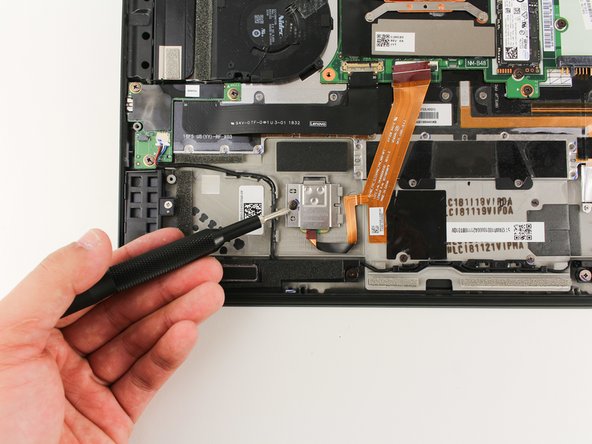
  5. Lenovo ThinkPad X1 Carbon 6th Gen Touchpad Replacement, Fingerprint Scanner: Schritt 5, Bild 1 von 2 Lenovo ThinkPad X1 Carbon 6th Gen Touchpad Replacement, Fingerprint Scanner: Schritt 5, Bild 2 von 2
    • Use the Phillips #0 screwdriver to remove the 2mm screw that secures the cover of the fingerprint scanner.

    Frag FixBot

    Kommentar hinzufügen

  6. Lenovo ThinkPad X1 Carbon 6th Gen Touchpad Replacement: Schritt 6, Bild 1 von 1
    • Remove the cover by grabbing it and gently pulling up and to the left.

    Frag FixBot

    Kommentar hinzufügen

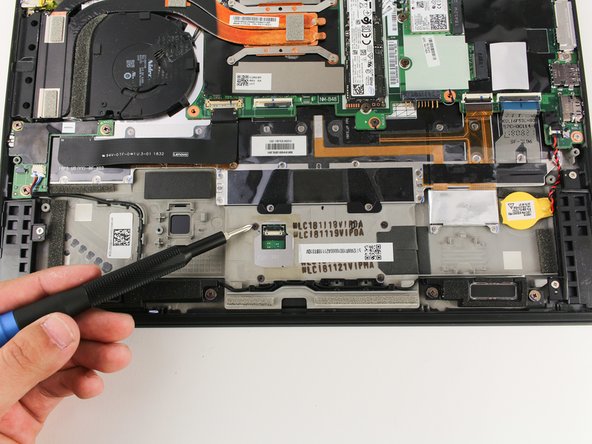
  7. Lenovo ThinkPad X1 Carbon 6th Gen Touchpad Replacement: Schritt 7, Bild 1 von 2 Lenovo ThinkPad X1 Carbon 6th Gen Touchpad Replacement: Schritt 7, Bild 2 von 2
    • Use a nylon spudger to lift up the black bar that secures the cable.

    • Disconnect the ribbon cable from the fingerprint scanner by pulling the cable directly out.

    Frag FixBot

    Kommentar hinzufügen

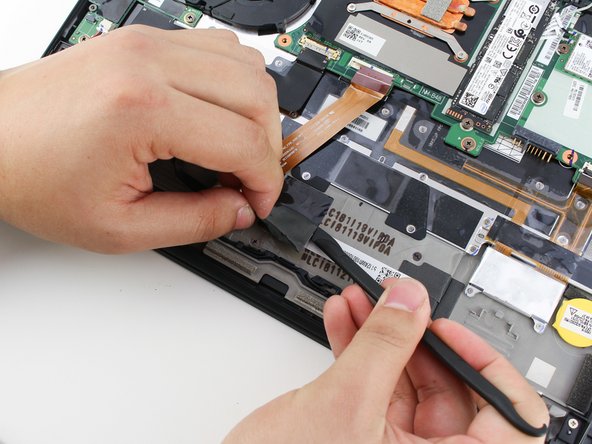
  8. Lenovo ThinkPad X1 Carbon 6th Gen Touchpad Replacement, Touchpad: Schritt 8, Bild 1 von 2 Lenovo ThinkPad X1 Carbon 6th Gen Touchpad Replacement, Touchpad: Schritt 8, Bild 2 von 2
    • Use a spudger to peel back the black adhesive pad.

    • Be gentle; the black adhesive pad is delicate and may rip.

    Frag FixBot

    Kommentar hinzufügen

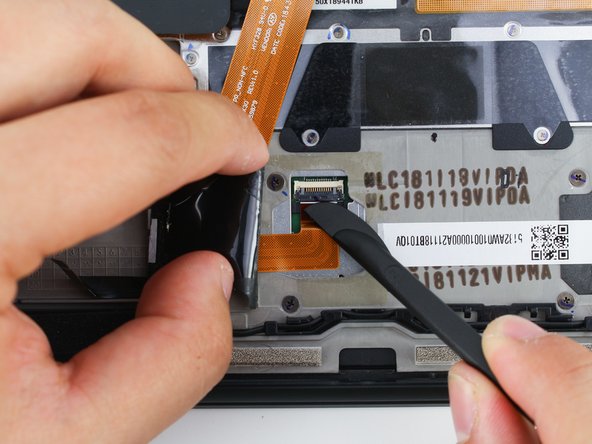
  9. Lenovo ThinkPad X1 Carbon 6th Gen Touchpad Replacement: Schritt 9, Bild 1 von 2 Lenovo ThinkPad X1 Carbon 6th Gen Touchpad Replacement: Schritt 9, Bild 2 von 2
    • Lift the lever that secures the cable.

    • Pull the cable out to disconnect the ribbon cable that connects to the touchpad.

    • This is the same procedure for removing most of the ribbon cables.

    Frag FixBot

    Kommentar hinzufügen

  10. Lenovo ThinkPad X1 Carbon 6th Gen Touchpad Replacement: Schritt 10, Bild 1 von 2 Lenovo ThinkPad X1 Carbon 6th Gen Touchpad Replacement: Schritt 10, Bild 2 von 2
    • Use a Phillips #00 screwdriver to remove the four 1mm screws that secure the touchpad to the laptop.

    Frag FixBot

    Kommentar hinzufügen

  11. Lenovo ThinkPad X1 Carbon 6th Gen Touchpad Replacement: Schritt 11, Bild 1 von 2 Lenovo ThinkPad X1 Carbon 6th Gen Touchpad Replacement: Schritt 11, Bild 2 von 2
    • Once the screws are removed, the touchpad can be removed.

    • The touchpad may even fall out once the screws are removed. Be sure to secure the touchpad before it falls out.

    Frag FixBot

    Kommentar hinzufügen

Abschluss

To reassemble your device, follow these instructions in reverse order.

Rückgängig: Ich habe diese Anleitung nicht absolviert.

Eine weitere Person hat diese Anleitung absolviert.

Team

Cal Poly, Team S19-G4, White Winter 2020 Mitglied von Cal Poly, Team S19-G4, White Winter 2020

CPSU-WHITE-W20S19G4

3 Mitglieder

25 Anleitungen geschrieben

1 Kommentar zur Anleitung

Where do I get a new mouse pad after I have taken it off?

Jeremiah Gregg - Antwort Teilen

Kommentar hinzufügen

Seitenaufrufe:

Letzte 24 Stunden: 5

Letzte 7 Tage: 24

Letzte 30 Tage: 90

Insgesamt: 6,845