Zum Hauptinhalt wechseln

Logitech K480 Keycap Replacement

Was du brauchst

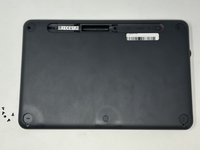
  1. Logitech K480 Keycap Replacement, Back Cover: Schritt 1, Bild 1 von 1
    • Flip the keyboard over.

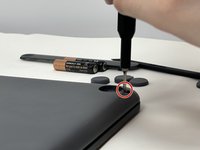
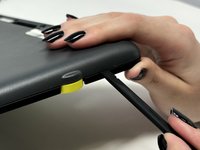
  2. Logitech K480 Keycap Replacement: Schritt 2, Bild 1 von 3 Logitech K480 Keycap Replacement: Schritt 2, Bild 2 von 3 Logitech K480 Keycap Replacement: Schritt 2, Bild 3 von 3
    • Remove the four rubber feet with a spudger.

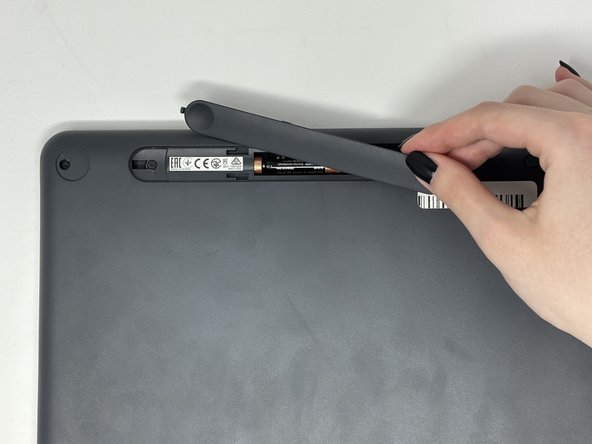
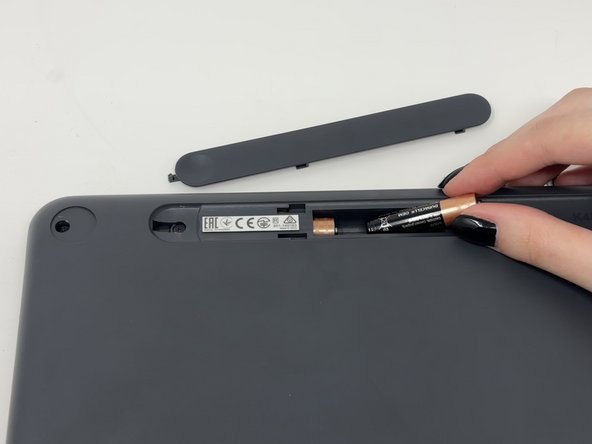
  3. Logitech K480 Keycap Replacement: Schritt 3, Bild 1 von 3 Logitech K480 Keycap Replacement: Schritt 3, Bild 2 von 3 Logitech K480 Keycap Replacement: Schritt 3, Bild 3 von 3
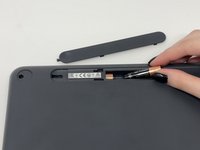
    • Slide open battery panel.

    • Remove the batteries.

  4. Logitech K480 Keycap Replacement: Schritt 4, Bild 1 von 2 Logitech K480 Keycap Replacement: Schritt 4, Bild 2 von 2
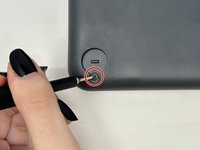
    • Remove the three 4 mm screws under the rubber feet using a Phillips #0 screwdriver.

  5. Logitech K480 Keycap Replacement: Schritt 5, Bild 1 von 2 Logitech K480 Keycap Replacement: Schritt 5, Bild 2 von 2
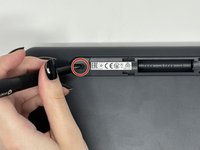
    • Remove the two 4 mm screws from beneath the battery cover using a Phillips #0 screwdriver.

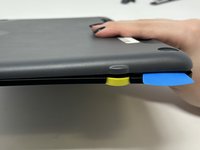
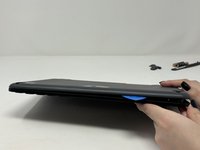
  6. Logitech K480 Keycap Replacement: Schritt 6, Bild 1 von 3 Logitech K480 Keycap Replacement: Schritt 6, Bild 2 von 3 Logitech K480 Keycap Replacement: Schritt 6, Bild 3 von 3
    • Starting by the dial, slide the spudger between the front and back panels until it lifts and snaps.

    • Slide a blue pick in to keep the pieces apart while you work on other areas.

    • Continue prying along the edges until you have enough opened that you can pull both pieces apart gently with your hands.

    • The loud snaps are the clips that hold the pieces together. They're not breaking and you do not need to be alarmed.

  7. Logitech K480 Keycap Replacement, Metal Plate: Schritt 7, Bild 1 von 3 Logitech K480 Keycap Replacement, Metal Plate: Schritt 7, Bild 2 von 3 Logitech K480 Keycap Replacement, Metal Plate: Schritt 7, Bild 3 von 3
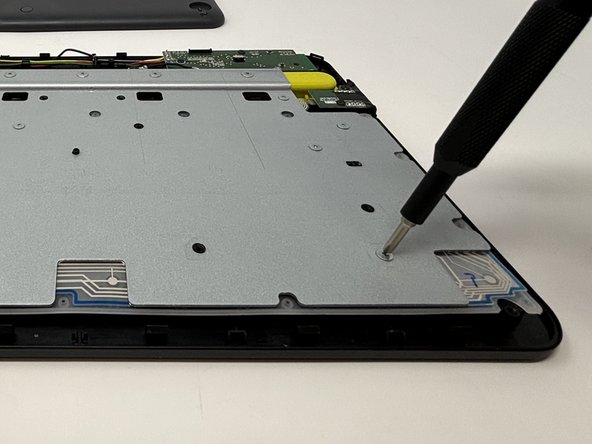
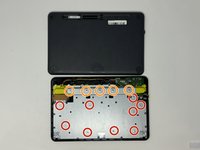
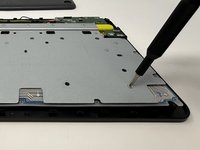
    • Remove the eight 3 mm screws using a Phillips #00 screwdriver

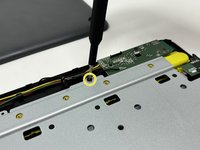
    • Remove the five 2 mm silver screws from the metal plate using a Phillips #00 screwdriver.

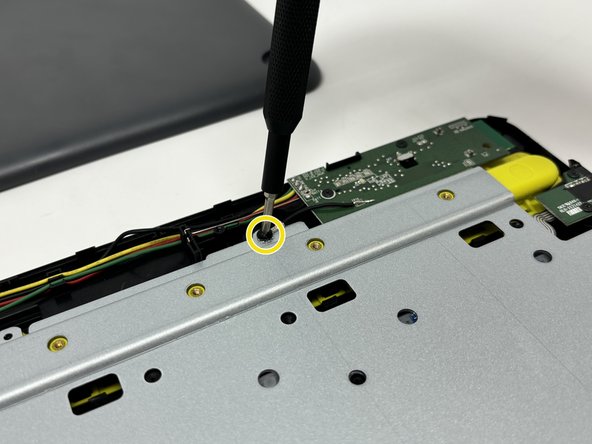
    • Remove the single 4 mm black screw by the motherboard using a Phillips #00 screwdriver.

  8. Logitech K480 Keycap Replacement: Schritt 8, Bild 1 von 2 Logitech K480 Keycap Replacement: Schritt 8, Bild 2 von 2
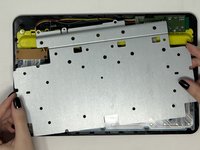
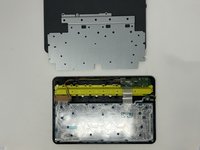
    • Lift up and remove the metal plate.

  9. Logitech K480 Keycap Replacement, Keycap: Schritt 9, Bild 1 von 1
    • Flip the flex circuit and rubber dome sheet over.

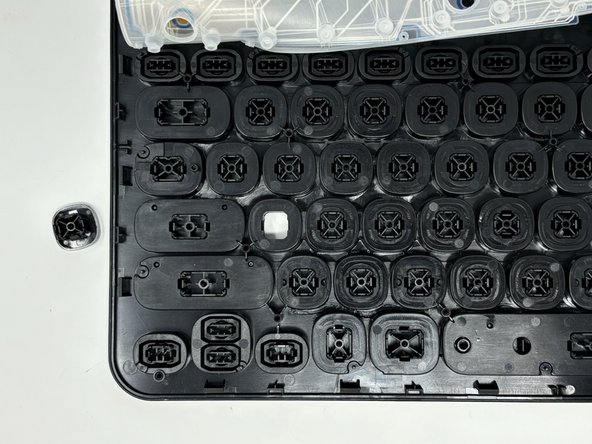
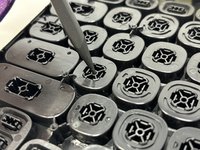
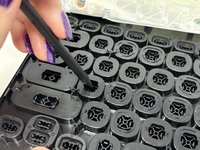
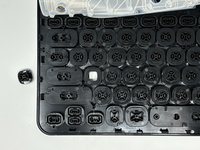
  10. Logitech K480 Keycap Replacement: Schritt 10, Bild 1 von 3 Logitech K480 Keycap Replacement: Schritt 10, Bild 2 von 3 Logitech K480 Keycap Replacement: Schritt 10, Bild 3 von 3
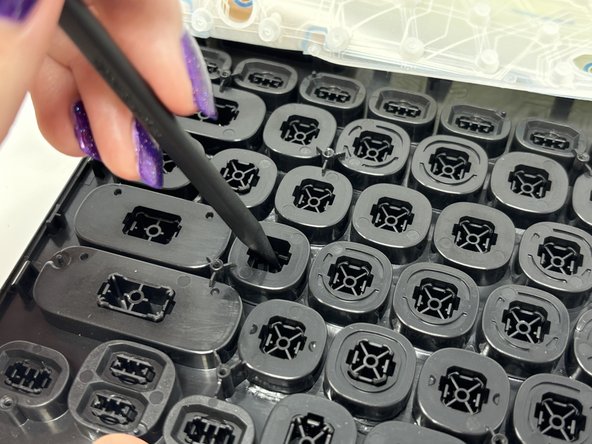
    • Using the spudger, gently press on the underside of the key and pop it out.

Abschluss

To reassemble your device, follow these instructions in reverse order.

Madison

Mitglied seit: 09/04/24

688 Reputation

4 Anleitungen geschrieben

0 Kommentare zur Anleitung

Kommentar hinzufügen

Seitenaufrufe:

Letzte 24 Stunden: 0

Letzte 7 Tage: 4

Letzte 30 Tage: 27

Insgesamt: 436