Zum Hauptinhalt wechseln
Gemeinsam reparieren - Jetzt registrieren

Samsung Ace Keyboard Replacement

Was du brauchst

  1. Samsung Ace Keyboard Replacement, Battery: Schritt 1, Bild 1 von 3 Samsung Ace Keyboard Replacement, Battery: Schritt 1, Bild 2 von 3 Samsung Ace Keyboard Replacement, Battery: Schritt 1, Bild 3 von 3
    • To remove the back casing, firmly press down and push towards the bottom of the phone.

    Frag FixBot
  2. Samsung Ace Keyboard Replacement: Schritt 2, Bild 1 von 1
    • With the casing removed, lift the battery from the indicated indentation.

    Frag FixBot
  3. Samsung Ace Keyboard Replacement: Schritt 3, Bild 1 von 1
    • From here, you can now access the SIM card and model/serial numbers.

    Frag FixBot
  4. Samsung Ace Keyboard Replacement, Casing: Schritt 4, Bild 1 von 1
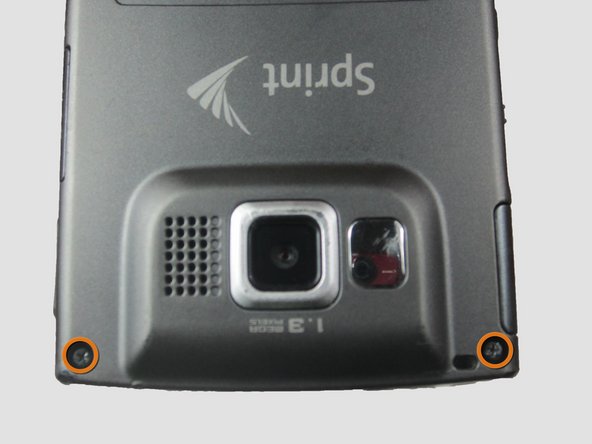
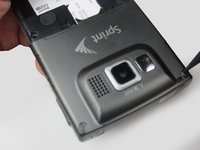
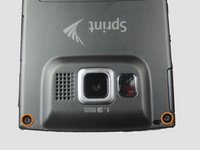
    • Using the Phillips #00 screwdriver, remove the four indicated screws (4.5 mm).

    Frag FixBot
  5. Samsung Ace Keyboard Replacement: Schritt 5, Bild 1 von 2 Samsung Ace Keyboard Replacement: Schritt 5, Bild 2 von 2
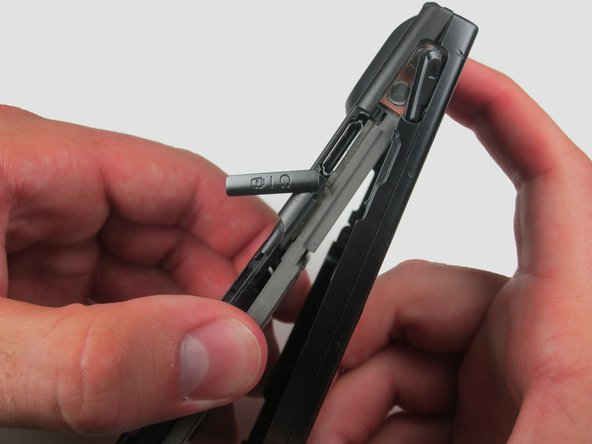
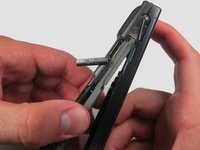
    • Press the pointed edge of the spudger into the side of the two rubber plugs in order to lift and remove them from the top of the phone.

    • Then, using the Phillips #00 screwdriver, remove the two indicated Phillip screws (6.5 mm).

    Frag FixBot
  6. Samsung Ace Keyboard Replacement: Schritt 6, Bild 1 von 1
    • To remove the SIM card, start by pressing the top of the card and push down and away towards the bottom of the phone. Then, as indicated, pull the SIM card out.

    Frag FixBot
  7. Samsung Ace Keyboard Replacement: Schritt 7, Bild 1 von 2 Samsung Ace Keyboard Replacement: Schritt 7, Bild 2 von 2
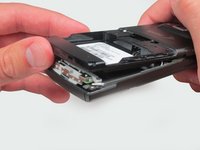
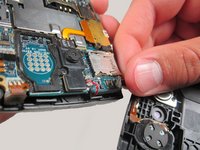
    • Begin to slowly lift the back casing of the phone. You should hear a snap when the casing is released.

    • The power, volume, and camera buttons may fall out when separating the front and back casing.

    Frag FixBot
  8. Samsung Ace Keyboard Replacement: Schritt 8, Bild 1 von 1
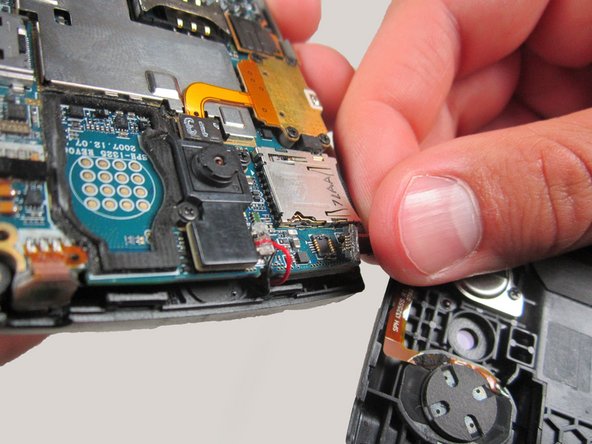
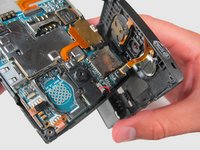
    • Your casing should be separated and the three loose buttons put to the side.

    • Be aware of the wiring on the top of the phone. Make sure not to pull it apart when separating the case.

    Frag FixBot
  9. Samsung Ace Keyboard Replacement: Schritt 9, Bild 1 von 2 Samsung Ace Keyboard Replacement: Schritt 9, Bild 2 von 2
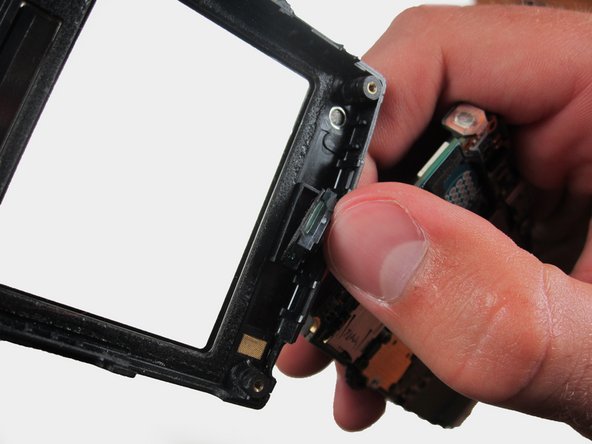
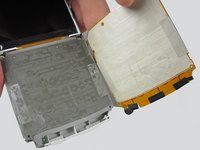
    • Slowly remove the back casing by gently pulling the ribbon connection.

    Frag FixBot
  10. Samsung Ace Keyboard Replacement: Schritt 10, Bild 1 von 2 Samsung Ace Keyboard Replacement: Schritt 10, Bild 2 von 2
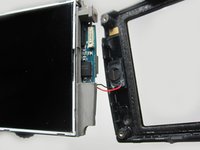
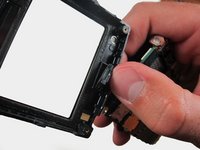
    • Gently pull on the wires to remove the front casing.

    Frag FixBot
  11. Samsung Ace Keyboard Replacement: Schritt 11, Bild 1 von 1
    • Your front casing and front speaker are now released.

    Frag FixBot
  12. Samsung Ace Keyboard Replacement, Keyboard: Schritt 12, Bild 1 von 1
    • Remove the keypad and place it to the side.

    Frag FixBot
  13. Samsung Ace Keyboard Replacement: Schritt 13, Bild 1 von 2 Samsung Ace Keyboard Replacement: Schritt 13, Bild 2 von 2
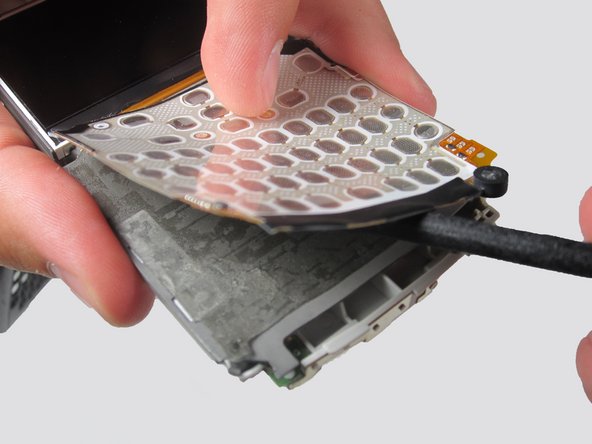
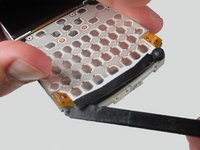
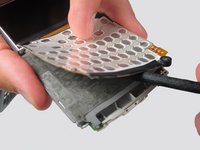
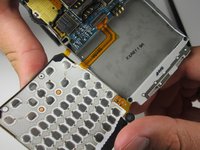
    • Insert the flat edge of the spudger to the space under the keypad and slide it along the bottom to lift the keypad out of its place. The keypad should be stuck to the surface very tightly.

    Frag FixBot
  14. Samsung Ace Keyboard Replacement: Schritt 14, Bild 1 von 2 Samsung Ace Keyboard Replacement: Schritt 14, Bild 2 von 2
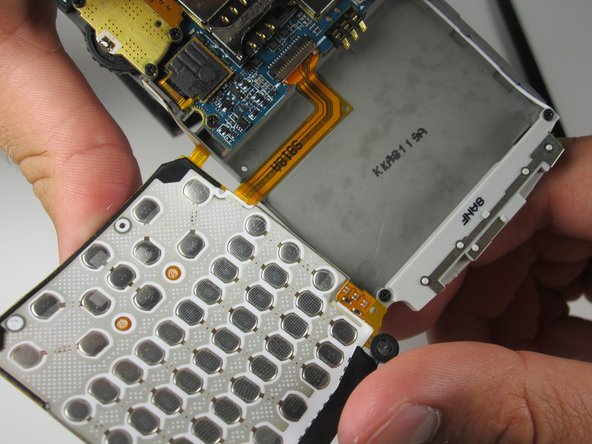
    • The keypad will lift off the adhesive.

    • Be aware of the wires still connected on the right side of the phone.

    Frag FixBot
Abschluss

To reassemble your device, follow these instructions in reverse order.

Eine weitere Person hat diese Anleitung absolviert.

Team

Cal Poly, Team 6-24, Amido Spring 2012 Mitglied von Cal Poly, Team 6-24, Amido Spring 2012

CPSU-AMIDO-S12S6G24

3 Mitglieder

17 Anleitungen geschrieben

0 Kommentare zur Anleitung

Kommentar hinzufügen

Seitenaufrufe:

Letzte 24 Stunden: 1

Letzte 7 Tage: 9

Letzte 30 Tage: 73

Insgesamt: 1,191