Einleitung
This is a guide to replace the keyboard of your Apple Magic Keyboard 2 A2450. This is not a guide to replacing any one key of the keyboard, but to replacing the entire keyboard.
Was du brauchst
-
-
Apply heat around the perimeter of the lower case to loosen the adhesive that secures the lower case to the chassis.
-
Insert an opening pick in the gap between the lower case and chassis.
-
After ensuring that the adhesive is warm, slide the pick around the perimeter to sever the adhesive.
-
As you sever the adhesive, insert additional opening picks at each corner to prevent the adhesive from readhering.
-
Remove the lower case.
 Frag FixBot
-
-
-
Use a T3 Torx screwdriver head to remove all twelve 5 mm that secure the midframe.
-
Use tweezers to disconnect the battery motherboard connection.
-
Remove the midframe.
-
-
-
-
Use a T3 Torx screwdriver to remove the two 5 mm screws that secure the lightning port.
-
Use tweezers to remove the Lighting port from the motherboard.
-
-
-
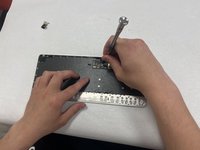
Use a T3 Torx screwdriver to remove the three 3 mm screws that secure the motherboard.
-
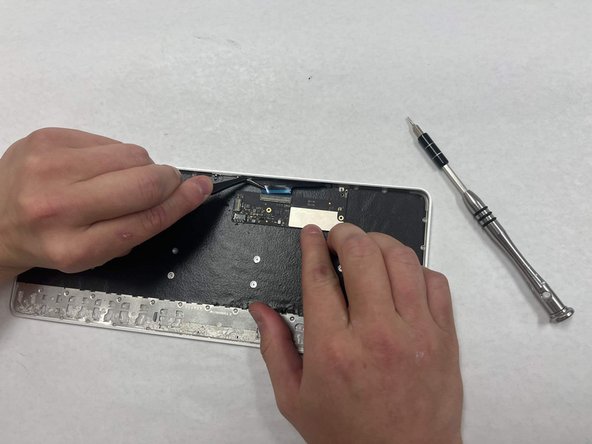
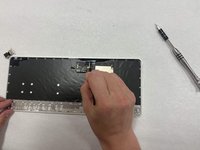
Remove the tape covering the ribbon cable on the top half of the motherboard.
-
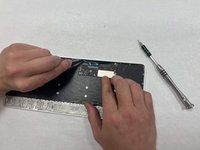
Use a small pair of tweezers to gently unplug the ribbon cable and remove the motherboard from the keyboard.
-
-
-
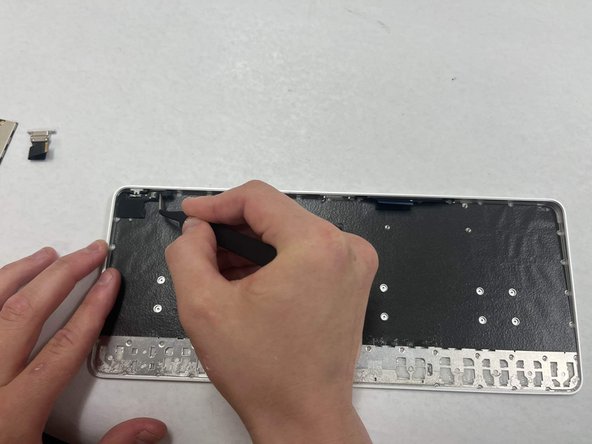
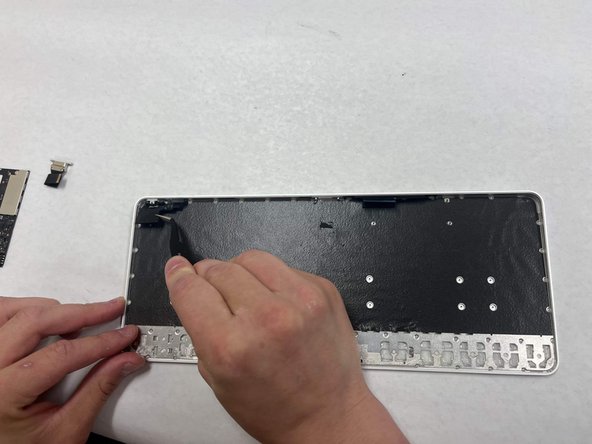
Use a T3 Torx screwdriver to remove the single 3 mm screw that secures the assembly to the frame.
-
Use tweezers to unplug the power switch from the case. Pull horizontally on the entire assembly to remove the switch from the keyboard.
-


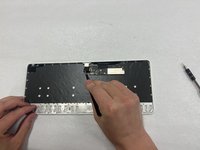
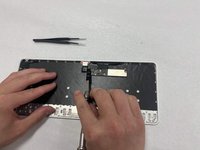
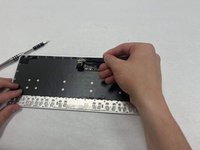

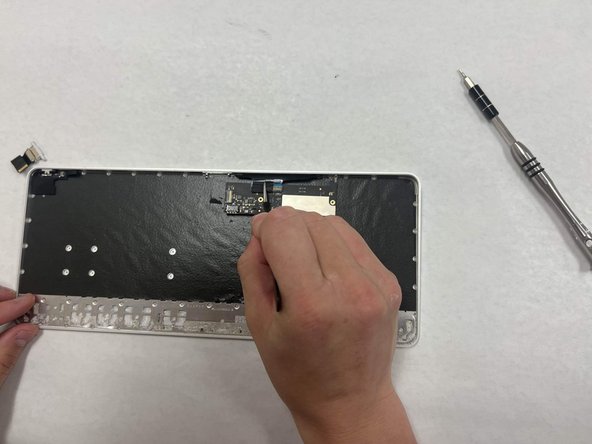

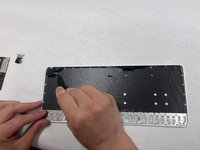

To reassemble your device, follow these instructions in reverse order.
Rückgängig: Ich habe diese Anleitung nicht absolviert.
Eine weitere Person hat diese Anleitung absolviert.

Team

IUPUI, Team 3-2, Harley Spring 2024 Mitglied von IUPUI, Team 3-2, Harley Spring 2024
IUPUI-HARLEY-S24S3G2
4 Mitglieder
3 Anleitungen geschrieben
