Einleitung
The speakers are the sound source for the device. A damaged speaker or outdated driver will cause the device to produce unclear or no sound. If you have followed all the steps in the Troubleshooting Guide and found that you have a damaged or faulty speaker, this step-by-step guide will lead you through the process of removing the battery, back-plate, hard drive, cover/palm rest, and speakers.
Was du brauchst
-
-
Ensure the device is powered off by holding down the power button on the top left-hand side.
-
On a flat, level surface, flip the device over so that the back-plate is accessible.
-
-
-
Using a spudger or any fine-pointed tool, push the release slide away from the center of the device.
-
Simultaneously pull the battery out and away from the device.
-
-
-
Using the JIS J1 Screwdriver Bit and Driver, remove the center screw (7.0 mm) from the back-plate.
-
Using your hands, slide the back-plate away from the center of the device and remove.
-
-
-
Using the JIS J1 Screwdriver Bit and Driver, remove the two screws (9.0 mm) from the outward side of the hard drive.
-
-
-
-
Using your hand, slide the hard drive away from the center of the device until it disconnects from the motherboard.
-
Carefully lift the outward side of the hard drive and place the drive on a clean, non-magnetic surface.
-
-
-
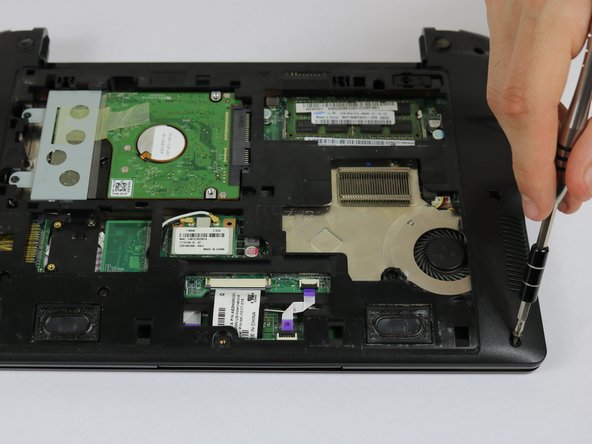
Using the JIS J1 Screwdriver Bit and Driver, remove the six outside screws (7.0 mm).
-
Using the JIS J1 Screwdriver Bit and Driver, remove the seven inside screws (8.0 mm).
-
Using the JIS J1 Screwdriver Bit and Driver, remove the one inside screw (3.0 mm).
-
-
-
Using your hands, slide the brown release tabs for the keyboard connection away from the center of the device.
-
Gently remove the keyboard connection by pulling away from the center of the device.
-
Lift the black locks for the touchpad connections into the upward position.
-
Gently remove the touchpad connections by pulling the purple tabs away from the locks.
-
-
-
Flip the device over and open it.
-
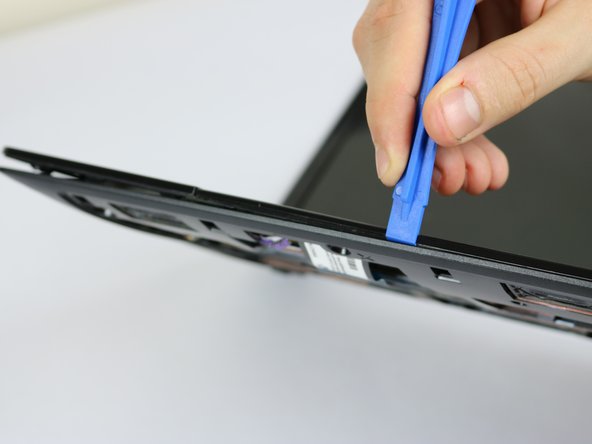
Using the plastic opening tools, remove the cover/palm rest from the frame of the device.
-
-
-
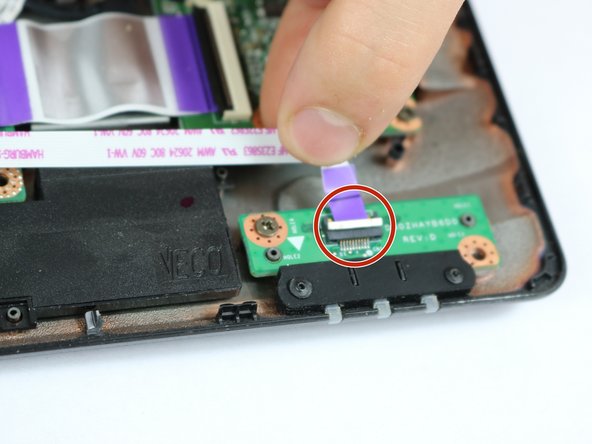
Lift the black locks for the indicator light connections into the upward position.
-
Remove the indicator light connection by gently pulling the purple tabs away from the locks.
-
-
-
Disconnect the speakers from the motherboard by carefully pulling the adapter away from the center of the device.
-
-
-
Very carefully remove the speaker wire from the wiring harness.
-
Remove the speakers by lifting them up and away from the device.
-








To reassemble your device, follow these instructions in reverse order.
To reassemble your device, follow these instructions in reverse order.
Rückgängig: Ich habe diese Anleitung nicht absolviert.
Ein:e weitere:r Nutzer:in hat diese Anleitung absolviert.



Team

USF Tampa, Team 8-3, Eyestone Spring 2017 Mitglied von USF Tampa, Team 8-3, Eyestone Spring 2017
USFT-EYESTONE-S17S8G3
4 Mitglieder
16 Anleitungen geschrieben
