Zum Hauptinhalt wechseln
Gemeinsam reparieren - Jetzt registrieren

Alienware AW610M Side Button Replacement

Was du brauchst

  1. Alienware AW610M Side Button Replacement, Battery: Schritt 1, Bild 1 von 3 Alienware AW610M Side Button Replacement, Battery: Schritt 1, Bild 2 von 3 Alienware AW610M Side Button Replacement, Battery: Schritt 1, Bild 3 von 3
    • Power off the mouse and disconnect any wired connections.

    Frag FixBot
  2. Alienware AW610M Side Button Replacement: Schritt 2, Bild 1 von 2 Alienware AW610M Side Button Replacement: Schritt 2, Bild 2 von 2
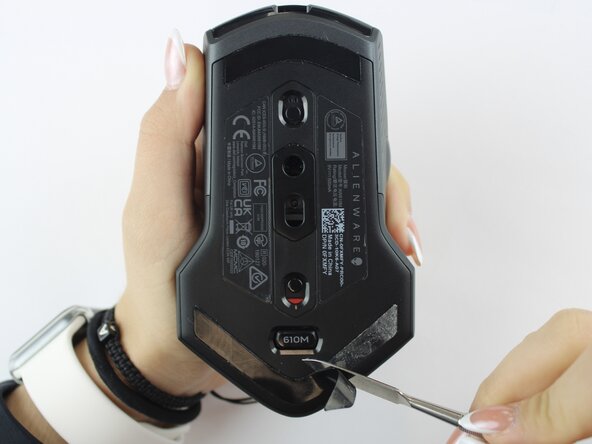
    • Use a spudger to gently lift and remove the old mouse feet.

    • If the feet are sticky, try lifting slowly from one corner to avoid tearing them.

    • Be careful not to scratch the mouse surface or damage the plastic housing.

    Frag FixBot
  3. Alienware AW610M Side Button Replacement: Schritt 3, Bild 1 von 2 Alienware AW610M Side Button Replacement: Schritt 3, Bild 2 von 2
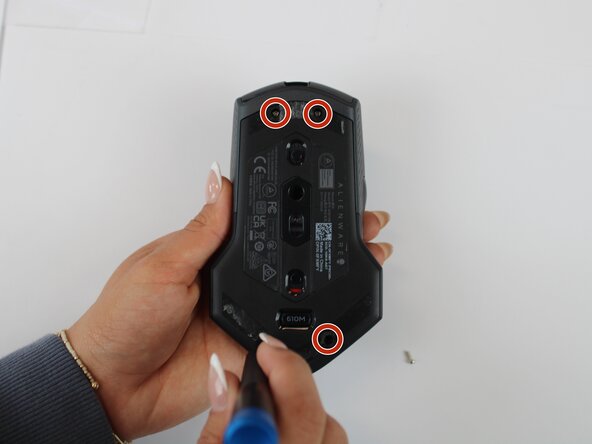
    • Remove the four 6.5 mm screws using a Y1 Tri-Point screwdriver.

    Frag FixBot
  4. Alienware AW610M Side Button Replacement: Schritt 4, Bild 1 von 2 Alienware AW610M Side Button Replacement: Schritt 4, Bild 2 von 2
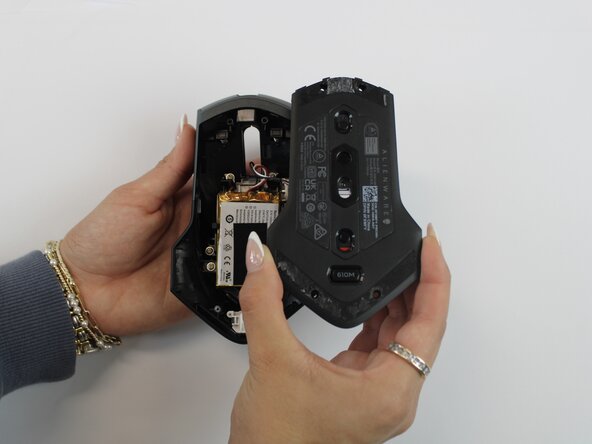
    • Using an opening tool, gently pry apart the two halves of the mouse case. Start at the seam and work your way around until the housing is separated.

    • Don't pull the halves completely apart, as internal wires still connect them.

    Frag FixBot
  5. Alienware AW610M Side Button Replacement: Schritt 5, Bild 1 von 3 Alienware AW610M Side Button Replacement: Schritt 5, Bild 2 von 3 Alienware AW610M Side Button Replacement: Schritt 5, Bild 3 von 3
    • Remove the battery pack inside the mouse.

    • If you are having trouble, use a small flat tool to help ease it out.

    • The battery is lightly glued to the mouse, so ease it out gently to avoid breaking the battery or wiring

    Frag FixBot
  6. Alienware AW610M Side Button Replacement: Schritt 6, Bild 1 von 2 Alienware AW610M Side Button Replacement: Schritt 6, Bild 2 von 2
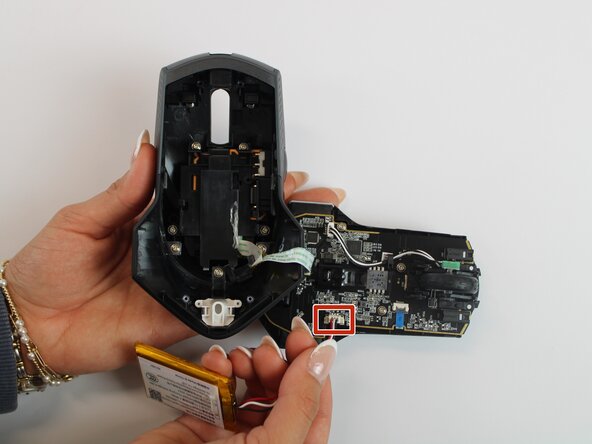
    • Remove the old battery from its spot. Lift the wire connector away from the mainboard to disconnect it.

    • Make sure all wires are inside the mouse before sealing it shut for easy reassembly.

    Frag FixBot
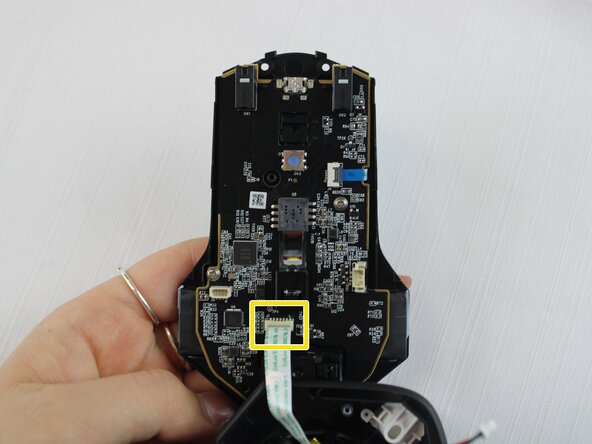
  7. Alienware AW610M Side Button Replacement, Side Button: Schritt 7, Bild 1 von 2 Alienware AW610M Side Button Replacement, Side Button: Schritt 7, Bild 2 von 2
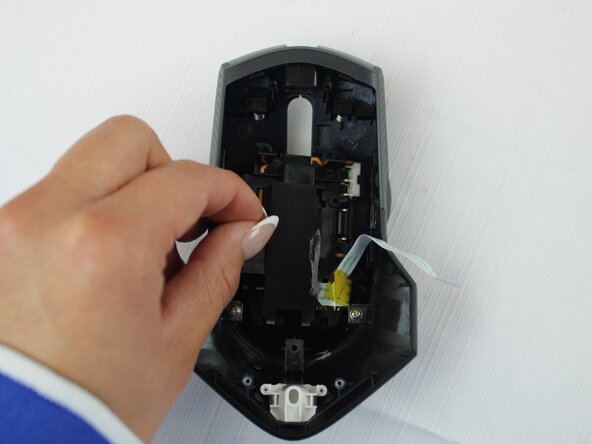
    • Remove the single 5.4 mm screw using a Phillips #1 screwdriver.

    • Detach the cable connector, and remove the scroll wheel.

    • Gently detach the last connector using your fingers.

    • Be careful when unplugging all connectors to prevent tearing them.

    Frag FixBot
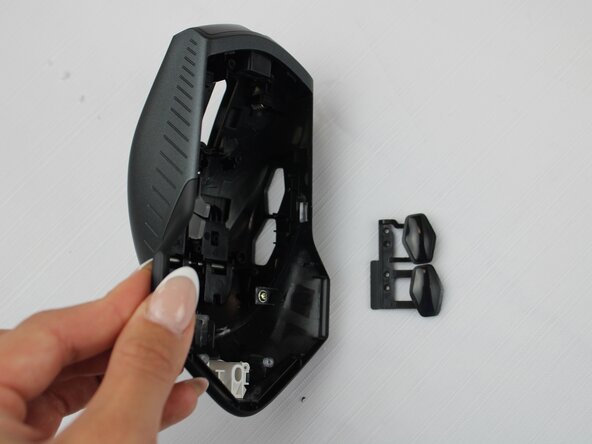
  8. Alienware AW610M Side Button Replacement: Schritt 8, Bild 1 von 1
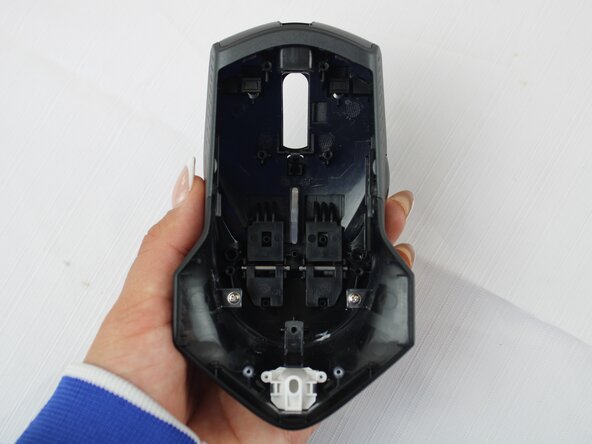
    • Turn the large shell casing so that the inside faces you.

    • Using a Phillips #1 screwdriver, remove six 5.4 mm screws.

    Frag FixBot
  9. Alienware AW610M Side Button Replacement: Schritt 9, Bild 1 von 2 Alienware AW610M Side Button Replacement: Schritt 9, Bild 2 von 2
    • Using your fingers, disconnect the plastic tab in the middle of the large shell casing to access the side buttons.

    Frag FixBot
  10. Alienware AW610M Side Button Replacement: Schritt 10, Bild 1 von 3 Alienware AW610M Side Button Replacement: Schritt 10, Bild 2 von 3 Alienware AW610M Side Button Replacement: Schritt 10, Bild 3 von 3
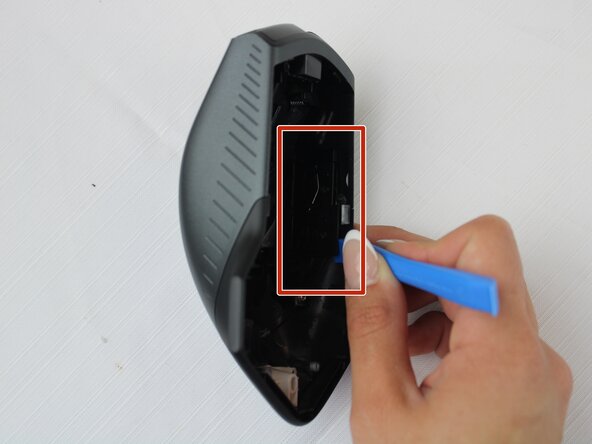
    • Remove the side button on the inner side of the wall using a plastic opening tool.

    • Be gentle prying the side buttons off to avoid breaking them.

    • When reassembling, position the new side button assembly into the slot, aligning it with tabs. Snap it securely into place using a plastic opening tool or your fingers.

    Frag FixBot
Abschluss

To reassemble your device, follow these instructions in reverse order.

Team

Texas Tech, Team 46-4, Johansen Fall 2025 Mitglied von Texas Tech, Team 46-4, Johansen Fall 2025

TTU-JOHANSEN-F25S46G4

4 Mitglieder

5 Anleitungen geschrieben

0 Kommentare zur Anleitung

Kommentar hinzufügen

Seitenaufrufe:

Letzte 24 Stunden: 0

Letzte 7 Tage: 5

Letzte 30 Tage: 22

Insgesamt: 161