Zum Hauptinhalt wechseln
Gemeinsam reparieren - Jetzt registrieren

Mad Catz Street Fighter IV FightPad USB Cable Replacement

Was du brauchst

  1. Mad Catz Street Fighter IV FightPad USB Cable Replacement, Rear and Side Case: Schritt 1, Bild 1 von 1
    In diesem Schritt verwendetes Werkzeug:
    Tweezers
    $4.99
    • Use tweezers to completely remove the sticker from the rear of controller.

    Frag FixBot

    Kommentar hinzufügen

  2. Mad Catz Street Fighter IV FightPad USB Cable Replacement: Schritt 2, Bild 1 von 1
    • Find the seven 8.3 mm Phillips screws on the rear of the controller and remove them.

    Frag FixBot

    Kommentar hinzufügen

  3. Mad Catz Street Fighter IV FightPad USB Cable Replacement: Schritt 3, Bild 1 von 2 Mad Catz Street Fighter IV FightPad USB Cable Replacement: Schritt 3, Bild 2 von 2
    • Use a plastic opening tool to separate the rear and front casing by inserting it in-between the two cases.

    • Use the plastic opening tool to pry the two cases apart.

    Frag FixBot

    Kommentar hinzufügen

  4. Mad Catz Street Fighter IV FightPad USB Cable Replacement: Schritt 4, Bild 1 von 2 Mad Catz Street Fighter IV FightPad USB Cable Replacement: Schritt 4, Bild 2 von 2
    • Remove the two rubber side grips.

    Frag FixBot

    Kommentar hinzufügen

  5. Mad Catz Street Fighter IV FightPad USB Cable Replacement, RS-DP-LS Switch: Schritt 5, Bild 1 von 2 Mad Catz Street Fighter IV FightPad USB Cable Replacement, RS-DP-LS Switch: Schritt 5, Bild 2 von 2
    • Locate RS-DP-LS switch.

    • Pull upwards on the switch to remove it.

    Frag FixBot

    Kommentar hinzufügen

  6. Mad Catz Street Fighter IV FightPad USB Cable Replacement, Circuit Board: Schritt 6, Bild 1 von 1
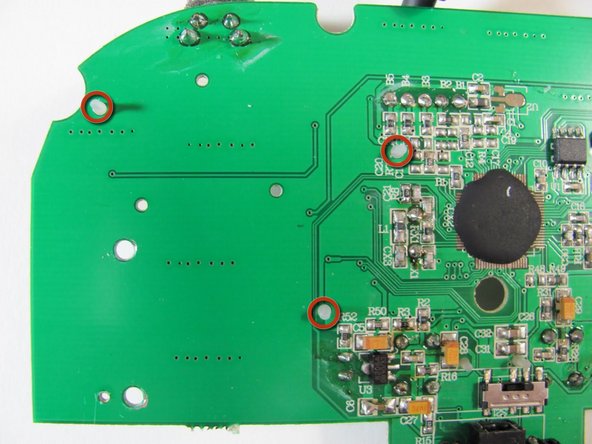
    • Locate the four 8.3 mm Phillips screws on the circuit board and remove them.

    Frag FixBot

    Kommentar hinzufügen

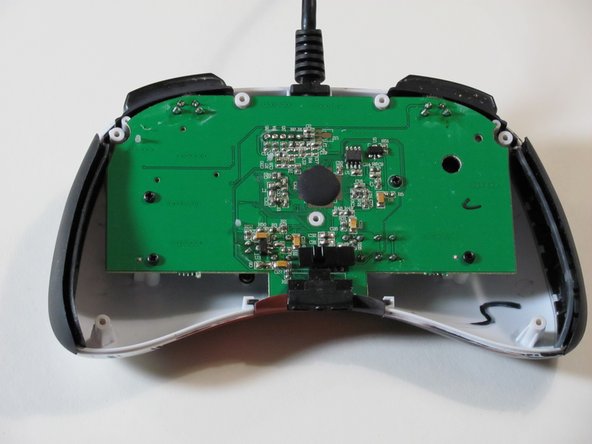
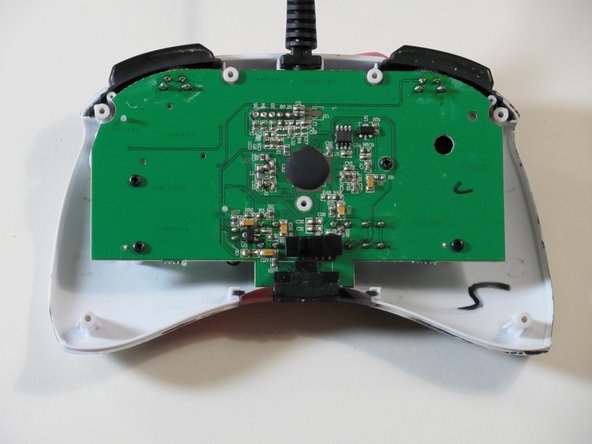
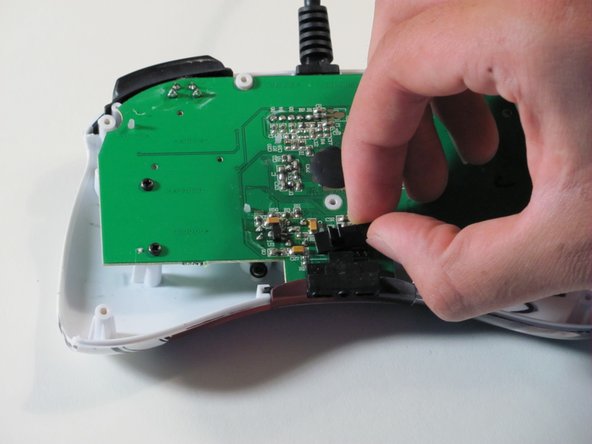
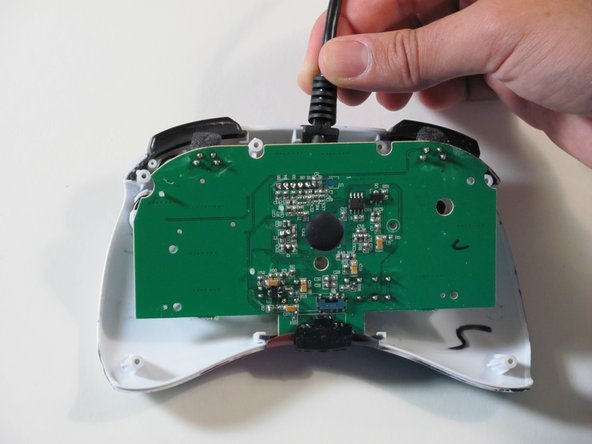
  7. Mad Catz Street Fighter IV FightPad USB Cable Replacement: Schritt 7, Bild 1 von 3 Mad Catz Street Fighter IV FightPad USB Cable Replacement: Schritt 7, Bild 2 von 3 Mad Catz Street Fighter IV FightPad USB Cable Replacement: Schritt 7, Bild 3 von 3
    • Hold the controller cable at the area just before it meets the controller and slowly lift upwards to slide it out of its plastic slot and remove the circuit board.

    • Be careful with the wires connected to the circuit board itself as they are thin and delicate.

    • When reassembling the controller, make sure that the bottom plastic piece is fully inserted into its slot before replacing the circuit board.

    Frag FixBot

    Kommentar hinzufügen

  8. Mad Catz Street Fighter IV FightPad USB Cable Replacement, USB Cable: Schritt 8, Bild 1 von 3 Mad Catz Street Fighter IV FightPad USB Cable Replacement, USB Cable: Schritt 8, Bild 2 von 3 Mad Catz Street Fighter IV FightPad USB Cable Replacement, USB Cable: Schritt 8, Bild 3 von 3
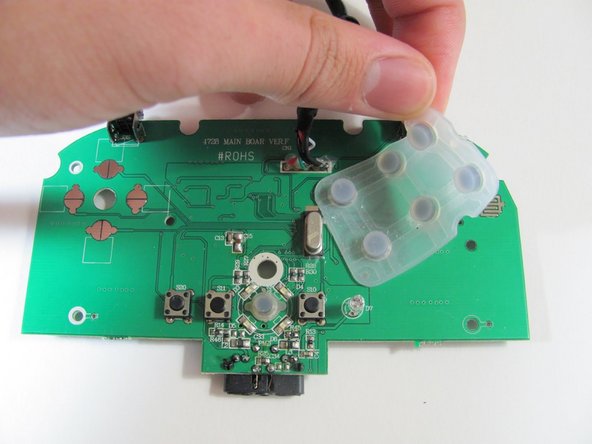
    • Orient the motherboard so that the side with the rubber buttons is facing up.

    • Remove the rubber buttons by pulling up on the on the rubber pad on the points where the rubber cylinders that poke through the motherboard are so that each cylinder slides out nicely.

    • Removing the rubber buttons is optional but recommended to do before soldering.

    Frag FixBot

    Kommentar hinzufügen

  9. Mad Catz Street Fighter IV FightPad USB Cable Replacement: Schritt 9, Bild 1 von 1
    • Locate the broken or disconnected wire by gently pulling up on the five wires connected to the motherboard

    Frag FixBot

    Kommentar hinzufügen

  10. Mad Catz Street Fighter IV FightPad USB Cable Replacement: Schritt 10, Bild 1 von 1
    In diesem Schritt verwendetes Werkzeug:
    Tweezers
    $4.99
    • Push or pull the broken or disconnected wire through its respective hole on the front side of the motherboard so that the metal part of the wire is sticking out the back side of the motherboard.

    • Use the soldering kit to solder the wire onto the back side of the motherboard.

    • You may need to desolder the old solder in the hole before pulling the wire through and soldering it to the motherboard.

    • If the rubber sleeve of the wire prevents the metal part of the wire from going through the hole then use tweezers to pull the rubber sleeve back to expose more of the metal part.

    Frag FixBot

    Kommentar hinzufügen

Abschluss

To reassemble your device, follow the instructions starting from step eight in reverse order.

For specific instructions on soldering, check out the iFixit soldering guide.

Rückgängig: Ich habe diese Anleitung nicht absolviert.

Eine weitere Person hat diese Anleitung absolviert.

Eric

Mitglied seit: 09/26/12

121 Reputation

3 Anleitungen geschrieben

Team

Cal Poly, Team 1-7, Propen Fall 2012 Mitglied von Cal Poly, Team 1-7, Propen Fall 2012

CPSU-PROPEN-F12S1G7

4 Mitglieder

14 Anleitungen geschrieben

0 Kommentare zur Anleitung

Kommentar hinzufügen

Seitenaufrufe:

Letzte 24 Stunden: 2

Letzte 7 Tage: 7

Letzte 30 Tage: 54

Insgesamt: 2,854