Zum Hauptinhalt wechseln
Gemeinsam reparieren - Jetzt registrieren

Amazon Fire Phone Display Replacement

Was du brauchst

  1. Amazon Fire Phone Display Replacement, Tape the screen: Schritt 1, Bild 1 von 1
    • If the display is damaged, use clear packing tape to contain any glass shards.

    • Make sure the entire surface of the display is covered with tape.

    • Wear safety glasses to protect your eyes.

    Frag FixBot
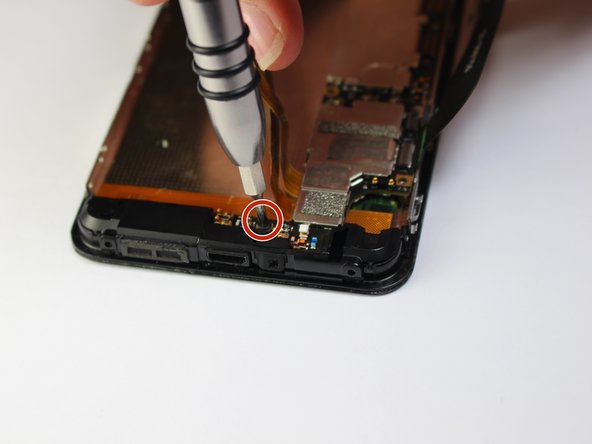
  2. Amazon Fire Phone Display Replacement, Power off, remove SIM card, remove screws: Schritt 2, Bild 1 von 3 Amazon Fire Phone Display Replacement, Power off, remove SIM card, remove screws: Schritt 2, Bild 2 von 3 Amazon Fire Phone Display Replacement, Power off, remove SIM card, remove screws: Schritt 2, Bild 3 von 3
    • Power off your phone.

    • Remove the SIM card from the left side of the phone by pressing the small hole and allowing it to eject using the 0.8 screwdriver head.

    • Remove the two 4mm screws on the bottom of the phone using the Torx T3 screwdriver.

    Frag FixBot
  3. Amazon Fire Phone Display Replacement: Schritt 3, Bild 1 von 3 Amazon Fire Phone Display Replacement: Schritt 3, Bild 2 von 3 Amazon Fire Phone Display Replacement: Schritt 3, Bild 3 von 3
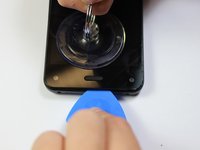
    • Press the small suction cup just above the home button.

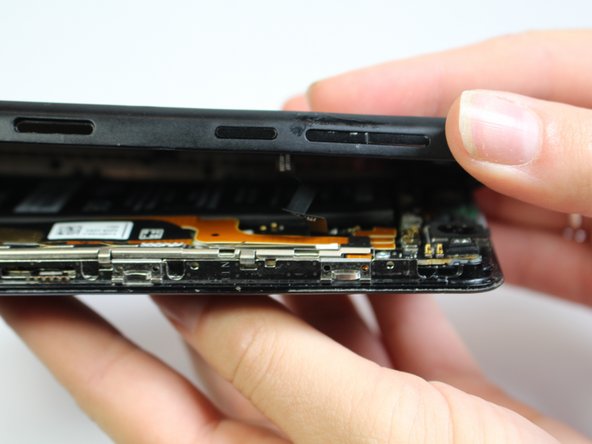
    • While lifting up on the suction cup insert an opening pick into the crevice between the screen and back casing to pry the screen off carefully.

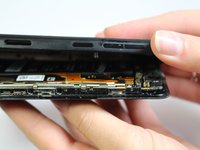
    • Carefully separate the two halves to avoid tearing the volume rocker ribbon cable.

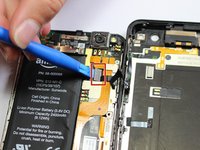
    • Using the opening tool, disconnect the volume rocker ribbon cable from the base of the phone freeing the two halves of the phone.

    Frag FixBot
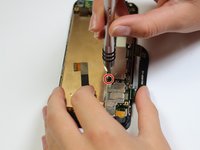
  4. Amazon Fire Phone Display Replacement, Remove Bracket: Schritt 4, Bild 1 von 1
    • Using the J000 screwdriver head, remove the three 3mm screws holding the bracket in place.

    • Remove the silver bracket that was held into place by the three screws just removed.

    Frag FixBot
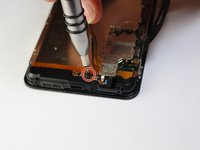
  5. Amazon Fire Phone Display Replacement, Disconnect Battery: Schritt 5, Bild 1 von 1
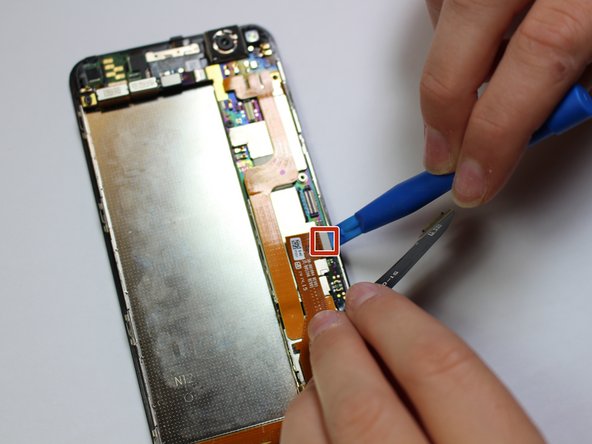
    • Disconnect the battery connection cable by using the plastic opening tool and applying light pressure upwards on the cable.

    Frag FixBot
  6. Amazon Fire Phone Display Replacement, Micro-USB Port: Schritt 6, Bild 1 von 2 Amazon Fire Phone Display Replacement, Micro-USB Port: Schritt 6, Bild 2 von 2
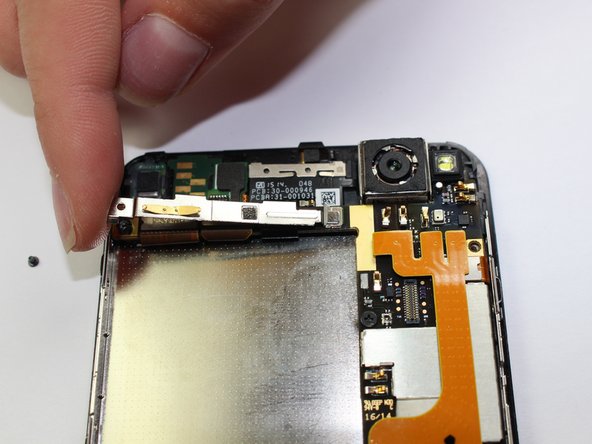
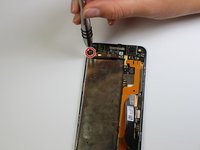
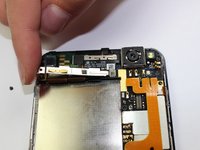
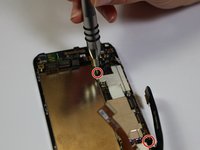
    • Unscrew the 1mm screw on the top left side of the phone

    • Maneuver the bracket off slowly

    Frag FixBot
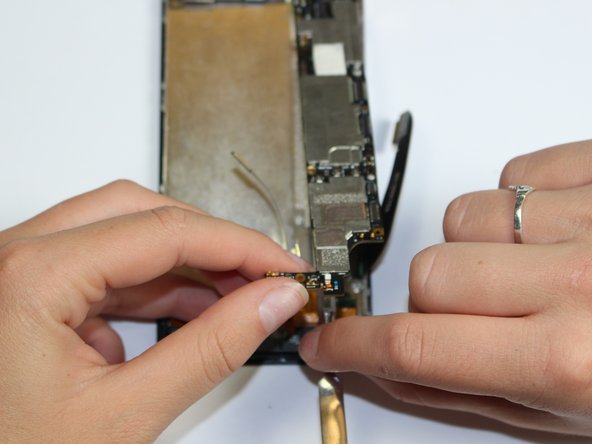
  7. Amazon Fire Phone Display Replacement: Schritt 7, Bild 1 von 3 Amazon Fire Phone Display Replacement: Schritt 7, Bild 2 von 3 Amazon Fire Phone Display Replacement: Schritt 7, Bild 3 von 3
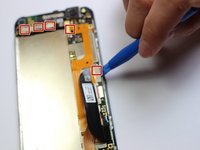
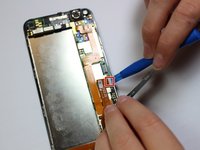
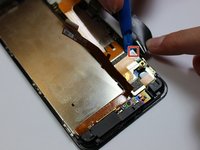
    • Disconnect the 9 cables along the top and right side of motherboard using the plastic opening tool

    Frag FixBot
  8. Amazon Fire Phone Display Replacement: Schritt 8, Bild 1 von 1
    • Unscrew the 3mm screw located on the top left side of the phone with a flat head

    Frag FixBot
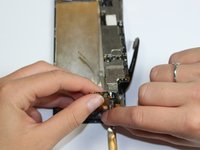
  9. Amazon Fire Phone Display Replacement: Schritt 9, Bild 1 von 3 Amazon Fire Phone Display Replacement: Schritt 9, Bild 2 von 3 Amazon Fire Phone Display Replacement: Schritt 9, Bild 3 von 3
    • Unscrew the four 2mm screws along the right side of the motherboard with a philips head

    Frag FixBot
  10. Amazon Fire Phone Display Replacement: Schritt 10, Bild 1 von 2 Amazon Fire Phone Display Replacement: Schritt 10, Bild 2 von 2
    • Carefully lift up the motherboard and using the spudger pry camera from the camera holder

    Frag FixBot
  11. Amazon Fire Phone Display Replacement: Schritt 11, Bild 1 von 1
    • Lift off bottom plastic piece with flat antenna cables

    Frag FixBot
  12. Amazon Fire Phone Display Replacement, Display: Schritt 12, Bild 1 von 1
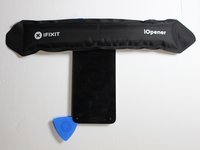
    • We recommend you clean your microwave before preceding to heat up the iOpener.

    • Place the iOpener in the center of the microwave.

    • Heat the iOpener for thirty seconds.

    • Be careful not to overheat the iOpener and always wait at least three minutes before reheating the iOpener

    Frag FixBot
  13. Amazon Fire Phone Display Replacement: Schritt 13, Bild 1 von 1
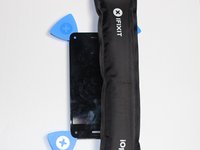
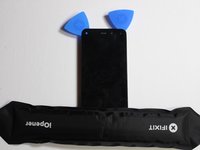
    • Lay the iOpener on side 1 of the phone for 90 seconds before attempting to open the front panel

    Frag FixBot
  14. Amazon Fire Phone Display Replacement: Schritt 14, Bild 1 von 3 Amazon Fire Phone Display Replacement: Schritt 14, Bild 2 von 3 Amazon Fire Phone Display Replacement: Schritt 14, Bild 3 von 3
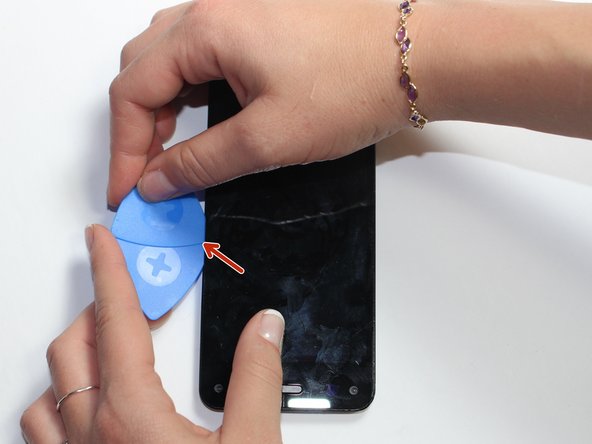
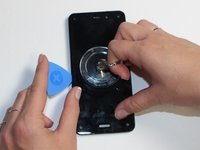
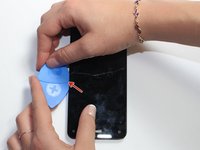
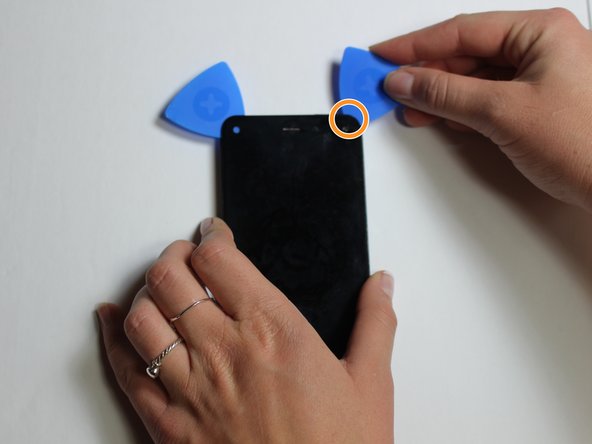
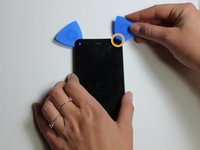
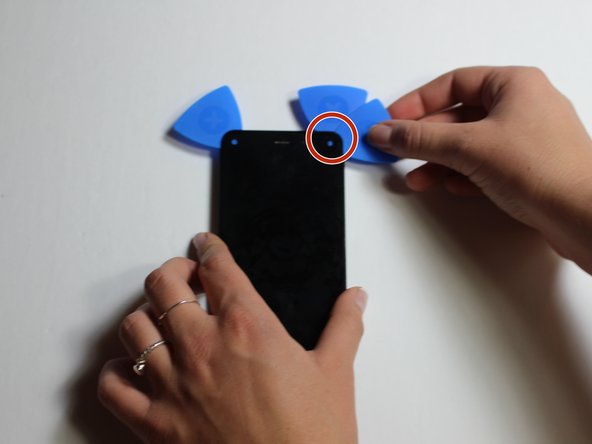
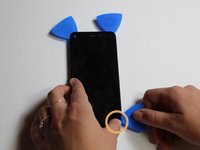
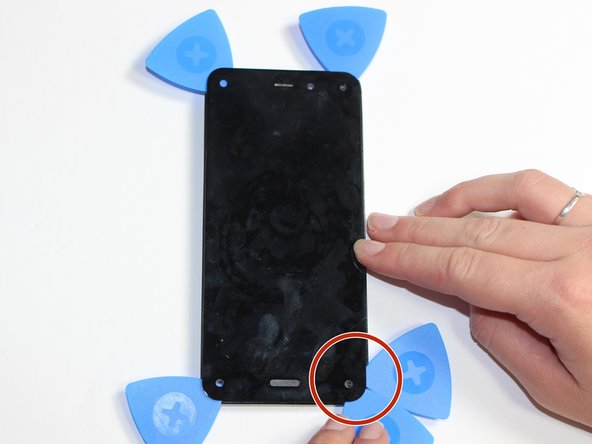
    • Using the Suction Cup to slightly lift the screen, pry one opening pick into side of the phone.

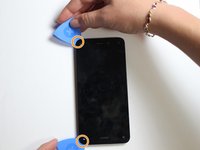
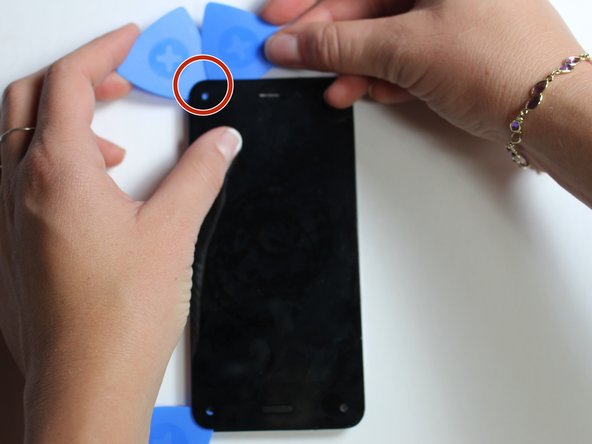
    • Insert another opening pick next to the first one.

    • Slowly slide the two Picks to the corners of the phone.

    Frag FixBot
  15. Amazon Fire Phone Display Replacement: Schritt 15, Bild 1 von 3 Amazon Fire Phone Display Replacement: Schritt 15, Bild 2 von 3 Amazon Fire Phone Display Replacement: Schritt 15, Bild 3 von 3
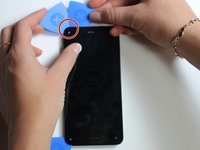
    • Place the iOpener on side 2 of the phone for 90 seconds.

    • Insert another pick into side 2 of the phone.

    • Slowly slide the pick to the next corner.

    • If necessary, reheat the iOpener. Don't reheat it more than once every 3 minutes.

    Frag FixBot
  16. Amazon Fire Phone Display Replacement: Schritt 16, Bild 1 von 3 Amazon Fire Phone Display Replacement: Schritt 16, Bild 2 von 3 Amazon Fire Phone Display Replacement: Schritt 16, Bild 3 von 3
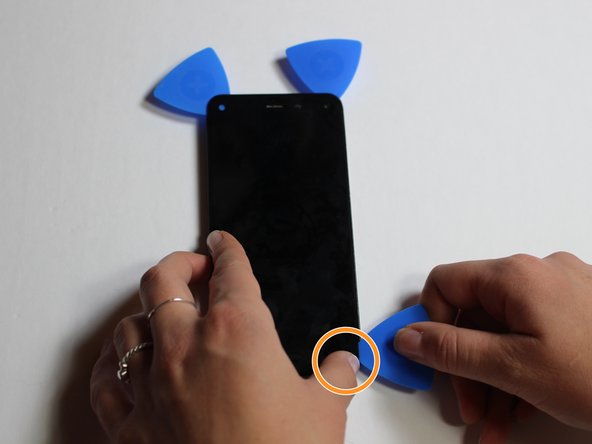
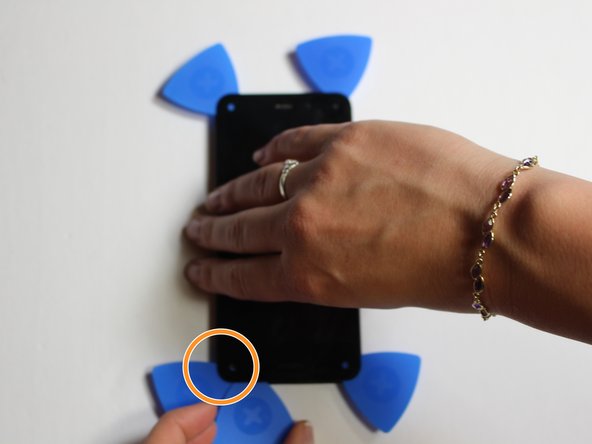
    • Place the iOpener on the 3rd side of the phone for 90 seconds.

    • Place a pick in the corner of the phone.

    • Slowly slide the the pick to the opposite corner of the phone.

    Frag FixBot
  17. Amazon Fire Phone Display Replacement: Schritt 17, Bild 1 von 3 Amazon Fire Phone Display Replacement: Schritt 17, Bild 2 von 3 Amazon Fire Phone Display Replacement: Schritt 17, Bild 3 von 3
    • Place the iOpener on the last edge of the phone for 90 seconds.

    • Place the pick in the corner.

    • Slowly slide the pick to the opposite corner.

    Frag FixBot
  18. Amazon Fire Phone Display Replacement: Schritt 18, Bild 1 von 1
    • Carefully separate the screen from the front panel of the phone by inserting the picks farther towards the center and pulling the screen off.

    • Slowly and carefully do this to avoid breaking, bending or shattering the screen.

    • If part of the screen isn't easily coming off try reheating the iOpener and placing it on the problem area.

    Frag FixBot
  19. Amazon Fire Phone Display Replacement: Schritt 19, Bild 1 von 1
    • Remove the screen slowly.

    • Pull the cable out of the hole carefully.

    Frag FixBot
Abschluss

To reassemble your device, follow these instructions in reverse order.

5 weitere Personen haben diese Anleitung absolviert.

Team

Cal Poly, Team 5-7, Maness Fall 2015 Mitglied von Cal Poly, Team 5-7, Maness Fall 2015

CPSU-MANESS-F15S5G7

5 Mitglieder

10 Anleitungen geschrieben

1 Kommentar zur Anleitung

how to replace touch?

coolsaad2010 - Antwort Teilen

Kommentar hinzufügen

Seitenaufrufe:

Letzte 24 Stunden: 3

Letzte 7 Tage: 18

Letzte 30 Tage: 104

Insgesamt: 5,874