Zum Hauptinhalt wechseln
Gemeinsam reparieren - Jetzt registrieren

Flip Video Ultra Power button Replacement

Was du brauchst

  1. Flip Video Ultra Power button Replacement, Power button: Schritt 1, Bild 1 von 1
    • Unlock the battery cover by sliding the switch to the unlock position.

    Frag FixBot
  2. Flip Video Ultra Power button Replacement: Schritt 2, Bild 1 von 1
    • Remove the battery cover by sliding it down the camera.

    Frag FixBot
  3. Flip Video Ultra Power button Replacement: Schritt 3, Bild 1 von 1
    • Remove the batteries

    Frag FixBot
  4. Flip Video Ultra Power button Replacement: Schritt 4, Bild 1 von 1
    • Slide the black upper casing off from the device.

    Frag FixBot
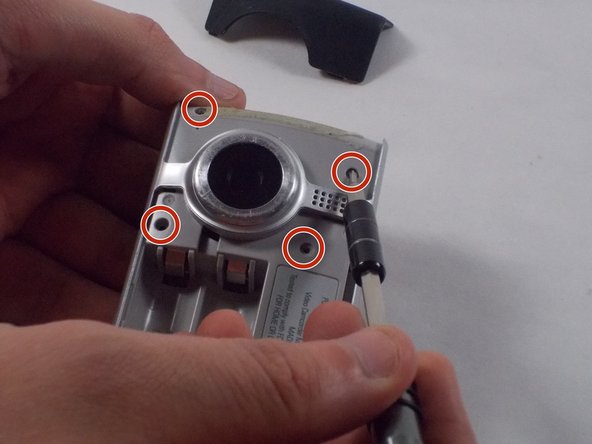
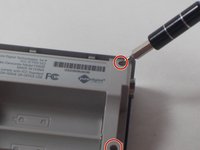
  5. Flip Video Ultra Power button Replacement: Schritt 5, Bild 1 von 2 Flip Video Ultra Power button Replacement: Schritt 5, Bild 2 von 2
    • Remove the six 1mm screws from the back and upper casing with the Phillips Head screwdriver.

    Frag FixBot
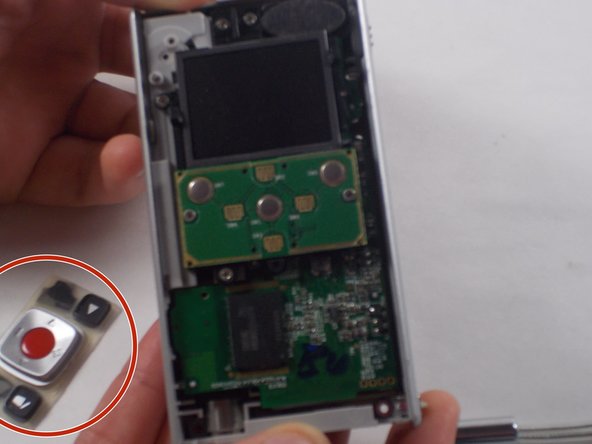
  6. Flip Video Ultra Power button Replacement: Schritt 6, Bild 1 von 1
    • Remove the top casing from the bottom to reveal the inner circuit board.

    Frag FixBot
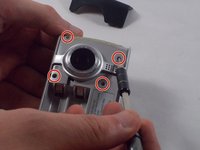
  7. Flip Video Ultra Power button Replacement: Schritt 7, Bild 1 von 2 Flip Video Ultra Power button Replacement: Schritt 7, Bild 2 von 2
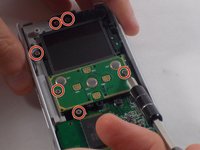
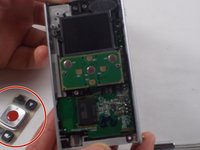
    • When removing the back panel, the rubber buttons will become loose and likely fall off the board. This is normal and can easily placed back on the board once finished.

    • Remove the six 1mm screws with the 1 Phillips head screwdriver.

    Frag FixBot
  8. Flip Video Ultra Power button Replacement: Schritt 8, Bild 1 von 1
    • Gently separate the circuit board from the casing.

    Frag FixBot
  9. Flip Video Ultra Power button Replacement: Schritt 9, Bild 1 von 2 Flip Video Ultra Power button Replacement: Schritt 9, Bild 2 von 2
    • Unscrew the single 1mm screw from USB housing unit.

    Frag FixBot
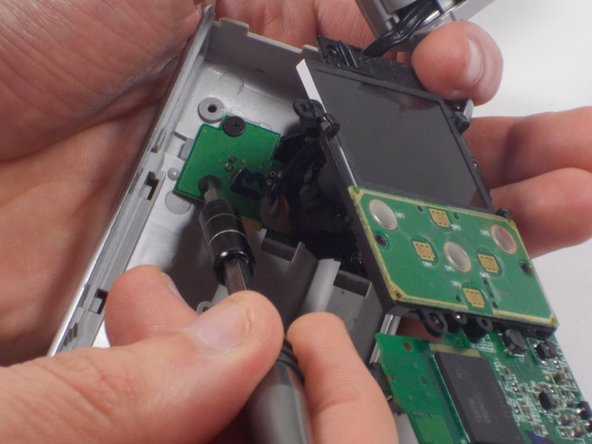
  10. Flip Video Ultra Power button Replacement: Schritt 10, Bild 1 von 2 Flip Video Ultra Power button Replacement: Schritt 10, Bild 2 von 2
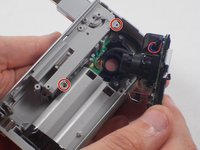
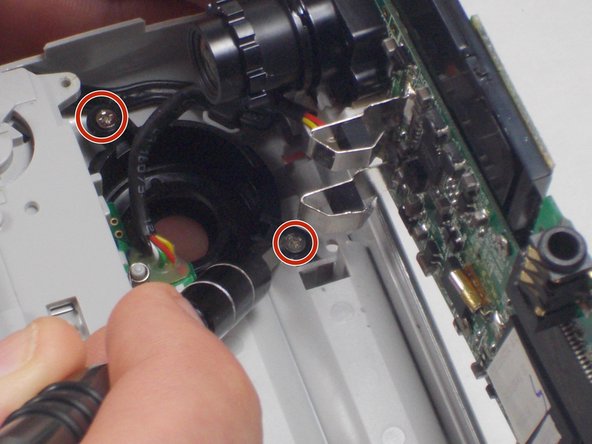
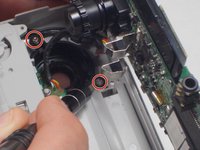
    • Unscrew the 2 1mm screws and gently separate camera wires from plastic casing.

    Frag FixBot
  11. Flip Video Ultra Power button Replacement: Schritt 11, Bild 1 von 1
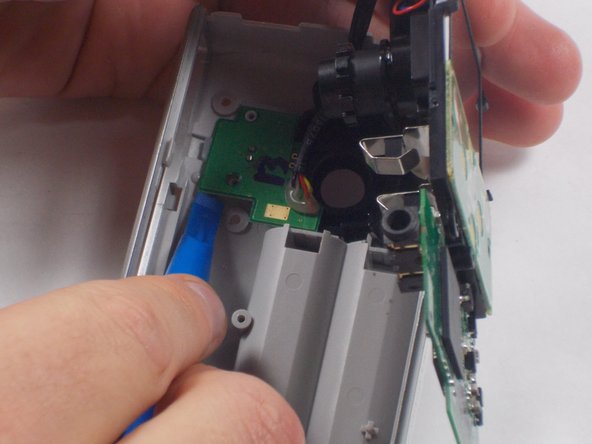
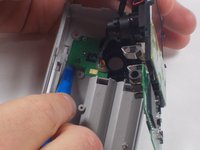
    • Gently pry out the USB housing unit with the Ifxit Opening Tool.

    Frag FixBot
  12. Flip Video Ultra Power button Replacement: Schritt 12, Bild 1 von 3 Flip Video Ultra Power button Replacement: Schritt 12, Bild 2 von 3 Flip Video Ultra Power button Replacement: Schritt 12, Bild 3 von 3
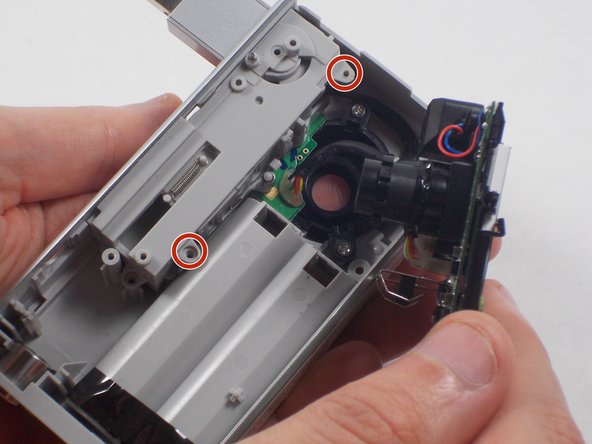
    • Remove the two 1mm screws and separate the circuit board and camera from the plastic casing.

    Frag FixBot
  13. Flip Video Ultra Power button Replacement: Schritt 13, Bild 1 von 1
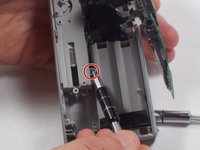
    • Unscrew the camera housing unit from the plastic case.

    Frag FixBot
Abschluss

To reassemble your device, follow these instructions in reverse order.

Team

UMass Dartmouth, Team 5-7, Martin Fall 2016 Mitglied von UMass Dartmouth, Team 5-7, Martin Fall 2016

UMASSD-MARTIN-F16S5G7

3 Mitglieder

10 Anleitungen geschrieben

0 Kommentare zur Anleitung

Kommentar hinzufügen

Seitenaufrufe:

Letzte 24 Stunden: 0

Letzte 7 Tage: 13

Letzte 30 Tage: 50

Insgesamt: 740