Zum Hauptinhalt wechseln

Framework Desktop Mainboard Replacement

Was du brauchst

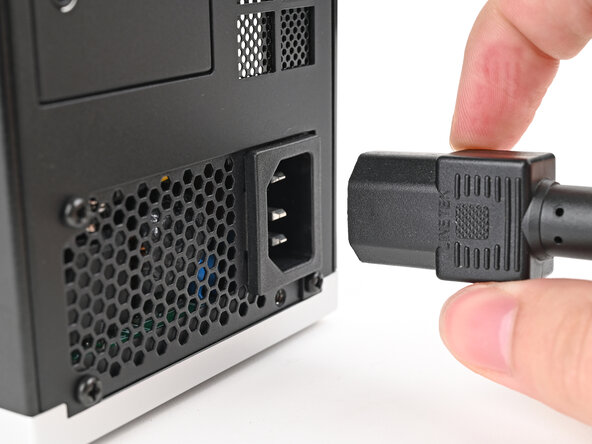
  1. Framework Desktop Mainboard Replacement, Power down your Desktop: Schritt 1, Bild 1 von 2 Framework Desktop Mainboard Replacement, Power down your Desktop: Schritt 1, Bild 2 von 2
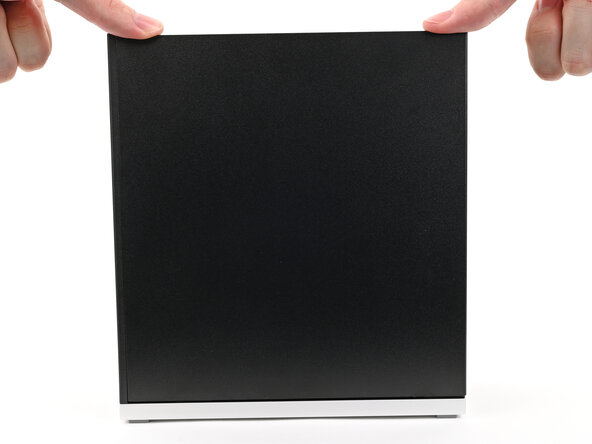
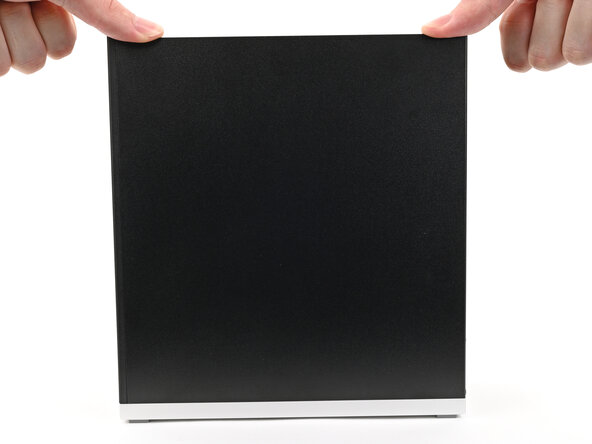
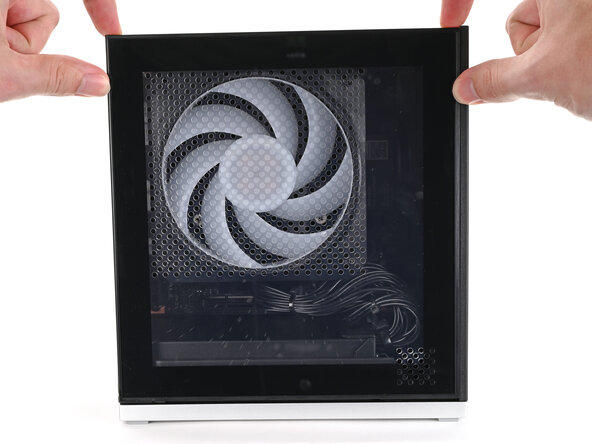
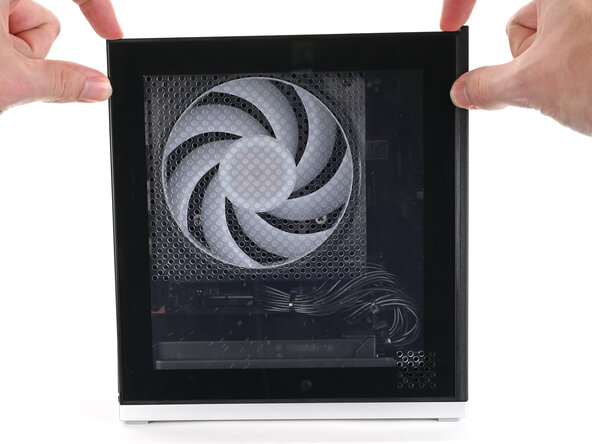
    • Before you begin repairs, shut down your Desktop from the operating system and unplug it.

    • Wait one minute before continuing to allow your Desktop to fully power down.

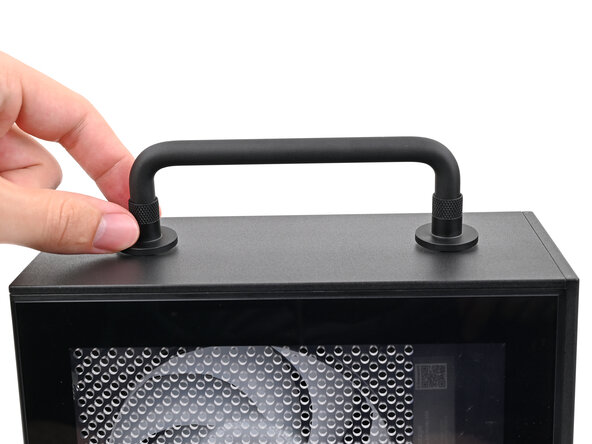
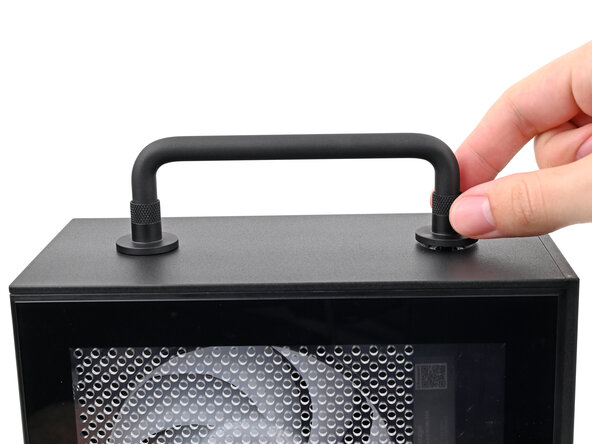
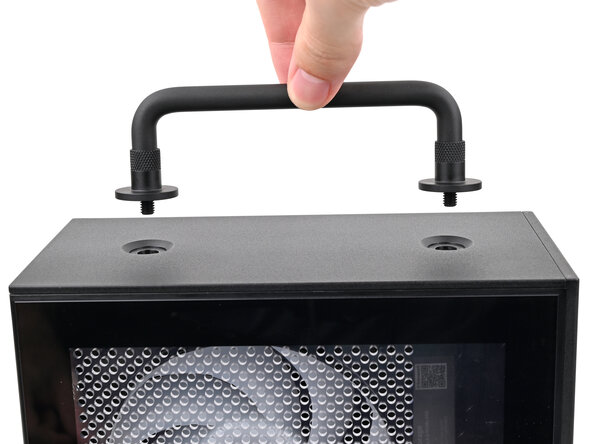
  2. Framework Desktop Mainboard Replacement, Remove the Handle: Schritt 2, Bild 1 von 3 Framework Desktop Mainboard Replacement, Remove the Handle: Schritt 2, Bild 2 von 3 Framework Desktop Mainboard Replacement, Remove the Handle: Schritt 2, Bild 3 von 3
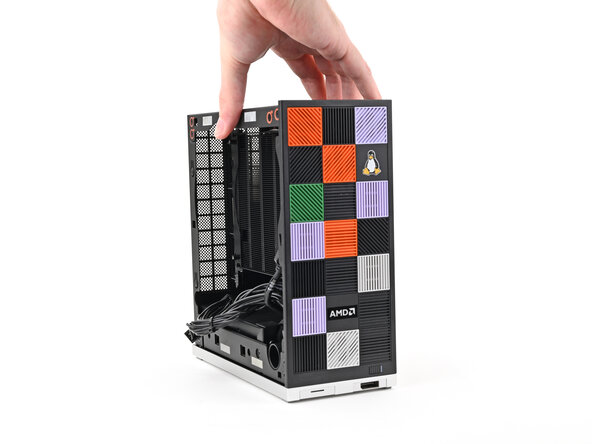
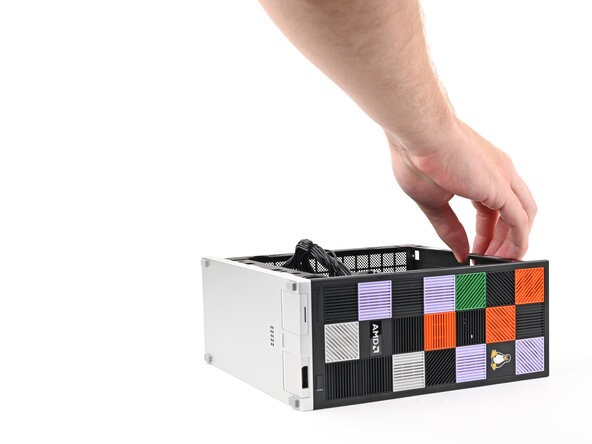
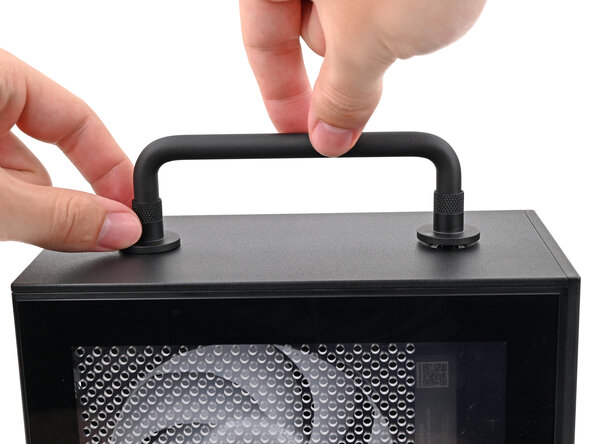
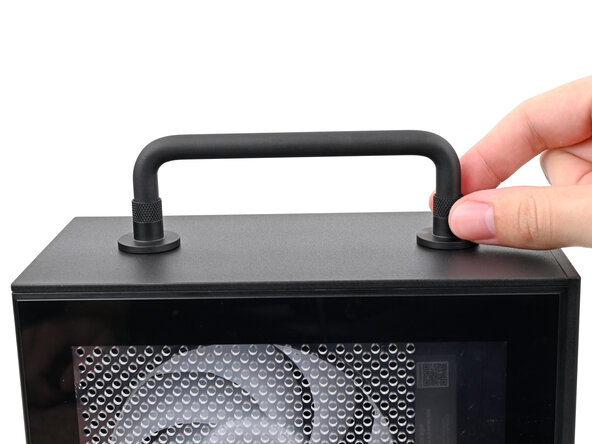
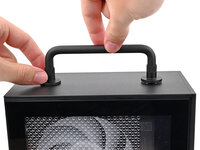
    • If you installed the Handle on your Desktop, follow this step. Otherwise, skip it.

    • Rotate the Handle's screw threads counterclockwise on both sides until it comes free.

    • Remove the Handle.

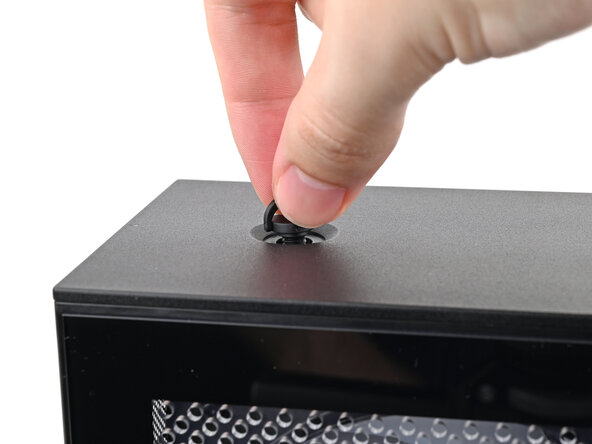
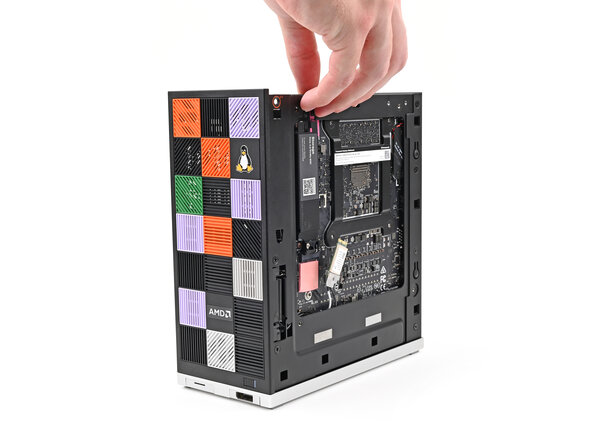
  3. Framework Desktop Mainboard Replacement, Remove the Top Panel screws: Schritt 3, Bild 1 von 3 Framework Desktop Mainboard Replacement, Remove the Top Panel screws: Schritt 3, Bild 2 von 3 Framework Desktop Mainboard Replacement, Remove the Top Panel screws: Schritt 3, Bild 3 von 3
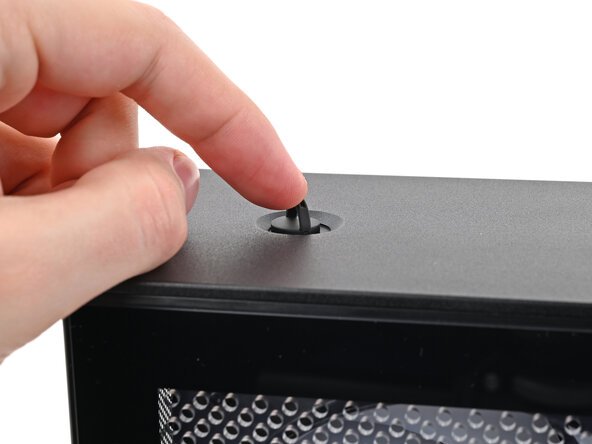
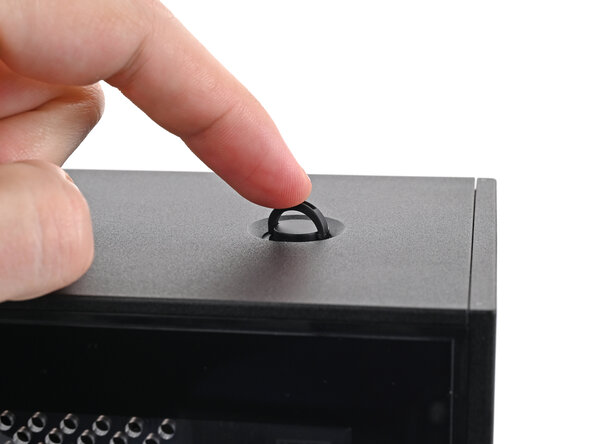
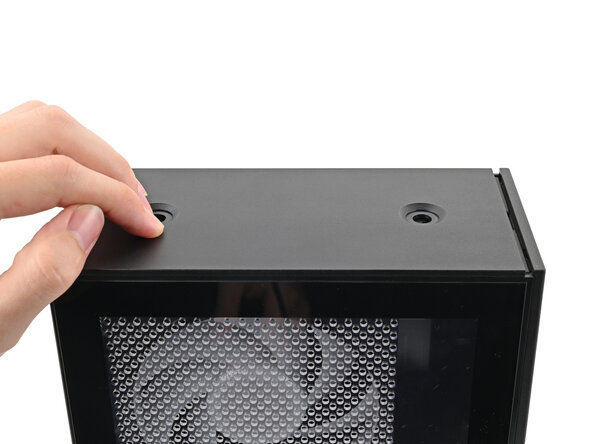
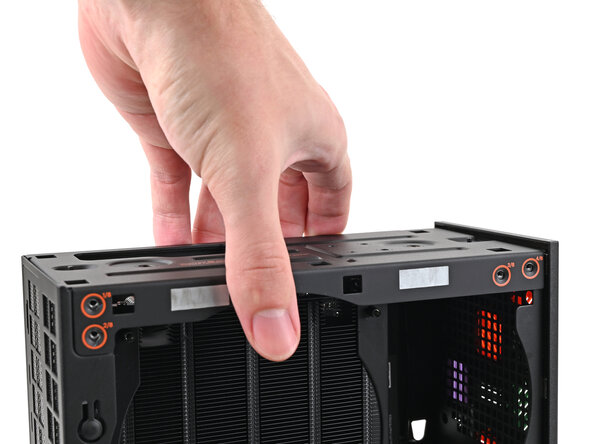
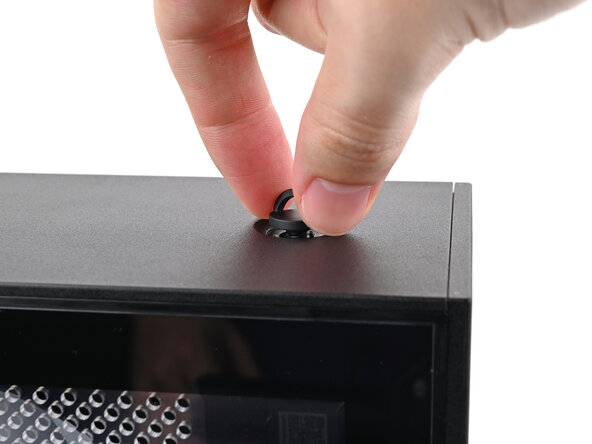
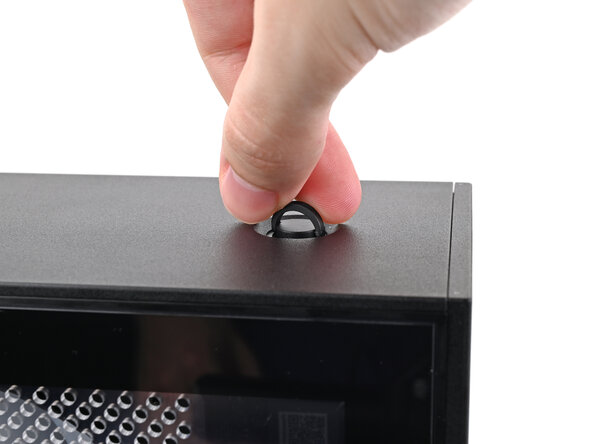
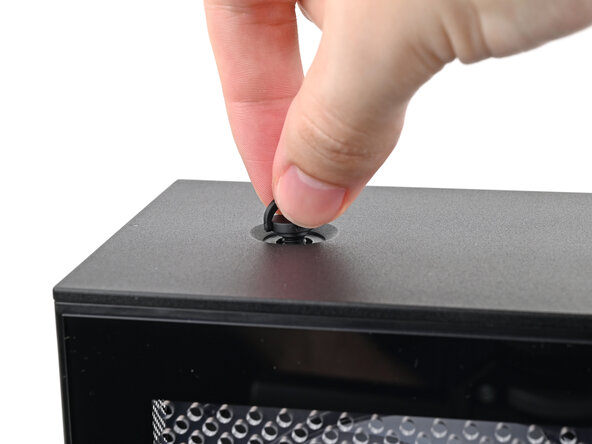
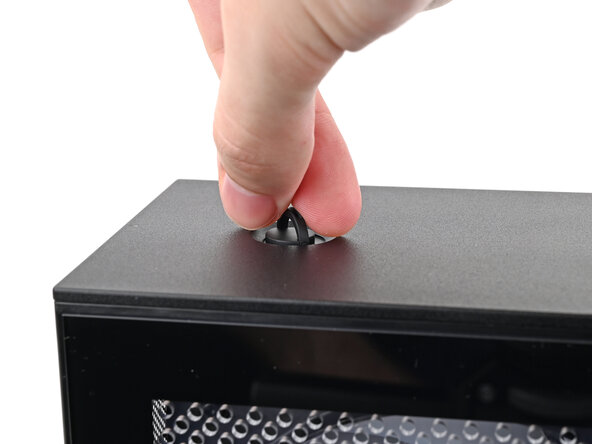
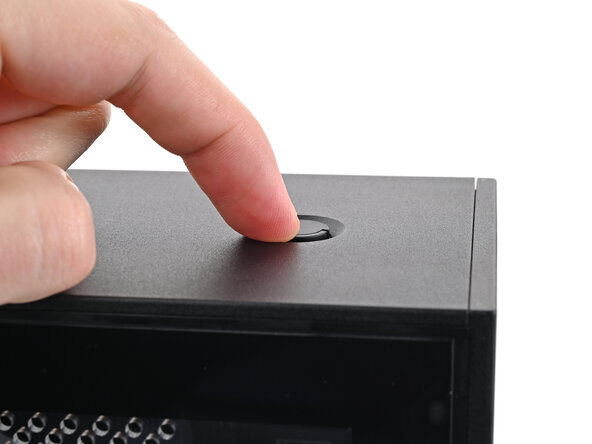
    • Use your finger to lift up the two D-rings on the Top Panel screws.

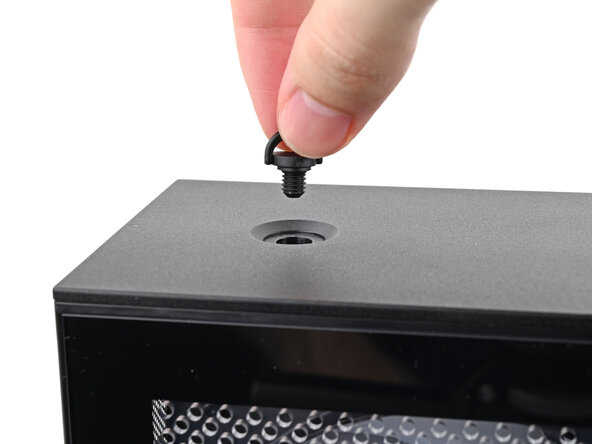
  4. Framework Desktop Mainboard Replacement: Schritt 4, Bild 1 von 3 Framework Desktop Mainboard Replacement: Schritt 4, Bild 2 von 3 Framework Desktop Mainboard Replacement: Schritt 4, Bild 3 von 3
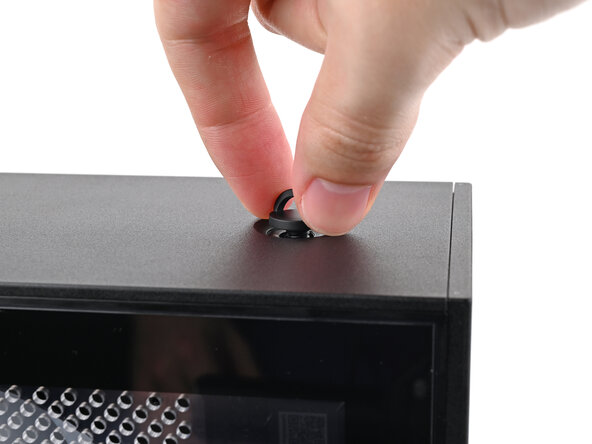
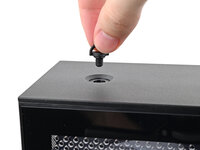
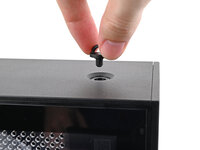
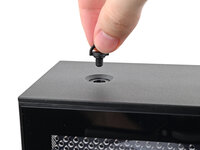
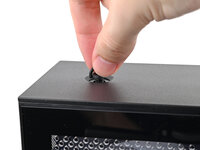
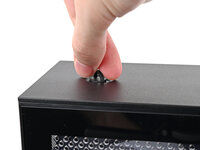
    • Use your fingers to twist the screw counter-clockwise and loosen it.

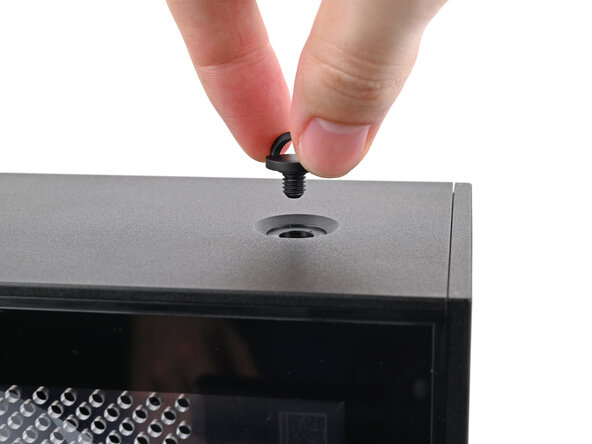
    • Remove the Top Panel screw.

  5. Framework Desktop Mainboard Replacement: Schritt 5, Bild 1 von 3 Framework Desktop Mainboard Replacement: Schritt 5, Bild 2 von 3 Framework Desktop Mainboard Replacement: Schritt 5, Bild 3 von 3
    • Repeat the same procedure for the other Top Panel screw.

  6. Framework Desktop Mainboard Replacement, Remove the Top Panel: Schritt 6, Bild 1 von 3 Framework Desktop Mainboard Replacement, Remove the Top Panel: Schritt 6, Bild 2 von 3 Framework Desktop Mainboard Replacement, Remove the Top Panel: Schritt 6, Bild 3 von 3
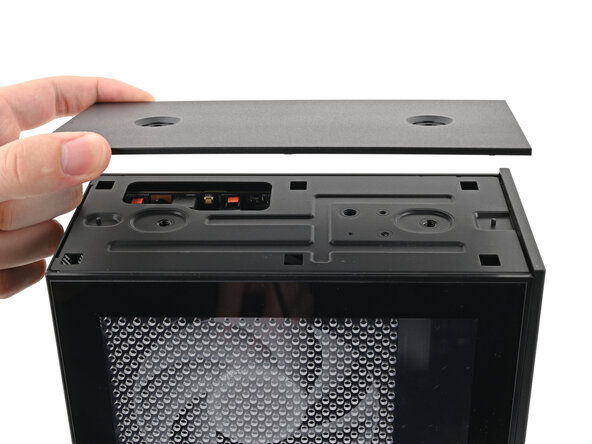
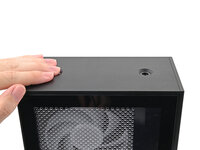
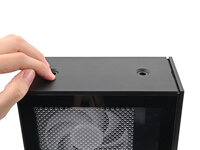
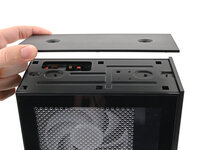
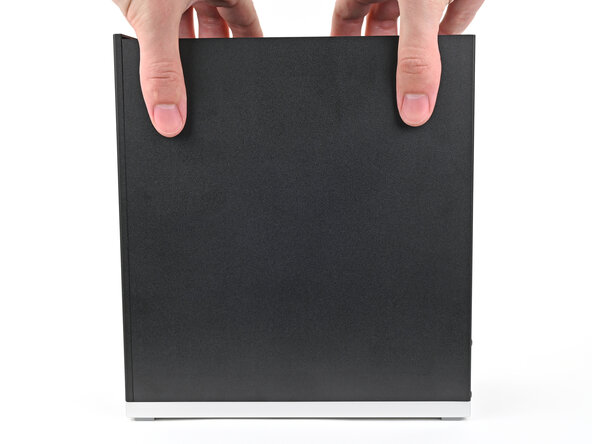
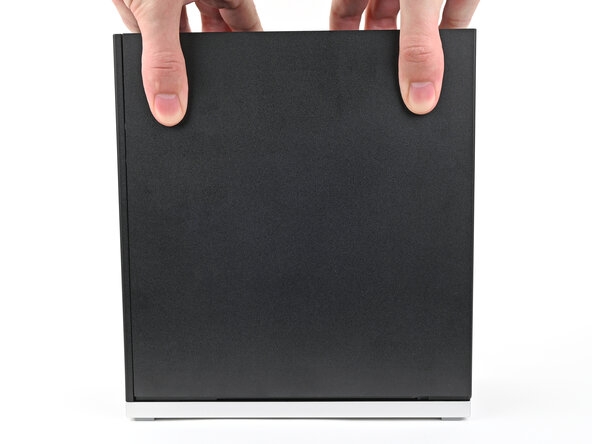
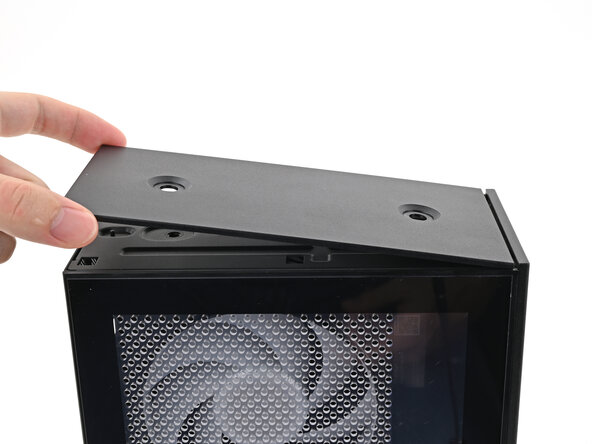
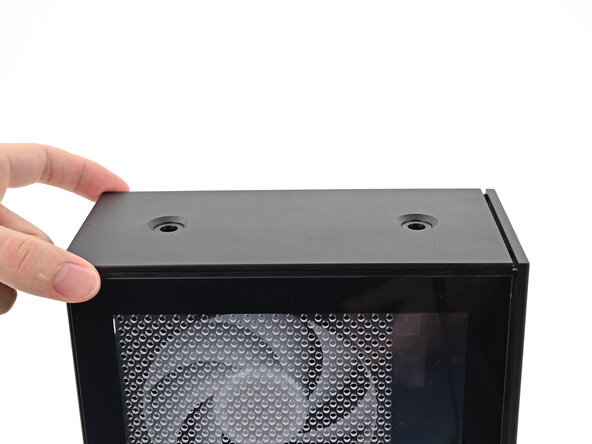
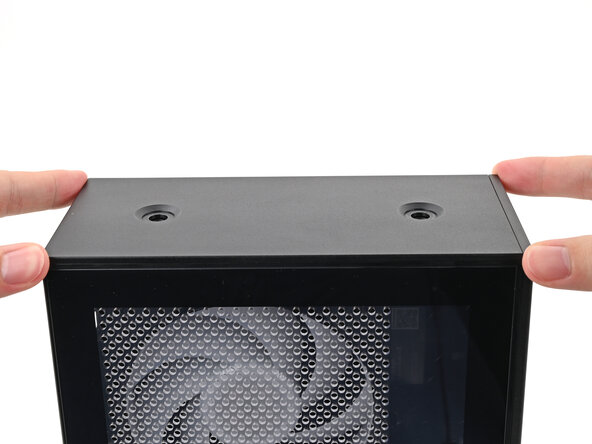
    • Slide the Top Panel towards the rear of the computer to release the clips securing it to the chassis.

    • If you're having a hard time gripping the Top Panel, use the screw holes to get a better handhold.

    • Lift the Top Panel off the chassis and remove it.

  7. Framework Desktop Mainboard Replacement, Remove the Left Panel: Schritt 7, Bild 1 von 3 Framework Desktop Mainboard Replacement, Remove the Left Panel: Schritt 7, Bild 2 von 3 Framework Desktop Mainboard Replacement, Remove the Left Panel: Schritt 7, Bild 3 von 3
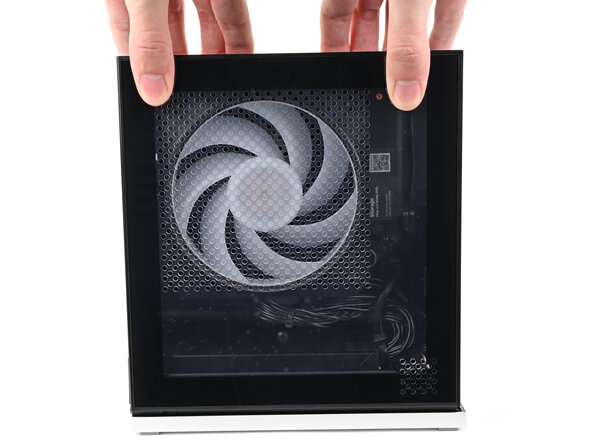
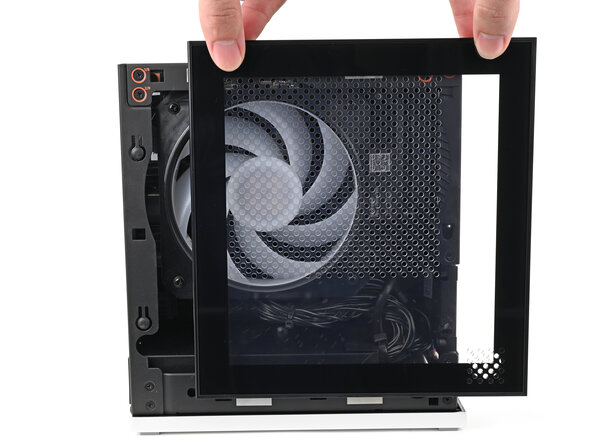
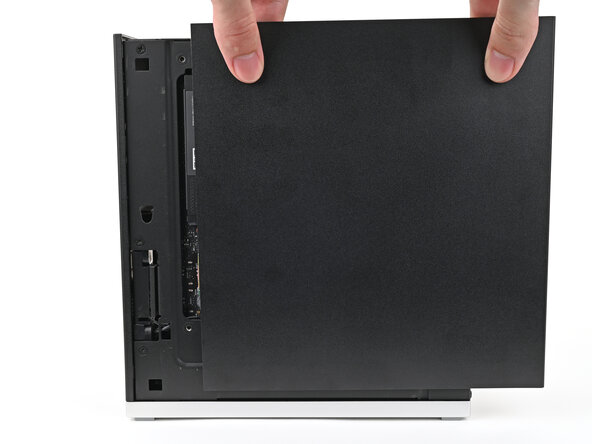
    • Use your fingers to grip the top of the Left Panel and slide it upward to release its clips.

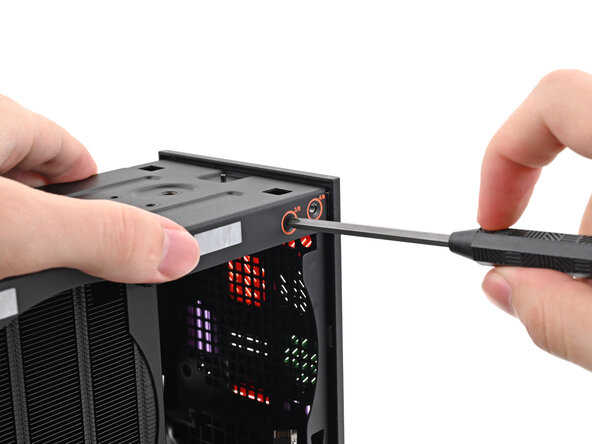
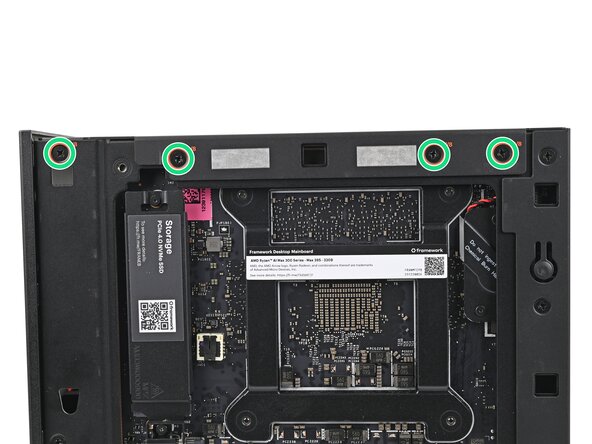
    • Remove the Left Panel.

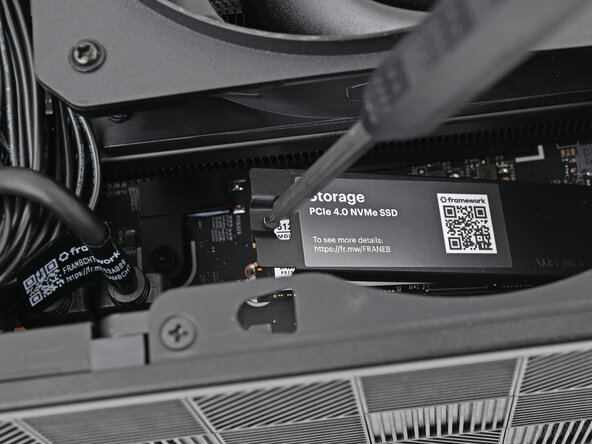
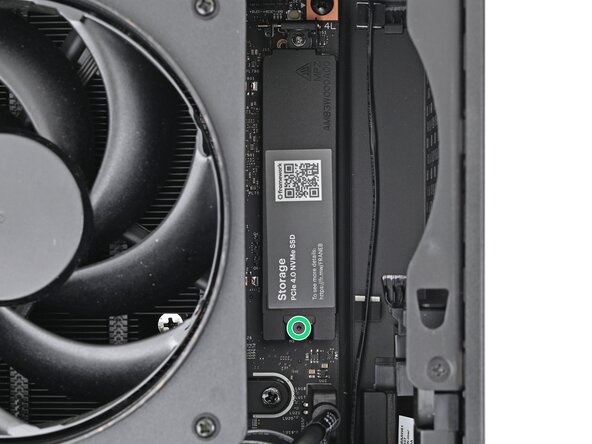
  8. Framework Desktop Mainboard Replacement, Loosen the SSD screw: Schritt 8, Bild 1 von 2 Framework Desktop Mainboard Replacement, Loosen the SSD screw: Schritt 8, Bild 2 von 2
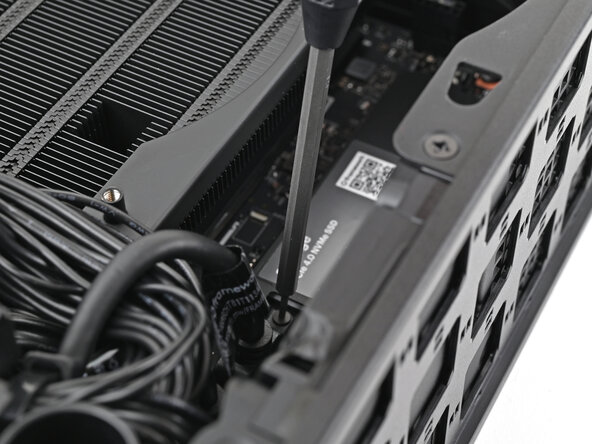
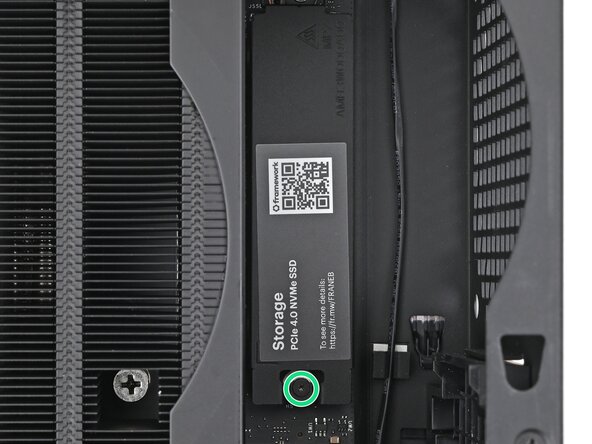
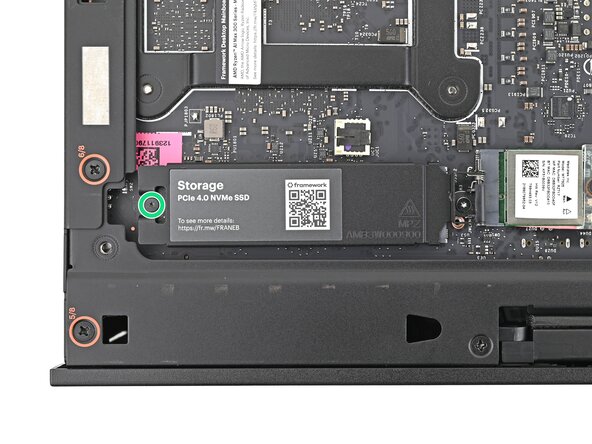
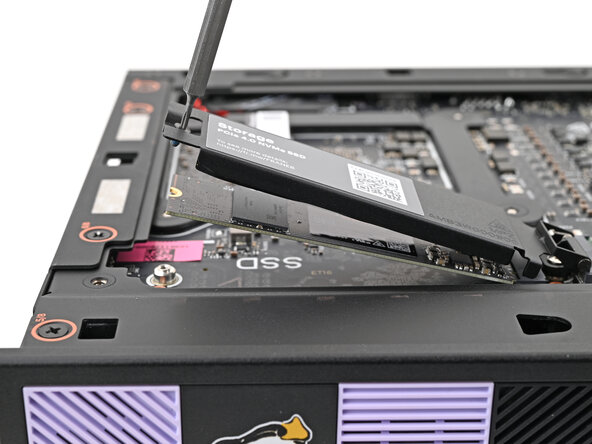
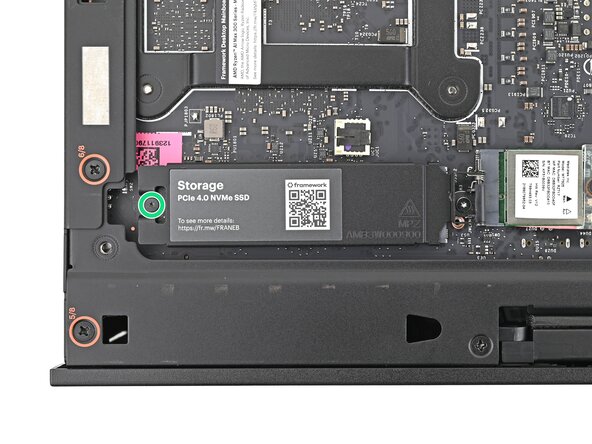
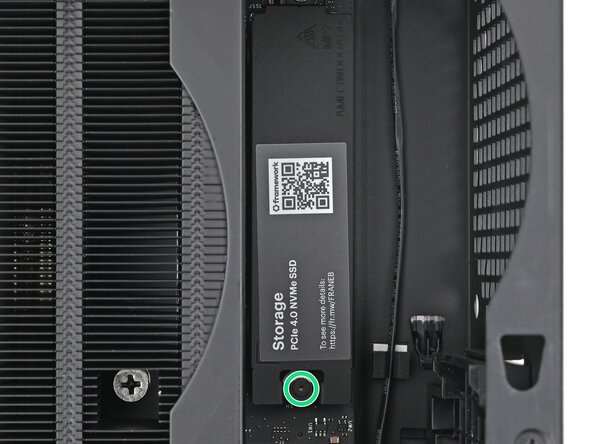
    • Use your Framework Desktop Screwdriver to loosen the captive T5 Torx screw securing the SSD.

    • The SSD and its heat spreader will pop up to an angle when its screw is fully loosened.

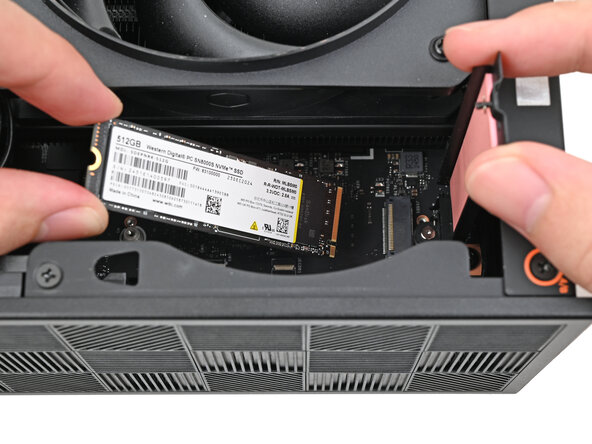
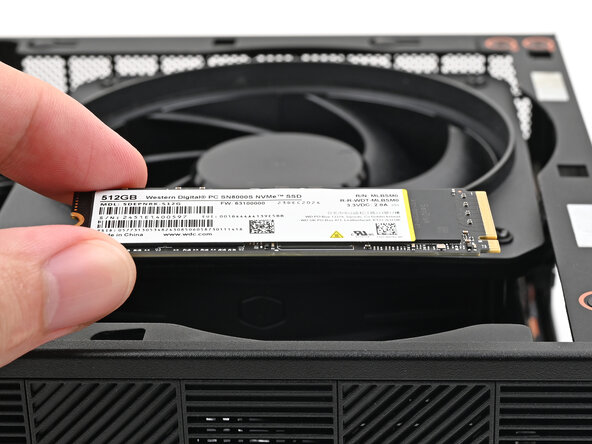
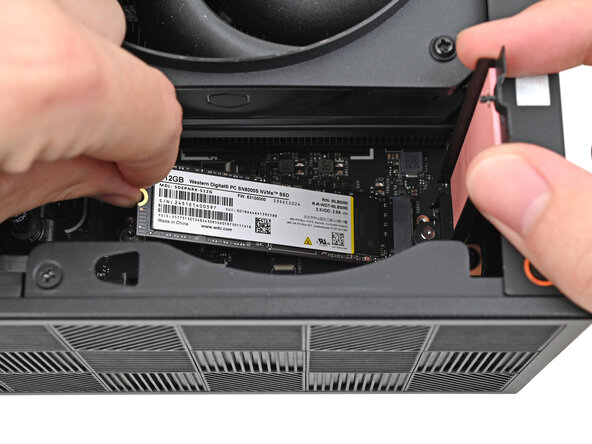
  9. Framework Desktop Mainboard Replacement, Remove the SSD: Schritt 9, Bild 1 von 3 Framework Desktop Mainboard Replacement, Remove the SSD: Schritt 9, Bild 2 von 3 Framework Desktop Mainboard Replacement, Remove the SSD: Schritt 9, Bild 3 von 3
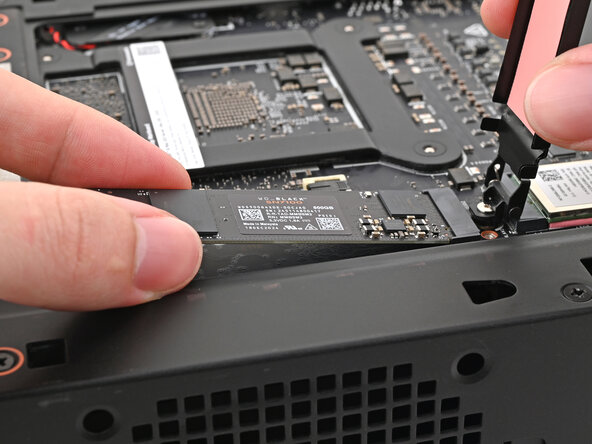
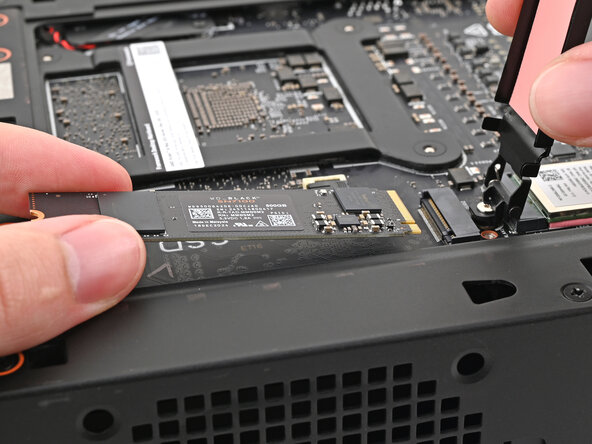
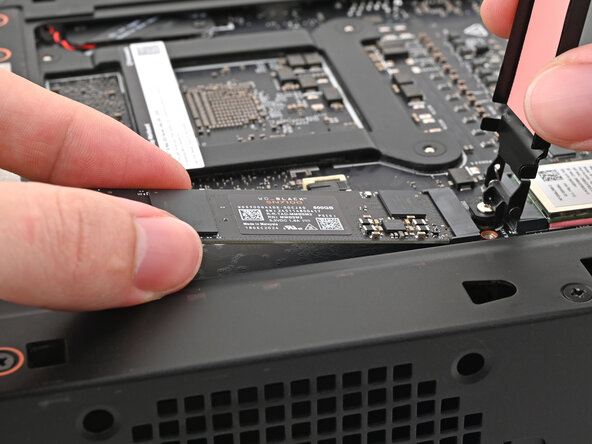
    • While holding the heat spreader upright, grab the SSD by its edges and pull it out of its socket.

    • Remove the SSD.

  10. Framework Desktop Mainboard Replacement, Install the heat spreader: Schritt 10, Bild 1 von 3 Framework Desktop Mainboard Replacement, Install the heat spreader: Schritt 10, Bild 2 von 3 Framework Desktop Mainboard Replacement, Install the heat spreader: Schritt 10, Bild 3 von 3
    • Insert your Framework Desktop Screwdriver into the captive screw on the primary storage heat spreader and press it flat to the Mainboard.

    • Tighten the captive T5 Torx screw securing the heat spreader.

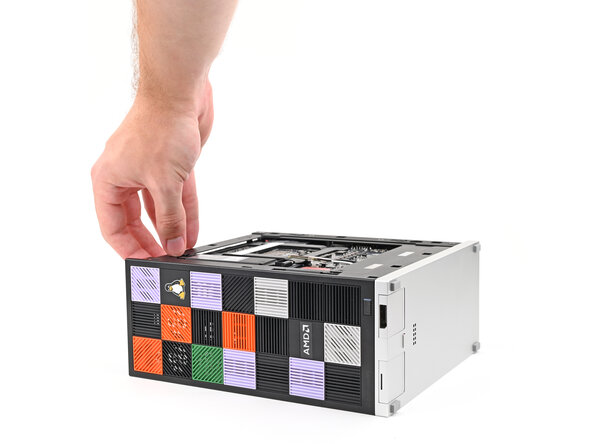
  11. Framework Desktop Mainboard Replacement, Lay down the Desktop: Schritt 11, Bild 1 von 2 Framework Desktop Mainboard Replacement, Lay down the Desktop: Schritt 11, Bild 2 von 2
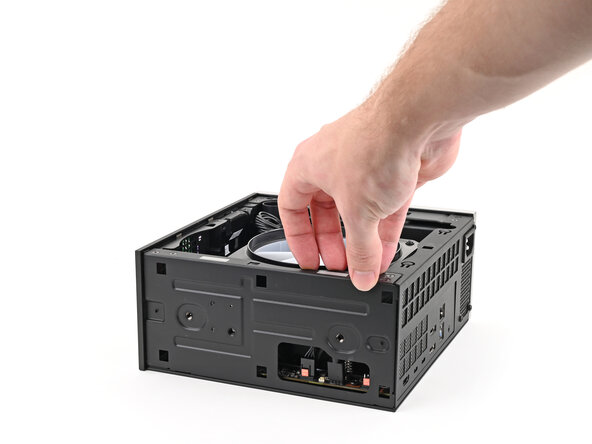
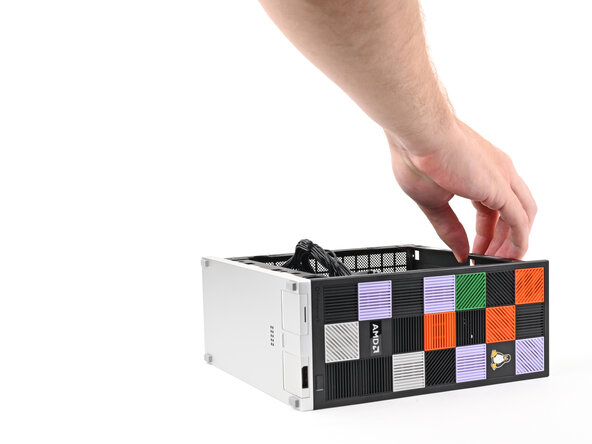
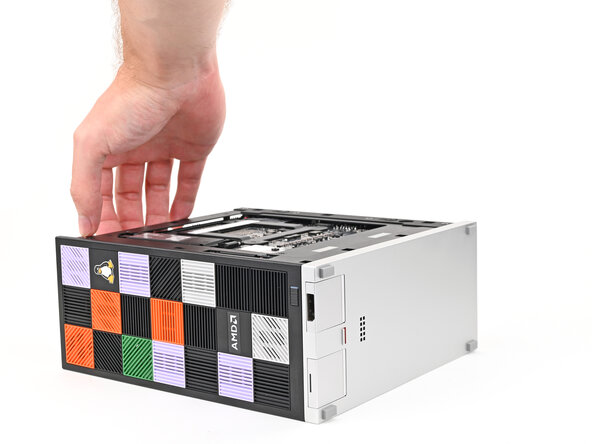
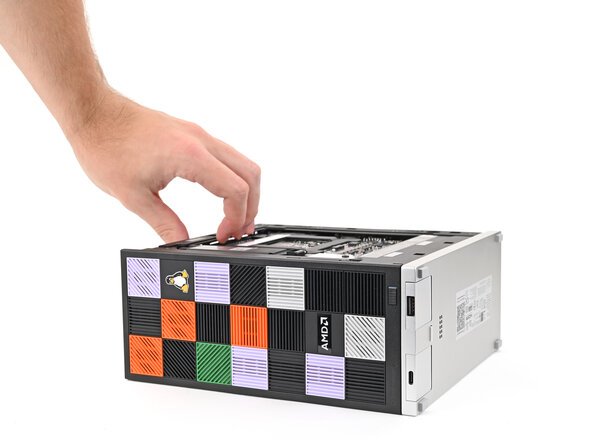
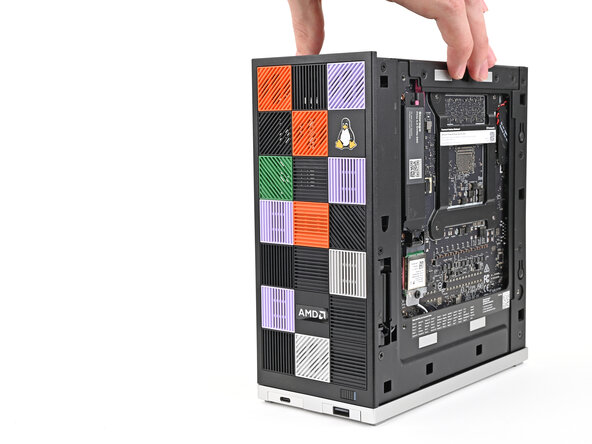
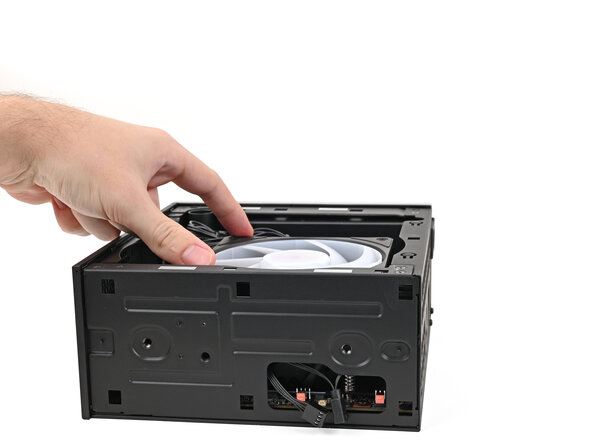
    • Lay down the Desktop on its side so the fan is facing upward.

  12. Framework Desktop Mainboard Replacement, Disconnect the fan: Schritt 12, Bild 1 von 2 Framework Desktop Mainboard Replacement, Disconnect the fan: Schritt 12, Bild 2 von 2
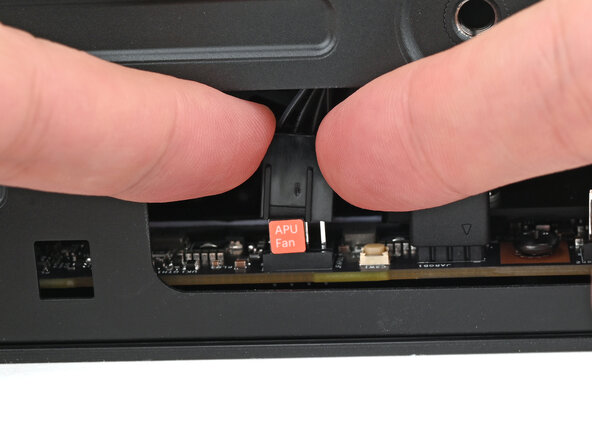
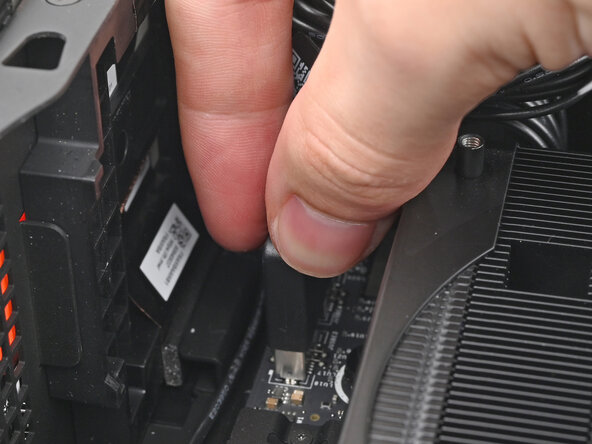
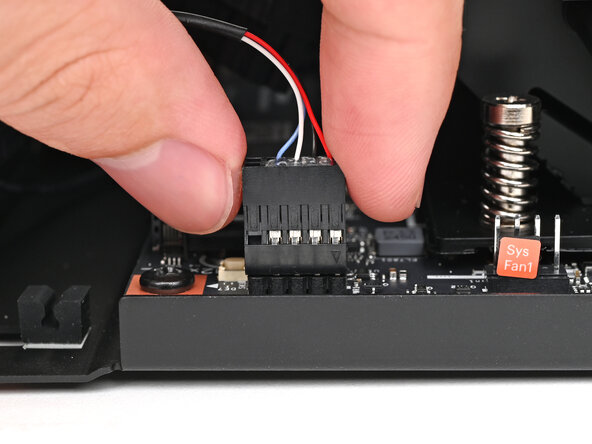
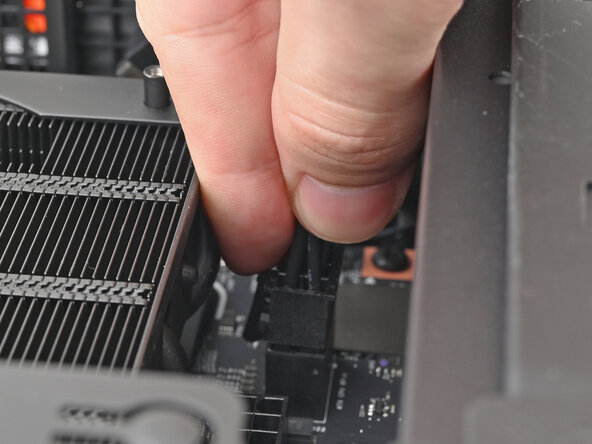
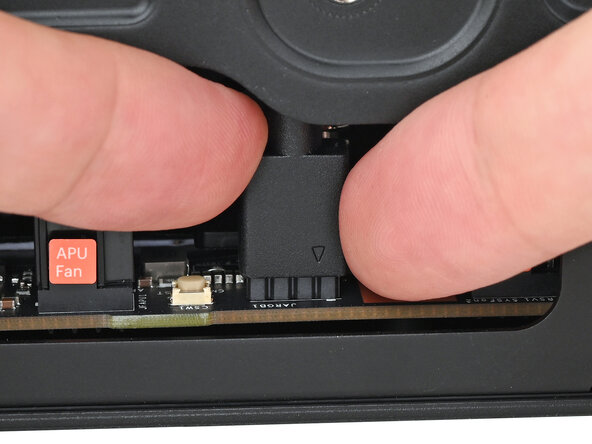
    • Use your fingers to lift the APU fan cable connector off its four‑pronged socket on the Mainboard.

  13. Framework Desktop Mainboard Replacement: Schritt 13, Bild 1 von 2 Framework Desktop Mainboard Replacement: Schritt 13, Bild 2 von 2
    • If you aren't using an RGB fan, then skip this step.

    • Use your fingers to lift the fan RGB cable connector off its three‑pronged socket on the Mainboard.

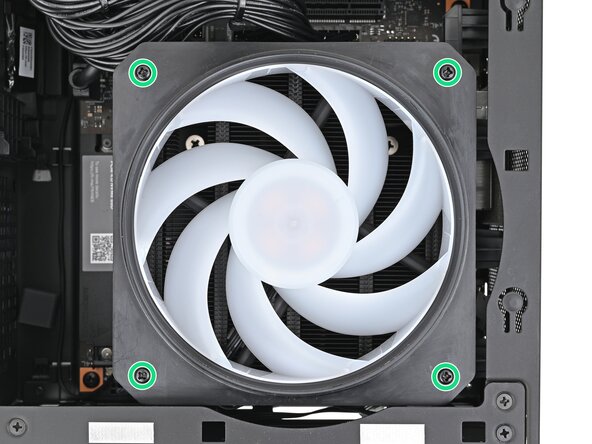
  14. Framework Desktop Mainboard Replacement, Remove the CPU fan screws: Schritt 14, Bild 1 von 2 Framework Desktop Mainboard Replacement, Remove the CPU fan screws: Schritt 14, Bild 2 von 2
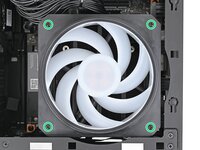
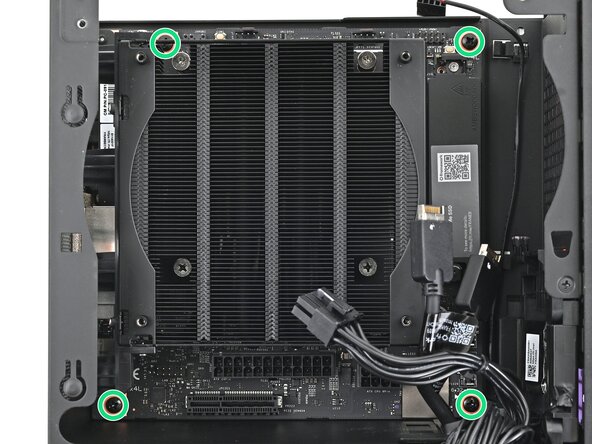
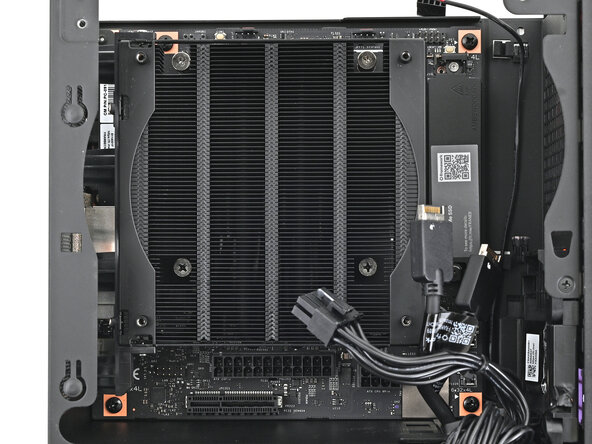
    • Use your Framework Desktop Screwdriver to remove the four 27.3 mm‑long Phillips screws securing the CPU fan and fan duct.

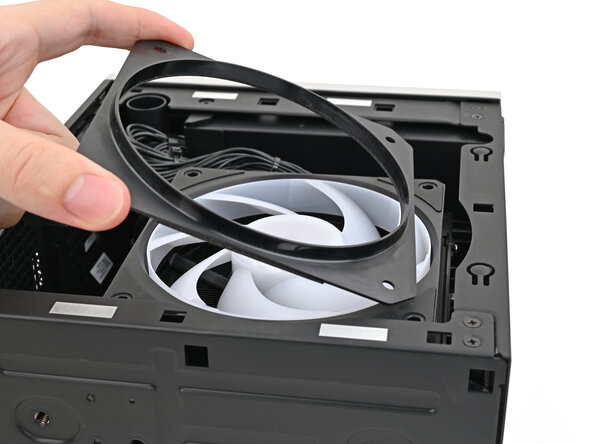
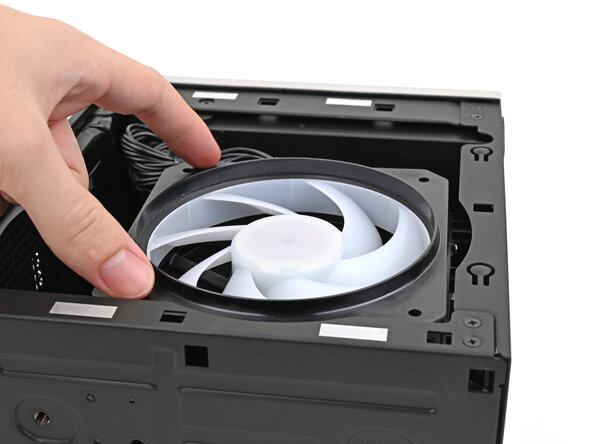
  15. Framework Desktop Mainboard Replacement, Remove the fan duct: Schritt 15, Bild 1 von 2 Framework Desktop Mainboard Replacement, Remove the fan duct: Schritt 15, Bild 2 von 2
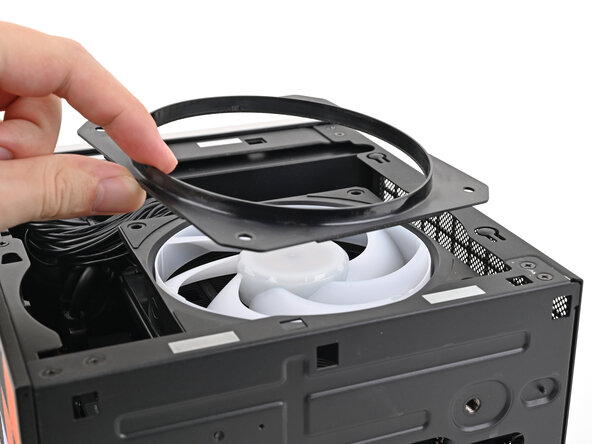
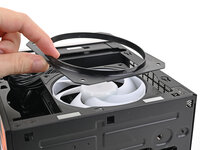
    • Lift the fan duct off the fan and remove it.

  16. Framework Desktop Mainboard Replacement, Remove the fan: Schritt 16, Bild 1 von 3 Framework Desktop Mainboard Replacement, Remove the fan: Schritt 16, Bild 2 von 3 Framework Desktop Mainboard Replacement, Remove the fan: Schritt 16, Bild 3 von 3
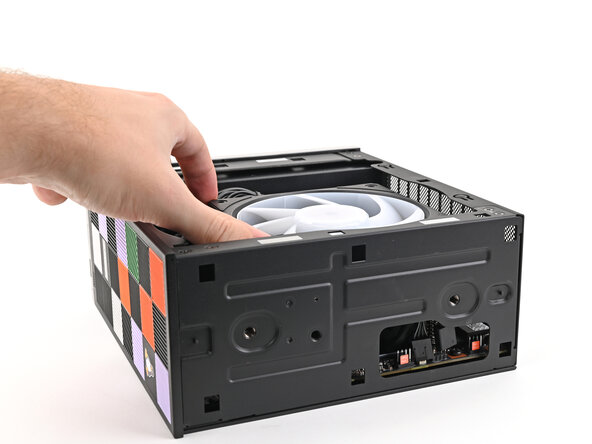
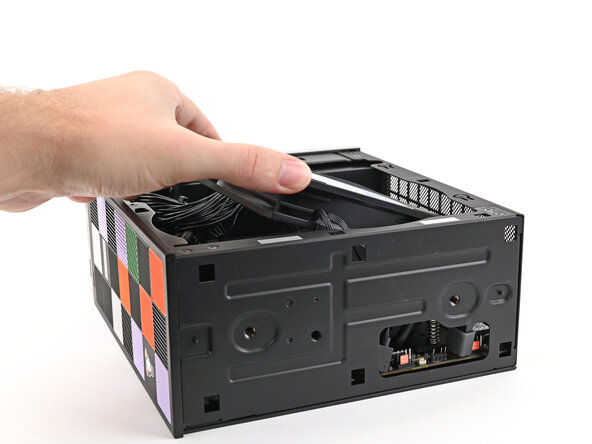
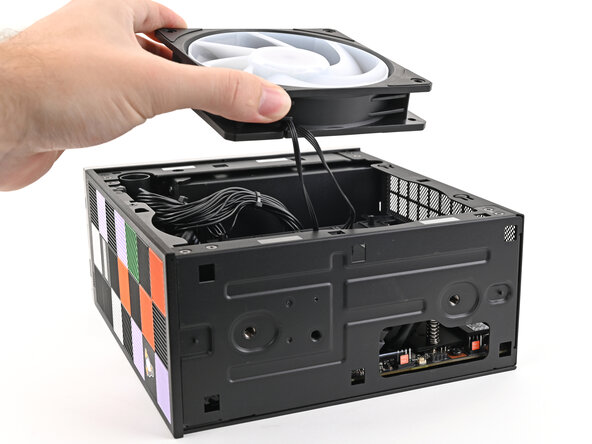
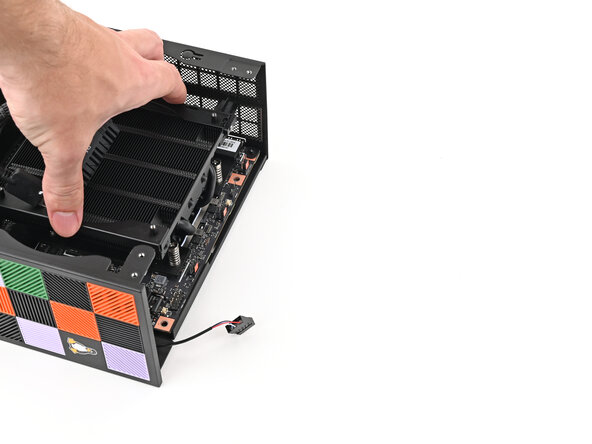
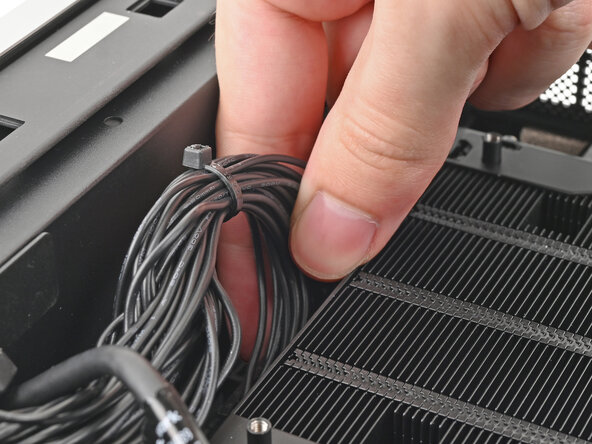
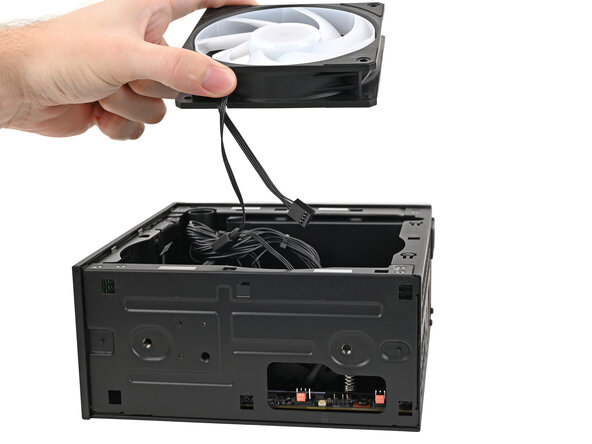
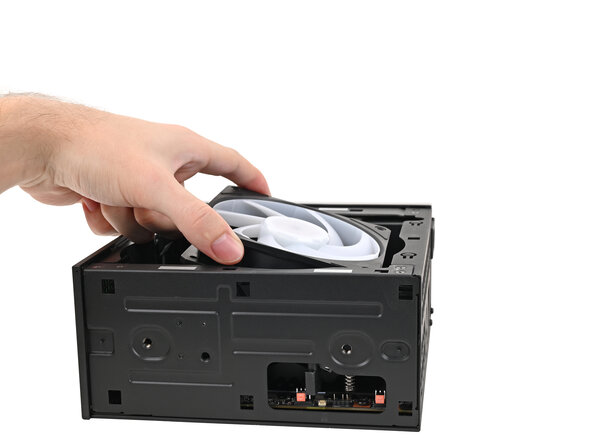
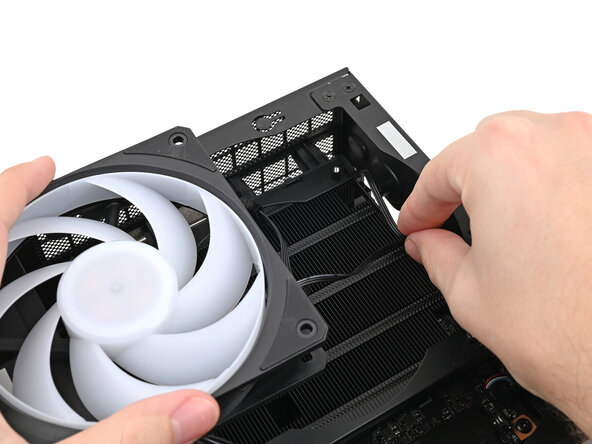
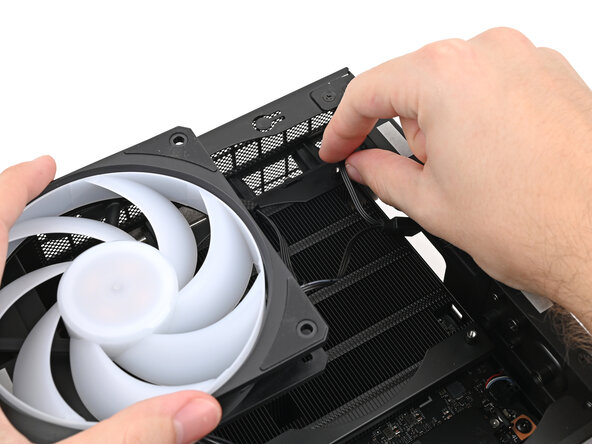
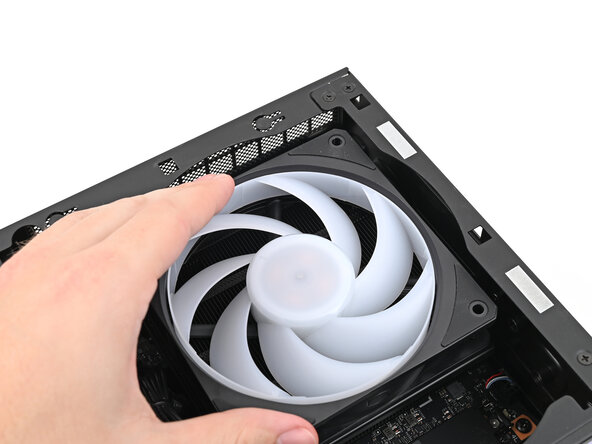
    • Lift the fan out of the chassis, making sure the cables thread through the side of the heatsink.

  17. Framework Desktop Mainboard Replacement, Disconnect the top Expansion Card cable: Schritt 17, Bild 1 von 2 Framework Desktop Mainboard Replacement, Disconnect the top Expansion Card cable: Schritt 17, Bild 2 von 2
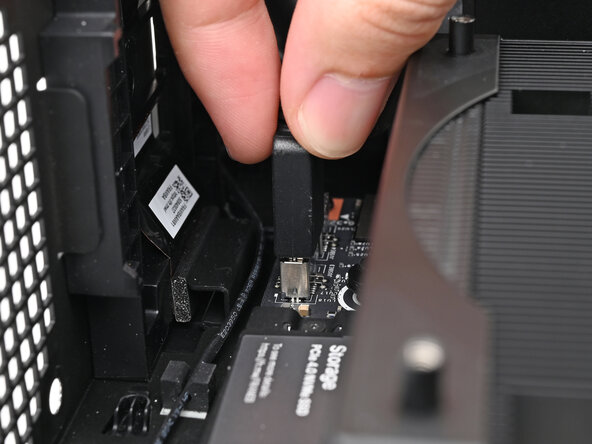
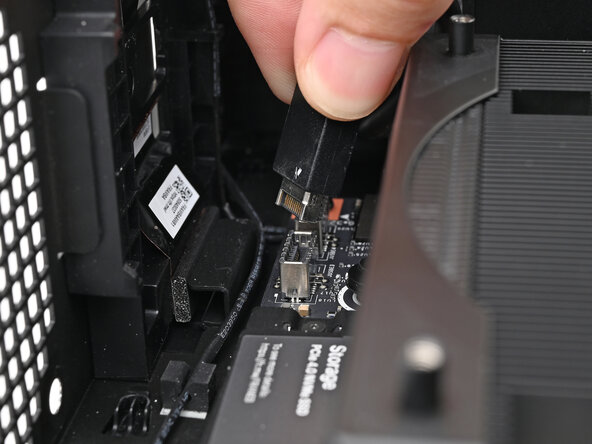
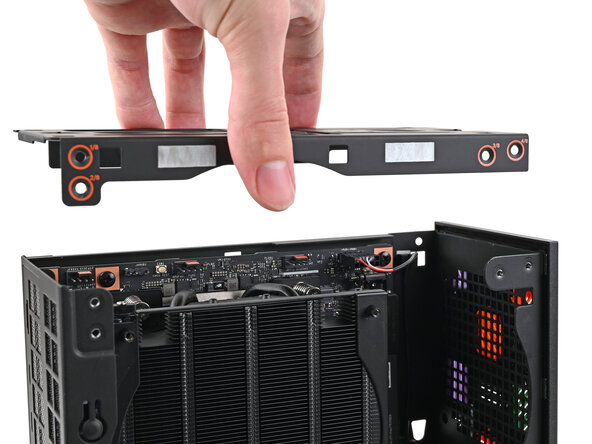
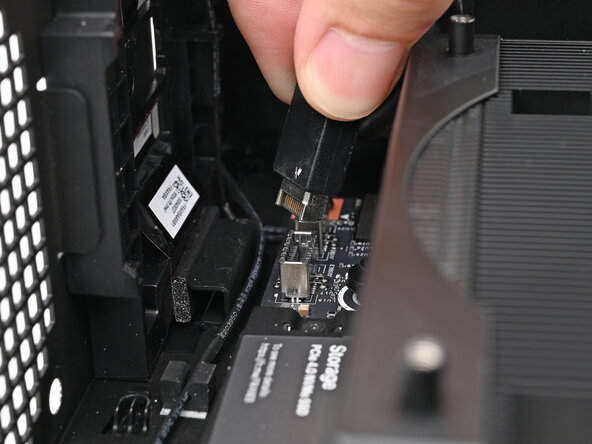
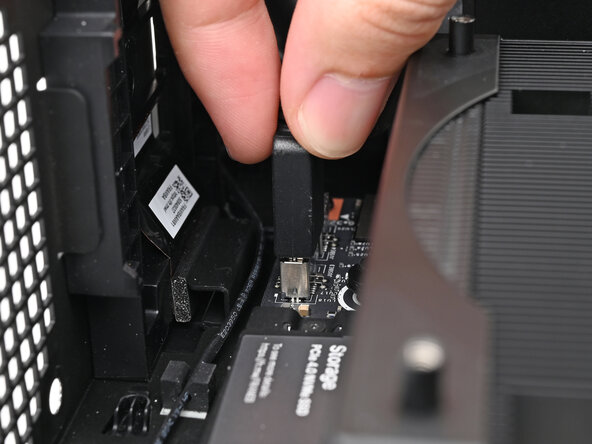
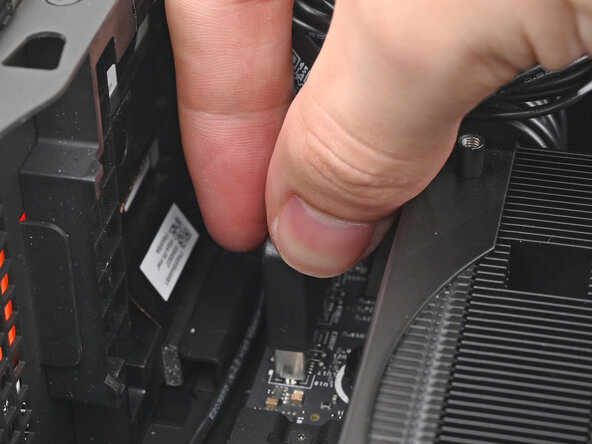
    • Pull the top Expansion Card connector straight out of its socket in the Mainboard to disconnect it.

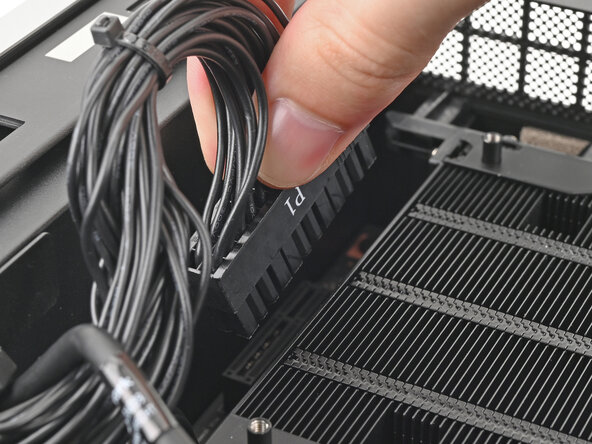
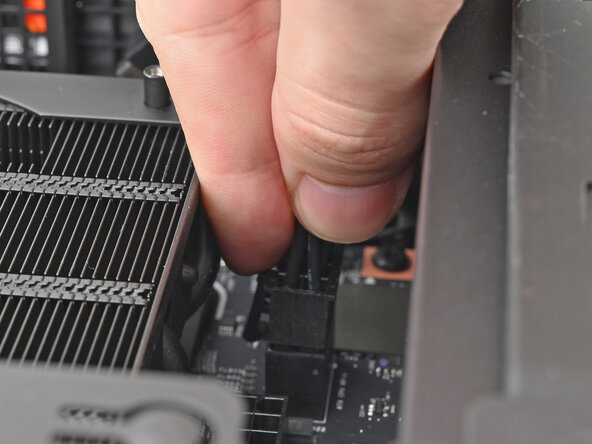
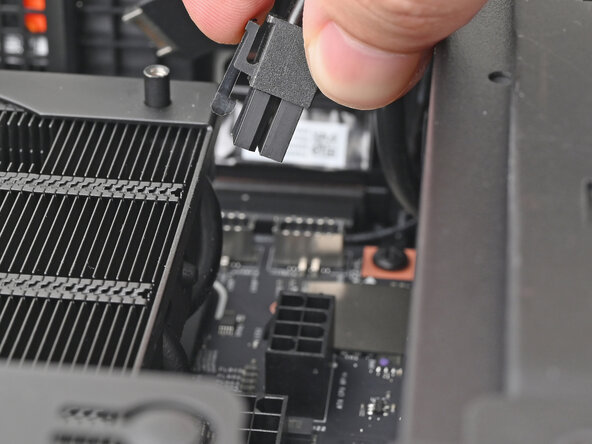
  18. Framework Desktop Mainboard Replacement, Disconnect the main power cable: Schritt 18, Bild 1 von 2 Framework Desktop Mainboard Replacement, Disconnect the main power cable: Schritt 18, Bild 2 von 2
    • While squeezing the clip on the main power cable, pull it straight up and out of its socket to disconnect it.

  19. Framework Desktop Mainboard Replacement, Disconnect the CPU power cable: Schritt 19, Bild 1 von 2 Framework Desktop Mainboard Replacement, Disconnect the CPU power cable: Schritt 19, Bild 2 von 2
    • While squeezing the clip on the CPU power cable, pull it straight up and out of its socket to disconnect it.

  20. Framework Desktop Mainboard Replacement, Disconnect the bottom Expansion Card cable: Schritt 20, Bild 1 von 2 Framework Desktop Mainboard Replacement, Disconnect the bottom Expansion Card cable: Schritt 20, Bild 2 von 2
    • Pull the bottom Expansion Card connector straight out of its socket in the Mainboard to disconnect it.

  21. Framework Desktop Mainboard Replacement, Reposition the Desktop: Schritt 21, Bild 1 von 2 Framework Desktop Mainboard Replacement, Reposition the Desktop: Schritt 21, Bild 2 von 2
    • Lift the Desktop so it stands upright on your work surface.

  22. Framework Desktop Mainboard Replacement, Remove the Right Panel: Schritt 22, Bild 1 von 3 Framework Desktop Mainboard Replacement, Remove the Right Panel: Schritt 22, Bild 2 von 3 Framework Desktop Mainboard Replacement, Remove the Right Panel: Schritt 22, Bild 3 von 3
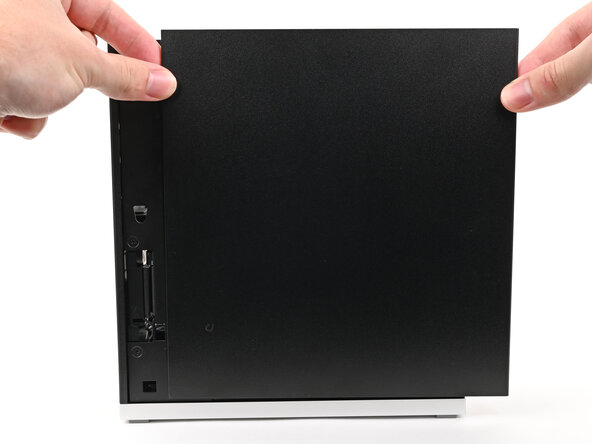
    • Use your fingers to grip the top of the Right Panel and slide it upward to release its clips.

    • Remove the Right Panel.

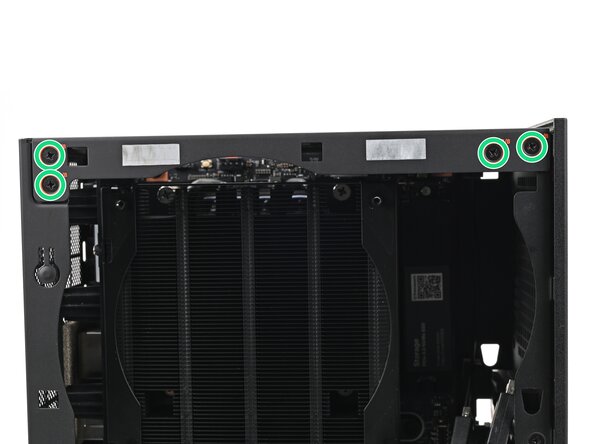
  23. Framework Desktop Mainboard Replacement, Remove the top plate screws: Schritt 23, Bild 1 von 3 Framework Desktop Mainboard Replacement, Remove the top plate screws: Schritt 23, Bild 2 von 3 Framework Desktop Mainboard Replacement, Remove the top plate screws: Schritt 23, Bild 3 von 3
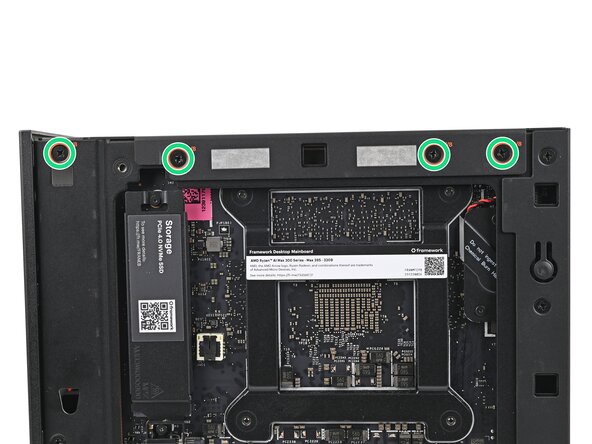
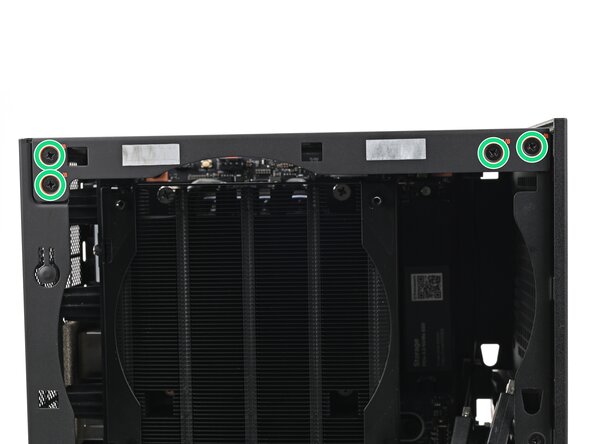
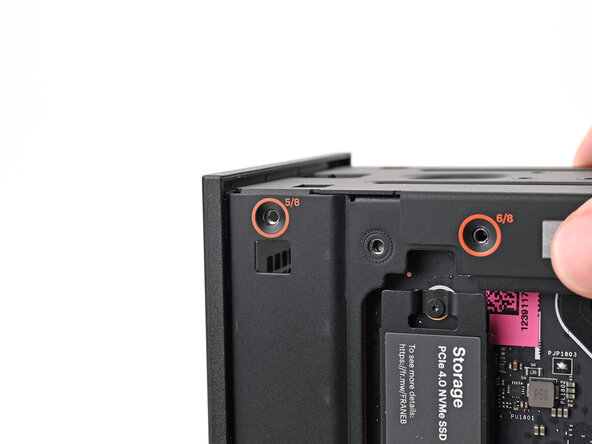
    • While holding the Desktop steady, use your Framework Desktop Screwdriver to remove the eight 4.0 mm‑long Phillips screws securing the top plate.

  24. Framework Desktop Mainboard Replacement, Remove the top plate: Schritt 24, Bild 1 von 2 Framework Desktop Mainboard Replacement, Remove the top plate: Schritt 24, Bild 2 von 2
    • Lift the top plate off the Desktop and remove it.

  25. Framework Desktop Mainboard Replacement, Reposition the Desktop: Schritt 25, Bild 1 von 2 Framework Desktop Mainboard Replacement, Reposition the Desktop: Schritt 25, Bild 2 von 2
    • Lay the left side of the Desktop on your work surface so the underside of the Mainboard is facing upward.

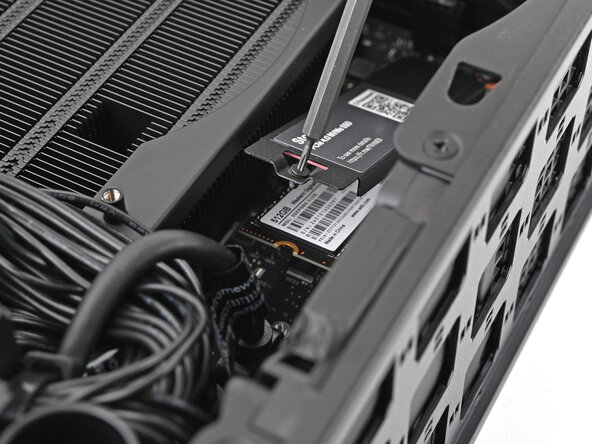
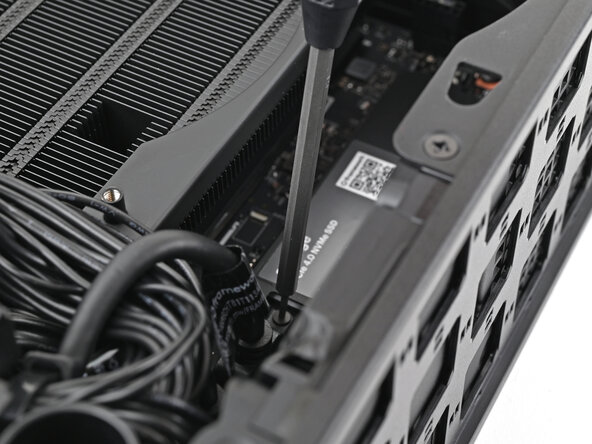
  26. Framework Desktop Mainboard Replacement, Loosen the SSD screw: Schritt 26, Bild 1 von 2 Framework Desktop Mainboard Replacement, Loosen the SSD screw: Schritt 26, Bild 2 von 2
    • If you have secondary storage installed, follow the next two steps. Otherwise, skip here.

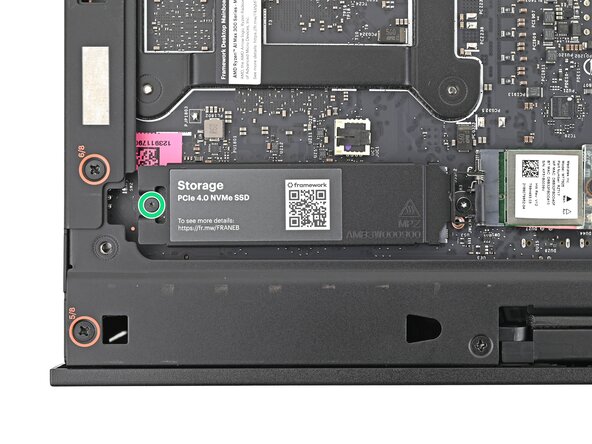
    • Use your Framework Desktop Screwdriver to loosen the captive T5 Torx screw securing the SSD.

    • The SSD and its heat spreader will pop up to an angle when its screw is fully loosened.

  27. Framework Desktop Mainboard Replacement, Remove the SSD: Schritt 27, Bild 1 von 2 Framework Desktop Mainboard Replacement, Remove the SSD: Schritt 27, Bild 2 von 2
    • While holding the heat spreader upright, grab the SSD by its edges and pull it out of its socket.

    • Remove the SSD.

  28. Framework Desktop Mainboard Replacement, Install the heat spreader: Schritt 28, Bild 1 von 1
    • Use your Framework Desktop Screwdriver to tighten the captive T5 Torx screw securing the heat spreader.

  29. Framework Desktop Mainboard Replacement, Remove the Wi-Fi Module screw: Schritt 29, Bild 1 von 2 Framework Desktop Mainboard Replacement, Remove the Wi-Fi Module screw: Schritt 29, Bild 2 von 2
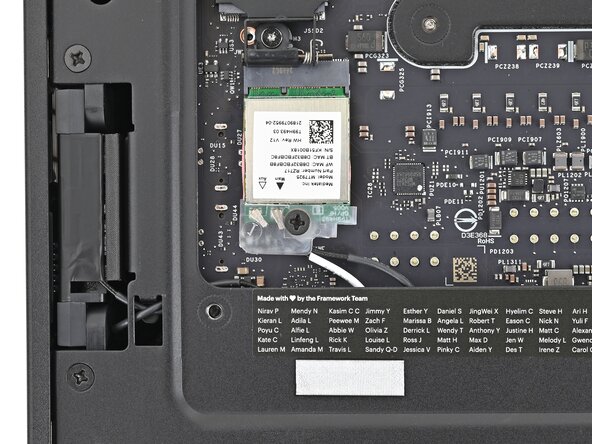
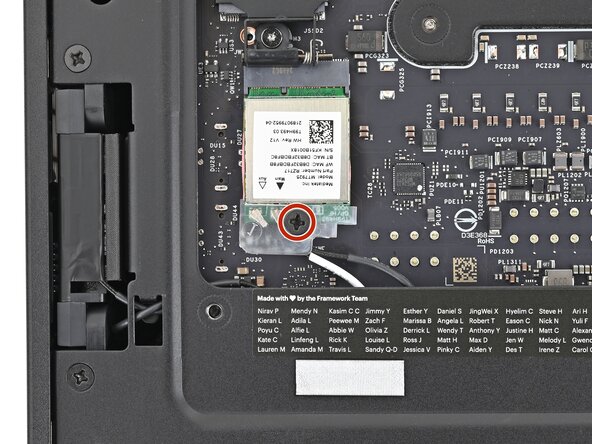
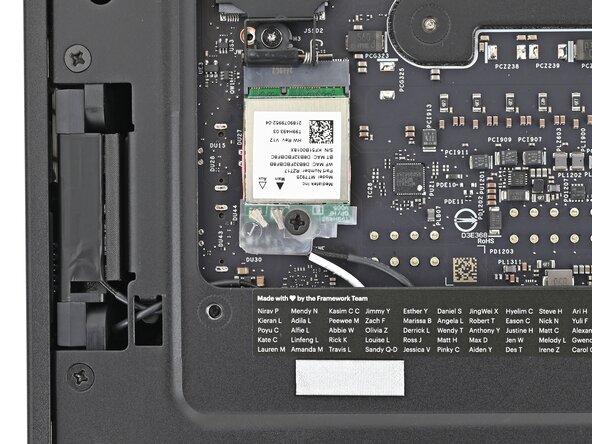
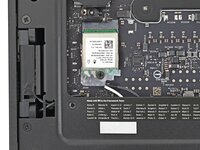
    • Use your Framework Desktop Screwdriver to remove the 7.0 mm‑long Phillips screw securing the Wi-Fi module.

  30. Framework Desktop Mainboard Replacement, Disconnect the Wi-Fi module: Schritt 30, Bild 1 von 2 Framework Desktop Mainboard Replacement, Disconnect the Wi-Fi module: Schritt 30, Bild 2 von 2
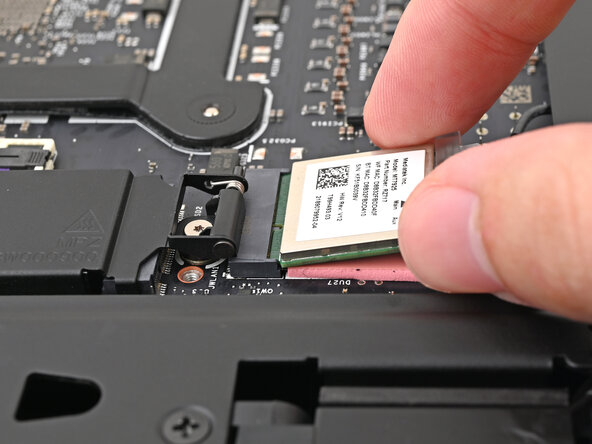
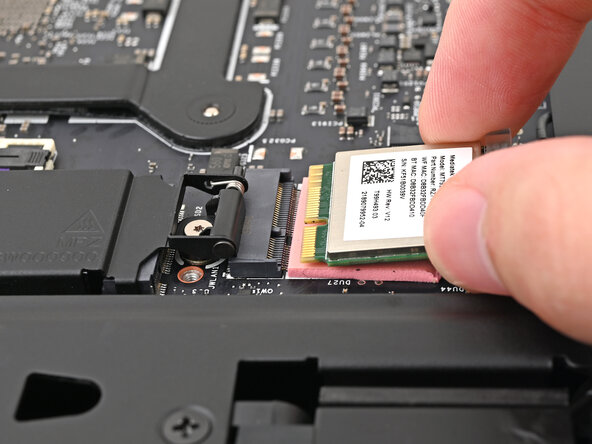
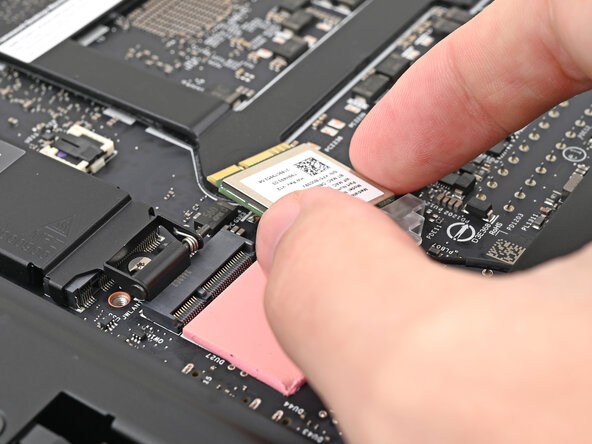
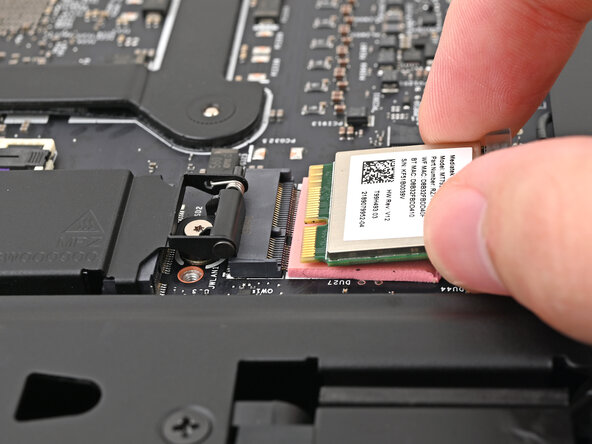
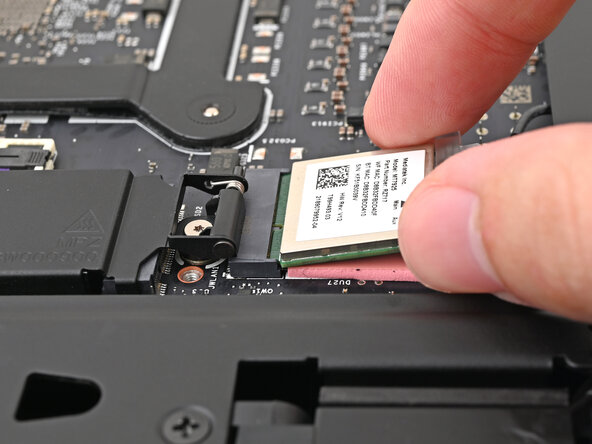
    • Grip the Wi-Fi module by its edges and pull it straight out of its socket.

  31. Framework Desktop Mainboard Replacement, Reposition the Wi-Fi module: Schritt 31, Bild 1 von 3 Framework Desktop Mainboard Replacement, Reposition the Wi-Fi module: Schritt 31, Bild 2 von 3 Framework Desktop Mainboard Replacement, Reposition the Wi-Fi module: Schritt 31, Bild 3 von 3
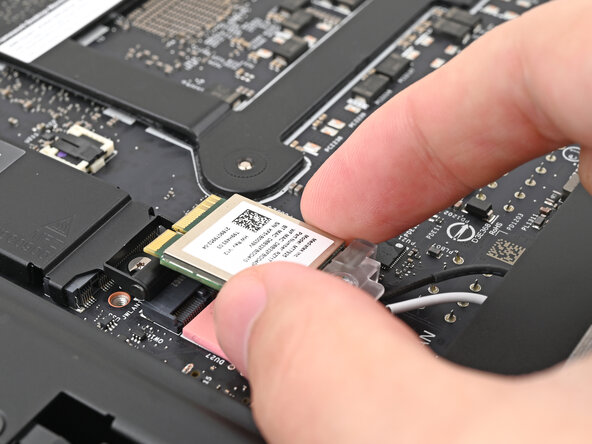
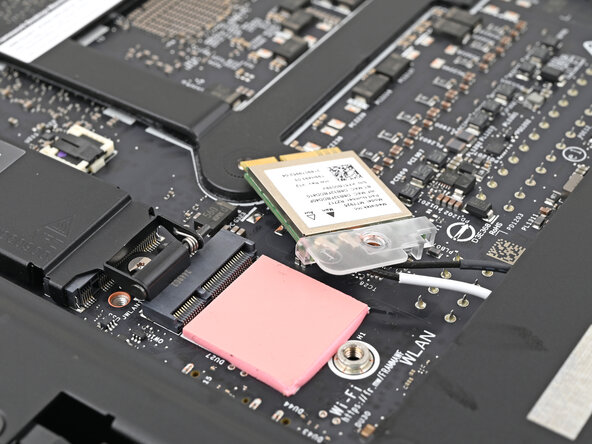
    • Move the Wi-Fi module towards the center of the Mainboard to keep it out of the way.

  32. Framework Desktop Mainboard Replacement, Reposition the Desktop: Schritt 32, Bild 1 von 3 Framework Desktop Mainboard Replacement, Reposition the Desktop: Schritt 32, Bild 2 von 3 Framework Desktop Mainboard Replacement, Reposition the Desktop: Schritt 32, Bild 3 von 3
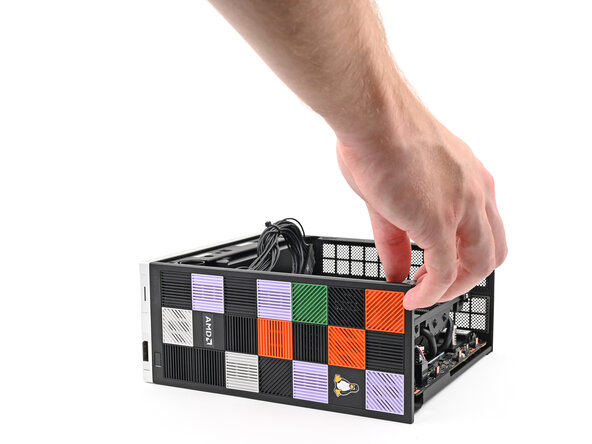
    • Rotate the Desktop onto its right side so the Mainboard is facing upward.

  33. Framework Desktop Mainboard Replacement, Disconnect the power button: Schritt 33, Bild 1 von 2 Framework Desktop Mainboard Replacement, Disconnect the power button: Schritt 33, Bild 2 von 2
    • Use your fingers to lift the power button cable connector off its nine‑pronged socket on the Mainboard.

  34. Framework Desktop Mainboard Replacement, Remove the Mainboard screws: Schritt 34, Bild 1 von 2 Framework Desktop Mainboard Replacement, Remove the Mainboard screws: Schritt 34, Bild 2 von 2
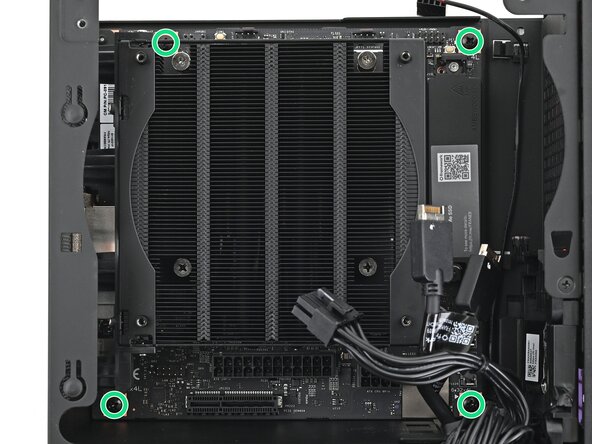
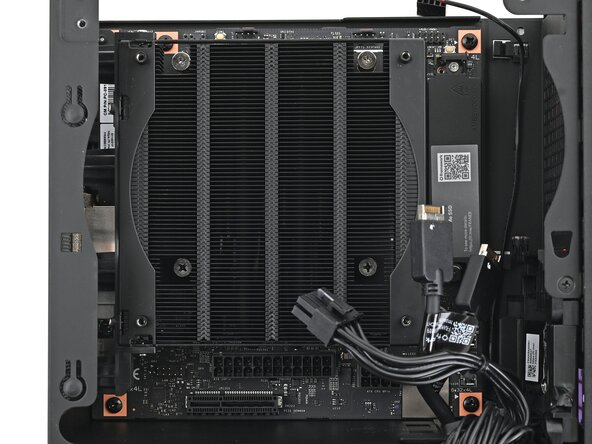
    • Use your Framework Desktop Screwdriver to remove the four 8.2 mm‑long Phillips screws securing the Mainboard.

  35. Framework Desktop Mainboard Replacement, Remove the Mainboard: Schritt 35, Bild 1 von 3 Framework Desktop Mainboard Replacement, Remove the Mainboard: Schritt 35, Bild 2 von 3 Framework Desktop Mainboard Replacement, Remove the Mainboard: Schritt 35, Bild 3 von 3
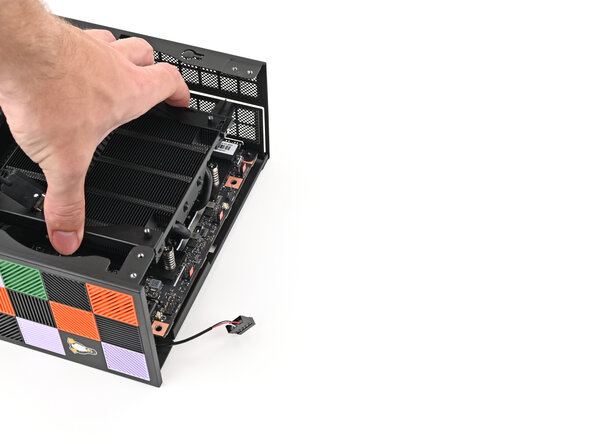
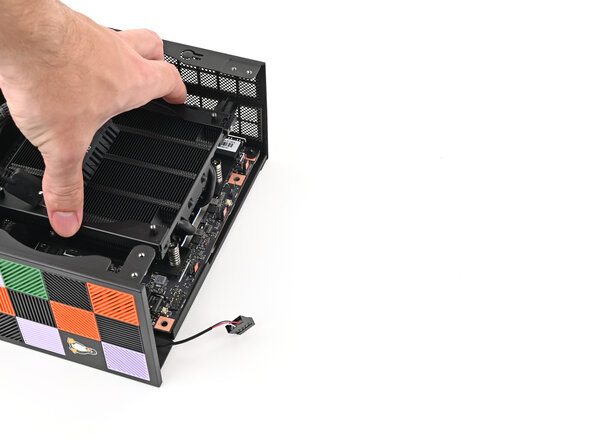
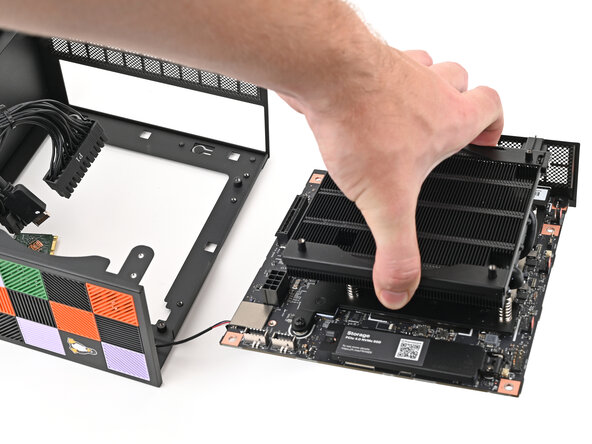
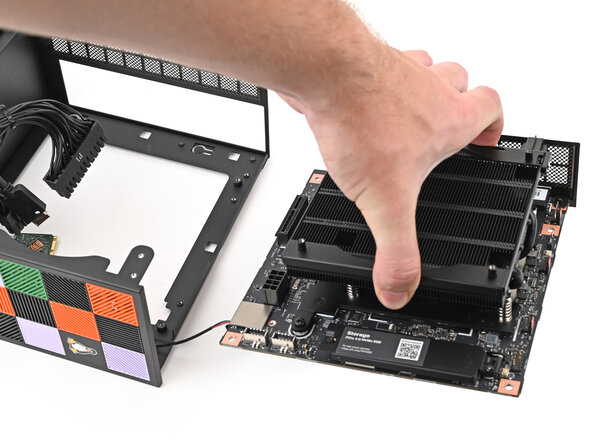
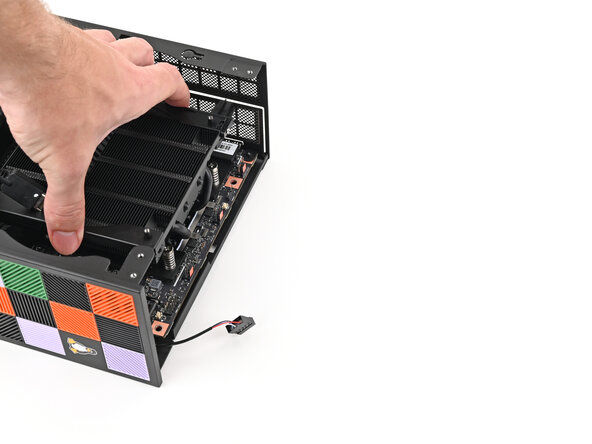
    • Grab the Mainboard by its heatsink and pull it towards the front of the Desktop to slide it out of the rear port cutout.

    • Slide the Mainboard towards the top of the Desktop to remove it from the chassis.

  36. Framework Desktop Mainboard Replacement, Disassembly complete: Schritt 36, Bild 1 von 1
    • Congratulations on completing disassembly! The remaining steps will show how to reassemble your Framework Desktop.

  37. Framework Desktop Mainboard Replacement, Place the Mainboard: Schritt 37, Bild 1 von 3 Framework Desktop Mainboard Replacement, Place the Mainboard: Schritt 37, Bild 2 von 3 Framework Desktop Mainboard Replacement, Place the Mainboard: Schritt 37, Bild 3 von 3
    • Grab the Mainboard by its heatsink and slide it into the chassis.

    • Align the rear ports with its cutout and the screw posts with the screw holes on the Mainboard.

    • You'll feel the Mainboard rest onto the screw posts when it's aligned properly.

    • Make sure no cables are trapped underneath the Mainboard before continuing.

  38. Framework Desktop Mainboard Replacement, Install the Mainboard screws: Schritt 38, Bild 1 von 2 Framework Desktop Mainboard Replacement, Install the Mainboard screws: Schritt 38, Bild 2 von 2
    • Use your Framework Desktop Screwdriver to install the four 8.2 mm‑long Phillips screws securing the Mainboard.

  39. Framework Desktop Mainboard Replacement, Connect the power button: Schritt 39, Bild 1 von 2 Framework Desktop Mainboard Replacement, Connect the power button: Schritt 39, Bild 2 von 2
    • Slide the power button cable over the nine-pronged connector on the Mainboard.

  40. Framework Desktop Mainboard Replacement, Reposition the Desktop: Schritt 40, Bild 1 von 3 Framework Desktop Mainboard Replacement, Reposition the Desktop: Schritt 40, Bild 2 von 3 Framework Desktop Mainboard Replacement, Reposition the Desktop: Schritt 40, Bild 3 von 3
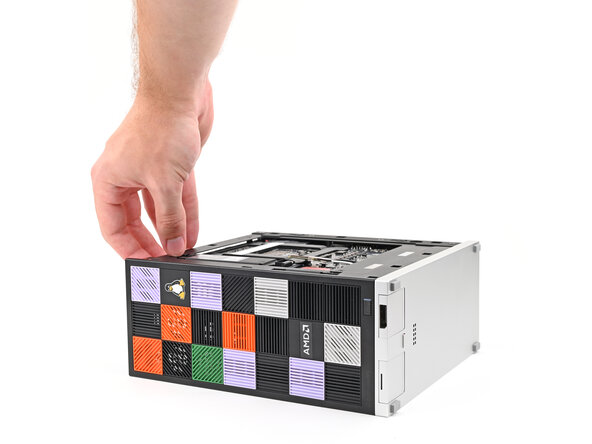
    • Rotate the Desktop onto its left side so the underside of the Mainboard is facing upward.

  41. Framework Desktop Mainboard Replacement, Install the Wi-Fi module: Schritt 41, Bild 1 von 2 Framework Desktop Mainboard Replacement, Install the Wi-Fi module: Schritt 41, Bild 2 von 2
    • Hold the Wi-Fi module by its edges. Don't touch the gold contacts with your fingers. If you do, wipe the contacts with a clean, lint-free cloth to remove any finger oils.

    • Align the Wi-Fi module's gold contacts and notch with the socket on the Mainboard.

    • Insert the Wi-Fi module into the socket at a shallow angle. The gold contacts should mostly be covered by the socket.

    • The Wi-Fi module fits into the socket in one orientation. If it doesn't fit, try flipping the module.

  42. Framework Desktop Mainboard Replacement, Install the Wi-Fi module screw: Schritt 42, Bild 1 von 2 Framework Desktop Mainboard Replacement, Install the Wi-Fi module screw: Schritt 42, Bild 2 von 2
    • Use your Framework Desktop Screwdriver to install the 7.0 mm‑long Phillips screw securing the Wi-Fi module.

  43. Framework Desktop Mainboard Replacement, Loosen the heat spreader screw: Schritt 43, Bild 1 von 1
    • Use your Framework Desktop Screwdriver to loosen the captive T5 Torx screw securing the heat spreader.

  44. Framework Desktop Mainboard Replacement, Install the SSD: Schritt 44, Bild 1 von 2 Framework Desktop Mainboard Replacement, Install the SSD: Schritt 44, Bild 2 von 2
    • If you want to install secondary storage, follow the next two steps. Otherwise, skip here.

    • Hold the SSD by its edges. Don't touch the gold contacts with your fingers. If you do, wipe the contacts with a clean, lint-free cloth to remove any finger oils.

    • While holding the SSD heat spreader upright, align the SSD's gold contacts with its socket.

    • Insert the SSD into the socket at a shallow angle. The gold contacts should mostly be covered by the socket.

    • The SSD fits into the socket in one orientation. If it doesn't feel like it fits, try flipping the module.

    • Lay the heat spreader back onto the SSD.

  45. Framework Desktop Mainboard Replacement, Install the SSD screw: Schritt 45, Bild 1 von 1
    • Use your Framework Desktop Screwdriver to tighten the captive T5 Torx screw securing the SSD.

  46. Framework Desktop Mainboard Replacement, Reposition the Desktop: Schritt 46, Bild 1 von 2 Framework Desktop Mainboard Replacement, Reposition the Desktop: Schritt 46, Bild 2 von 2
    • Rotate the Desktop so it sits upright on your work surface.

  47. Framework Desktop Mainboard Replacement, Place the top plate: Schritt 47, Bild 1 von 2 Framework Desktop Mainboard Replacement, Place the top plate: Schritt 47, Bild 2 von 2
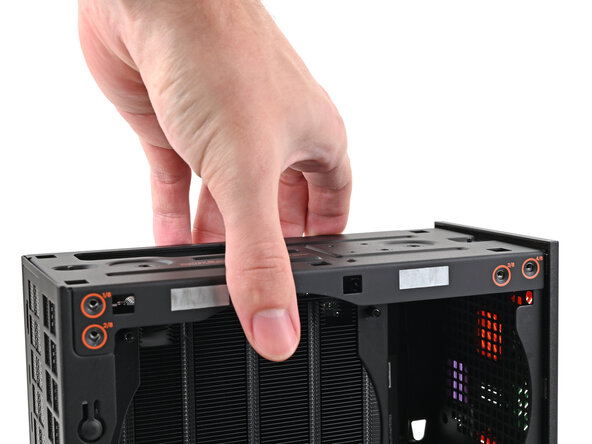
    • Place the top plate on top of the Desktop, making sure it slots into the chassis so the orange circles are visible.

  48. Framework Desktop Mainboard Replacement: Schritt 48, Bild 1 von 2 Framework Desktop Mainboard Replacement: Schritt 48, Bild 2 von 2
    • Make sure the matching screw hole on the top plate labeled "5/8" is slotted on the inside of the Chassis so that the orange circle is visible.

  49. Framework Desktop Mainboard Replacement, Install the top plate screws: Schritt 49, Bild 1 von 3 Framework Desktop Mainboard Replacement, Install the top plate screws: Schritt 49, Bild 2 von 3 Framework Desktop Mainboard Replacement, Install the top plate screws: Schritt 49, Bild 3 von 3
    • While holding the Desktop steady, use your Framework Desktop Screwdriver to install the eight 4.0 mm‑long Phillips screws securing the top plate.

  50. Framework Desktop Mainboard Replacement, Install the Right Panel: Schritt 50, Bild 1 von 3 Framework Desktop Mainboard Replacement, Install the Right Panel: Schritt 50, Bild 2 von 3 Framework Desktop Mainboard Replacement, Install the Right Panel: Schritt 50, Bild 3 von 3
    • Slide the Right Panel onto the right edge of the chassis, from top to bottom, and press it flat to ensure its clips are slotted into place.

    • There should be a small gap between the bottom of the Right Panel and the silver base.

    • Push the Right Panel towards the base of the computer to engage the clips.

  51. Framework Desktop Mainboard Replacement, Reposition the Mainboard: Schritt 51, Bild 1 von 2 Framework Desktop Mainboard Replacement, Reposition the Mainboard: Schritt 51, Bild 2 von 2
    • Lay the right side of the Desktop on your work surface so the Mainboard is facing upward.

  52. Framework Desktop Mainboard Replacement, Connect the bottom Expansion Card cable: Schritt 52, Bild 1 von 2 Framework Desktop Mainboard Replacement, Connect the bottom Expansion Card cable: Schritt 52, Bild 2 von 2
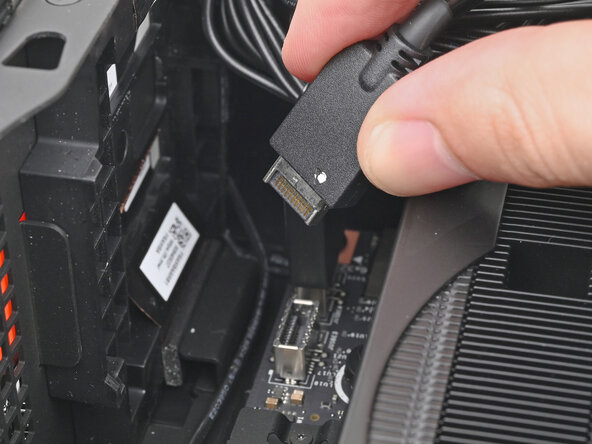
    • Slide the bottom Expansion Card cable into its socket on the Mainboard.

  53. Framework Desktop Mainboard Replacement, Connect the CPU power cable: Schritt 53, Bild 1 von 2 Framework Desktop Mainboard Replacement, Connect the CPU power cable: Schritt 53, Bild 2 von 2
    • Orient the CPU power supply cable so its clip is facing the heatsink.

    • Slide the cable into its socket on the Mainboard until you feel it click into place.

  54. Framework Desktop Mainboard Replacement, Connect the main power cable: Schritt 54, Bild 1 von 2 Framework Desktop Mainboard Replacement, Connect the main power cable: Schritt 54, Bild 2 von 2
    • Orient the main power supply cable so its clip is facing away from the heatsink.

    • Slide the cable into its socket on the Mainboard until you feel it click into place.

  55. Framework Desktop Mainboard Replacement, Connect the top Expansion Card cable: Schritt 55, Bild 1 von 2 Framework Desktop Mainboard Replacement, Connect the top Expansion Card cable: Schritt 55, Bild 2 von 2
    • Slide the top Expansion Card cable into its socket on the Mainboard.

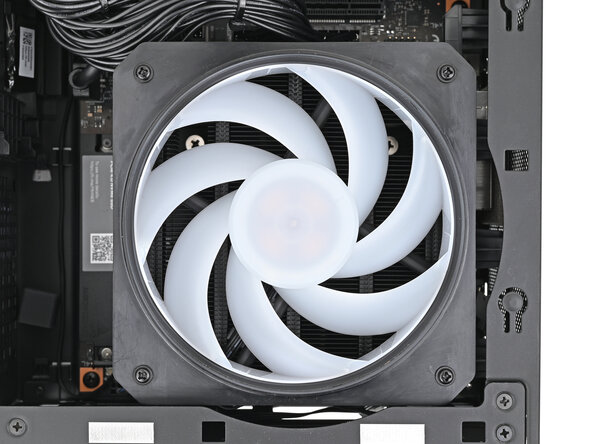
  56. Framework Desktop Mainboard Replacement, Insert the fan: Schritt 56, Bild 1 von 3 Framework Desktop Mainboard Replacement, Insert the fan: Schritt 56, Bild 2 von 3 Framework Desktop Mainboard Replacement, Insert the fan: Schritt 56, Bild 3 von 3
    • Orient the fan so its label is facing downward and the cable(s) is pointing towards the top of the computer.

    • If your fan has an arrow indicating airflow direction, make sure it's pointed towards the heatsink.

    • If you're using a different fan, orient it such that the fan is blowing towards the heatsink, not away.

    • Lay the fan on top of the heatsink, making sure the cables are routed so they poke out of the hole on the top of the computer.

  57. Framework Desktop Mainboard Replacement: Schritt 57, Bild 1 von 3 Framework Desktop Mainboard Replacement: Schritt 57, Bild 2 von 3 Framework Desktop Mainboard Replacement: Schritt 57, Bild 3 von 3
    • If the cables aren't routed properly, lift the fan up slightly and use your fingers to reposition the cables over the side of the heatsink.

    • If you're installing an RGB fan, make sure the "male" end of the RGB cable is covered and set aside in the corner of the chassis.

  58. Framework Desktop Mainboard Replacement, Insert the fan duct: Schritt 58, Bild 1 von 2 Framework Desktop Mainboard Replacement, Insert the fan duct: Schritt 58, Bild 2 von 2
    • Lay the fan duct on top of the fan with the lip facing upward.

    • Align the screw holes on the fan duct with the ones on the fan.

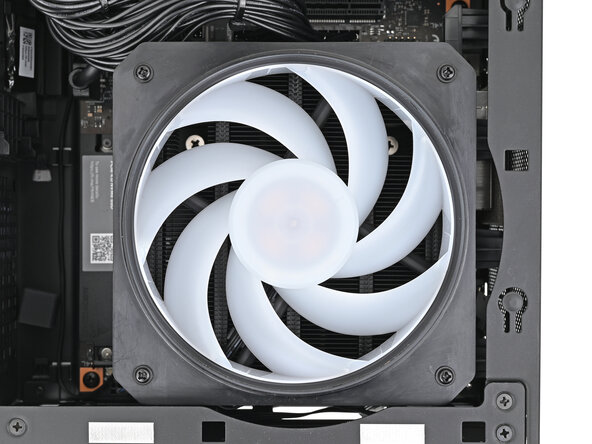
  59. Framework Desktop Mainboard Replacement, Install the fan screws: Schritt 59, Bild 1 von 2 Framework Desktop Mainboard Replacement, Install the fan screws: Schritt 59, Bild 2 von 2
    • Use your Framework Desktop Screwdriver to install the four 27.3 mm‑long screws securing the fan and fan duct.

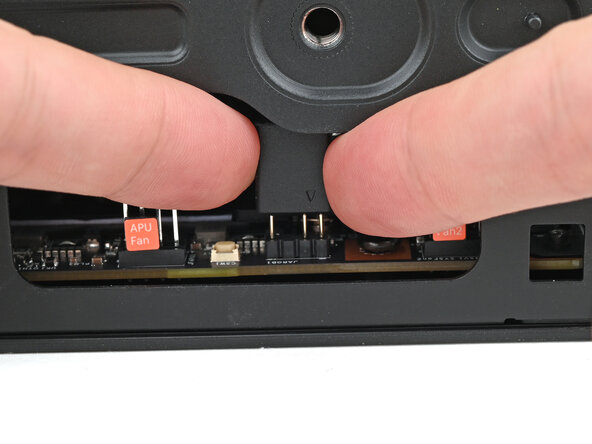
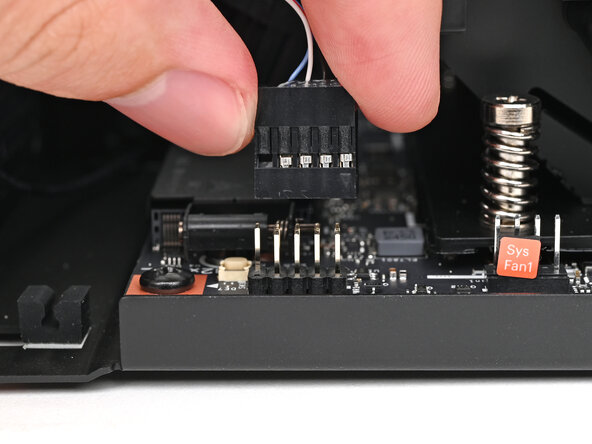
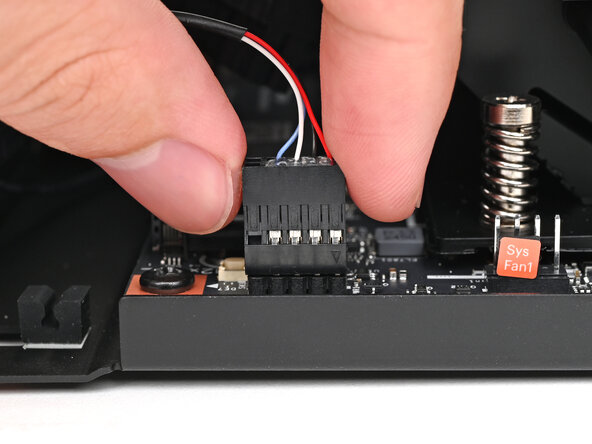
  60. Framework Desktop Mainboard Replacement, Connect the fan: Schritt 60, Bild 1 von 2 Framework Desktop Mainboard Replacement, Connect the fan: Schritt 60, Bild 2 von 2
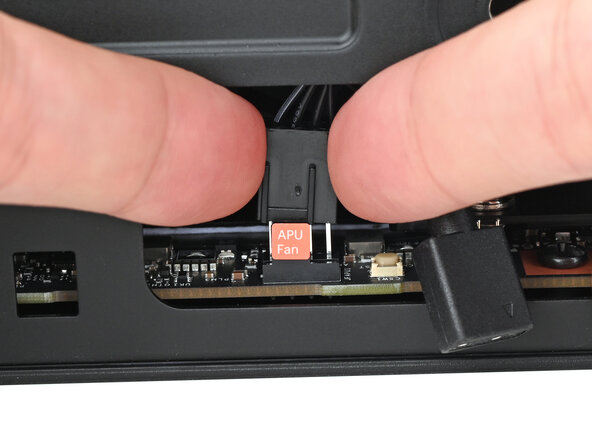
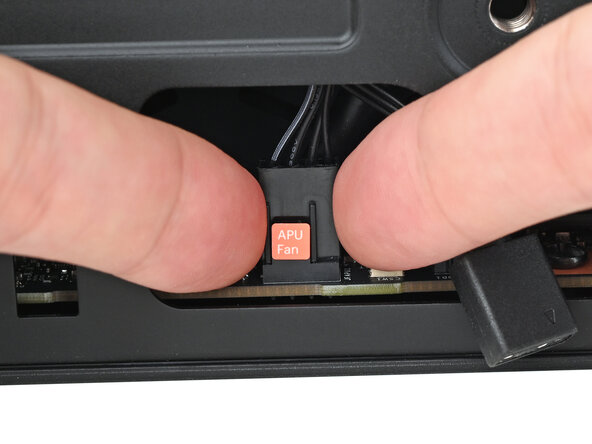
    • Orient the main fan cable so its two vertical lines are facing you.

    • Slide the main fan cable over the four-pronged connector labeled "APU Fan," making sure the orange label slots between the vertical lines.

  61. Framework Desktop Mainboard Replacement, Connect the RGB cable: Schritt 61, Bild 1 von 3 Framework Desktop Mainboard Replacement, Connect the RGB cable: Schritt 61, Bild 2 von 3 Framework Desktop Mainboard Replacement, Connect the RGB cable: Schritt 61, Bild 3 von 3
    • If you aren't using an RGB fan, then skip this step.

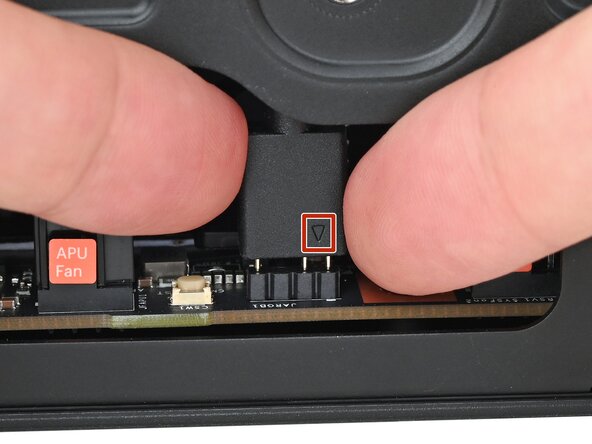
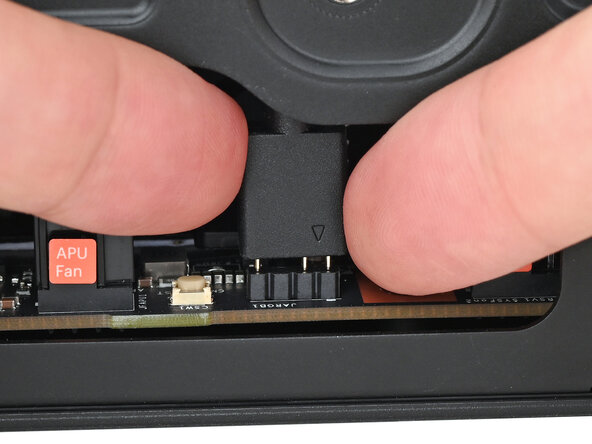
    • Orient the RGB cable so the arrow is on the right side of the connector.

    • Use your fingers to slide the RGB cable over the three pronged connector located to the right of the "APU Fan" connector.

  62. Framework Desktop Mainboard Replacement, Loosen the heat spreader screw: Schritt 62, Bild 1 von 1
    • Use your Framework Desktop Screwdriver to loosen the captive T5 Torx screw securing the SSD.

  63. Framework Desktop Mainboard Replacement, Install the SSD: Schritt 63, Bild 1 von 2 Framework Desktop Mainboard Replacement, Install the SSD: Schritt 63, Bild 2 von 2
    • Hold the SSD by its edges. Don't touch the gold contacts with your fingers. If you do, wipe the contacts with a clean, lint-free cloth to remove any finger oils.

    • While holding the heat spreader upright, align the SSD's gold contacts with its socket.

    • Insert the SSD into the socket at a shallow angle. The gold contacts should mostly be covered by the socket.

    • The SSD fits into the socket in one orientation. If it doesn't feel like it fits, try flipping the module.

  64. Framework Desktop Mainboard Replacement, Install the SSD screw: Schritt 64, Bild 1 von 3 Framework Desktop Mainboard Replacement, Install the SSD screw: Schritt 64, Bild 2 von 3 Framework Desktop Mainboard Replacement, Install the SSD screw: Schritt 64, Bild 3 von 3
    • Insert your Framework Desktop Screwdriver into the captive screw on the primary storage heat spreader and press it flat to the Mainboard.

    • Tighten the screw securing the SSD.

  65. Framework Desktop Mainboard Replacement, Install the Left Panel: Schritt 65, Bild 1 von 3 Framework Desktop Mainboard Replacement, Install the Left Panel: Schritt 65, Bild 2 von 3 Framework Desktop Mainboard Replacement, Install the Left Panel: Schritt 65, Bild 3 von 3
    • Slide the Left Panel onto the left edge of the chassis and press it flat to ensure its clips are slotted into place.

    • There should be a small gap between the bottom of the Left Panel and the silver base.

    • Push the Left Panel towards the base of the computer to close the gap and engage the clips.

  66. Framework Desktop Mainboard Replacement, Install the Top Panel: Schritt 66, Bild 1 von 3 Framework Desktop Mainboard Replacement, Install the Top Panel: Schritt 66, Bild 2 von 3 Framework Desktop Mainboard Replacement, Install the Top Panel: Schritt 66, Bild 3 von 3
    • Orient the Top Panel so its arrow is pointing towards the rear of the computer.

    • While holding the Top Panel at a slight downward angle, slide it across the top of the chassis (from rear to front) until you feel its clips catch.

    • There should be a small gap between the Top Panel and the front of the Desktop.

    • Lay the Top Panel flat on the chassis to align the remaining clips.

  67. Framework Desktop Mainboard Replacement: Schritt 67, Bild 1 von 2 Framework Desktop Mainboard Replacement: Schritt 67, Bild 2 von 2
    • While securing the computer with one hand, use the other hand to slide the Top Panel towards the front of the computer to close the gap and engage the clips.

  68. Framework Desktop Mainboard Replacement, Install the Handle: Schritt 68, Bild 1 von 2 Framework Desktop Mainboard Replacement, Install the Handle: Schritt 68, Bild 2 von 2
    • If you're installing the Handle on your Desktop, follow this step. Otherwise, skip it.

    • Place the Handle over the Top Panel screw holes.

    • While holding the Handle in place, twist the screw threads on both sides clockwise until they're snug on the Top Panel.

  69. Framework Desktop Mainboard Replacement, Install the top panel screws: Schritt 69, Bild 1 von 3 Framework Desktop Mainboard Replacement, Install the top panel screws: Schritt 69, Bild 2 von 3 Framework Desktop Mainboard Replacement, Install the top panel screws: Schritt 69, Bild 3 von 3
    • Insert the top panel screw into its hole and twist clockwise until it feels snug.

  70. Framework Desktop Mainboard Replacement: Schritt 70, Bild 1 von 3 Framework Desktop Mainboard Replacement: Schritt 70, Bild 2 von 3 Framework Desktop Mainboard Replacement: Schritt 70, Bild 3 von 3
    • Repeat the same procedure for the other top panel screw.

  71. Framework Desktop Mainboard Replacement: Schritt 71, Bild 1 von 3 Framework Desktop Mainboard Replacement: Schritt 71, Bild 2 von 3 Framework Desktop Mainboard Replacement: Schritt 71, Bild 3 von 3
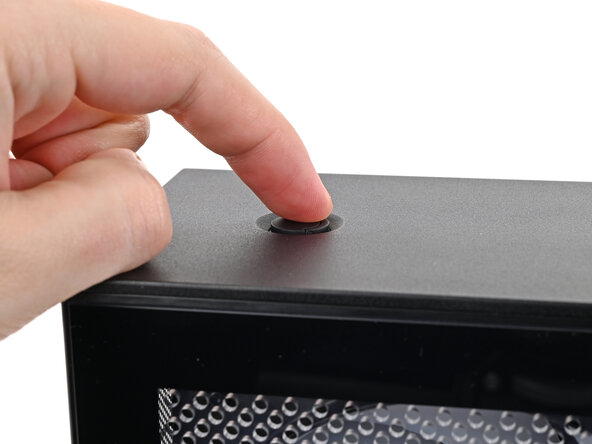
    • Use your finger to close the two D-rings on the top panel screws.

Abschluss

You finished fixing your Framework Desktop!

Take your e-waste to an R2 or e-Stewards certified recycler.

If you need help, contact Framework support.

Eine weitere Person hat diese Anleitung absolviert.

Alex Diaz-Kokaisl

Mitglied seit: 01/16/22

212.521 Reputation

1.037 Anleitungen geschrieben

0 Kommentare zur Anleitung

Kommentar hinzufügen

Seitenaufrufe:

Letzte 24 Stunden: 2

Letzte 7 Tage: 12

Letzte 30 Tage: 116

Insgesamt: 810