Diese Übersetzung wurde maschinell erstellt und noch nicht von einem Menschen überprüft. Sprichst du diese Sprache? Schau es dir an.
Was du brauchst
-
-
-
Entferne vorsichtig den Hauptakku.
-
Suche die Schraube auf der Unterseite.
-
Drehe sie heraus und entferne sie.
-
Nimm vorsichtig die beiden Kunststoffabdeckungen ab.
 Frag FixBot
-
-
-
Suche die drei Schrauben, die mit einem Tastatur-Symbol markiert sind.
-
Drehe sie vorsichtig heraus und entferne sie.
-
Nimm ein dünnes, flaches Werkzeug, wie zum Beispiel ein Plektrum.
-
Führe es vorsichtig an der Oberkante der Tastatur ein.
-
Fahre vorsichtig mit dem Werkzeug am Rand entlang, bis sich die Tastatur leicht anhebt oder herausspringt.
-
Ziehe die Tastatur nicht sofort heraus.
-
Suche vorsichtig das Tastaturkabel, das die Tastatur mit dem Motherboard verbindet, und trenne es ab.
-
-
-
Suche die Schraube, neben der ein CD-Symbol abgebildet ist.
-
Drehe sie vorsichtig heraus und entferne sie.
-
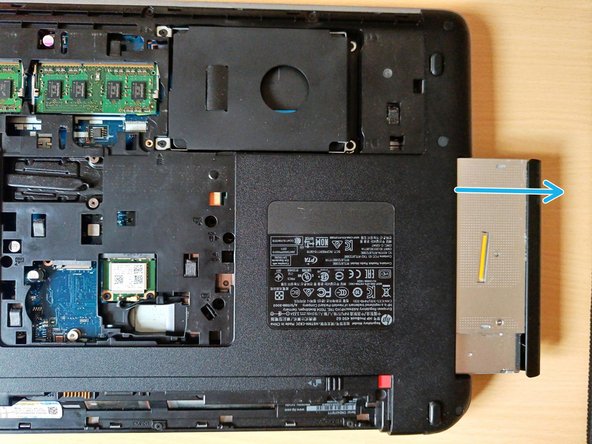
Ziehe das CD/DVD-Laufwerk vorsichtig heraus.
-
-
-
-
Suche die vier markierten Schrauben.
-
Drehe jede von ihnen vorsichtig heraus und entferne sie.
-
Schiebe die Festplatte nach rechts und ziehe sie dann vorsichtig heraus.
-
-
-
Suche auf der Unterseite die 11 (M2.5x3) markierten Schrauben und 2 (M2.5x6) Schrauben – Bild 1.
-
Drehe jede davon vorsichtig heraus und entferne sie.
-
Suche auf der Unterseite die 6 (M2.5x6) Schrauben, die unter den Gummifüßen versteckt sind – Bild 2.
-
Suche unter der Tastatur die 3 (M2.5x6) Schrauben.
-
Drehe jede davon vorsichtig heraus und entferne sie.
-
Trenne alle Kabel, die mit dem Motherboard verbunden sind.
-
-
-
Trenne vorsichtig die Abdeckungen.
-
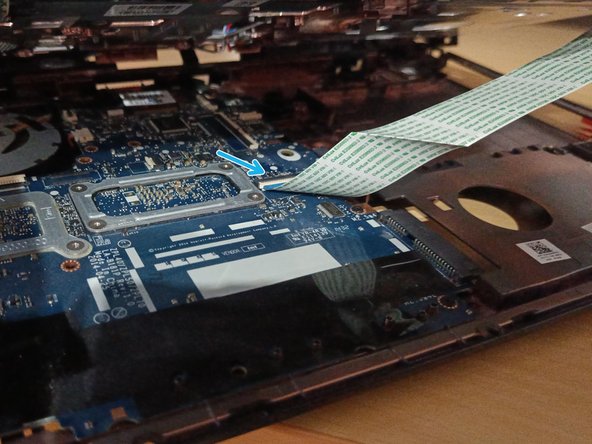
Beachte, dass sich darunter ein weiteres Kabel befindet. Löse dieses Kabel mit Vorsicht.
-
-
-
Suche die fünf markierten Schrauben.
-
Drehe jede von ihnen vorsichtig heraus und entferne sie.
-
Trenne alle Kabel, die mit dem Motherboard verbunden sind.
-
Um die Kabel leichter erreichen und abtrennen zu können, ziehe das Motherboard vorsichtig ein Stück heraus.
-
-
-
Suche die sechs markierten Schrauben.
-
Drehe jede von ihnen vorsichtig heraus und entferne sie.
-
Du kannst jetzt das Kühlrohr abnehmen und reinigen.
-
-






Um dein Gerät wieder zusammenzubauen, folge den Schritten dieser Anleitung in umgekehrter Reihenfolge.
Rückgängig: Ich habe diese Anleitung nicht absolviert.
5 weitere Personen haben diese Anleitung absolviert.

