Zum Hauptinhalt wechseln
Gemeinsam reparieren - Jetzt registrieren

HTC Flyer MicroUSB Port Replacement

Was du brauchst

    1. HTC Flyer MicroUSB Port Replacement, Back Cover: Schritt 1, Bild 1 von 3 HTC Flyer MicroUSB Port Replacement, Back Cover: Schritt 1, Bild 2 von 3 HTC Flyer MicroUSB Port Replacement, Back Cover: Schritt 1, Bild 3 von 3
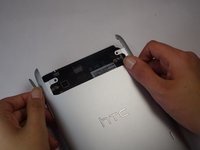
      • Apply pressure along the bottom of the white panel containing the camera and push upwards.

      • It may take some effort, but it will smoothly slide off.

      Frag FixBot

      Kommentar hinzufügen

    2. HTC Flyer MicroUSB Port Replacement: Schritt 2, Bild 1 von 3 HTC Flyer MicroUSB Port Replacement: Schritt 2, Bild 2 von 3 HTC Flyer MicroUSB Port Replacement: Schritt 2, Bild 3 von 3
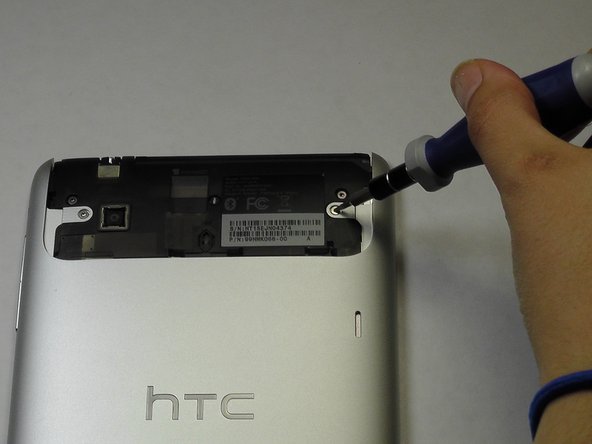
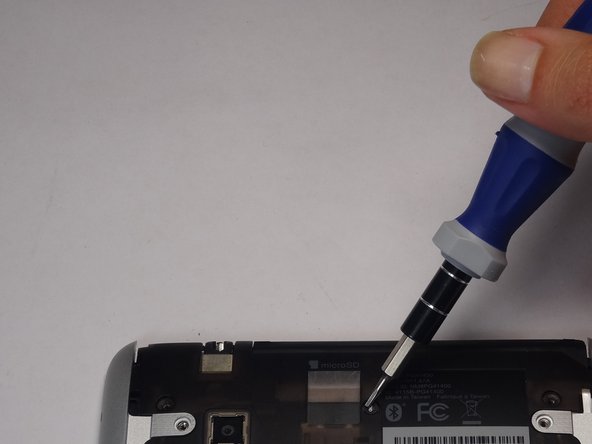
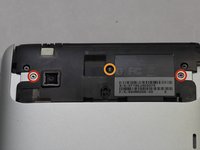
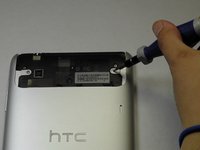
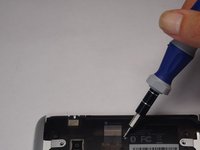
      • Unscrew the four of 3.5mm Torx T5 screws that run along the sides of the exposed innards.

      • All screws in the device will use the Torx T5 screwdriver, so keep it handy.

      Frag FixBot

      Kommentar hinzufügen

    3. HTC Flyer MicroUSB Port Replacement: Schritt 3, Bild 1 von 3 HTC Flyer MicroUSB Port Replacement: Schritt 3, Bild 2 von 3 HTC Flyer MicroUSB Port Replacement: Schritt 3, Bild 3 von 3
      • Remove the black protective piece of plastic by sliding it upwards.

      • Remove the two 3.5mm Torx #5 screws holding the protective plastic down on along the sides.

      • A center 3.5mm Torx screw will be covered by "VOID" sticker.

      • Either remove the sticker or jam the screwdriver into the screw, and remove the screw.

      • Remove the protective panel by sliding it upwards.

      Frag FixBot

      Kommentar hinzufügen

    4. HTC Flyer MicroUSB Port Replacement: Schritt 4, Bild 1 von 2 HTC Flyer MicroUSB Port Replacement: Schritt 4, Bild 2 von 2
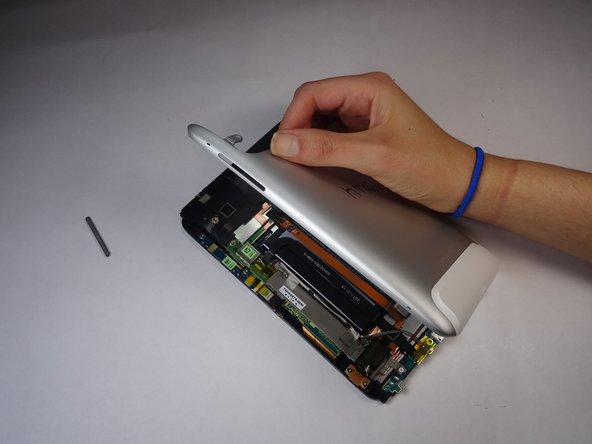
      • Before removing the back cover, apply some scotch tape to the volume buttons to prevent them from falling out of the back panel.

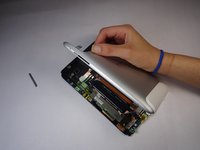
      • Use a plastic opening tool to lever up the top half of the cover.

      • Lift the back panel up and remove it from the device.

      Frag FixBot

      Kommentar hinzufügen

    1. HTC Flyer MicroUSB Port Replacement, Battery: Schritt 5, Bild 1 von 2 HTC Flyer MicroUSB Port Replacement, Battery: Schritt 5, Bild 2 von 2
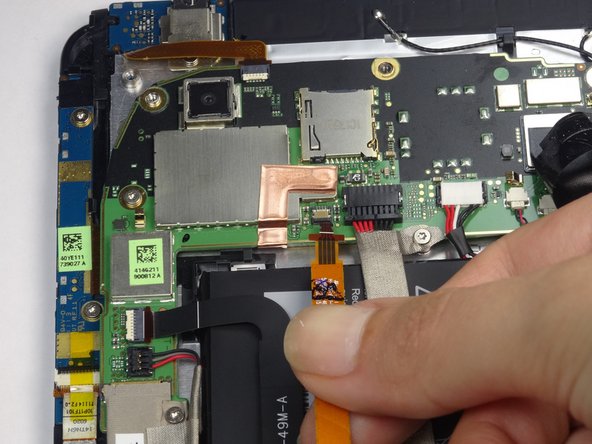
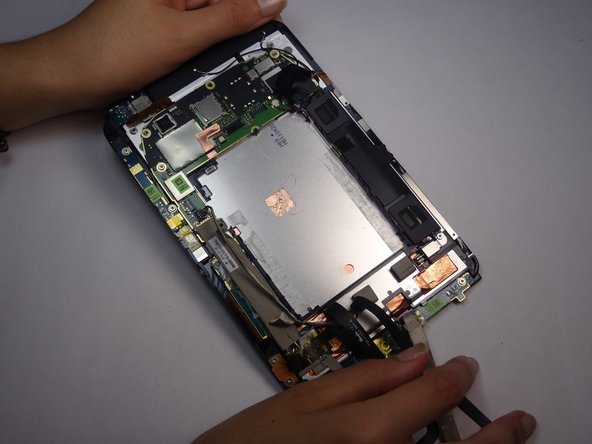
      • Gently unfold the black tape along the top that covers the cable attachment points.

      • Leave the tape partially attached so that it can be easily re-attached.

      Frag FixBot

      Kommentar hinzufügen

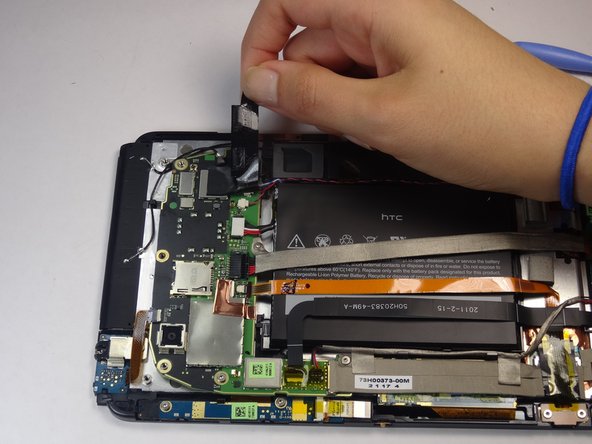
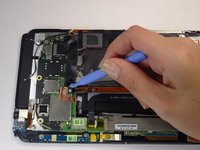
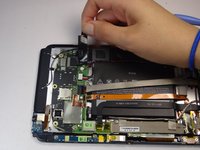
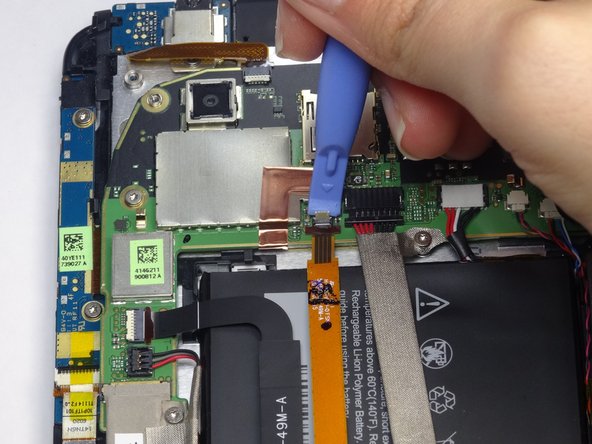
    2. HTC Flyer MicroUSB Port Replacement: Schritt 6, Bild 1 von 3 HTC Flyer MicroUSB Port Replacement: Schritt 6, Bild 2 von 3 HTC Flyer MicroUSB Port Replacement: Schritt 6, Bild 3 von 3
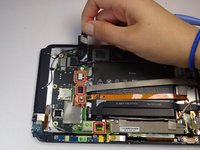
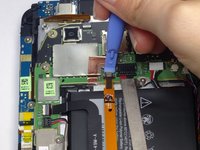
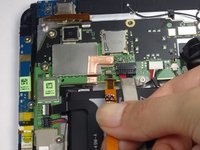
      • Use the tip of a spudger as a lever to disconnect the four cable connectors.

      • Gently pull out these cables after releasing the back piece.

      Frag FixBot

      Kommentar hinzufügen

    3. HTC Flyer MicroUSB Port Replacement: Schritt 7, Bild 1 von 1
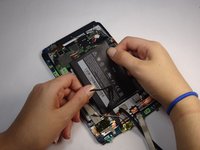
      • Remove the single 2.5mm Torx T5 screw holding the battery down along the top side.

      Frag FixBot

      Kommentar hinzufügen

    4. HTC Flyer MicroUSB Port Replacement: Schritt 8, Bild 1 von 3 HTC Flyer MicroUSB Port Replacement: Schritt 8, Bild 2 von 3 HTC Flyer MicroUSB Port Replacement: Schritt 8, Bild 3 von 3
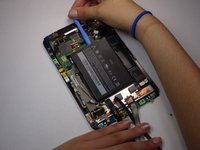
      • Wedge the flat end of a spudger inbetween the battery and the front panel assembly.

      • Run the flat end of a spudger along the top edge of the battery to separate it from the adhesive securing it to the front panel assembly.

      • If you encounter any resistance from the remaining adhesive, simply use the flat end of a spudger to remove the excess adhesive.

      Frag FixBot

      Kommentar hinzufügen

    1. HTC Flyer MicroUSB Port Replacement, MicroUSB Port: Schritt 9, Bild 1 von 1
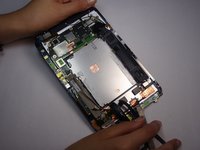
      • Use a spudger to unclip the the wires attached to the power jack

      • The clips have a white or black relief tab that, when pressed, releases the wires.

      Frag FixBot

      Kommentar hinzufügen

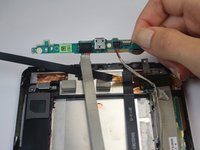
    2. HTC Flyer MicroUSB Port Replacement: Schritt 10, Bild 1 von 2 HTC Flyer MicroUSB Port Replacement: Schritt 10, Bild 2 von 2
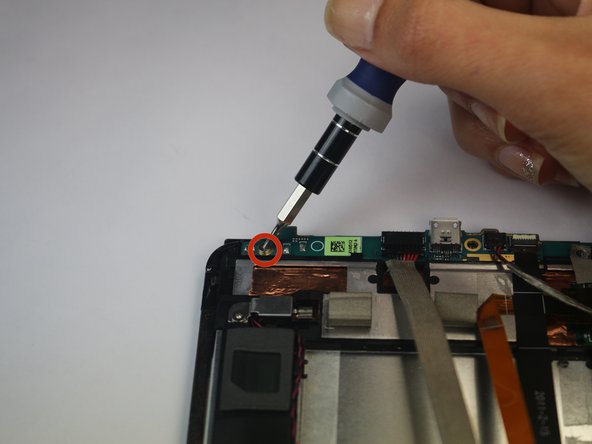
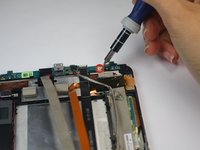
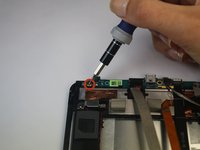
      • Remove the two 2.5mm Torx T5 screws from both sides of the power jack panel.

      Frag FixBot

      Kommentar hinzufügen

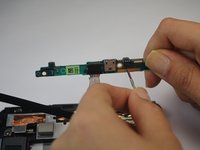
    3. HTC Flyer MicroUSB Port Replacement: Schritt 11, Bild 1 von 2 HTC Flyer MicroUSB Port Replacement: Schritt 11, Bild 2 von 2
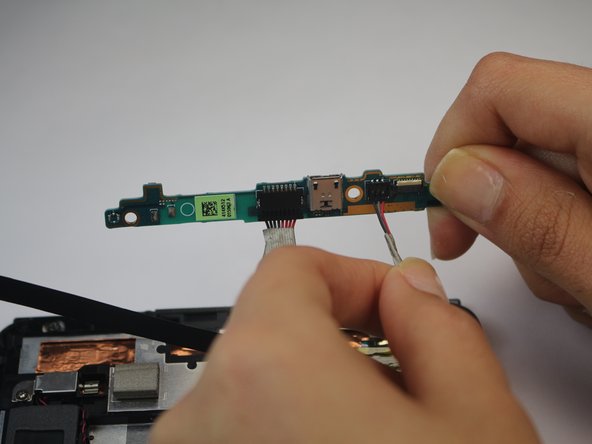
      • Gently remove the power jack panel.

      Frag FixBot

      Kommentar hinzufügen

Abschluss

To reassemble your device, follow these instructions in reverse order.

Rückgängig: Ich habe diese Anleitung nicht absolviert.

4 weitere Personen haben diese Anleitung absolviert.

Team

USF Tampa, Team 8-5, Leahy Fall 2014 Mitglied von USF Tampa, Team 8-5, Leahy Fall 2014

USFT-LEAHY-F14S8G5

3 Mitglieder

42 Anleitungen geschrieben

0 Kommentare zur Anleitung

Kommentar hinzufügen

Seitenaufrufe:

Letzte 24 Stunden: 3

Letzte 7 Tage: 6

Letzte 30 Tage: 34

Insgesamt: 1,547