Diese Übersetzung wurde maschinell erstellt und noch nicht von einem Menschen überprüft. Sprichst du diese Sprache? Schau es dir an.

Logitech Harmony Smart Keyboard Rückseite

Hayley Nichols und 4 weitere Mitwirkende
Zuletzt aktualisiert am 19. Aug 2026
Aufrufe: 1722
Statistik anzeigen:
- Letzte 24 Stunden:
- 1
- Letzte 7 Tage:
- 14
- Letzte 30 Tage:
- 74
- Insgesamt:
- 1.722
Kommentare: 0
Es gibt noch keine Kommentare zu dieser Anleitung. Schreibst du den ersten?
Zu den KommentarenAbgeschlossen: 2 3
2 Personen haben diese Anleitung schon erfolgreich absolviert. Du auch?
3 Personen haben diese Anleitung schon erfolgreich absolviert, unter anderem du. Gut gemacht!
Favoriten: 0 1
Diese Anleitung hat noch niemand unter Favoriten gespeichert (und abonniert). Mach du den Anfang!
1 Person hat diese Anleitung als Favorit gespeichert (und abonniert) – du!
Einleitung
Zu Schritt 1 der Anleitung ↓Dies ist eine grundständige Anleitung, die dir zeigt, wie du deine Tastatur ordnungsgemäß öffnest. Dies ist hilfreich, um interne Komponenten auszutauschen, ohne dein Gerät zu beschädigen.
Was du brauchst
Werkzeuge
-
Spudger4.9


-
-
-
Drücke mit beiden Daumen auf die obere Akkuverriegelung und schiebe sie nach oben.
-
-
-
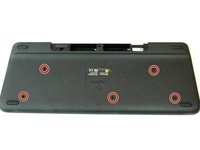
Drehe alle fünf 4,0 mm Schrauben mit einem Kreuzschlitz-Schraubendreher heraus.
-
-
-
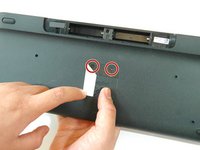
Zieh den mittleren Aufkleber ab, um zwei versteckte 4,0-mm-Schrauben freizulegen.
-
Drehe diese zwei Schrauben mit einem Kreuzschlitz-Schraubendreher heraus.
-
-
-
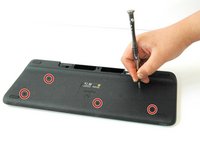
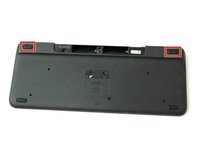
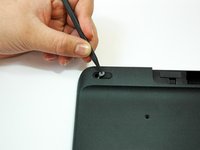
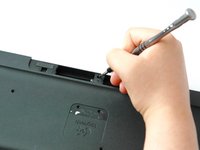
Hebe beide Gummiaufkleber oben links und oben rechts jeweils zur Hälfte mit der scharfen Spitze des Spudgers an.
-
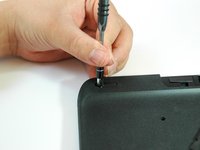
Drehe insgesamt zwei 4,0 mm Kreuzschlitzschrauben, die sich unter den Gummiaufklebern befinden, mit einem Kreuzschlitz-Schraubendreher heraus.
-
-
-
-
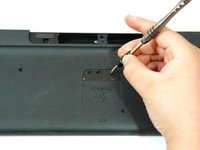
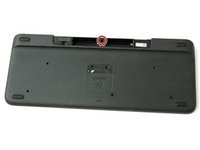
Drehe die obere mittlere 4,0 mm Schraube im Batteriefach mit dem Kreuzschlitz-Schraubendreher heraus.
-
-
-
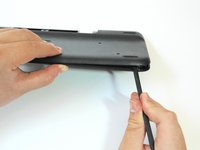
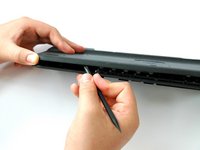
Schiebe das flache Ende des Spudgers zwischen die Rückseite und das Vordergehäuse.
-
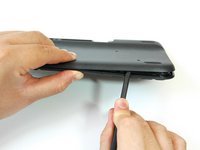
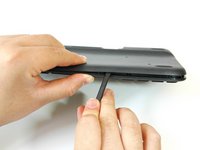
Führe das flache Ende des Spudgers von rechts nach links, um die beiden Gehäuseteile voneinander zu hebeln.
-
-
-
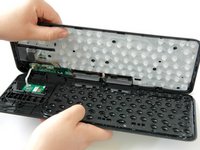
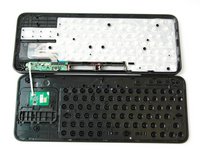
Trenne die Rückseite mit beiden Händen vollständig von der Vorderseite.
-


 Frag FixBot












Um dein Gerät wieder zusammenzubauen, folge den Schritten dieser Anleitung in umgekehrter Reihenfolge.
Rückgängig: Ich habe diese Anleitung nicht absolviert.
2 weitere Personen haben diese Anleitung absolviert.

Team

CSU Fullerton, Team S1-G2, Bruce Fall 2017 Mitglied von CSU Fullerton, Team S1-G2, Bruce Fall 2017
CSUF-BRUCE-F17S1G2
3 Mitglieder
60 Anleitungen geschrieben
