Diese Übersetzung wurde maschinell erstellt und noch nicht von einer Person überprüft. Sprichst du diese Sprache? Schau es dir an.
Einleitung
Diese Anleitung hilft dir dabei, die Logitech M331/M330 Maus zu zerlegen und das Mausrad zu reinigen.
Was du brauchst
-
-
-
Drehe die Maus um, sodass der Ein-/Ausschalter nach oben zeigt.
-
Schiebe die Batteriefachabdeckung in Richtung Rückseite der Maus, um ihre Clips zu lösen und sie zu entfernen.
-
Entferne die Batterie (falls eingesetzt).
-
Entferne den Aufkleber aus dem Batteriefach.
-
Verwende einen Kreuzschlitz Schraubendreher, um die schwarze Schraube im Batteriefach zu entfernen.
 Frag FixBot
-
-
-
Trenne vorsichtig die Gehäuseoberseite von der Gehäuseunterseite der Maus, indem du die Unterseite festhältst und die Oberseite nach vorne schiebst.
-
-
-
-
Drehe die Schraube im lilafarbenen Kreis heraus und löse die Kunststoffstifte in den blauen Kreisen, um die Platine von der Kunststoffabdeckung zu nehmen.
-
-
-
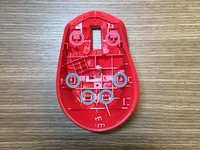
Um das Mausgehäuse zu demontieren, löse die Kunststoffstifte, die mit den blauen Kreisen markiert sind. Die beiden Stifte in den violetten Kreisen lösen sich automatisch, sobald die vier blauen Stifte entfernt sind.
-
Um den Lichtleiter zu demontieren, löse den kleinen Kunststoffstift an der Verbindung zwischen Mausgehäuse und Lichtleiter am Boden.
-
-


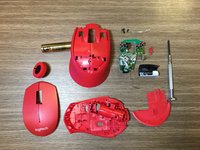
Um dein Gerät wieder zusammenzubauen, folge den Schritten dieser Anleitung in umgekehrter Reihenfolge.
Rückgängig: Ich habe diese Anleitung nicht absolviert.
24 weitere Personen haben diese Anleitung absolviert.

9 Kommentare zur Anleitung
first time using ifixit
this was just what i needed thanks!
Thanks for the guide! I was able to clean the scroll wheel properly and fixed the annoying inaccurate scroll issue.
Exactly what I needed, a clear and direct guide. Thank you so much!
Finally my mouse-wheel has stopped ghost scrolling, I used to have this problem where when I scrolled down and up it would go the opposite direction, at first I thought it was a bug but turns out on my other wired logitech mouse, it worked normally.
Upon following this instruction manual (A++) I managed to put some WD40 in the mouse wheel scrolling part, from the inside (not the wheel but the thing it’s attached to) and scrolled it a couple of times, now it works normally :)
Thanks to the author!
