Here’s the breakdown of the onboard diagnostics for your system:
LED 1 - Power is available.
If no LED is visible:
- Disconnect the power cord from the computer and wait 15 seconds to reset the power supply and LED status. Reconnect the power cord and check the LED status again.
- Verify the AC source.
- Verify that a known-good power cord is connected. Verify the cable connection between the AC inlet and the power supply.
- Verify the cable connection between the power supply and the logic board.
- Verify the power supply.
LED 1 + LED 2 - Power is available and the system is turned on.
If the second LED is not visible when the power button is pressed:
- Verify that the power button is connected to the power supply.
- Verify power button functionality.
- Verify the cable connection between the power supply and the logic board.
- Verify the power supply.
- Verify the logic board.
LED 1 + LED 2 + LED 3 - Power is available, the system is turned on, and the GPU was found.
If the third LED is not visible after the system is turned on:
- Verify whether the fan is running when turned on (reset SMC and NVRAM, verify backup battery voltage for proper startup). If the fan is not heard, go to the "No Startup" troubleshooting flow.
LED 1 + LED 2 + LED 3 + LED 4 - Power is available, the system is turned on, the logic board is communicating with the GPU, and the internal LCD was found.
If the fourth LED is not visible after the system is turned on:
- Verify the embedded DisplayPort cable (eDP) connections between the LCD panel and the logic board.
- Inspect the LCD display cables for cable damage.
- Verify external video functionality and proceed according to the result:
- If an external display works, verify/replace the LCD panel.
- If an external display does not work, verify/replace the logic board.
LED 1 + LED 2 + LED 3 + LED 4 + LED 5 - Power is available, system is turned on, GPU is working, logic board is communicating with the LCD panel, and the LCD panel has turned on the LCD backlight.
If the fifth LED is not visible after the computer is turned on:
Verify the eDP cable and backlight cable connections between the LCD panel and the logic board.
- Inspect the LCD display cables for cable damage.
- Using a flashlight, check the following areas on the panel:
- Look in the top left corner of the panel to see if there is a dim Apple logo (the Apple menu logo).
- Look in the center of the panel to see if there is a login screen.
- Look at the bottom of the panel to see if there is a Dock visible.
- If the following items are visible, there maybe something wrong with the display cables or the logic board. Proceed to the next step.
- Replace the LCD panel, check that all the LEDs are visible, and that the backlight functions. If the computer does not function after replacing the LCD panel, replace the logic board.
War diese Antwort hilfreich?
Bewertet
Rückgängig machen
Bewertung
3
Abbrechen
Schau durch den Thread, bis du den richtigen Platz für diesen Kommentar gefunden hast. Klicke dann auf "Den Kommentar diesem Post zuordnen", um ihn zu verschieben.

 4
4  1
1 



 974
974 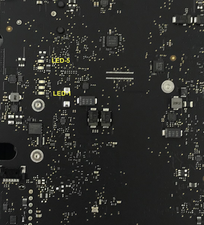


4 Kommentare
Image showing solder joints added
von Saul Mordaunt
Hi Saul, did you fix this issue? I have exactly the same problem. 3 led’s on. 4’th is on but dimmed. 5th remains off. Curious to know if you have resolved it. Thanks, Ron
von Ronald Koppers
Same problem - how is it fixed?
von David Haight
Ich habe das selbe Problem. Hat jemand schon was gefunden?
von michael höppner