Zum Hauptinhalt wechseln
Gemeinsam reparieren - Jetzt registrieren

OnePlus Nord N200 Battery Replacement

Was du brauchst

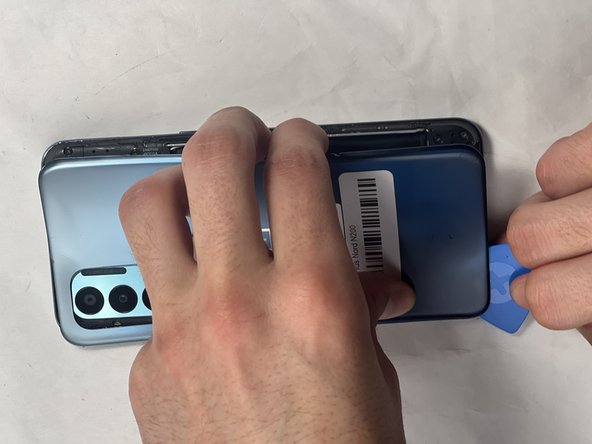
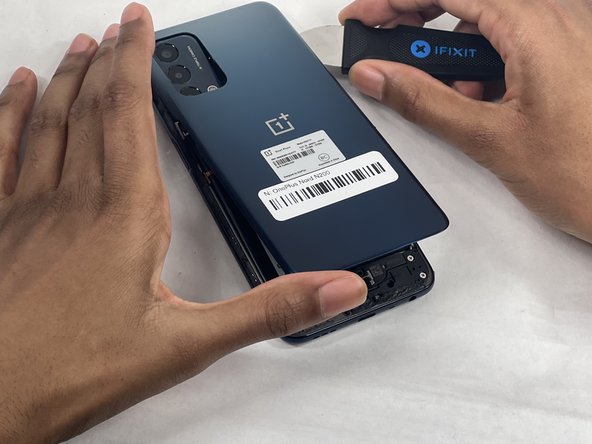
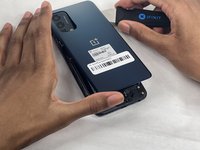
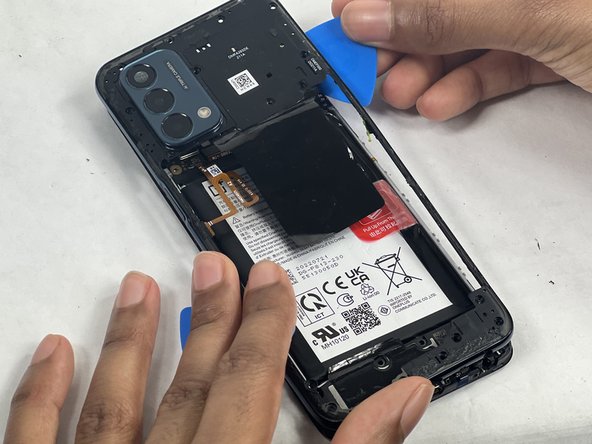
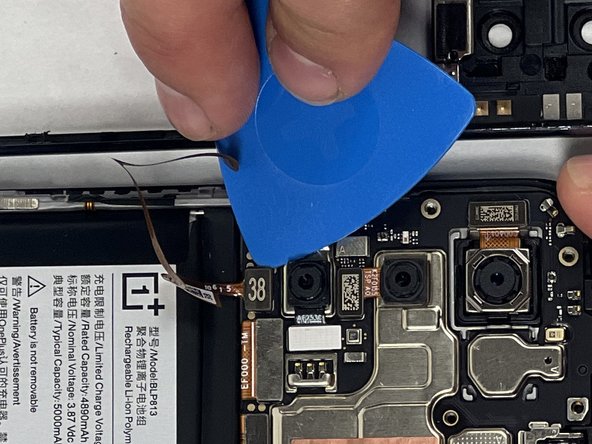
  1. OnePlus Nord N200 Battery Replacement, Back Cover: Schritt 1, Bild 1 von 3 OnePlus Nord N200 Battery Replacement, Back Cover: Schritt 1, Bild 2 von 3 OnePlus Nord N200 Battery Replacement, Back Cover: Schritt 1, Bild 3 von 3
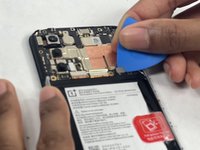
    • Due to its surface, the suction tool won't hold onto the phone's rear glass. A thin slicing tool is required.

    • Insert the Jimmy into the seam between the rear glass and the midframe at the bottom edge of the phone to create a gap.

    • This may require some force.

    • Leave the Jimmy in place for a few seconds to prevent the adhesive from resealing.

    Frag FixBot

    Kommentar hinzufügen

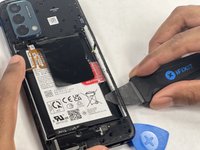
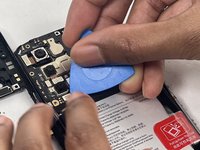
  2. OnePlus Nord N200 Battery Replacement: Schritt 2, Bild 1 von 3 OnePlus Nord N200 Battery Replacement: Schritt 2, Bild 2 von 3 OnePlus Nord N200 Battery Replacement: Schritt 2, Bild 3 von 3
    • Insert an iFixit opening pick into the gap you created with the Jimmy.

    • Slide the Jimmy around the phone to slice the adhesive.

    • Insert a second iFixit opening pick at the spot you have sliced open to keep it open.

    Frag FixBot

    Kommentar hinzufügen

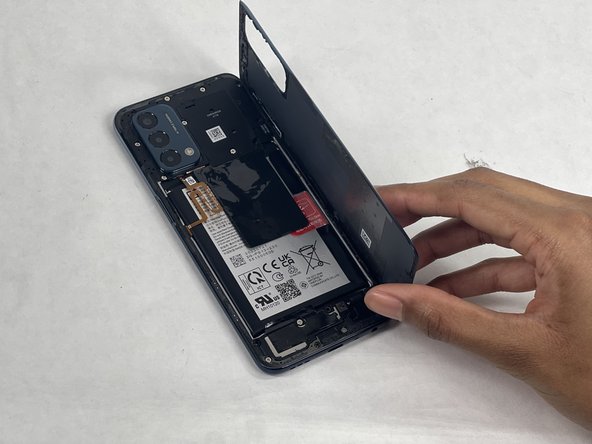
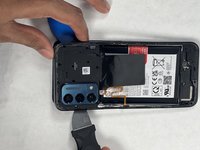
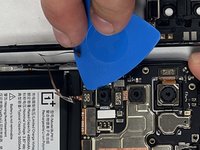
  3. OnePlus Nord N200 Battery Replacement: Schritt 3, Bild 1 von 3 OnePlus Nord N200 Battery Replacement: Schritt 3, Bild 2 von 3 OnePlus Nord N200 Battery Replacement: Schritt 3, Bild 3 von 3
    • Slide the iFixit opening pick along the top edge to slice the adhesive.

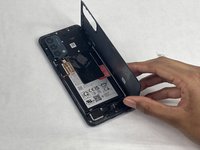
    • Start prying the back plate off the phone.

    Frag FixBot

    Kommentar hinzufügen

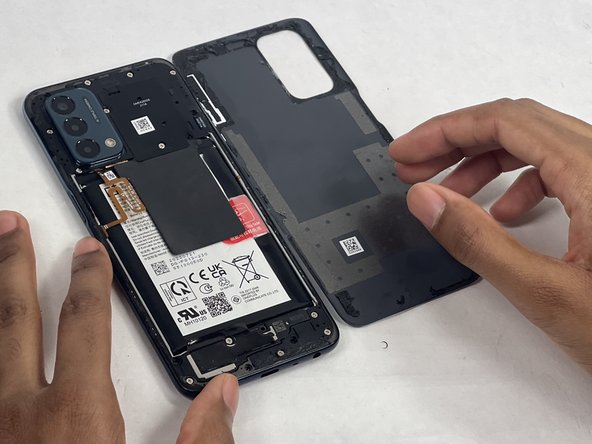
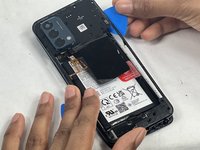
  4. OnePlus Nord N200 Battery Replacement: Schritt 4, Bild 1 von 3 OnePlus Nord N200 Battery Replacement: Schritt 4, Bild 2 von 3 OnePlus Nord N200 Battery Replacement: Schritt 4, Bild 3 von 3
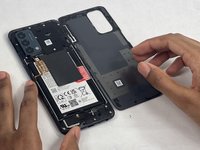
    • Remove the back cover.

    Frag FixBot

    Kommentar hinzufügen

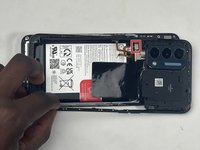
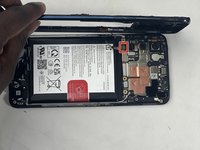
  5. OnePlus Nord N200 Battery Replacement, Midframe: Schritt 5, Bild 1 von 3 OnePlus Nord N200 Battery Replacement, Midframe: Schritt 5, Bild 2 von 3 OnePlus Nord N200 Battery Replacement, Midframe: Schritt 5, Bild 3 von 3
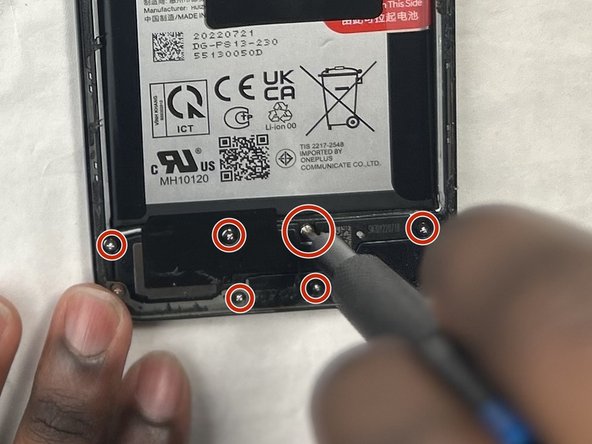
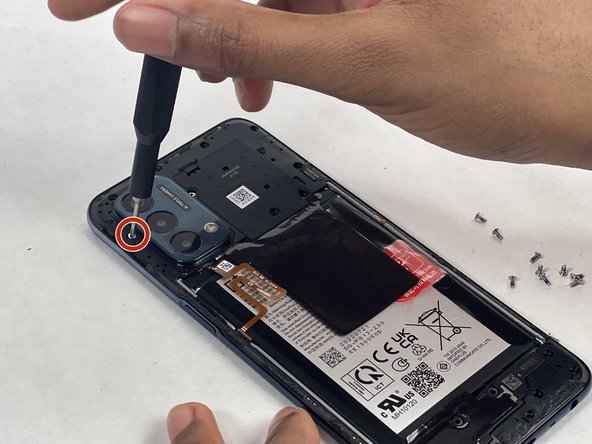
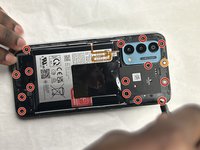
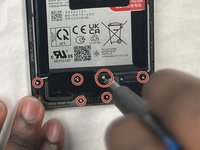
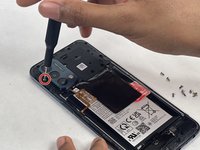
    • Use a Phillips #00 screwdriver to remove the sixteen 3.6 mm-long screws securing the midframe.

    • The orange circle represents a hidden screw that also needs to be screwed out. (At first glance it may not look like a screw).

    Frag FixBot

    Kommentar hinzufügen

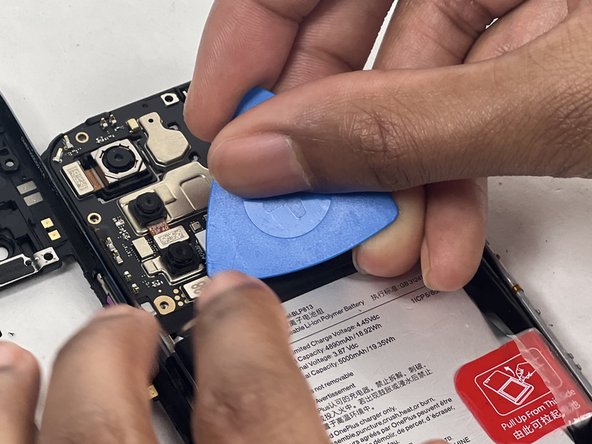
  6. OnePlus Nord N200 Battery Replacement: Schritt 6, Bild 1 von 3 OnePlus Nord N200 Battery Replacement: Schritt 6, Bild 2 von 3 OnePlus Nord N200 Battery Replacement: Schritt 6, Bild 3 von 3
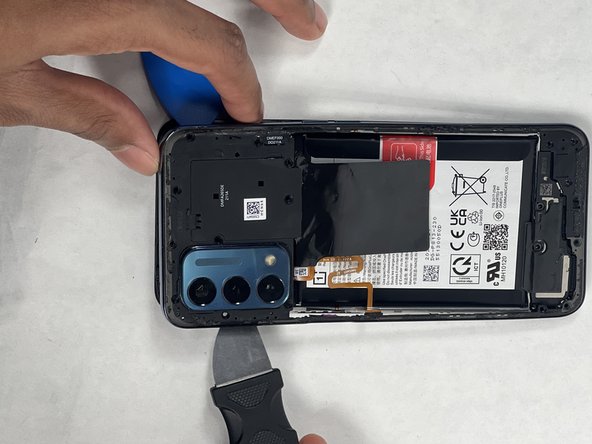
    • Gently insert the Jimmy to create a gap between the midframe and the top of components in the bottom case.

    • Slide an opening pick around the edge of the midframe to slice the adhesive.

    • Use the Jimmy to pry off the midframe of the phone.

    Frag FixBot

    Kommentar hinzufügen

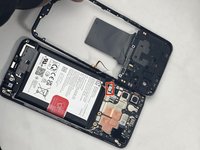
  7. OnePlus Nord N200 Battery Replacement: Schritt 7, Bild 1 von 3 OnePlus Nord N200 Battery Replacement: Schritt 7, Bild 2 von 3 OnePlus Nord N200 Battery Replacement: Schritt 7, Bild 3 von 3
    • Use your hands to finish prying open the midframe off the phone.

    • Watch out for the fingerprint reader cable when taking off the back tray as it is still connected. If you are not careful, it could be damaged.

    • Pull the midframe off of the phone and lay it to the side of the phone.

    Frag FixBot

    Kommentar hinzufügen

  8. OnePlus Nord N200 Battery Replacement: Schritt 8, Bild 1 von 3 OnePlus Nord N200 Battery Replacement: Schritt 8, Bild 2 von 3 OnePlus Nord N200 Battery Replacement: Schritt 8, Bild 3 von 3
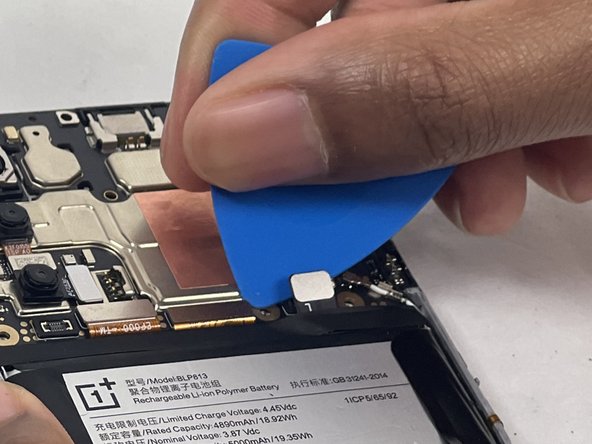
    • Place a spudger or an opening tool under the connector's edge and pry straight up to disconnect the fingerprint cable connector.

    • Move the fingerprint reader cable to the side along with the midframe.

    Frag FixBot

    Kommentar hinzufügen

  9. OnePlus Nord N200 Battery Replacement: Schritt 9, Bild 1 von 1
    • Remove the midframe.

    Frag FixBot

    Kommentar hinzufügen

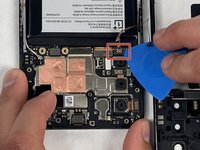
  10. OnePlus Nord N200 Battery Replacement, OnePlus Nord N200 Battery Connector Replacement: Schritt 10, Bild 1 von 3 OnePlus Nord N200 Battery Replacement, OnePlus Nord N200 Battery Connector Replacement: Schritt 10, Bild 2 von 3 OnePlus Nord N200 Battery Replacement, OnePlus Nord N200 Battery Connector Replacement: Schritt 10, Bild 3 von 3
    • Before you start with the repair, make sure to disconnect the battery from the charger to avoid damaging your phone.

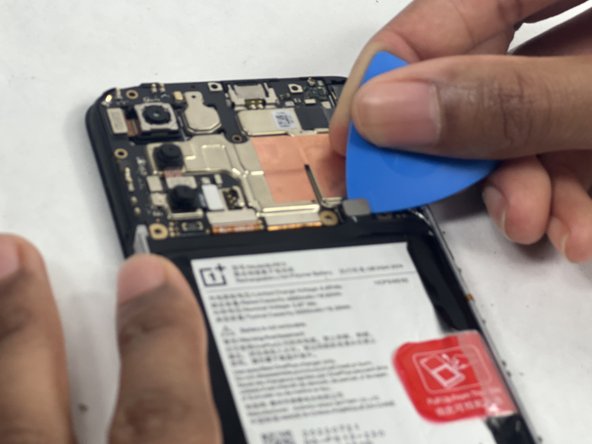
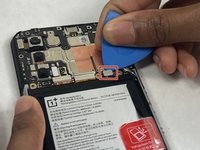
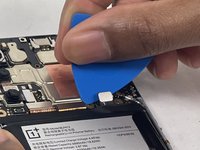
    • Place a spudger or an opening pick under the connector's edge and pry straight up to disconnect the battery.

    • Make sure to pry under the edge of the connector itself, and not under the socket on the board. Otherwise, you risk permanently damaging the socket.

    • Work carefully: don't pry on or accidentally scrape any small, surface mounted components on the board.

    • To reconnect, align the connector carefully over its socket and press down with your fingertip—first on one side, then the other—until it clicks into place. Don't try to force the connector into place. If you're having trouble, reposition it and try again.

    • Don't press down on the middle of wider connectors until they're fully seated. If misaligned, the connector or the pins underneath can bend or break, causing permanent damage.

    Frag FixBot

    Kommentar hinzufügen

  11. OnePlus Nord N200 Battery Replacement, Speaker: Schritt 11, Bild 1 von 3 OnePlus Nord N200 Battery Replacement, Speaker: Schritt 11, Bild 2 von 3 OnePlus Nord N200 Battery Replacement, Speaker: Schritt 11, Bild 3 von 3
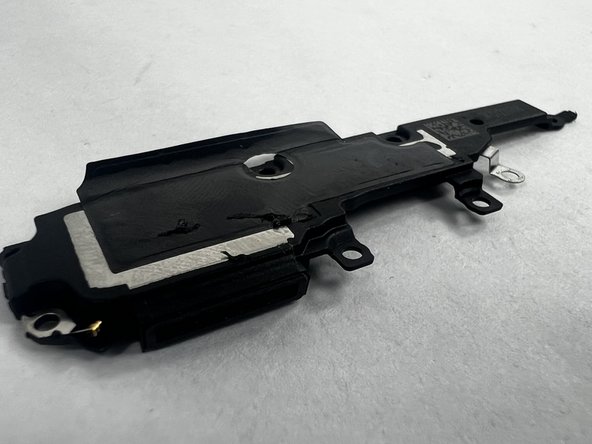
    • Insert iFixit opening pick under speaker assembly.

    • Lift up the iFixit opening pick to pull out the speaker assembly out of its tray.

    • The speaker assembly should come out easily. If not, check if you missed a screw.

    Frag FixBot

    Kommentar hinzufügen

  12. OnePlus Nord N200 Battery Replacement: Schritt 12, Bild 1 von 3 OnePlus Nord N200 Battery Replacement: Schritt 12, Bild 2 von 3 OnePlus Nord N200 Battery Replacement: Schritt 12, Bild 3 von 3
    • Remove the speaker assembly.

    Frag FixBot

    Kommentar hinzufügen

  13. OnePlus Nord N200 Battery Replacement, I/O Board: Schritt 13, Bild 1 von 3 OnePlus Nord N200 Battery Replacement, I/O Board: Schritt 13, Bild 2 von 3 OnePlus Nord N200 Battery Replacement, I/O Board: Schritt 13, Bild 3 von 3
    • Place a spudger or an opening tool under the connector's edge and pry straight up to disconnect the battery.

    • Make sure to pry under the edge of the connector itself, and not under the socket on the board. Otherwise, you risk permanently damaging the socket.

    • Work carefully: don't pry on or accidentally scrape any small, surface mounted components on the board.

    Frag FixBot

    Kommentar hinzufügen

  14. OnePlus Nord N200 Battery Replacement: Schritt 14, Bild 1 von 3 OnePlus Nord N200 Battery Replacement: Schritt 14, Bild 2 von 3 OnePlus Nord N200 Battery Replacement: Schritt 14, Bild 3 von 3
    • To disconnect the black coaxial cable connector, slide a thin, ESD-safe pry tool or angled tweezers under the metal neck (as close to the head as possible) and lift straight up from the board.

    • Start with the black coaxial connector as it is safer to disconnect first.

    • When working with these connectors, it's key to always lift the head straight up. If pried on at an odd angle, you risk breaking the socket off of the board underneath.

    Frag FixBot

    Kommentar hinzufügen

  15. OnePlus Nord N200 Battery Replacement: Schritt 15, Bild 1 von 3 OnePlus Nord N200 Battery Replacement: Schritt 15, Bild 2 von 3 OnePlus Nord N200 Battery Replacement: Schritt 15, Bild 3 von 3
    • Slide a thin, ESD-safe pry tool or angled tweezers under the metal neck of the white coaxial cable connector (as close to the head as possible) and lift straight up from the board.

    • When working with these connectors, it's key to always lift the head straight up. If pried on at an odd angle, you risk breaking the socket off of the board underneath.

    • Reconnecting these can be tricky. Use tweezers to hold the connector in place over its socket and gently press down with your finger or a spudger—the connector should "snap" into place. If you're having trouble, reposition the head and try again.

    • Don't try to force the connector into place or you may permanently damage it.

    Frag FixBot

    Kommentar hinzufügen

  16. OnePlus Nord N200 Battery Replacement: Schritt 16, Bild 1 von 3 OnePlus Nord N200 Battery Replacement: Schritt 16, Bild 2 von 3 OnePlus Nord N200 Battery Replacement: Schritt 16, Bild 3 von 3
    • Insert the iFixit opening pick under either side of the I/O board.

    • Use the opening pick or a spudger to pry under the I/O board and remove it from the case.

    Frag FixBot

    Kommentar hinzufügen

  17. OnePlus Nord N200 Battery Replacement: Schritt 17, Bild 1 von 2 OnePlus Nord N200 Battery Replacement: Schritt 17, Bild 2 von 2
    • Remove the I/O board.

    Frag FixBot

    Kommentar hinzufügen

  18. OnePlus Nord N200 Battery Replacement, Battery: Schritt 18, Bild 1 von 3 OnePlus Nord N200 Battery Replacement, Battery: Schritt 18, Bild 2 von 3 OnePlus Nord N200 Battery Replacement, Battery: Schritt 18, Bild 3 von 3
    • Pull up on the red tab to begin removing the battery and the tape around it.

    Frag FixBot

    Kommentar hinzufügen

  19. OnePlus Nord N200 Battery Replacement: Schritt 19, Bild 1 von 2 OnePlus Nord N200 Battery Replacement: Schritt 19, Bild 2 von 2
    • Before pulling the battery out completely, remove the black tape surrounding it.

    Frag FixBot

    Kommentar hinzufügen

  20. OnePlus Nord N200 Battery Replacement: Schritt 20, Bild 1 von 3 OnePlus Nord N200 Battery Replacement: Schritt 20, Bild 2 von 3 OnePlus Nord N200 Battery Replacement: Schritt 20, Bild 3 von 3
    • Pull the red tab all the way up to lift the battery up from the frame.

    • It may require some force to remove it, as the battery is securely in place.

    Frag FixBot

    Kommentar hinzufügen

  21. OnePlus Nord N200 Battery Replacement: Schritt 21, Bild 1 von 2 OnePlus Nord N200 Battery Replacement: Schritt 21, Bild 2 von 2
    • Remove the battery.

    Frag FixBot

    Kommentar hinzufügen

Abschluss

To reassemble your device, follow these instructions in reverse order. Take your e-waste to an R2 or e-Stewards certified recycler.

Rückgängig: Ich habe diese Anleitung nicht absolviert.

Eine weitere Person hat diese Anleitung absolviert.

Team

UMass Dartmouth, Team 1-1, Konn Spring 2024 Mitglied von UMass Dartmouth, Team 1-1, Konn Spring 2024

UMASSD-KONN-S24S1G1

4 Mitglieder

9 Anleitungen geschrieben

3 Kommentare zur Anleitung

Will I need new adhesive for the back panel? Or should it be fine without it?

ZeitWolverine - Antwort Teilen
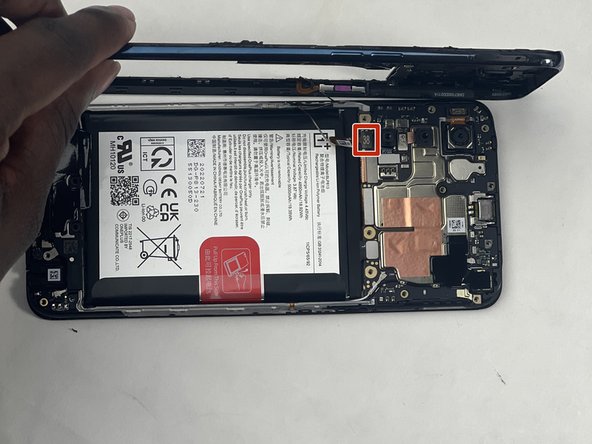
Removing the speaker/io boards are unnecessary. You can skip those steps.

Isaac Alvarado - Antwort Teilen
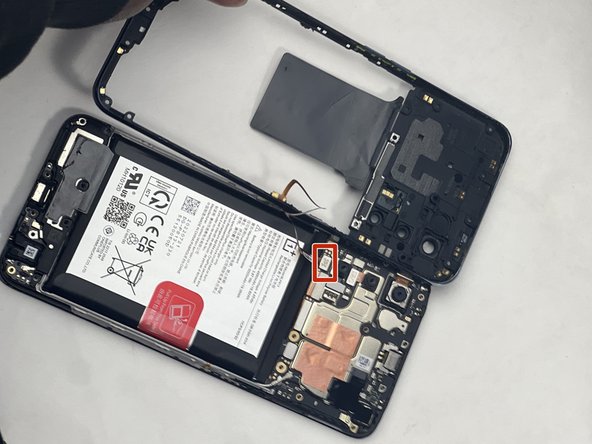
You will need new adhesive for the back panel. Everything I've found seems to indicate B-7000 glue is the way to go. Some people were saying to use T-7000, as it will result in a better water-proof seal than B-7000, but T-7000 is apparently a LOT harder to remove if you ever need to get back into the phone for additional repairs.

Edale - Antwort Teilen

Kommentar hinzufügen

Seitenaufrufe:

Letzte 24 Stunden: 5

Letzte 7 Tage: 17

Letzte 30 Tage: 98

Insgesamt: 2,183