Zum Hauptinhalt wechseln

Dell XPS 15 9510 Touchpad Replacement

Was du brauchst

  1. Dell XPS 15 9510 Touchpad Replacement, Lower Case: Schritt 1, Bild 1 von 1
    • Make sure the laptop is powered off and unplug all cables before beginning any repair.

    • Remove eight 3 mm screws from the underside of the case using a T5 Torx screwdriver.

  2. Dell XPS 15 9510 Touchpad Replacement: Schritt 2, Bild 1 von 1
    • The metal case of the XPS 15 9510 is extremely sharp, so be careful not to run your fingers along the edge when disassembling the laptop.

    • Wedge the case apart with a nylon spudger.

    • If the plastic one isn't possible to insert, use the metal spudger to carefully create a small gap first.

    • Slide spudger along each side of the laptop

  3. Dell XPS 15 9510 Touchpad Replacement: Schritt 3, Bild 1 von 1
    • The metal case of the XPS 15 9510 is extremely sharp, so be careful not to run your fingers along the edge when disassembling the laptop.

    • Lift the back panel of the laptop off and set it aside.

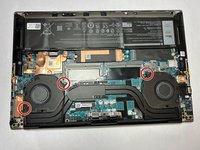
  4. Dell XPS 15 9510 Touchpad Replacement, Fan: Schritt 4, Bild 1 von 2 Dell XPS 15 9510 Touchpad Replacement, Fan: Schritt 4, Bild 2 von 2
    • Remove two 4.3 mm screws from the left fan and one 4.3 mm screw from the right fan using a JIS #000 screwdriver.

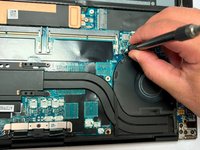
  5. Dell XPS 15 9510 Touchpad Replacement: Schritt 5, Bild 1 von 2 Dell XPS 15 9510 Touchpad Replacement: Schritt 5, Bild 2 von 2
    In diesem Schritt verwendetes Werkzeug:
    Tweezers
    $4.99
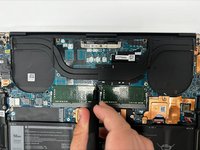
    • Gently unplug the motherboard fan connector using a pair of tweezers.

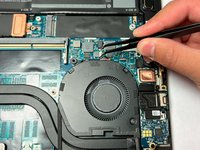
  6. Dell XPS 15 9510 Touchpad Replacement: Schritt 6, Bild 1 von 1
    • Unplug the motherboard connector on the other fan using a pair of tweezers.

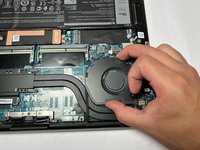
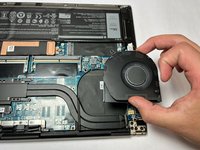
  7. Dell XPS 15 9510 Touchpad Replacement: Schritt 7, Bild 1 von 2 Dell XPS 15 9510 Touchpad Replacement: Schritt 7, Bild 2 von 2
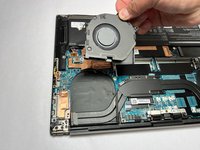
    • Gently slide and then lift the fans out of their positions.

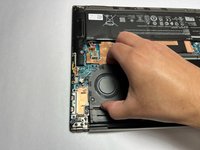
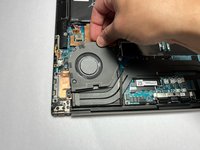
  8. Dell XPS 15 9510 Touchpad Replacement: Schritt 8, Bild 1 von 3 Dell XPS 15 9510 Touchpad Replacement: Schritt 8, Bild 2 von 3 Dell XPS 15 9510 Touchpad Replacement: Schritt 8, Bild 3 von 3
    • Repeat the previous step and remove the other fan.

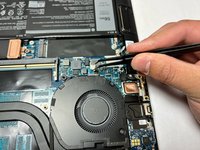
  9. Dell XPS 15 9510 Touchpad Replacement, Battery: Schritt 9, Bild 1 von 2 Dell XPS 15 9510 Touchpad Replacement, Battery: Schritt 9, Bild 2 von 2
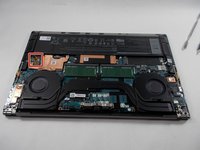
    • Using the small battery pull tab, disconnect the battery connector from the motherboard.

  10. Dell XPS 15 9510 Touchpad Replacement: Schritt 10, Bild 1 von 1
    • Remove eight 2.5 mm from around the perimeter of the battery using a Phillips #0 screwdriver.

  11. Dell XPS 15 9510 Touchpad Replacement: Schritt 11, Bild 1 von 1
    • There are many delicate components in the vicinity of the battery, so be extremely careful removing it

    • Remove the old battery from the laptop.

  12. Dell XPS 15 9510 Touchpad Replacement, Heat Sink: Schritt 12, Bild 1 von 2 Dell XPS 15 9510 Touchpad Replacement, Heat Sink: Schritt 12, Bild 2 von 2
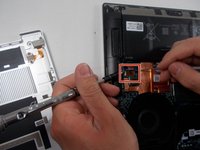
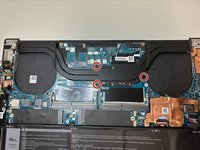
    • Remove the three 4.6 mm screws that secure the heat sink with a Phillips #1 screwdriver.

  13. Dell XPS 15 9510 Touchpad Replacement: Schritt 13, Bild 1 von 1
  14. Dell XPS 15 9510 Touchpad Replacement, Touchpad: Schritt 14, Bild 1 von 1
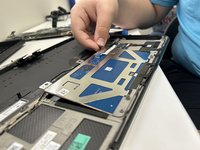
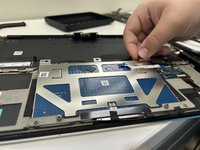
    • Remove the six 3 mm screws securing the touch pad with a Phillips #00 screw driver.

  15. Dell XPS 15 9510 Touchpad Replacement: Schritt 15, Bild 1 von 3 Dell XPS 15 9510 Touchpad Replacement: Schritt 15, Bild 2 von 3 Dell XPS 15 9510 Touchpad Replacement: Schritt 15, Bild 3 von 3
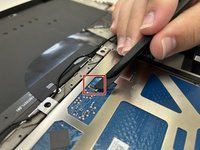
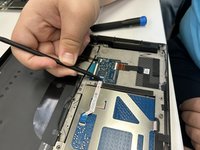
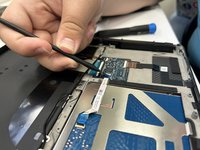
    • Flip up the black ZIF locking flap that secures the touchpad ribbon cable.

    • Disconnect the touch pad ribbon cable.

  16. Dell XPS 15 9510 Touchpad Replacement: Schritt 16, Bild 1 von 2 Dell XPS 15 9510 Touchpad Replacement: Schritt 16, Bild 2 von 2
    • Lift the touch pad up and out of the chassis.

Abschluss

To reassemble your device, follow the above steps in reverse order.
Take your e-waste to an R2 or e-Stewards certified recycler.
Repair didn’t go as planned? Try some basic troubleshooting or ask our Answers community for help.

2 weitere Personen haben diese Anleitung absolviert.

Esmie

Mitglied seit: 09/23/24

145 Reputation

1 Anleitung geschrieben

Team

1 Kommentar zur Anleitung

This guide is incomplete. Step 13 shows removing the heatsink, then step 14 is removing the touchpad, but it's a missing a HUGE series of steps in between which is removing the motherboard to access the touchpad. As-is this guide is not usable.

Derek Selby - Antwort

Kommentar hinzufügen

Seitenaufrufe:

Letzte 24 Stunden: 0

Letzte 7 Tage: 17

Letzte 30 Tage: 98

Insgesamt: 1,025