Zum Hauptinhalt wechseln
Gemeinsam reparieren - Jetzt registrieren

Logitech A20 X Lightspeed Battery Replacement

Was du brauchst

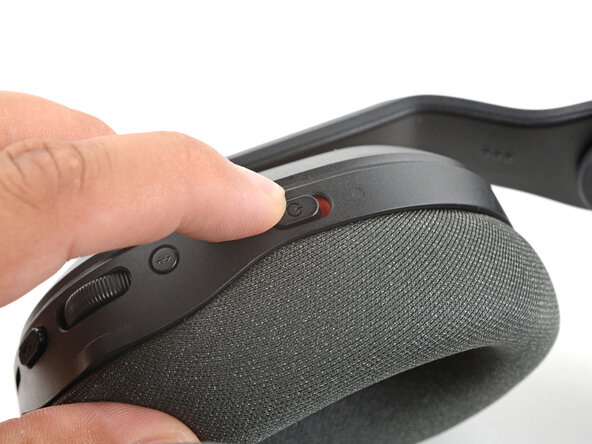
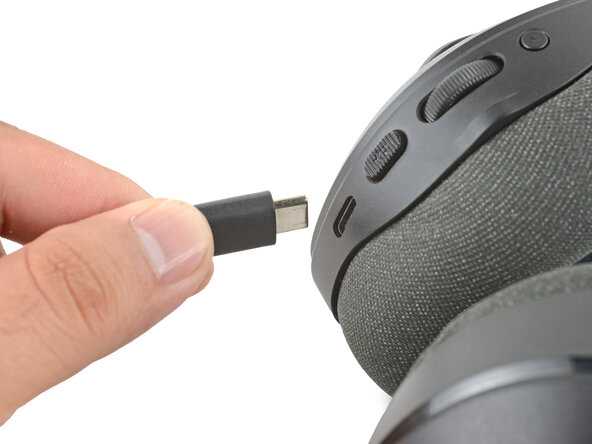
  1. Logitech A20 X Lightspeed Battery Replacement, Prepare the headset for disassembly: Schritt 1, Bild 1 von 2 Logitech A20 X Lightspeed Battery Replacement, Prepare the headset for disassembly: Schritt 1, Bild 2 von 2
    • Power off the headset and unplug all cables.

    Frag FixBot

    Kommentar hinzufügen

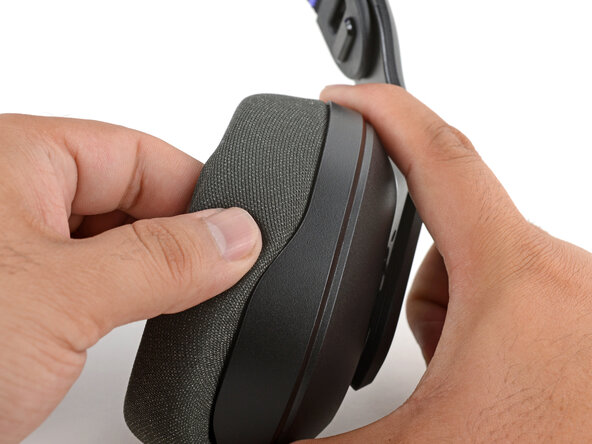
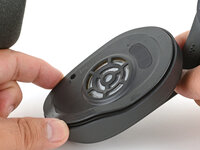
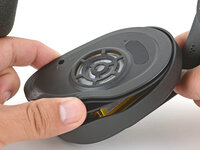
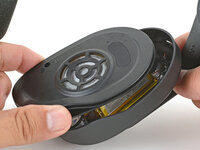
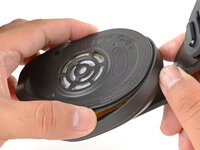
  2. Logitech A20 X Lightspeed Battery Replacement, Remove the right ear pad: Schritt 2, Bild 1 von 3 Logitech A20 X Lightspeed Battery Replacement, Remove the right ear pad: Schritt 2, Bild 2 von 3 Logitech A20 X Lightspeed Battery Replacement, Remove the right ear pad: Schritt 2, Bild 3 von 3
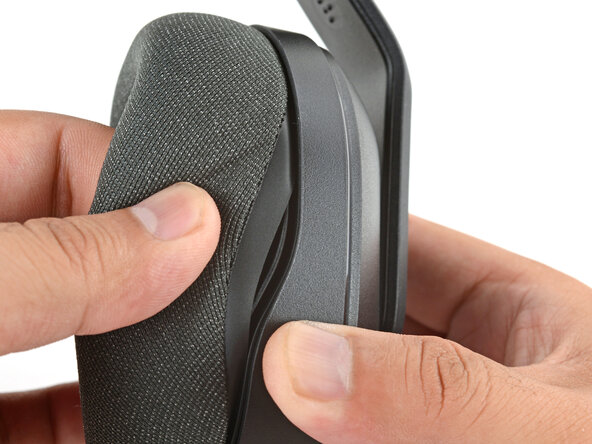
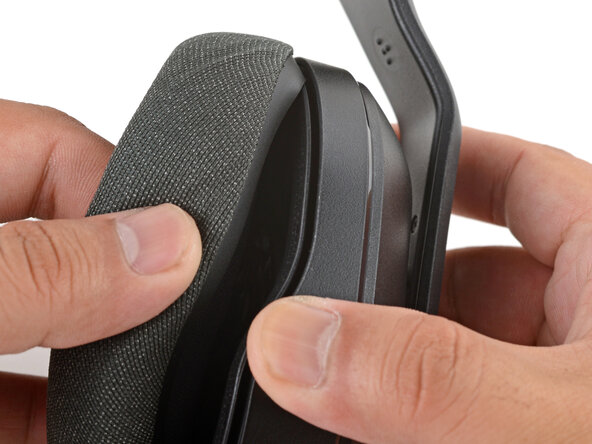
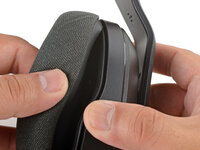
    • With one hand, firmly hold the right ear cup steady.

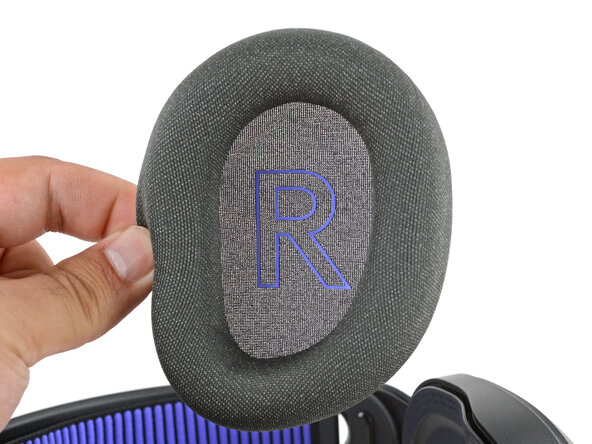
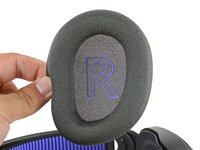
    • With your free hand, slowly pull the ear pad away from the cup until it slides completely off its plastic lip.

    • Remove the ear cup and set it aside for reassembly.

    Frag FixBot

    Kommentar hinzufügen

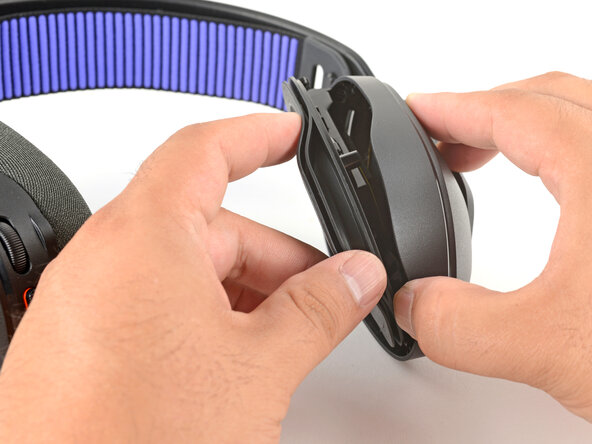
  3. Logitech A20 X Lightspeed Battery Replacement, Reassembly tip: Schritt 3, Bild 1 von 3 Logitech A20 X Lightspeed Battery Replacement, Reassembly tip: Schritt 3, Bild 2 von 3 Logitech A20 X Lightspeed Battery Replacement, Reassembly tip: Schritt 3, Bild 3 von 3
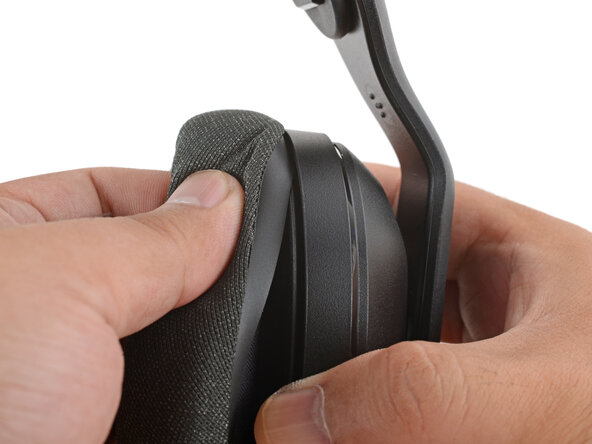
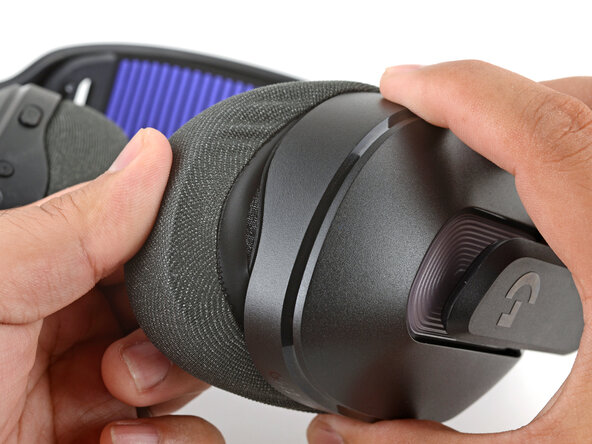
    • During reassembly, installing the ear pad can be tricky. Be patient and work slowly—it may take a couple tries. To put an ear pad onto its cup:

    • With one hand, firmly hold an ear cup steady.

    • With your free hand, place the pad over the top of the cup, so the fabric flap slips over the cup's plastic lip.

    • Thread the rest of the flap over the lip, working your way around the entire cup. Gently stretch the pad as necessary.

    • Check the entire perimeter of the cup to make sure the ear pad is fully on. If any of the fabric flap is sticking out, try to push it over the lip or remove the ear pad and try again.

    Frag FixBot

    Kommentar hinzufügen

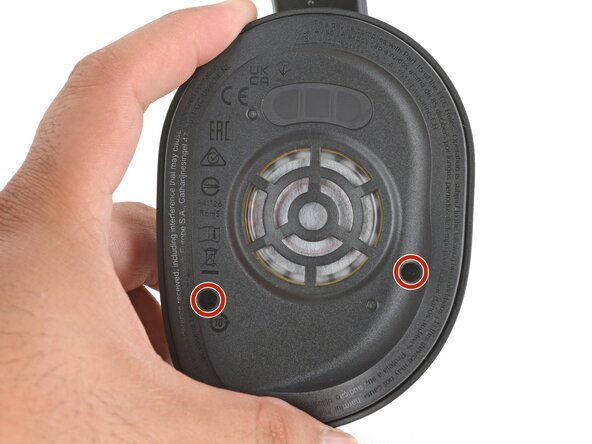
  4. Logitech A20 X Lightspeed Battery Replacement, Remove the right speaker housing screws: Schritt 4, Bild 1 von 1
    • Use a Phillips screwdriver to remove the two 7.2 mm‑long screws securing the right speaker housing.

    Frag FixBot

    Kommentar hinzufügen

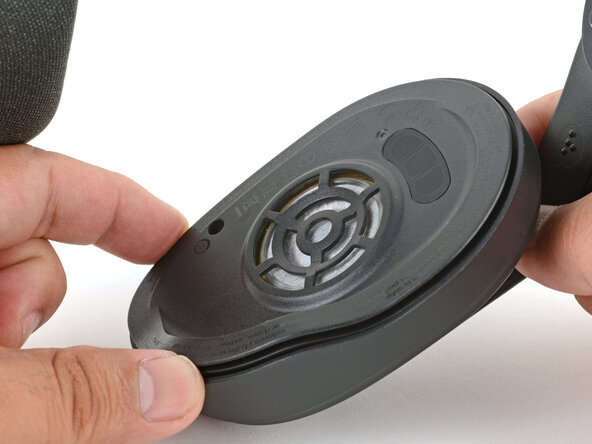
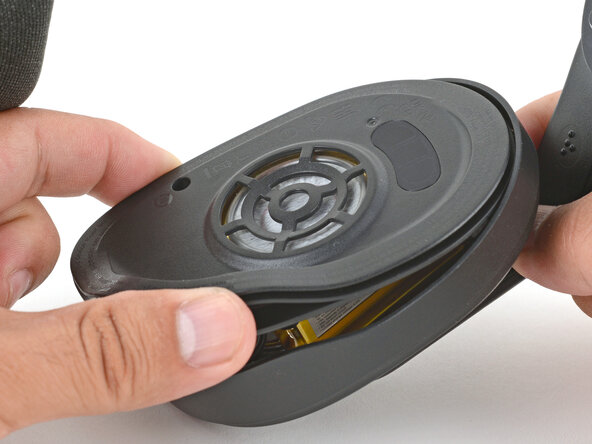
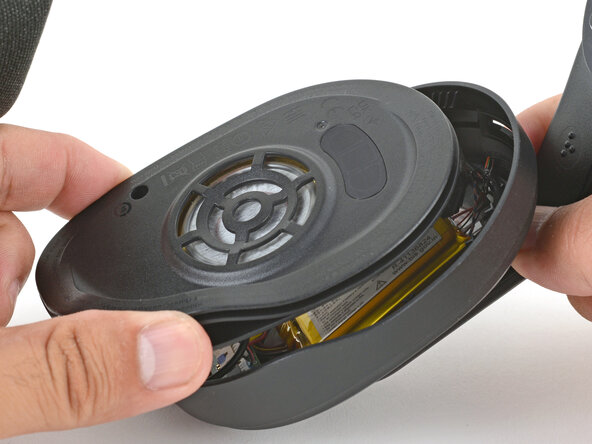
  5. Logitech A20 X Lightspeed Battery Replacement, Move the speaker housing: Schritt 5, Bild 1 von 3 Logitech A20 X Lightspeed Battery Replacement, Move the speaker housing: Schritt 5, Bild 2 von 3 Logitech A20 X Lightspeed Battery Replacement, Move the speaker housing: Schritt 5, Bild 3 von 3
    • Don't try to fully remove the speaker housing, as a delicate cable connects it to the ear cup.

    • Use your fingers to lift the bottom edge of the speaker housing.

    • Shift the speaker housing down as you lift it to free the top edge from the ear cup.

    Frag FixBot

    Kommentar hinzufügen

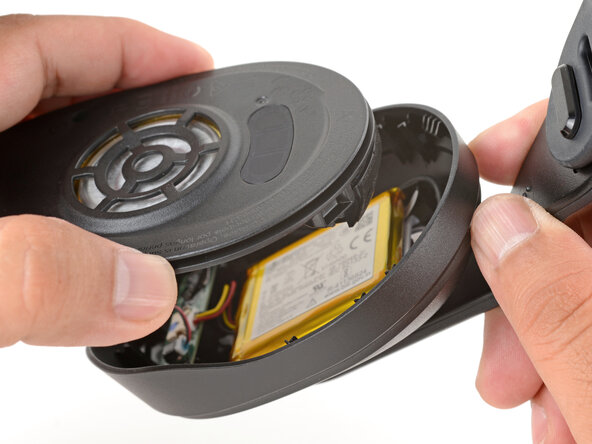
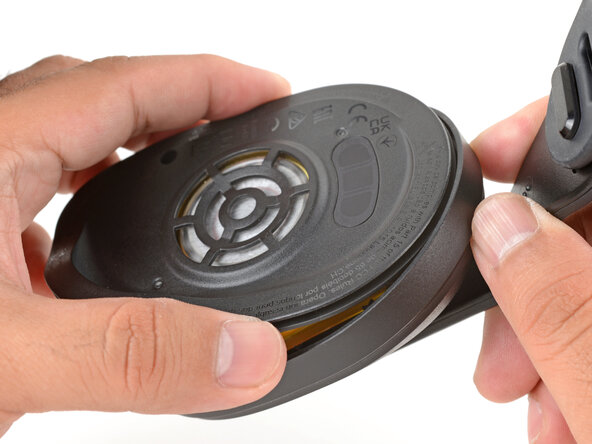
  6. Logitech A20 X Lightspeed Battery Replacement: Schritt 6, Bild 1 von 2 Logitech A20 X Lightspeed Battery Replacement: Schritt 6, Bild 2 von 2
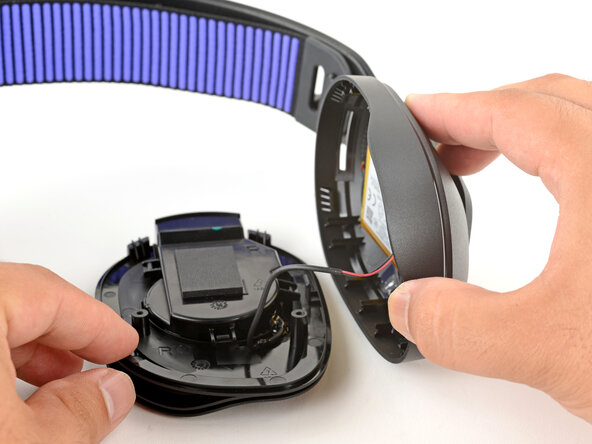
    • Gently remove the speaker housing and set it next to the ear cup, making sure the cable isn't strained.

    Frag FixBot

    Kommentar hinzufügen

  7. Logitech A20 X Lightspeed Battery Replacement, Reassembly tip: Schritt 7, Bild 1 von 3 Logitech A20 X Lightspeed Battery Replacement, Reassembly tip: Schritt 7, Bild 2 von 3 Logitech A20 X Lightspeed Battery Replacement, Reassembly tip: Schritt 7, Bild 3 von 3
    • During reassembly:

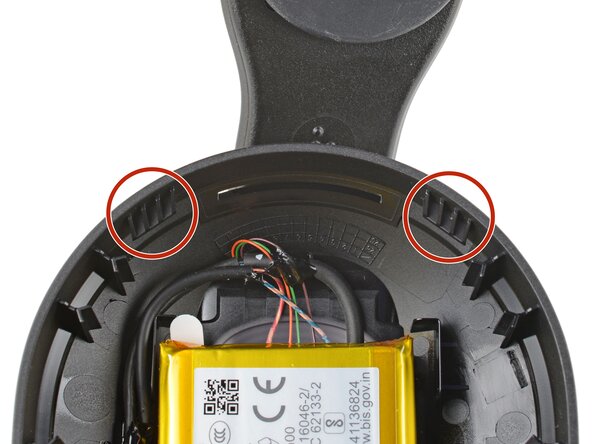
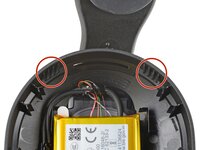
    • Align the top edge of the speaker housing with the two plastic tabs in the ear cup.

    • Once you've aligned the top edge, lay the speaker housing in place on top of the ear cup.

    Frag FixBot

    Kommentar hinzufügen

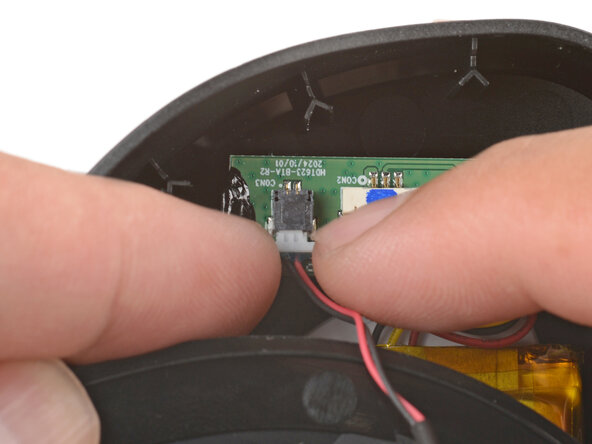
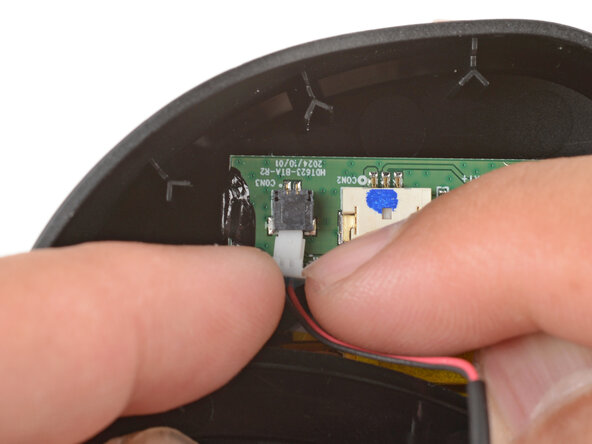
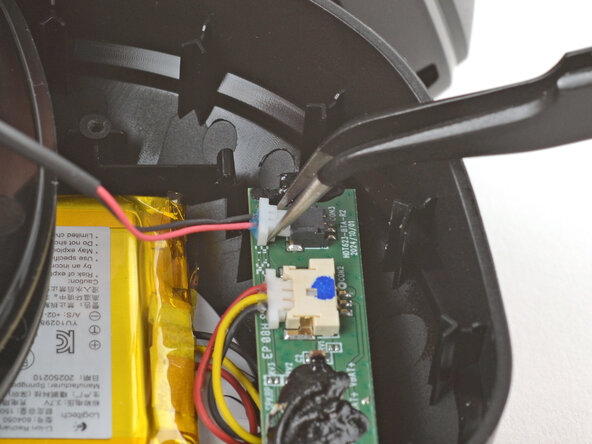
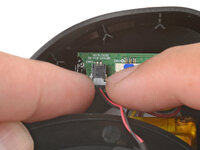
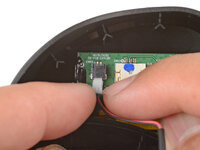
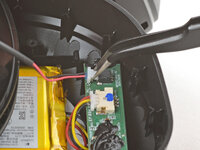
  8. Logitech A20 X Lightspeed Battery Replacement, Disconnect the speaker: Schritt 8, Bild 1 von 3 Logitech A20 X Lightspeed Battery Replacement, Disconnect the speaker: Schritt 8, Bild 2 von 3 Logitech A20 X Lightspeed Battery Replacement, Disconnect the speaker: Schritt 8, Bild 3 von 3
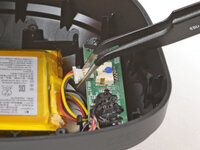
    • Use your fingernails to grip the edges of the speaker connector and slide it out of its socket.

    • You can also use a pair of angled tweezers, but be very careful not to puncture the battery.

    • If you're having trouble, try rocking the connector side-to-side to help loosen it.

    Frag FixBot

    Kommentar hinzufügen

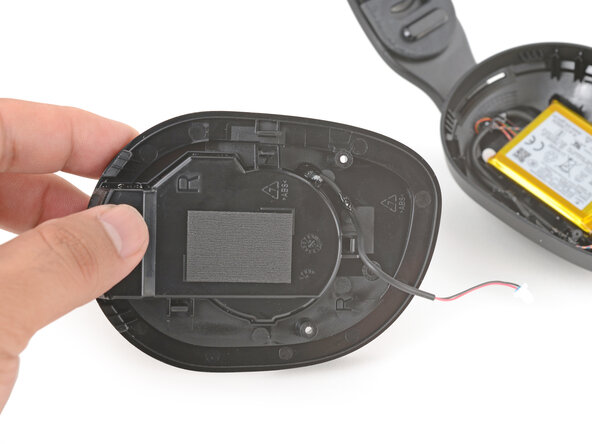
  9. Logitech A20 X Lightspeed Battery Replacement: Schritt 9, Bild 1 von 2 Logitech A20 X Lightspeed Battery Replacement: Schritt 9, Bild 2 von 2
    • Set the speaker housing aside for reassembly

    • To reconnect the speaker housing during assembly:

    • Align the connector (it connects in only one orientation) and use your finger to gently push it into its socket. You should feel a faint click when it's fully seated.

    Frag FixBot

    Kommentar hinzufügen

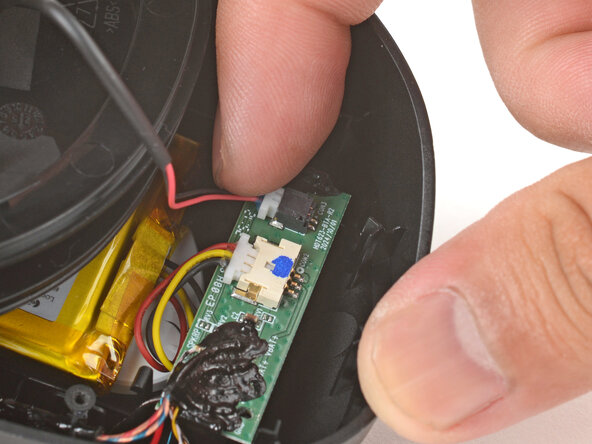
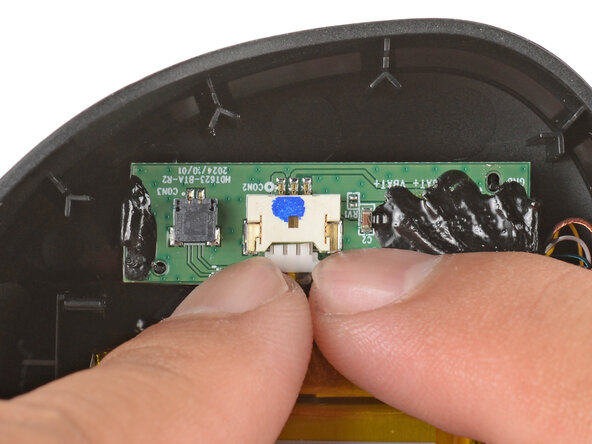
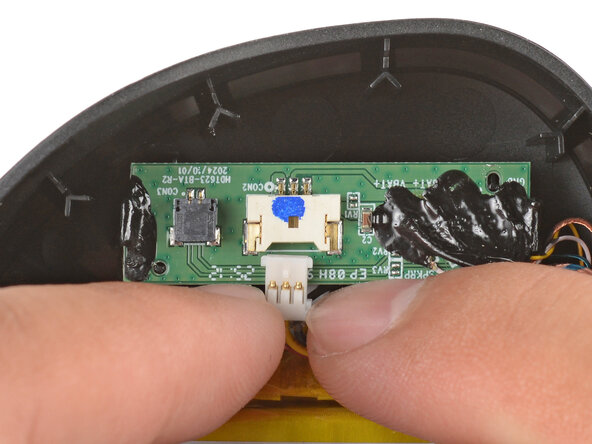
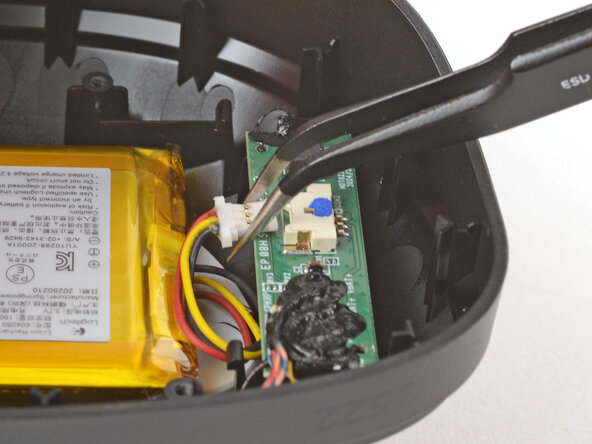
  10. Logitech A20 X Lightspeed Battery Replacement, Disconnect the battery: Schritt 10, Bild 1 von 3 Logitech A20 X Lightspeed Battery Replacement, Disconnect the battery: Schritt 10, Bild 2 von 3 Logitech A20 X Lightspeed Battery Replacement, Disconnect the battery: Schritt 10, Bild 3 von 3
    • Use your fingernails to grip the edges of the battery connector and slide it out of its socket.

    • You can also use a pair of angled tweezers, but be very careful not to puncture the battery or touch the three metal contacts on the connector.

    • If you're having trouble, try rocking the connector side-to-side to help loosen it.

    • During reassembly, align the connector (it connects in only one orientation) and use your finger to gently push it into its socket. You should feel a faint click when it's fully seated.

    Frag FixBot

    Kommentar hinzufügen

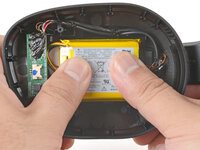
  11. Logitech A20 X Lightspeed Battery Replacement, Remove the battery: Schritt 11, Bild 1 von 3 Logitech A20 X Lightspeed Battery Replacement, Remove the battery: Schritt 11, Bild 2 von 3 Logitech A20 X Lightspeed Battery Replacement, Remove the battery: Schritt 11, Bild 3 von 3
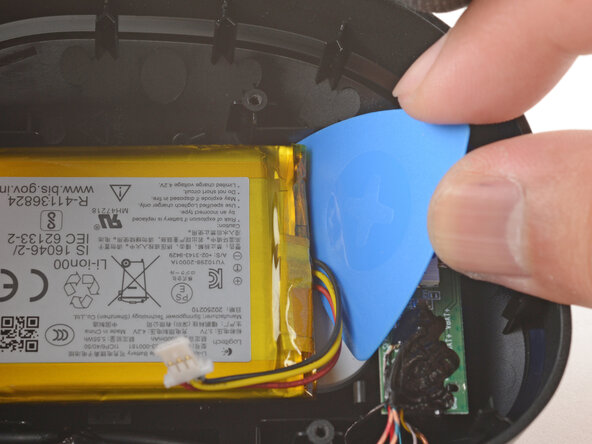
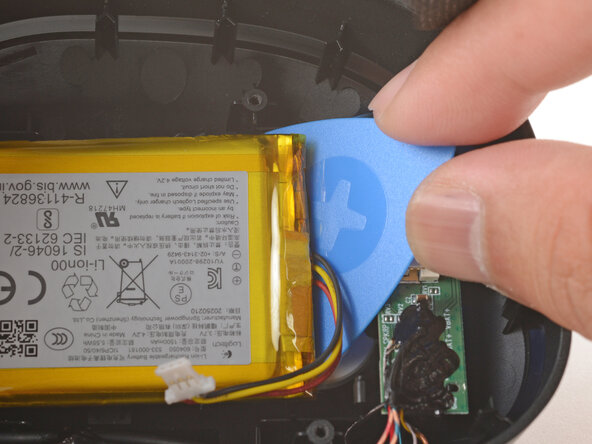
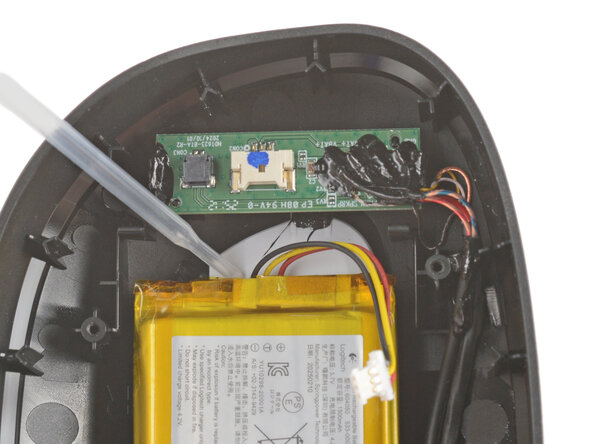
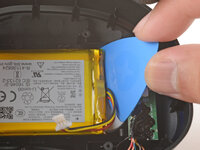
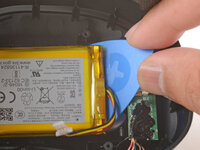
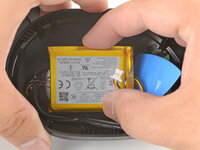
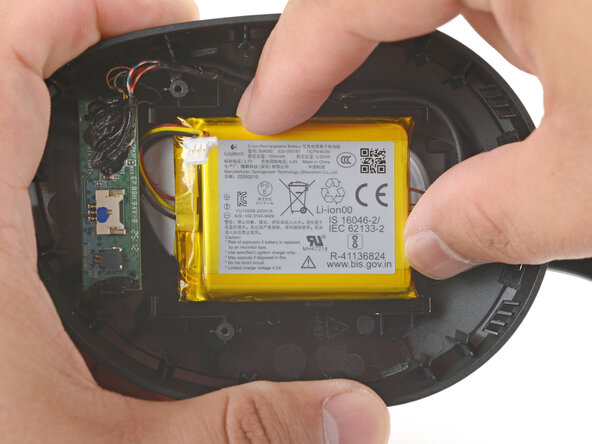
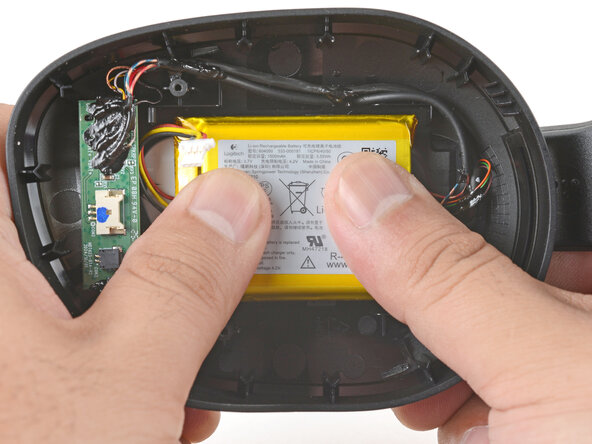
    • The battery's adhered to the ear cup with an adhesive pad.

    • Slowly press an opening pick under the edge of the battery, where the wires come out.

    • Apply pressure until the battery loosens from the ear cup.

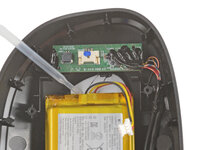
    • If the battery won't budge, apply a drop of high concentration (>90%) isopropyl alcohol under the battery, wait a minute, and try again.

    Frag FixBot

    Kommentar hinzufügen

  12. Logitech A20 X Lightspeed Battery Replacement: Schritt 12, Bild 1 von 2 Logitech A20 X Lightspeed Battery Replacement: Schritt 12, Bild 2 von 2
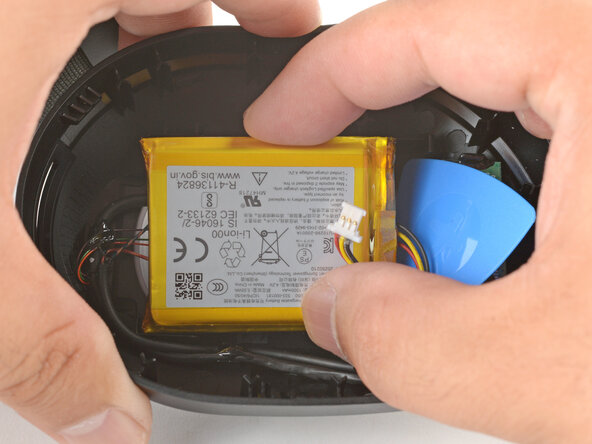
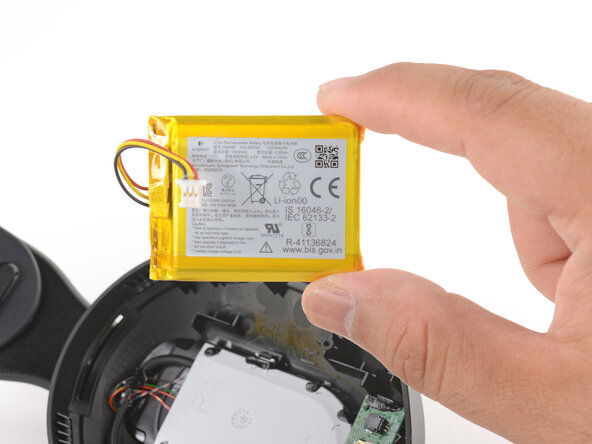
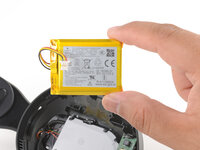
    • Use your fingers to slowly peel the battery away from the ear cup.

    • Remove the battery.

    Frag FixBot

    Kommentar hinzufügen

  13. Logitech A20 X Lightspeed Battery Replacement, Reassembly tip: Schritt 13, Bild 1 von 3 Logitech A20 X Lightspeed Battery Replacement, Reassembly tip: Schritt 13, Bild 2 von 3 Logitech A20 X Lightspeed Battery Replacement, Reassembly tip: Schritt 13, Bild 3 von 3
    In diesem Schritt verwendetes Werkzeug:
    Tesa 61395 Tape
    $2.95
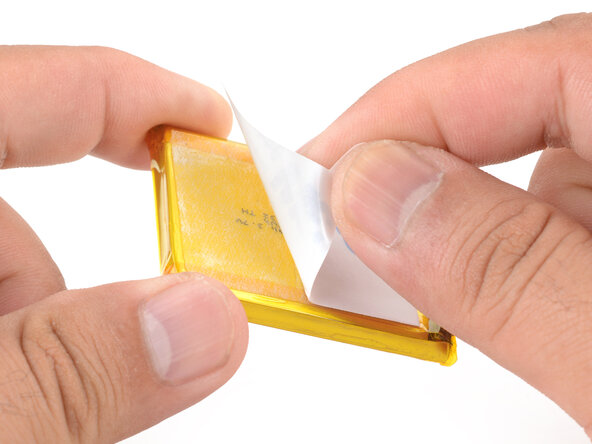
    • To attach a new battery:

    • If your replacement battery comes with adhesive pre-installed, remove the liner.

    • If your replacement battery doesn't come with adhesive pre-installed, install strips of double-sided tape onto the battery.

    • Center the battery in its recess.

    • Use your fingers to firmly press the battery to secure it in place.

    Frag FixBot

    Kommentar hinzufügen

Abschluss

To reassemble your device, follow these instructions in reverse order.

Repair didn’t go as planned? Try some basic troubleshooting, or ask our Answers community for help.

Reuse or Recycle—Never put discarded electronic parts in household waste. Visit Logitech Recycling to find your nearest recycling points, including the option to mail back old devices to Logitech for free if there’s no convenient solution in your area. You can also take your e-waste to an R2 or e-Stewards certified recycler. And don’t let good working parts or repaired devices die a slow death in your sock drawer—pass them along to someone who can use them.

Share your experience—Leave a comment here or send your feedback directly to Logitech at repair@logitech.com to help shape future repair guides and product design.

Rückgängig: Ich habe diese Anleitung nicht absolviert.

Arthur Shi

Mitglied seit: 01/03/18

337.114 Reputation

849 Anleitungen geschrieben

0 Kommentare zur Anleitung

Kommentar hinzufügen

Seitenaufrufe:

Letzte 24 Stunden: 3

Letzte 7 Tage: 10

Letzte 30 Tage: 26

Insgesamt: 188