Zum Hauptinhalt wechseln
Gemeinsam reparieren - Jetzt registrieren

RetroMini Miyoo Mini Plus Button Replacement

Was du brauchst

  1. RetroMini Miyoo Mini Plus Button Replacement, Battery: Schritt 1, Bild 1 von 2 RetroMini Miyoo Mini Plus Button Replacement, Battery: Schritt 1, Bild 2 von 2
    • Lay the device face down on a flat surface.

    • You may want to lay the device on a towel or other soft surface to avoid scratching the screen.

    Frag FixBot
    Kommentar hinzufügen

  2. RetroMini Miyoo Mini Plus Button Replacement: Schritt 2, Bild 1 von 2 RetroMini Miyoo Mini Plus Button Replacement: Schritt 2, Bild 2 von 2
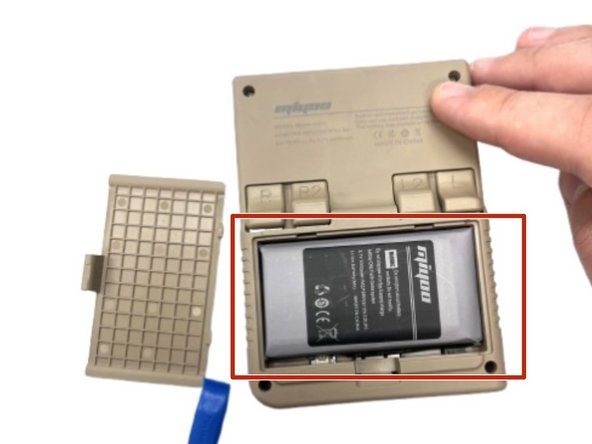
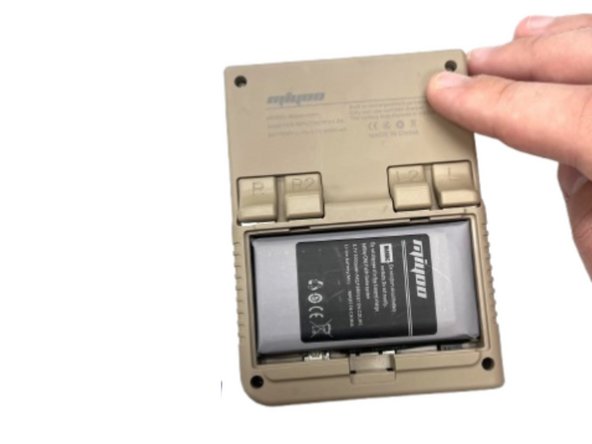
    • Use your fingernail to push in the battery compartment tab.

    • Lift the cover up to expose the battery.

    Frag FixBot
    Kommentar hinzufügen

  3. RetroMini Miyoo Mini Plus Button Replacement: Schritt 3, Bild 1 von 1
    • Use an opening tool to gently lift the the battery from its compartment.

    • Gently pull the battery out and set the battery next to the system, with care not to strain the attached wire.

    Frag FixBot

    Kommentar hinzufügen

  4. RetroMini Miyoo Mini Plus Button Replacement: Schritt 4, Bild 1 von 2 RetroMini Miyoo Mini Plus Button Replacement: Schritt 4, Bild 2 von 2
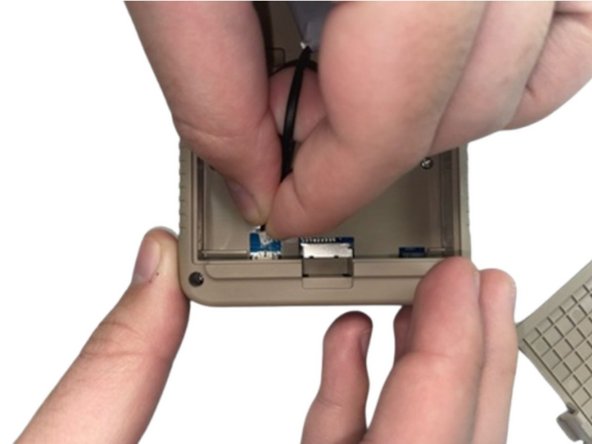
    • Pinch the white battery connector and pull it directly out of its socket.

    • Completely remove the battery.

    Frag FixBot
    Kommentar hinzufügen

  5. RetroMini Miyoo Mini Plus Button Replacement: Schritt 5, Bild 1 von 2 RetroMini Miyoo Mini Plus Button Replacement: Schritt 5, Bild 2 von 2
    • When you have the new battery, put the new battery wire into the connecter.

    • Place the battery back into the empty space with the wire at the bottom of the battery.

    Frag FixBot

    Kommentar hinzufügen

  6. RetroMini Miyoo Mini Plus Button Replacement, Button: Schritt 6, Bild 1 von 2 RetroMini Miyoo Mini Plus Button Replacement, Button: Schritt 6, Bild 2 von 2
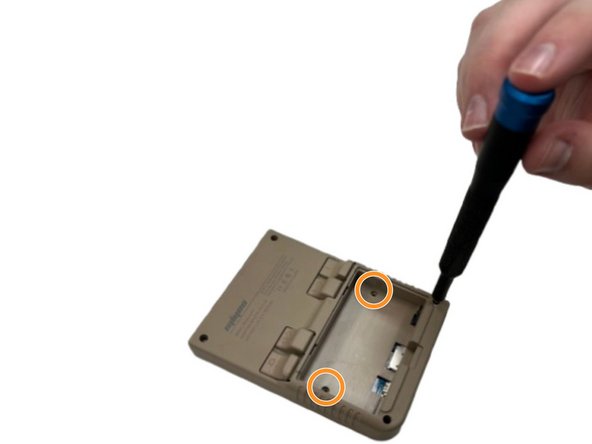
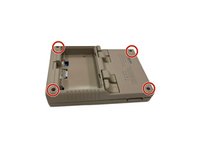
    • Remove the four screws securing the rear case with a Phillips screwdriver.

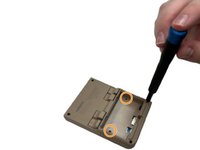
    • Remove the two Phillips screws inside the battery compartment.

    Frag FixBot
    Kommentar hinzufügen

  7. RetroMini Miyoo Mini Plus Button Replacement: Schritt 7, Bild 1 von 2 RetroMini Miyoo Mini Plus Button Replacement: Schritt 7, Bild 2 von 2
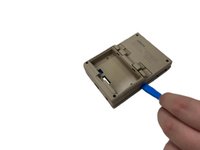
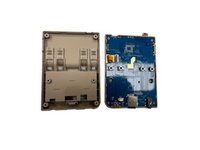
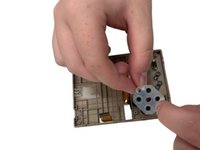
    • Insert an opening tool into the seam between the front and rear case.

    • Pry the front and rear case apart.

    Frag FixBot
    Kommentar hinzufügen

  8. RetroMini Miyoo Mini Plus Button Replacement: Schritt 8, Bild 1 von 2 RetroMini Miyoo Mini Plus Button Replacement: Schritt 8, Bild 2 von 2
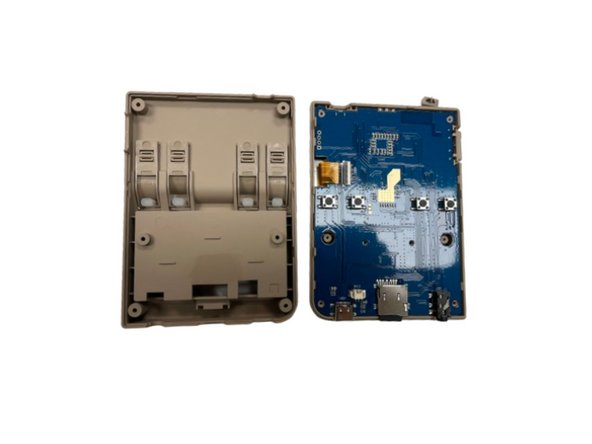
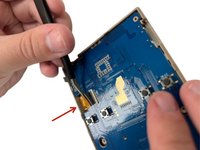
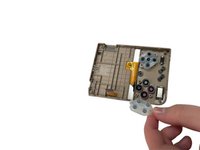
    • Gently set the rear case aside.

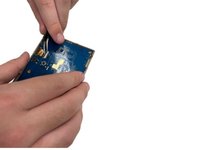
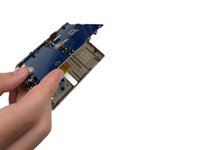
    • Make sure you lift the black tab on the left side of the motherboard and gently remove the ribbon cable as to not damage it when removing the motherboard from the case.

    Frag FixBot
    Kommentar hinzufügen

  9. RetroMini Miyoo Mini Plus Button Replacement: Schritt 9, Bild 1 von 2 RetroMini Miyoo Mini Plus Button Replacement: Schritt 9, Bild 2 von 2
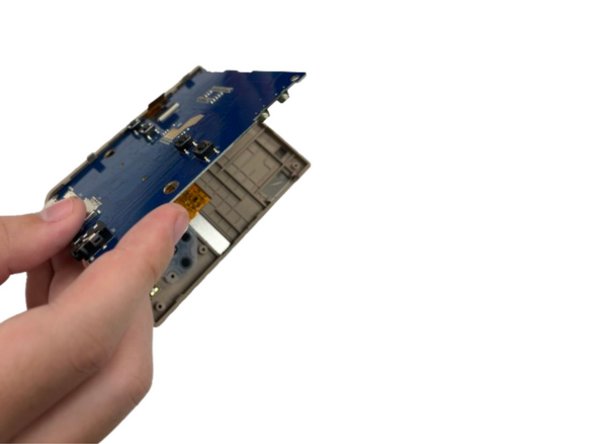
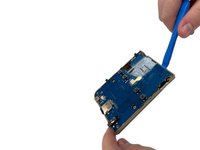
    • Use an opening tool to lift the motherboard from the chassis.

    Frag FixBot

    Kommentar hinzufügen

  10. RetroMini Miyoo Mini Plus Button Replacement: Schritt 10, Bild 1 von 3 RetroMini Miyoo Mini Plus Button Replacement: Schritt 10, Bild 2 von 3 RetroMini Miyoo Mini Plus Button Replacement: Schritt 10, Bild 3 von 3
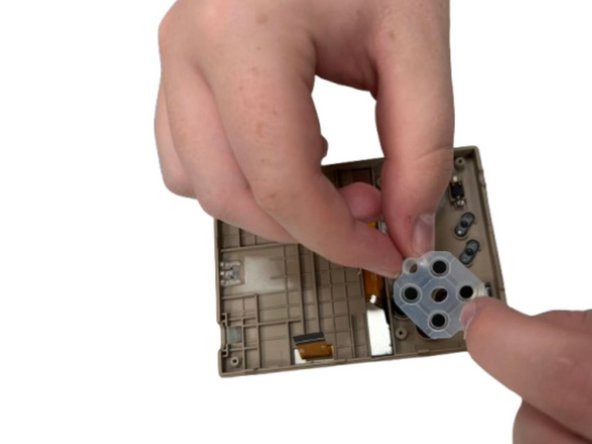
    • Gently set the motherboard to the side.

    • Remove the rubber button gasket.

    Frag FixBot

    Kommentar hinzufügen

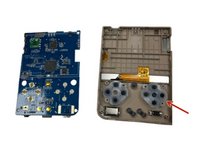
  11. RetroMini Miyoo Mini Plus Button Replacement: Schritt 11, Bild 1 von 1
    • Remove the button(s) you want to replace.

    Frag FixBot

    Kommentar hinzufügen

Abschluss

To reassemble your device, follow the above steps in reverse order.

Take your e-waste to an R2 or e-Stewards certified recycler.
Repair didn’t go as planned? Try some basic troubleshooting, or ask our Steam Deck answers community for help.

Rückgängig: Ich habe diese Anleitung nicht absolviert.

Kaden

Mitglied seit: 08/28/24

599 Reputation

4 Anleitungen geschrieben

Team

0 Kommentare zur Anleitung

Kommentar hinzufügen

Seitenaufrufe:

Letzte 24 Stunden: 4

Letzte 7 Tage: 12

Letzte 30 Tage: 43

Insgesamt: 746