Zum Hauptinhalt wechseln
Gemeinsam reparieren - Jetzt registrieren

Rotor Riot Direction Pad Replacement

Was du brauchst

  1. Rotor Riot Direction Pad Replacement, Remove the iPhone mount: Schritt 1, Bild 1 von 3 Rotor Riot Direction Pad Replacement, Remove the iPhone mount: Schritt 1, Bild 2 von 3 Rotor Riot Direction Pad Replacement, Remove the iPhone mount: Schritt 1, Bild 3 von 3
    • Use your fingers to remove the screw on the back side of the controller securing the iPhone mount.

    • Remove the iPhone mount.

    Frag FixBot
  2. Rotor Riot Direction Pad Replacement, Unscrew the back cover: Schritt 2, Bild 1 von 1
    • Use a T6 Torx screwdriver to remove the eight 9.2 mm-long screws securing the back cover.

    • Don't try to remove the back cover all the way yet! It's still connected to the mainboard.

    Frag FixBot
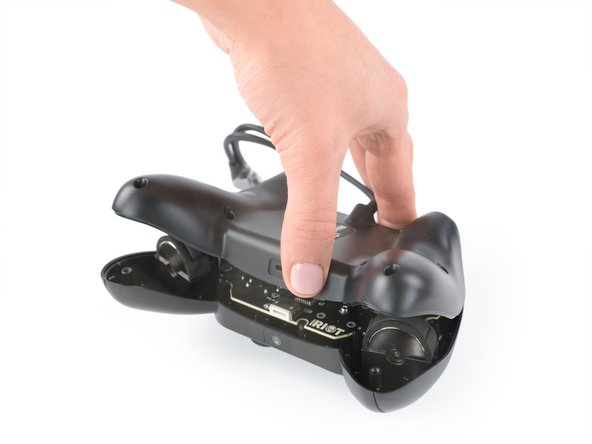
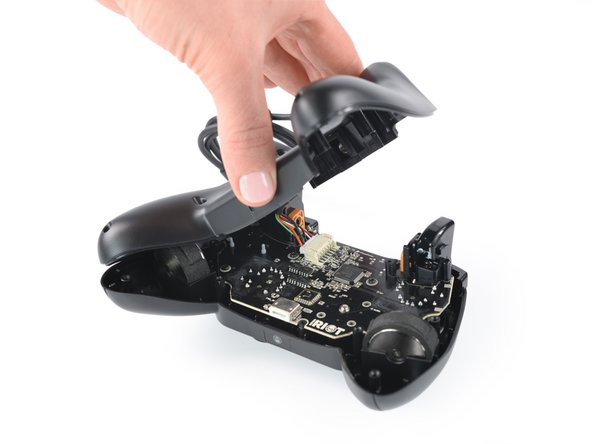
  3. Rotor Riot Direction Pad Replacement, Swing open the back cover: Schritt 3, Bild 1 von 3 Rotor Riot Direction Pad Replacement, Swing open the back cover: Schritt 3, Bild 2 von 3 Rotor Riot Direction Pad Replacement, Swing open the back cover: Schritt 3, Bild 3 von 3
    • Lift up the back cover of the controller.

    • Lift the back cover to a 45 degree angle and place it next to the controller.

    • Don't strain the interconnect cable during this procedure.

    Frag FixBot
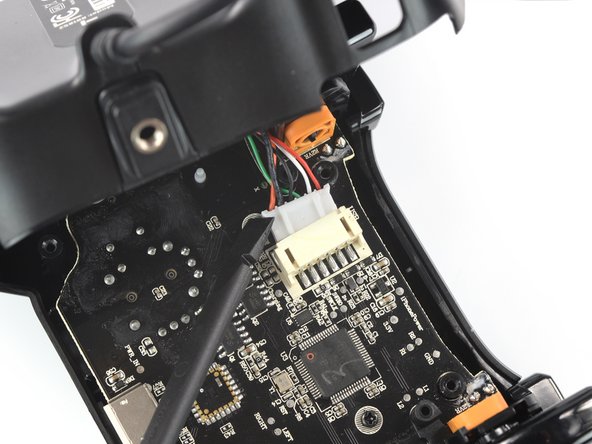
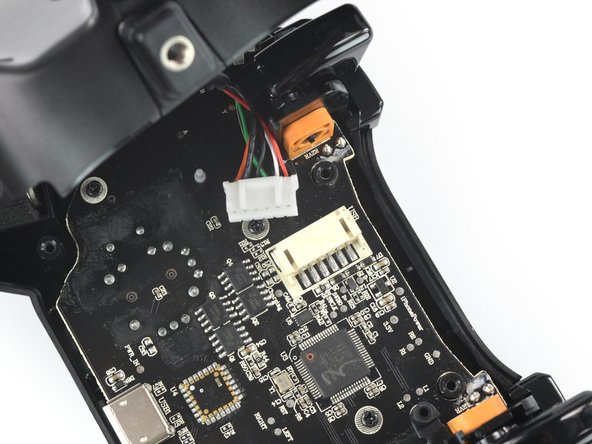
  4. Rotor Riot Direction Pad Replacement, Disconnect the phone connector cable: Schritt 4, Bild 1 von 3 Rotor Riot Direction Pad Replacement, Disconnect the phone connector cable: Schritt 4, Bild 2 von 3 Rotor Riot Direction Pad Replacement, Disconnect the phone connector cable: Schritt 4, Bild 3 von 3
    • Use a spudger to disconnect the phone connector cable from the mainboard.

    Frag FixBot
  5. Rotor Riot Direction Pad Replacement, Remove the back cover: Schritt 5, Bild 1 von 1
    • Remove the back cover.

    Frag FixBot
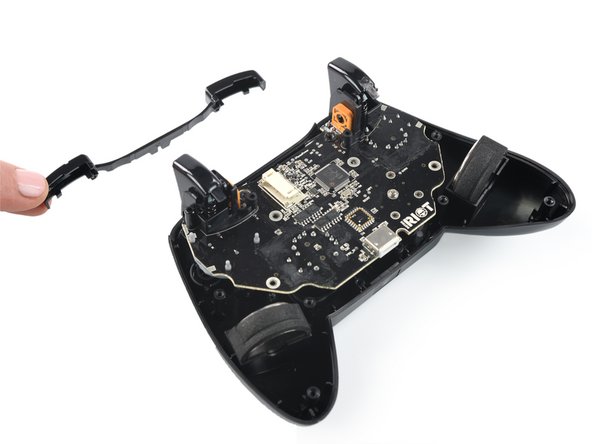
  6. Rotor Riot Direction Pad Replacement, Remove the shoulder buttons: Schritt 6, Bild 1 von 2 Rotor Riot Direction Pad Replacement, Remove the shoulder buttons: Schritt 6, Bild 2 von 2
    • Remove the shoulder buttons by lifting them out of the case.

    Frag FixBot
  7. Rotor Riot Direction Pad Replacement, Unscrew the mainboard: Schritt 7, Bild 1 von 1
    • Use a Phillips screwdriver to remove the four 7.0 mm-long screws securing the mainboard.

    Frag FixBot
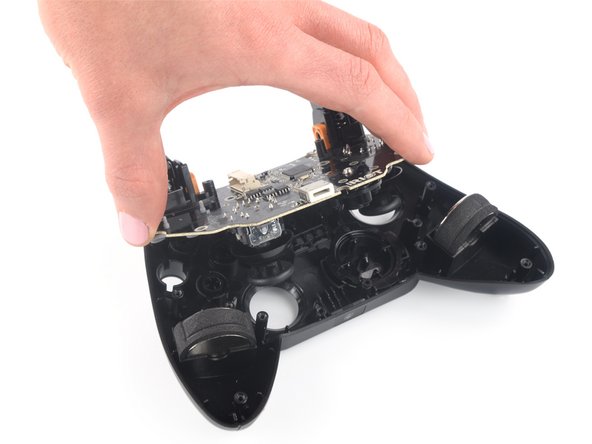
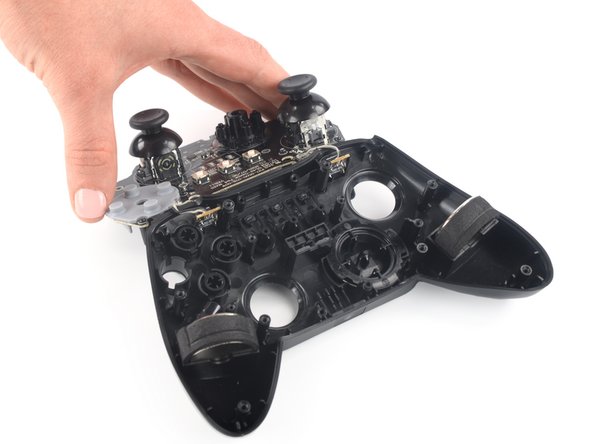
  8. Rotor Riot Direction Pad Replacement, Flip over the mainboard: Schritt 8, Bild 1 von 3 Rotor Riot Direction Pad Replacement, Flip over the mainboard: Schritt 8, Bild 2 von 3 Rotor Riot Direction Pad Replacement, Flip over the mainboard: Schritt 8, Bild 3 von 3
    • Flip over the mainboard and place it above the controller housing.

    • Avoid tensioning the trigger button cables during this procedure and don't try to remove the mainboard all the way yet! It is still connected to the controller housing.

    Frag FixBot
  9. Rotor Riot Direction Pad Replacement, Disconnect the trigger buttons: Schritt 9, Bild 1 von 3 Rotor Riot Direction Pad Replacement, Disconnect the trigger buttons: Schritt 9, Bild 2 von 3 Rotor Riot Direction Pad Replacement, Disconnect the trigger buttons: Schritt 9, Bild 3 von 3
    In diesem Schritt verwendetes Werkzeug:
    Tweezers
    $4.99
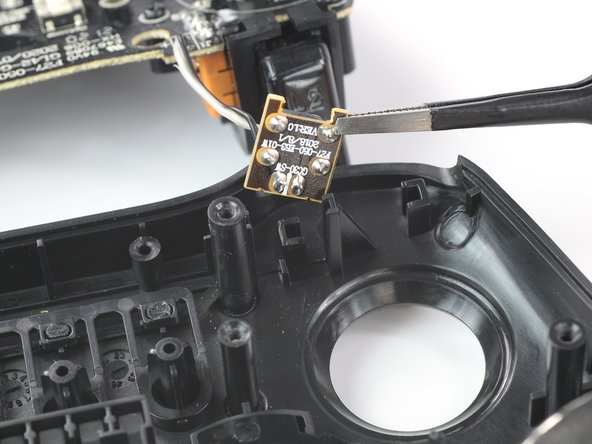
    • Use a pair of blunt nose tweezers to remove the left trigger button from the controller housing by lifting it straight out of its recess.

    • Repeat this procedure for the right trigger button.

    Frag FixBot
  10. Rotor Riot Direction Pad Replacement, Remove the mainboard: Schritt 10, Bild 1 von 1
    • Remove the mainboard from the housing.

    Frag FixBot
  11. Rotor Riot Direction Pad Replacement, Unscrew the direction pad: Schritt 11, Bild 1 von 1
    • Use a Phillips screwdriver to remove the 7.25 mm-long screw on the mainboard securing the direction pad.

    Frag FixBot
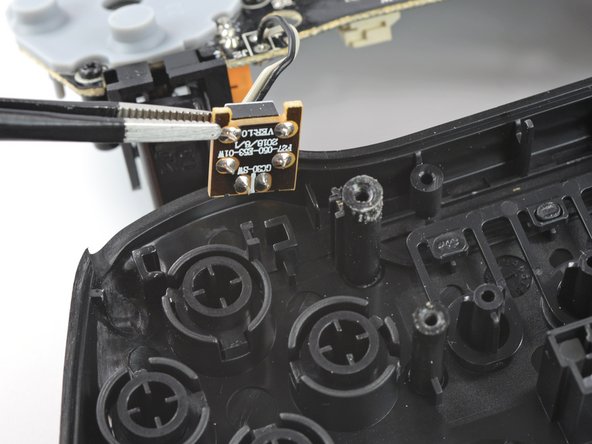
  12. Rotor Riot Direction Pad Replacement, Remove the direction pad: Schritt 12, Bild 1 von 2 Rotor Riot Direction Pad Replacement, Remove the direction pad: Schritt 12, Bild 2 von 2
    In diesem Schritt verwendetes Werkzeug:
    Tweezers
    $4.99
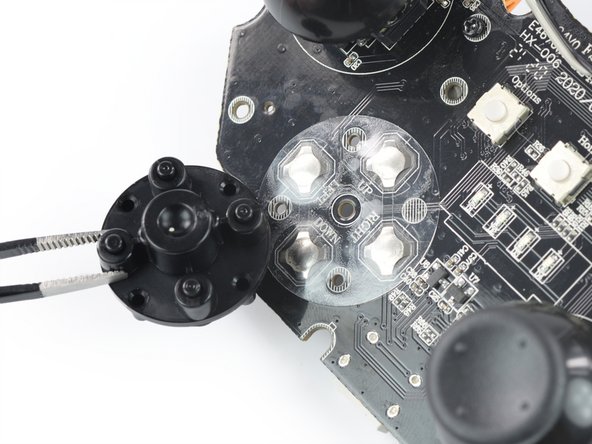
    • Use a pair of blunt nose tweezers to remove the direction pad.

    Frag FixBot
Abschluss

To reassemble your device, follow these instructions in reverse order.

Take your e-waste to an R2 or e-Stewards certified recycler.

Repair didn’t go as planned? Try some basic troubleshooting, or ask our Answers community for help.

Team

iFixit Mitglied von iFixit

Staff

122 Mitglieder

25.805 Anleitungen geschrieben

0 Kommentare zur Anleitung

Kommentar hinzufügen

Seitenaufrufe:

Letzte 24 Stunden: 1

Letzte 7 Tage: 4

Letzte 30 Tage: 33

Insgesamt: 498