Diese Übersetzung wurde maschinell erstellt und noch nicht von einer Person überprüft. Sprichst du diese Sprache? Schau es dir an.
Einleitung
Du musst den Akku deines 8BitDo Ultimate Wireless austauschen? In dieser Anleitung erfährst du, wie das sicher und korrekt funktioniert!
Prüfe zuvor bitte unsere Fehlerdiagnose-Anleitungen. Oft ist ein Akkuwechsel gar nicht nötig.
Schalte den Controller vor Beginn aus und achte darauf, dass er sich nicht versehentlich wieder verbindet.
Was du brauchst
-
-
-
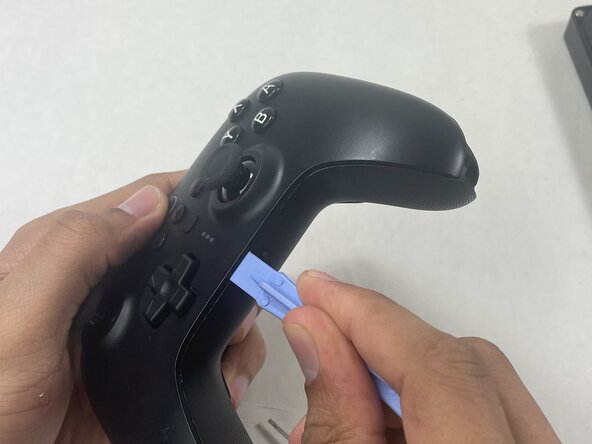
Führe ein Plektrum in den Spalt zwischen dem linken Controller-Griff und dem Controller-Hauptgehäuse ein.
-
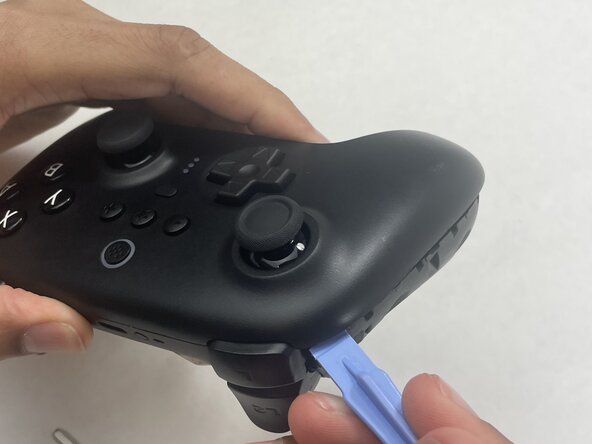
Heble den Griff auf.
-
Wiederhole den Vorgang für den rechten Griff.
 Frag FixBot
-
-
-
Entferne die sechs 8 mm T6 Torx-Schrauben, die das hintere Gehäuse am vorderen Gehäuse sichern.
-
-
-
Führe ein Öffnungswerkzeug in die Naht an der Unterseite des Geräts ein und heble das Vorder- und Rückgehäuse vorsichtig auseinander.
-
Lege die beiden Hälften nebeneinander und achte darauf, die verbundenen Flachbandkabel nicht zu überdehnen.
-
-
-
-
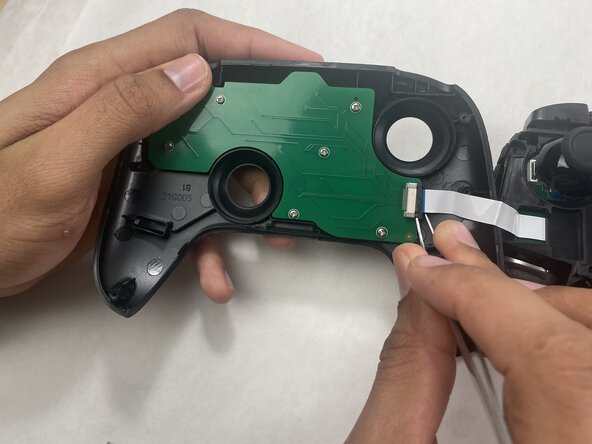
Das Flachbandkabel ist mit einem Stecker mit Verriegelungslasche gesichert.
-
Entriegele die Verriegelungslasche am Stecker des Flachbandkabels mit einer Pinzette und löse anschließend vorsichtig das Flachbandkabel.
-
-
-
-
-
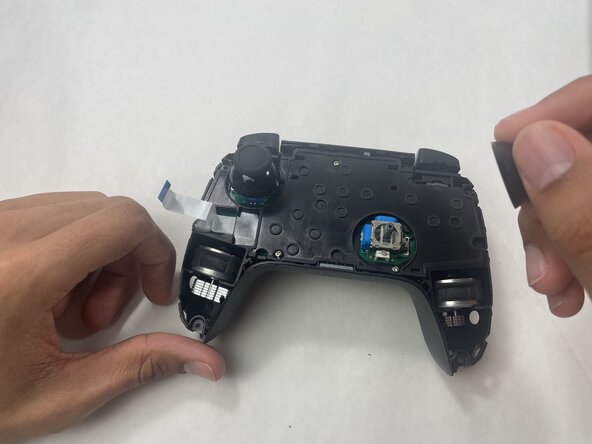
Greife die Kappen der Analogsticks fest und ziehe sie gerade nach oben ab.
-
-
-
Entferne die drei 5 mm Kreuzschlitzschrauben #00, mit denen der Mittelrahmen an der Rückschale befestigt ist, und nimm ihn dann gerade heraus.
-
-
-
Entferne die zwei 1 mm Kreuzschlitzschrauben (#00), die die Kunststoff-Akkuabdeckung auf der Leiterplatte sichern, und nimm die Abdeckung ab, um den Akku freizulegen.
-
-








Folge für den Zusammenbau deines Geräts den obigen Schritten in umgekehrter Reihenfolge.
Für eine optimale Leistung solltest du deinen neuen Akku nach Abschluss dieser Anleitung kalibrieren.
Bringe deinen Elektroschrott zu einem R2- oder e-Stewards-zertifizierten Recyclinghof.
Hat die Reparatur nicht ganz geklappt? Versuche es mit ein paar grundlegenden Schritten zur Fehlerbehebung, oder bitte im Forum um Hilfe.
Besonderer Dank geht an diese Übersetzer:innen:
100%

Translation Bot hilft uns, die Welt in Ordnung zu bringen! Wie kann ich mithelfen?
Hier starten ›

Team

UMass Dartmouth, Team 1-3, Biswokarma Spring 2026 Mitglied von UMass Dartmouth, Team 1-3, Biswokarma Spring 2026
UMASSD-BISWOKARMA-S26S1G3
5 Mitglieder
54 Anleitungen geschrieben
