Diese Übersetzung wurde maschinell erstellt und noch nicht von einer Person überprüft. Sprichst du diese Sprache? Schau es dir an.
Einleitung
Diese Reparaturanleitung wurde vom iFixit-Team verfasst und ist nicht von Google autorisiert. Erfahre hier mehr über unsere Reparaturanleitungen.
Folge dieser Anleitung, um die Frontkamera deines Google Pixel 10a auszutauschen.
Wenn das Bild deiner Frontkamera unscharf ist oder die Kamera gar nicht mehr funktioniert, ist es vielleicht an der Zeit, sie zu ersetzen.
Du benötigst eine Ersatzfolie für die Frontkamera sowie Kleber für die Rückabdeckung, um diese Reparatur durchzuführen.
Hinweis: Jede Reparatur kann die Wasserbeständigkeit deines Smartphones beeinträchtigen. Ob die Wasserbeständigkeit nach der Reparatur erhalten bleibt, hängt davon ab, wie präzise die neuen Klebestreifen angebracht wurden und wie sauber die Kontaktflächen sind.
Was du brauchst
-
-
-
Trenne alle Kabel vom Smartphone ab und schalte es komplett aus.
 Frag FixBot
-
-
-
-
-
Erhitze die komplette Rückseite mit einem Haartrockner, bis du sie kaum noch anfassen kannst.
-
-
-
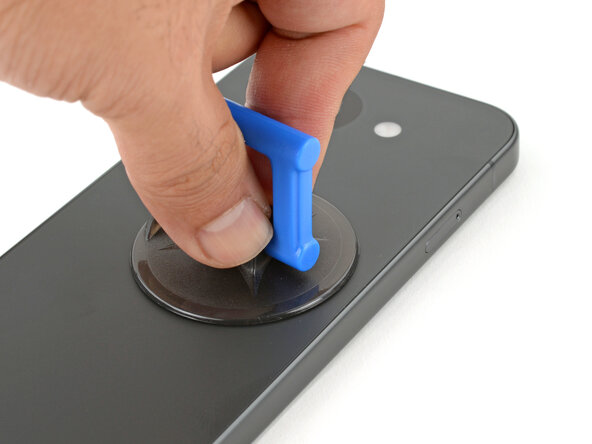
Bringe einen Saugheber so nahe wie möglich in der Mitte der rechten Kante der Rückseite an.
-
-
-
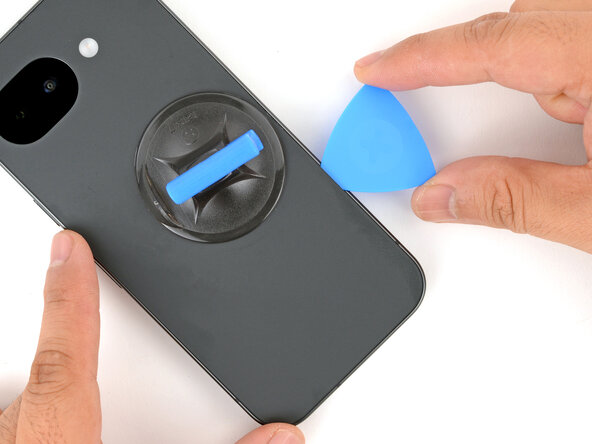
Ziehe fest und gleichmäßig am Saugheber nach oben, bis ein Spalt zwischen der Rückseite und dem Rahmen entstanden ist.
-
Setze ein Plektrum mit der Spitze in den Spalt ein.
-
-
-
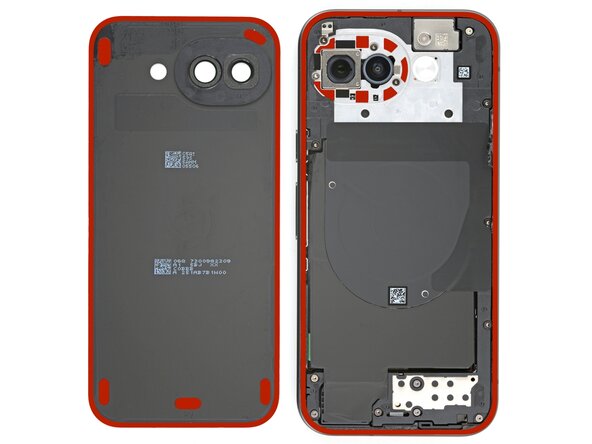
Die Rückseite ist rundum am Rand des Rahmens und nahe der Kamera festgeklebt. Nimm das Foto beim Auftrennen des Klebers als Orientierungshilfe.
-
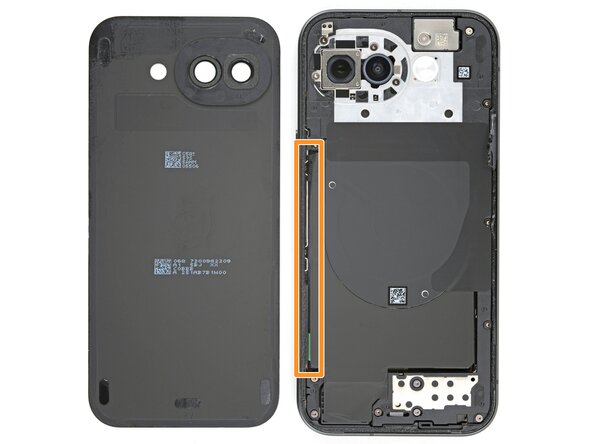
Wenn du an der linken Kante arbeitest, setze das Plektrum nicht tiefer als 3 mm ein, um Schäden an der Drahtlos-Ladespule und ihrem Graphitfilm zu vermeiden.
-
-
-
Schiebe das Plektrum rund um den Rand herum, um den Kleber aufzutrennen.
-
-
-
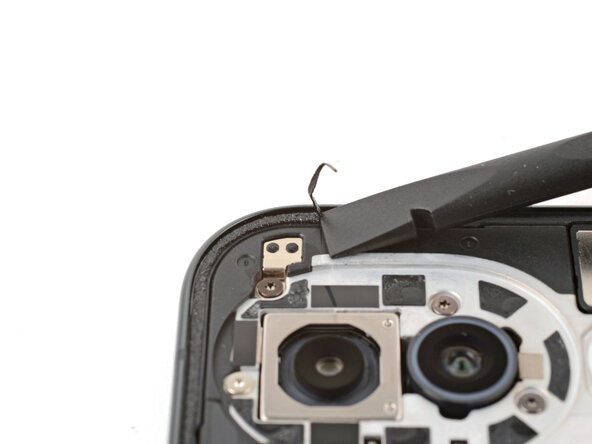
Setze das Plektrum am nahe an der oberen linken Ecke und heble hoch, um den Kleber um die Kameraeinfassung zu lösen.
-
-
-
-
In diesem Schritt verwendetes Werkzeug:Magnetic Project Mat$19.95
-
Nimm einen Torx Plus 3IP Schraubendreher und entferne die fünfzehn 5,0 mm langen Befestigungsschrauben der Drahtlos-Ladeeinheit:
-
Dreizehn graue Schrauben
-
Zwei silberne, nicht-magnetische Schrauben
-
-
-
Heble die Drahtlos-Ladeeinheit in den beiden Ausschnitten mit einem Plektrum nach oben und löse sie ab. Ein Ausschnitt befindet sich nahe bei der unteren rechten Ecke und der zweite an der linken Kante nahe bei der Einschalttaste.
-
-
-
-
-
Nimm den Torx Plus 3IP-Schraubendreher und entferne die 1,9 mm lange Befestigungsschraube an der Abdeckung des Akkusteckers.
-
-
-
Setze einen Spudger mit der Spitze unter die obere rechte Ecke des Akkusteckers.
-
Heble nach oben, um den Akku abzutrennen.
-
Heble während der gesamten Reparatur immer nur an den angegebenen Stellen (sie sind auch mit einer goldenen Linie auf der Platine markiert), um Schäden an den empfindlichen Bauteilen nahe bei den Anschlüssen zu vermeiden.
-
-
-
-
-
Führe die Spitze eines Spudgers unter die linke obere Ecke des Steckers der Frontkamera.
-
Hebe den Stecker der Frontkamera an, um ihn zu trennen.
-
-
-
-
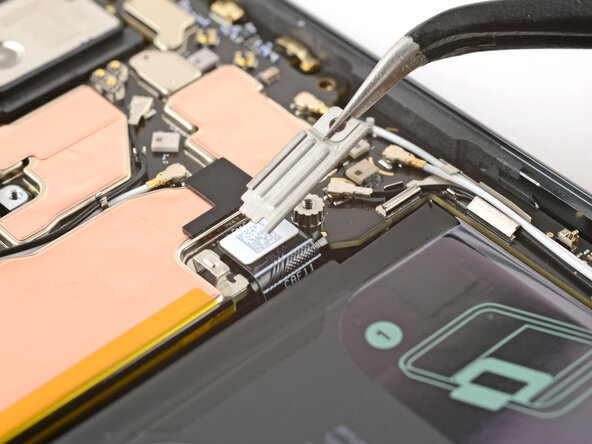
Verwende die Spitze eines Spudgers und eine Pinzette, um das Kupferband der Frontkamera vom Logic Board abzuziehen.
-
Entferne die Frontkamera.
-
-
-
-
-
Glückwunsch, du hast das Pixel zerlegt. In den restlichen Schritten wird der Zusammenbau beschrieben.
-
-
-
-
-
Entferne alle Kappen oder Kunststoff-Schutzfolien von deiner Ersatz-Frontkamera-Linse.
-
-
-
Setze die Frontkamera in ihre Vertiefung ein.
-
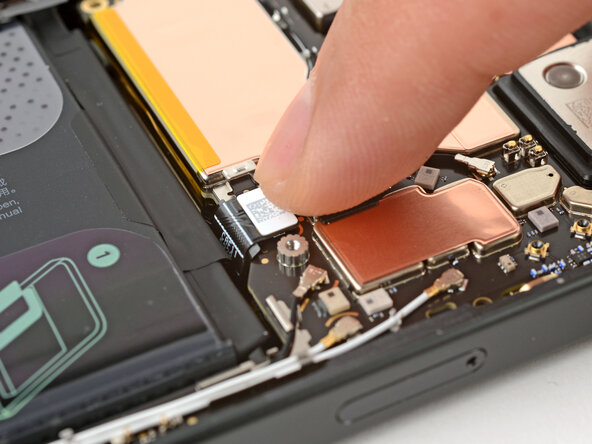
Drücke die Frontkamera Steckverbinder mit dem Finger fest, um sie zu verbinden.
-
-
-
Löse die Kupferfolie von ihrer großen durchsichtigen Schutzfolie und platziere sie auf der Frontkamera.
-
Drücke den oberen Teil der Folie an, um sie an der Kamera zu befestigen.
-
-
-
Halte den oberen Teil der Kupferfolie mit deinem Finger fest und ziehe die Schutzfolie mit einer Pinzette aus dem unteren Teil der Folie heraus.
-
Drücke den unteren Teil der Kupferfolie fest, um ihn am Logic Board zu sichern.
-
-
-
Entferne die restliche Schutzfolie mit einer Pinzette von der Oberseite der Kupferfolie.
-
-
-
-
-
Richte den Akku-Steckverbinder mit dem Finger aus und drücke ihn auf seinen Anschluss.
-
Versuche nicht, den Stecker mit Gewalt einzusetzen. Wenn es Probleme gibt, richte ihn neu aus und versuche es erneut.
-
-
-
Hake die linke Kante der Akkustecker-Abdeckung ein und lege die Abdeckung anschließend flach auf.
-
-
-
Verwende einen Torx-Plus-3IP-Schraubendreher, um die 1,9 mm lange Schraube der Steckerabdeckung einzubauen.
-
-
-
-
-
Lege die Drahtlos-Ladeeinheit auf den Rahmen.
-
Drücke sie um den Rand herum mit den Fingern fest, bis alle Clips eingerastet sind.
-
Halte an, wenn du merkst, dass die Clips nicht einrasten. Kontrolliere nochmals, ob irgendwas darunter nicht an richtigen Platz ist.
-
-
-
Nimm den Torx Plus 3IP-Schraubendreher und drehe die fünfzehn 5,0 mm langen Befestigungsschrauben der Drahtlos-Ladeeinheit wieder hinein:
-
Dreizehn graue Schrauben
-
Zwei silberne, nicht-magnetische Schrauben
-
-
-
-
-
Schalte das Gerät ein und überprüfe alle Funktionen.
-
Lasse das eingebaute Pixel Diagnostic tool laufen, um Fehler zu finden.
-
Schalte das Gerät komplett aus, bevor du weiterarbeitest.
-
-
-
-
-
Beseitige alle Kleberreste mit den Fingern, einem Spudger oder einer Pinzette vom Rand des Rahmens.
-
Wenn es dir gelingt, ein größeres Stück des Klebers mit den Fingern zu greifen, kannst du einen längeren Abschnitt abziehen. Ziehe den Kleber langsam in Gegenrichtung ab.
-
Beseitige alle Spuren des Klebers mit hochkonzentriertem Isopropylalkohol (mindestens 90%ig) und einem fusselfreien Tuch (oder Kaffeefilterpapier).
-
-
-
Schaue dir die Klebeflächen um die Kameras genau an. Wenn sie sauber und glatt sind, kannst du sie weiterwenden und gleich drei Schritte weiter springen.
-
Heble die sieben Klebeflächen um die Kameras mit der Spudgerspitze hoch und entferne sie.
-
-
-
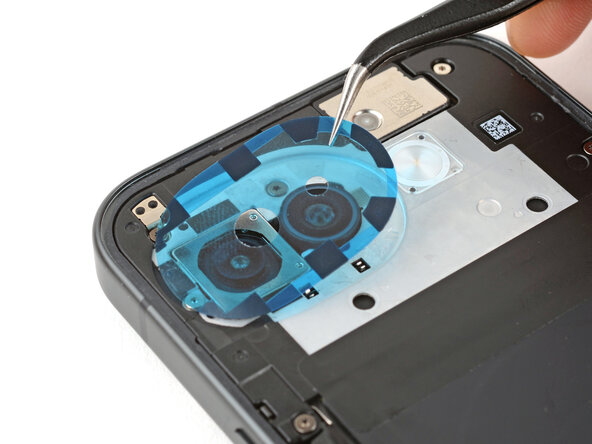
Ziehe die durchsichtige Schutzfolie von der Klebefolie für die Kameraeinfassung ab.
-
Richte die Klebefolie sorgfältig aus und lege sie an ihren Platz. Orientiere dich dabei an den Rückkameras.
-
-
-
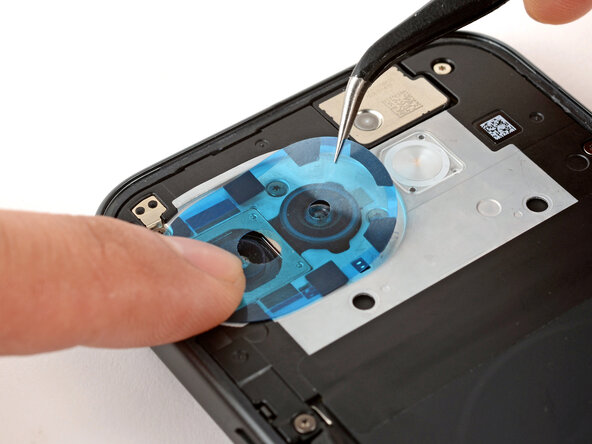
Drücke den Kleber für die Kameraeinfassung mit den Fingern auf den Rahmen fest.
-
Ziehe die obere blaue Schutzfolie vom Kleber ab.
-
-
-
Schaue dir die Klebeflächen im Inneren der Rückseite genau an. Wenn sie sauber und glatt sind, kannst du sie weiter verwenden. Springe dann gleich zwei Schritte weiter.
-
Schabe die Klebeflächen im Inneren der Rückseite mit einem Spudger ab und beseitige sie ganz.
-
-
-
Ziehe die durchsichtige Schutzfolie von der inneren Klebefolie ab.
-
Richte die Klebefolie aus und drücke sie auf die Gehäuserückseite fest. Orientiere dich am Ausschnitt für die Kamera.
-
Ziehe die große Schutzfolie langsam ab und entferne sie.
-
-
-
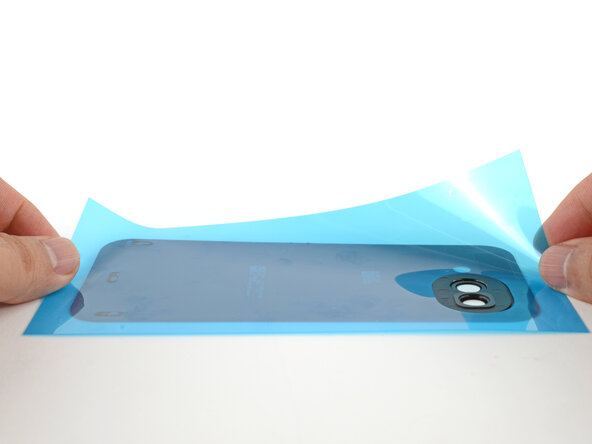
Halte die Klebefolie der Rückseite über das Smartphone, ohne die Schutzfolie abzuziehen, um die genaue Einbaulage auf dem Rahmen kennenzulernen. Orientiere dich am Ausschnitt für die Kamera.
-
-
-
Ziehe die obere Hälfte der durchsichtigen Klebefolie ab, um die Klebefläche freizulegen. Entferne die Schutzfolie noch nicht ganz.
-
-
-
Richte die Oberkante der Klebefolie am Rahmen aus und lege sie auf den Rahmen.
-
Drücke die Oberkante fest, damit der Kleber seine Position beibehält.
-
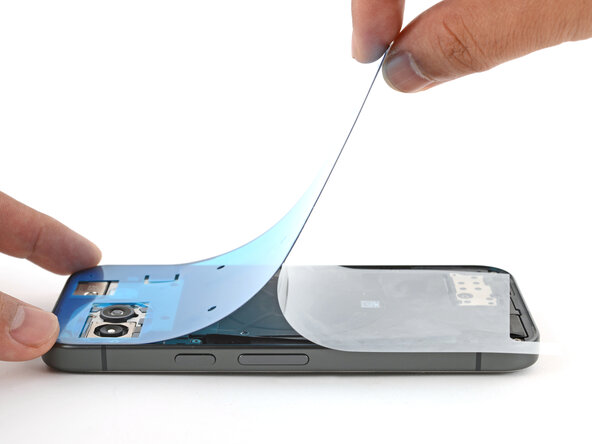
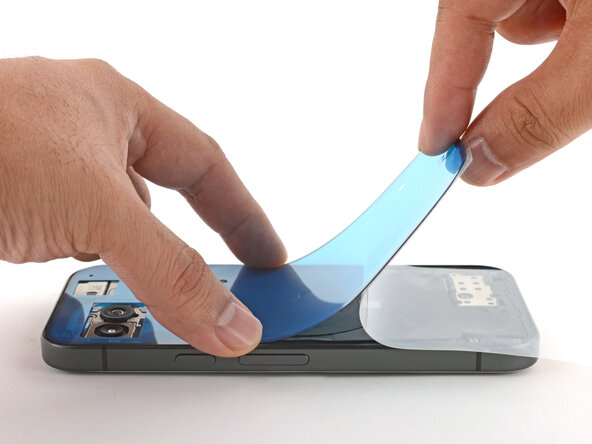
Ziehe allmählich die durchsichtige Schutzfolie ab, während du die restliche Klebefolie befestigst.
-
-
-
Drücke den Klebestreifen rund um den Rand des Rahmens herum mit einem Spudger fest.
-
-
-
Ziehe die große Schutzfolie vom Klebestreifen der Rückseite ab und entferne sie.
-
-
-
Wenn du Ersatzkleber für die Kamerafassung angebracht hast, dann entferne alle restlichen Schutzfolien davon.
-
-
-
Entferne die Schutzfolie vom Rand.
-
Schaue genau nach, ob noch Schutzfolien auf dem Rahmen verblieben sind und entferne sie.
-
-
-
Kontrolliere, ob die Rückkameragläser sauber sind. Wische sie - wenn nötig - sorgfältig mit einem fusselfreien Tuch ab.
-
Entferne alle Kappen oder Schutzfolien von den Kameragläsern. Achte darauf, dass die Objektive sauber sind. Wische sie - wenn nötig - sorgfältig mit einem fusselfreien Tuch ab.
-
-
-
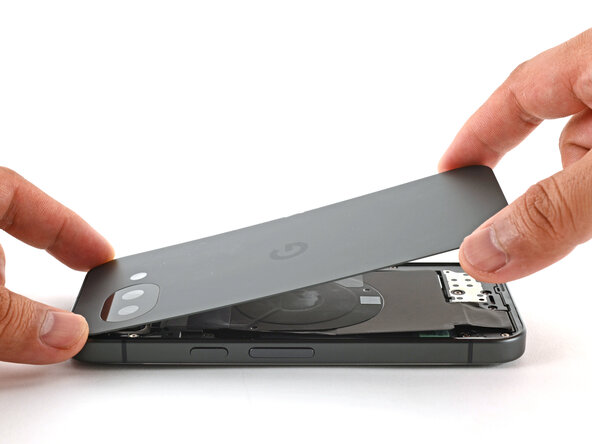
Lege die Rückseite über den Rahmen.
-
Drücke den Rand rundherum fest, damit der Kleber gut hält.
-
-
























Herzlichen Glückwunsch zum Abschluss deiner Reparatur!
Bringe deinen Elektroschrott zu einem nach R2 oder e-Stewards zertifizierten Recyclinghof.
Um einen Diagnosetest mit dem integrierten Pixel-Diagnosetool durchzuführen, klicke hier.
Hat die Reparatur nicht ganz geklappt? Versuche es mit ein paar grundlegenden Schritten zur Fehlerbehebung, oder bitte im Forum um Hilfe.

